

Welcome to Mozzu - AI Based Online Food Ordering System & Multi-Restaurant with SaaS Documentation.
- Item Name : Mozzu - AI Based Online Food Ordering System & Multi-Restaurant with SaaS
- Created: 20 october 2025
- Item Version : v 1.0
- Author : ThemeDox
- Support Ticket: Theme Support
Mozzu - AI Based Online Food Ordering System & Multi-Restaurant with SaaS Features
Mozzu - AI Based Online Food Ordering System & Multi-Restaurant with SaaS comes with a powerful set of modern tools and modules to help you build, manage and scale your website easily. From dynamic content management to SEO, payment gateways, multi-language support and a full-featured admin panel — everything is included in one elegant system.
Key Features
- Built with Laravel 11 framework
- Tailwind CSS based modern and responsive design
- Multiple ready themes with easy customization
- User-friendly and clean code structure
- SEO-friendly architecture with meta settings
- Secure authentication and authorization system
- Powerful Admin Dashboard with analytics
- Blog Management System with categories & comments
- Dynamic Menu Management (Unlimited Menus)
- Unlimited Custom Page creation
- About Page & Contact Page Management
- Homepage customization with Section Builder
- Team & Testimonial Management System
- FAQ, Terms & Conditions, Privacy Policy Management
- Multi Language & Multi Currency Support
- Social Media Login (Google, Facebook)
- Google reCaptcha & Google Analytics integration
- Tawk Live Chat integration
- Newsletter with email verification
- Maintenance Mode & Cookie Consent support
- Custom 404 Error Page Management
- Powerful Email Template & SMTP Configuration
- Database Clear & Cache Clear Options
- User Dashboard with order history & profile management
- Delivery Dashboard with real-time order tracking
- Pos Management System
- Inventory Management System
- Restaurant Dashboard for menu, orders & earnings management
- Weather-based food showcase feature
- AI-powered title, short description, and full description generator
- Advanced Role-Based Access Control (RBAC)
- Multi-Restaurant / Multi-Vendor Support
- Restaurant Earnings & Payout Management
- Delivery Man / Driver Management System
- Food Variants & Addons Management
- Order Live Status Tracking System
- Restaurant Opening & Closing Time Setup
- Delivery Zone Management with Google Map
- Distance-based Delivery Charge Setup
- Order Invoice Generate & PDF Download
- Restaurant Review & Rating System
- Multiple Payment Gateways
- Referral System
- Backup & Restore System
- And much more...
Payment Gateways
Mozzu CMS supports multiple international payment gateways to make transactions smooth for global users:
- Razorpay – Razorpay payment.
- 2Checkout – Global payment solution accepting credit cards and PayPal worldwide.
- Flutterwave – African payment gateway supporting cards, mobile money, and bank transfers.
- Instamojo – Indian payment solution with UPI, cards, and wallet support.
- Mollie – European payment provider with local payment methods and seamless integration.
- PayMongo – Philippines-focused gateway with GCash, cards, and installment options.
- PayPal – Fast and secure payment through your PayPal account.
- Paystack – African payment platform with card, bank, and mobile money integration.
- Stripe – Instant payment processing with advanced fraud protection.
Admin Panel Features
- 100% Secure Admin Panel
- Users & Roles Management
- Referrals History
- Restaurants Management
- Foods Management
- Waiters / Staff Management
- Financial Dashboard
- Payout Requests
- Refunds Management
- Sale, Purchase & Purchase Return
- Blog & Comment Management
- Gallery Image Management
- FAQ Management
- Section & Homepage Builder
- Custom Page Management
- Website Settings & Theme Selection
- Logo & Favicon Management
- 404 Error Page Management
- Google ReCaptcha, Analytics & Facebook Pixel Settings
- SMTP Email Configuration & Email Templates
- Multi-Language & Multi-Currency Management
- SEO Settings & Optimization Tools
- Newsletter Management & Bulk Email Sending
- Social Login Configuration
- Payment Gateway Credential Management
- Profile & Password Settings
- Database Clear (Fresh Install) & Cache Clear
- Maintenance Mode & Cookie Consent Control
- And more powerful options…
Restaurant Dashboard Features
- Dashboard Overview
- Total Revenue Display
- Active Orders Tracking
- Total Orders Summary
- Food Management
- Top Rated Foods Section
- Top Selling Foods Analytics
- Food Reviews Management
- Order Management
- Latest Orders Table
- Order Status Tracking
- Order Details View
- Financial Management
- Coupons System
- Subscriptions
- Wallet & Transactions
- Analytics & Reports
- Statistics Charts
- Order Trends Graph
- Revenue Analytics
- Payment Analytics
- Orders vs Amounts
- Payment Method Usage
- Payment Per Month
- Statistics Charts
- Profile & Settings
- Restaurant Profile Management
- Password Change
- Support Tickets System
- Log Out
- Sample Data Examples
- Top Rated Foods (with reviews)
- Latest Orders Table with real data
- Top Selling Foods with sales count
- Statistics visualization
Delivery Boy Dashboard Features
-
Dashboard Overview:
- Referrals System
- Orders Management
- Wallet Balance Display ($0.00)
- My Profile Management
- Listed Orders Table (Order Number, Customer Info, Total Amount, Items Count, Order Status, Payment Status, Order Date, Actions)
- Order Status Tabs (All Orders, Pending, Processing, Shipped, Delivered, Cancelled, Refunded)
- Order Items Details
- Last 20 Days Activity
- Save All Orders History
- Apply For Restaurant (Affiliation)
- Password Change
- Support Tickets System
- Chat/Communication System
User Features
- 100% Responsive and Modern User Dashboard UI
- Language & Currency Switcher
- User Registration with Email Verification
- Secure Login, Forgot Password & Social Login
- Clean Sidebar Navigation: Dashboard, Orders, Wishlist, Referrals & More
- Dashboard Overview with Order Statistics
- Total Orders, Total Spent & Monthly Spending Summary
- Order Status Tracking: Pending, Processing, Ready/Picked, On the Way, Delivered, Cancelled, Refunded
- Latest Orders Table with Filtering Tabs
- Wishlist Management
- Profile Update: Photo, Name & Contact Information
- Password Change Option
- Support Tickets System
- Live Chat Section
- Order Items Details Page
- Order History with Status Badges
- Secure Checkout & Multiple Payment Options
- Referral System:
- Referral Dashboard Overview
- Total Referrals, Active Referrals & Total Orders Counter
- Total Earnings from Referrals
- Available Balance with Minimum Withdrawal Limit
- Automatically Generated Unique Referral Code
- Referral Registration Link with Copy Button
- Commission Earning System (e.g., 5% commission per order)
- Referral Bonus for New Users (e.g., $28 bonus)
- Recent Referrals History Table
- Search & Pagination in Referral Table
- Referral Details: User, Welcome Bonus, Commission, Orders & Status
- Easy Logout Option
- And Many More Features…
Installation on Local Server
Installing Mozzu Laravel CMS on your local environment is simple. Just follow these steps carefully to get your project up and running smoothly.
1. System Requirements
Before starting, make sure your local machine meets the following requirements:
- Operating System: Windows, macOS, or Linux
- Web Server: XAMPP or WampServer (installed on your PC)
- PHP: Version 8.1 or later
- Database: MySQL, PostgreSQL, SQLite or supported by Laravel
- Composer: PHP dependency manager (must be installed)
- Node.js & npm: For managing frontend assets
- PHP Extensions: openssl, fileinfo, mbstring, tokenizer, json, ctype, xml
Note: Make sure all the above requirements are installed and configured properly on your local machine.
1. Installation Steps
2. Installation Steps
3. Installation Steps
Manual Upload via FTP (Optional)
If you want to install it manually, upload the entire Mozzu folder to your web server using FTP. Place it inside your web root directory, then follow the same steps (Composer install, npm install, env setup, migration).
The application files will be stored in your local server folder (e.g.
htdocs/zaira).
Note: Do not upload the entire ZIP package directly. Make sure to extract and use the main project folder.
Installing Laravel and Setting Up the Local Host
-
Download or clone your Laravel script from codecanyon on your local machine. The
installation of this script is super easy. If you can install normal php based
scripts on your local host, you can install our script. We will tell you how to
install this script step by step on a localhost.
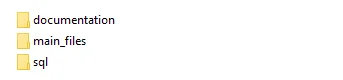
If you extract the zip file, you will see that there are total three folders.
The folder names are: sql, documentation and main_files. The "main_files" folder is the main laravel source codes. The "sql" folder contains the main database file "database.sql"
-
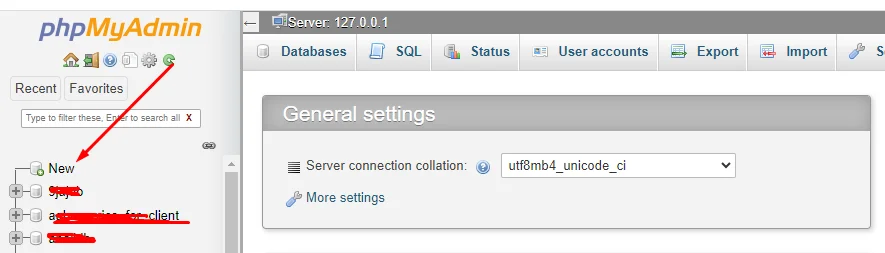
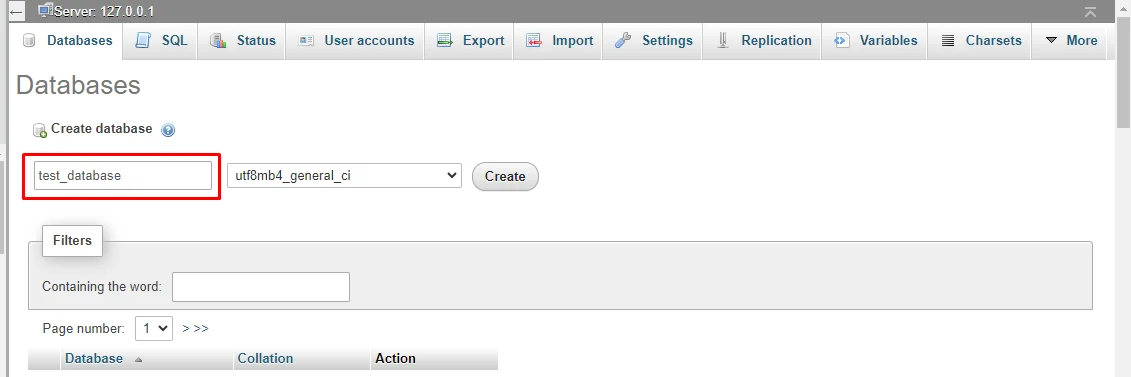
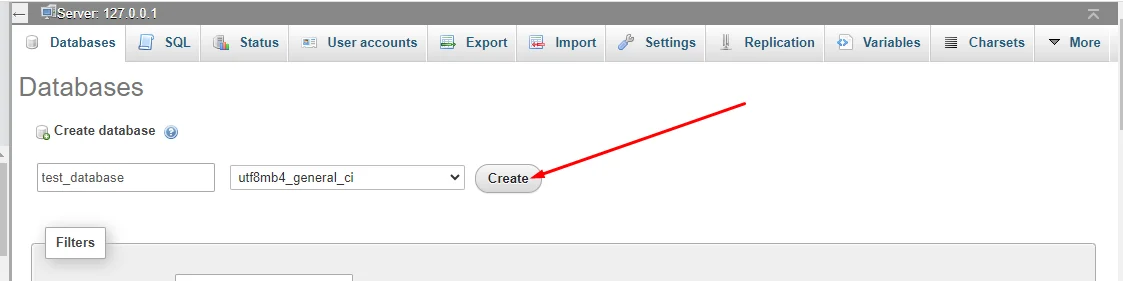
To create database on localhost go to your localhost phpmyadmin
http://localhost/phpmyadmin/index.phpand now click 'New'
Installation on Local Server
Installing Mozzu Laravel CMS on your local environment is simple. Just follow these steps carefully to get your project up and running smoothly.
1. System Requirements
Before starting, make sure your local machine meets the following requirements:
- Operating System: Windows, macOS, or Linux
- Web Server: XAMPP or WampServer (installed on your PC)
- PHP: Version 8.1 or later
- Database: MySQL, PostgreSQL, SQLite or supported by Laravel
- Composer: PHP dependency manager (must be installed)
- Node.js & npm: For managing frontend assets
- PHP Extensions: openssl, fileinfo, mbstring, tokenizer, json, ctype, xml
Note: Make sure all the above requirements are installed and configured properly on your local machine.
1. Installation Steps
2. Installation Steps
Steps 1
Steps 2
Steps 3
Steps 4
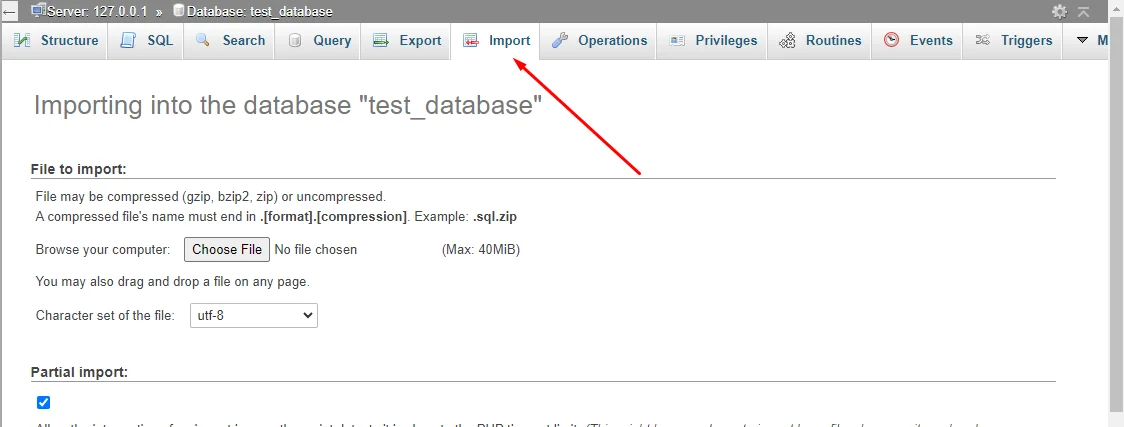
Steps 5
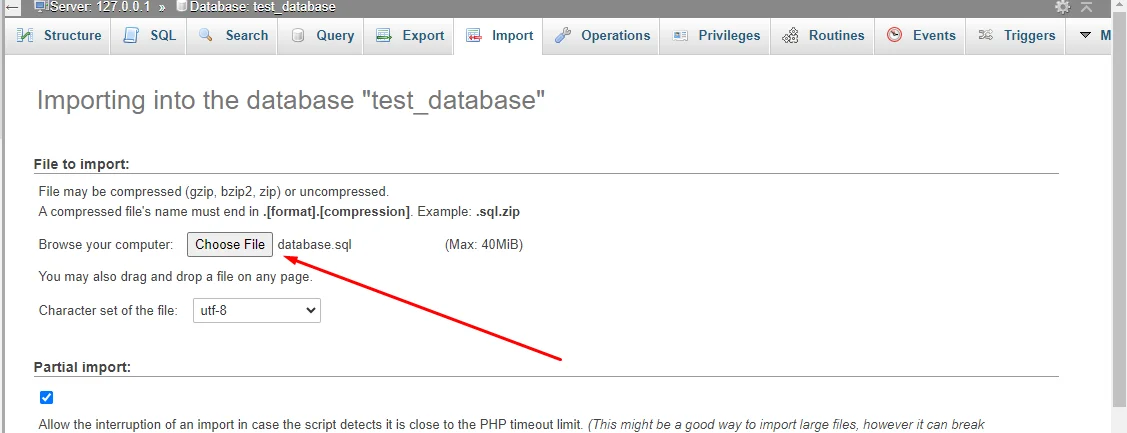
Steps 6
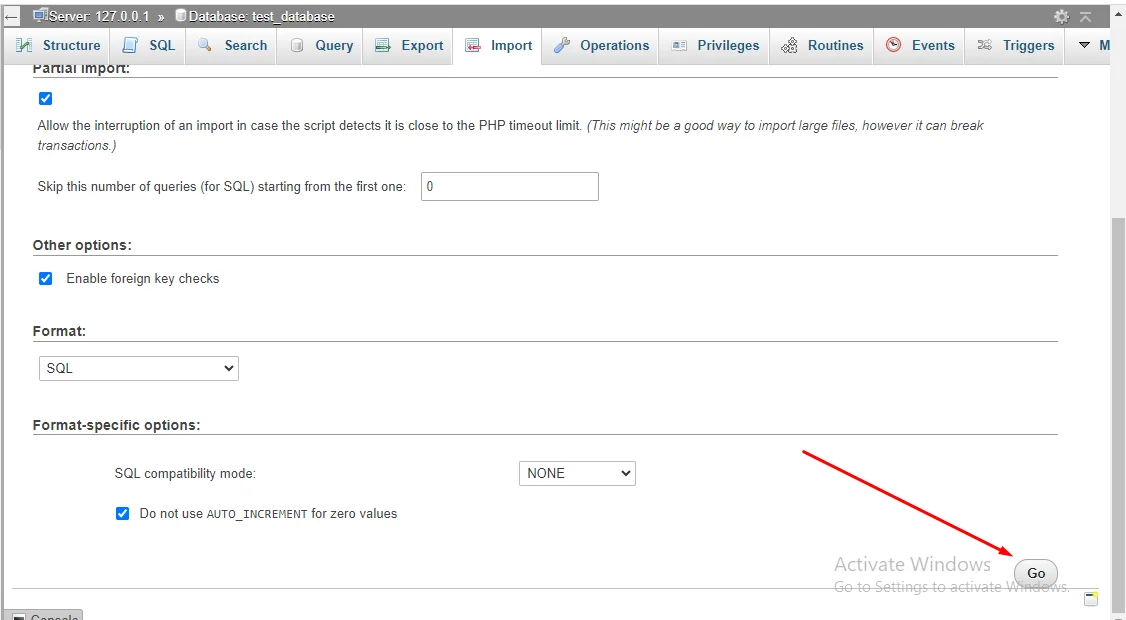
3. After extracting the main zip go to the extract folder.
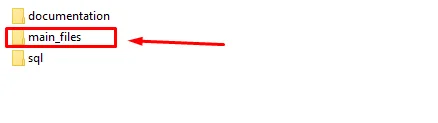
4. Inside the "mail_files" you can see 2folders (main_files, all_version). The "main_files" folder is the main laravel source codes. The "all_version" folder will be use for version update.

5. Now go to "xampp >> htdocs" and create new folder. Inside the folder paste your "main_files"(laravel source code) folder content.
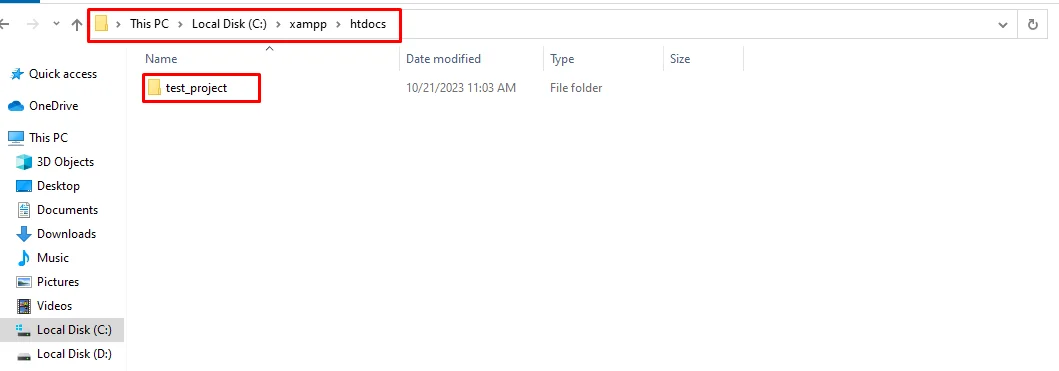
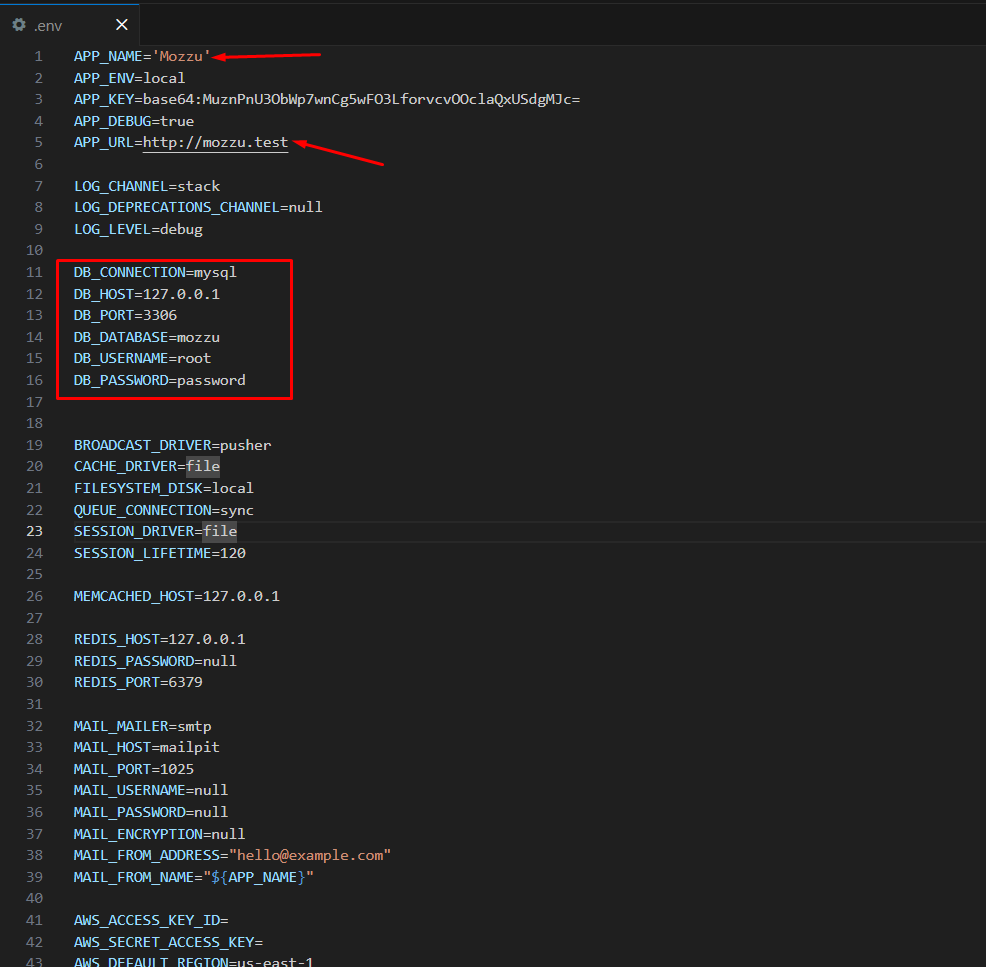
6. Now open the .env file and update with your database credentials, app_name, app_url as needed.
7. Now open your web browser and visit the local URL to access your Laravel application (by default, http://localhost).
Manual Upload via FTP (Optional)
If you want to install it manually, upload the entire Mozzu folder to your web server using FTP. Place it inside your web root directory, then follow the same steps (Composer install, npm install, env setup, migration).
The application files will be stored in your local server folder (e.g.
htdocs/zaira).
Note: Do not upload the entire ZIP package directly. Make sure to extract and use the main project folder.
Installing Laravel and Setting Up the Local Host
-
Download or clone your Laravel script from codecanyon on your local machine. The
installation of this script is super easy. If you can install normal php based
scripts on your local host, you can install our script. We will tell you how to
install this script step by step on a localhost.
If you extract the zip file, you will see that there are total three folders.
The folder names are: sql, documentation and main_files. The "main_files" folder is the main laravel source codes. The "sql" folder contains the main database file "database.sql"
-
To create database on localhost go to your localhost phpmyadmin
http://localhost/phpmyadmin/index.phpand now click 'New'
Installation on Live Server
System Requirements
To use Mozzu - AI Based Online Food Ordering System & Multi-Restaurant with SaaS, make sure your local or live server meets the following minimum requirements:
- PHP: Version 8.1 or higher
- Database: MySQL, PostgreSQL, SQLite, or any database supported by Laravel
- Composer: PHP dependency manager (required)
- Node.js & npm: Required for managing frontend assets
Required PHP Extensions
- BCMath PHP Extension
- Ctype PHP Extension
- Fileinfo PHP Extension
- JSON PHP Extension
- Mbstring PHP Extension
- OpenSSL PHP Extension
- PDO PHP Extension
- Tokenizer PHP Extension
- XML PHP Extension
Recommended PHP Configuration Limits
If you face issues like blank pages, timeout during installation, or errors while importing demo data, it may be due to low PHP configuration limits. Please increase them as follows or contact your hosting provider to do so:
max_execution_time = 180memory_limit = 256Mpost_max_size = 64Mupload_max_filesize = 32Mmax_input_time = 60max_input_vars = 3000
Also consider upgrading your PHP version to the latest stable version for best performance and security.
Credentials
The default credentials of the script are:
Admin Login
Email: admin@gmail.com
Password: password
Restaurant Login
Email: foodhub@gmail.com
Password: password
Delivery Boy Login
Email: deliveryboy@gmail.com
Password: password
User Login
Email: user@gmail.com
Password: password
Theme Activation Process
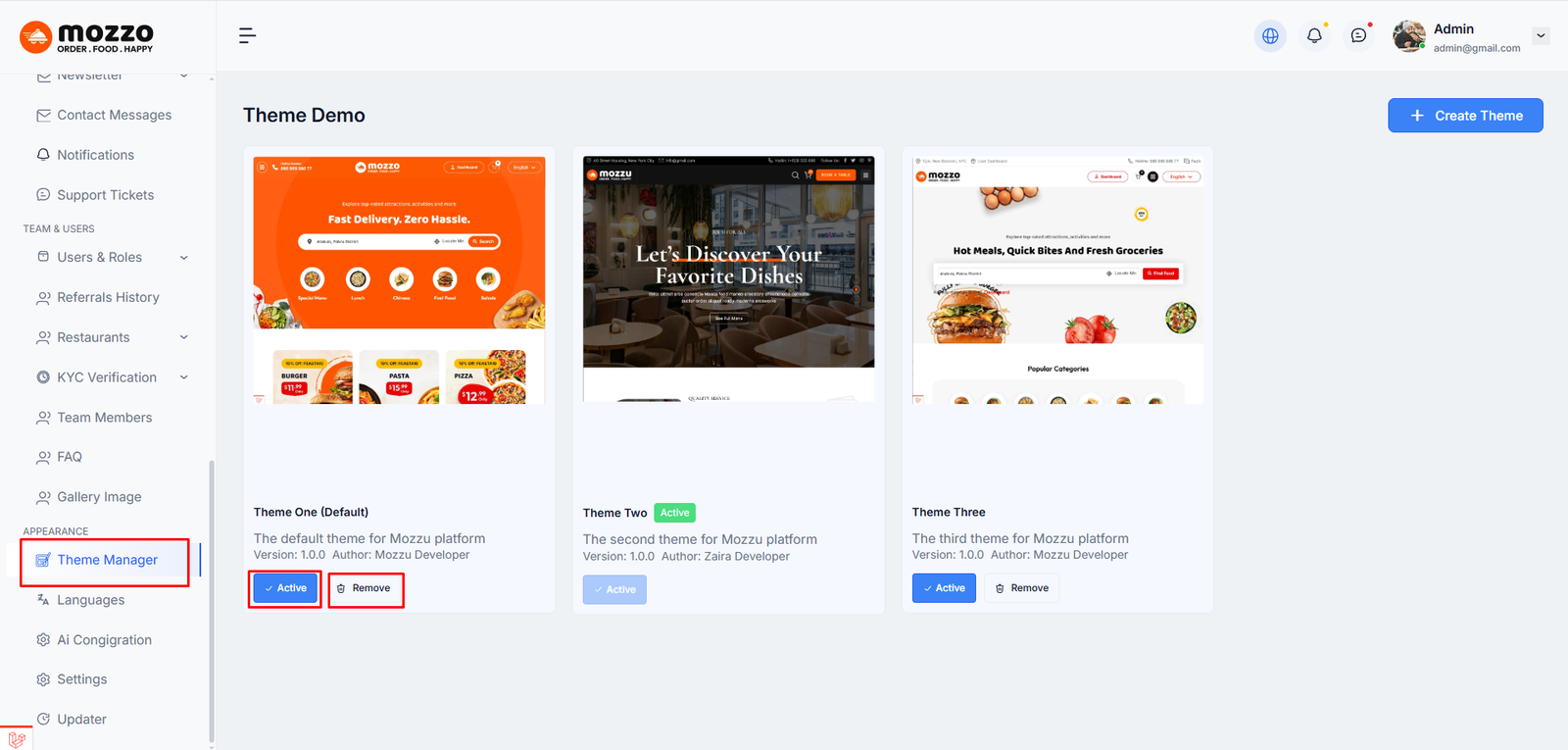
To activate a specific theme in your platform, please follow the steps below:
Step 1: Navigate to Appearance > Theme Manager.
Step 2: You will see all available themes listed on the Theme Manager page.
Step 3: Each theme will have an Active button under it.
Click the Active button for the specific theme you want to activate.
Once activated, the button will change to a blue ✓ Active state, indicating the theme is now active.
Note: Only one theme can be active at a time. Activating a new theme will automatically deactivate the previous one.
General Settings
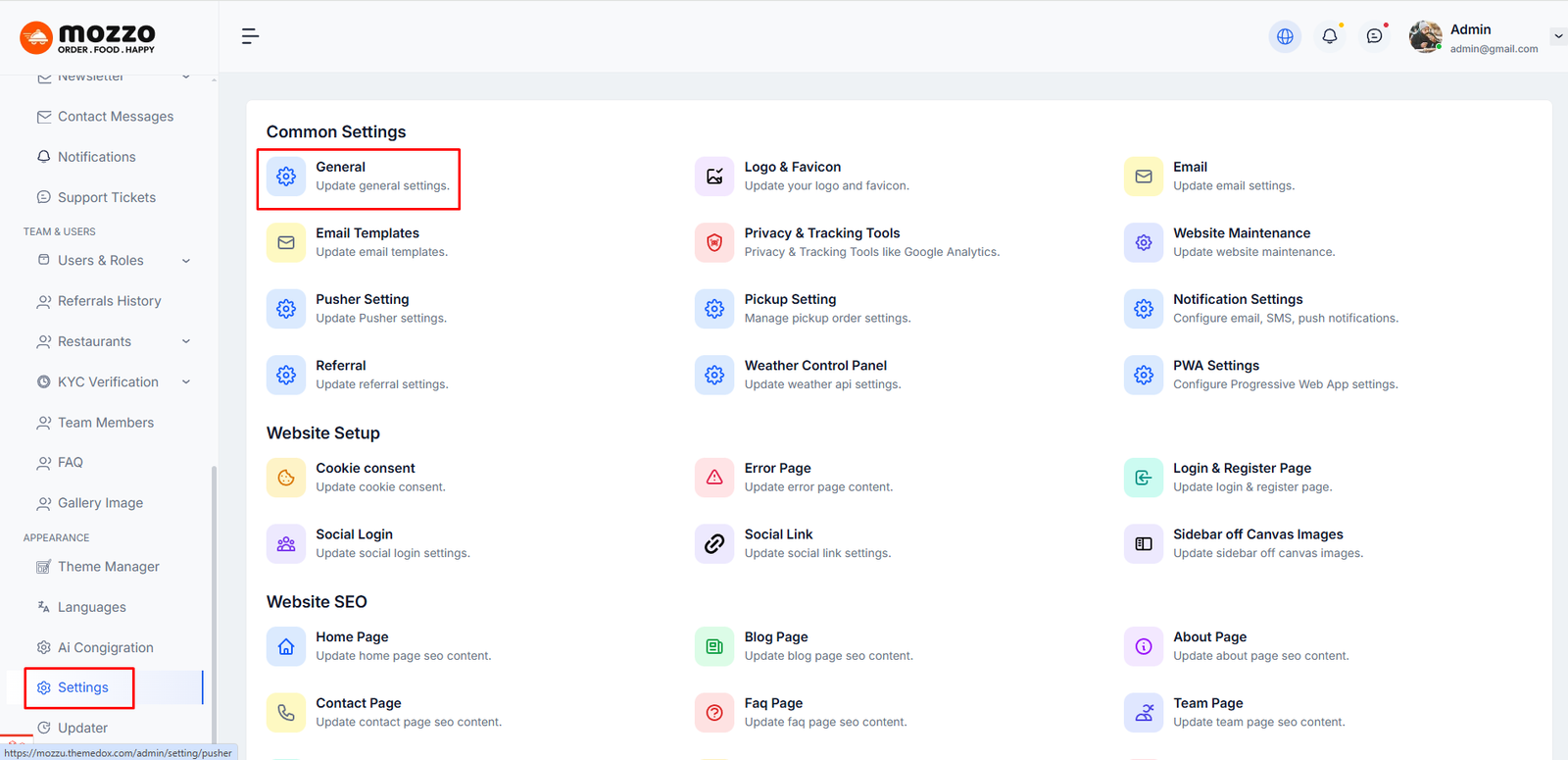
To access and configure general settings for your platform, follow these steps:
Step 1: Click on Settings in the left sidebar (located at the bottom of the menu).
Step 2: The Settings page will open. You will see the General option with "Update general settings" description.
Step 3: Click on the General section.
Step 4: The General Setting page will load where you can modify:
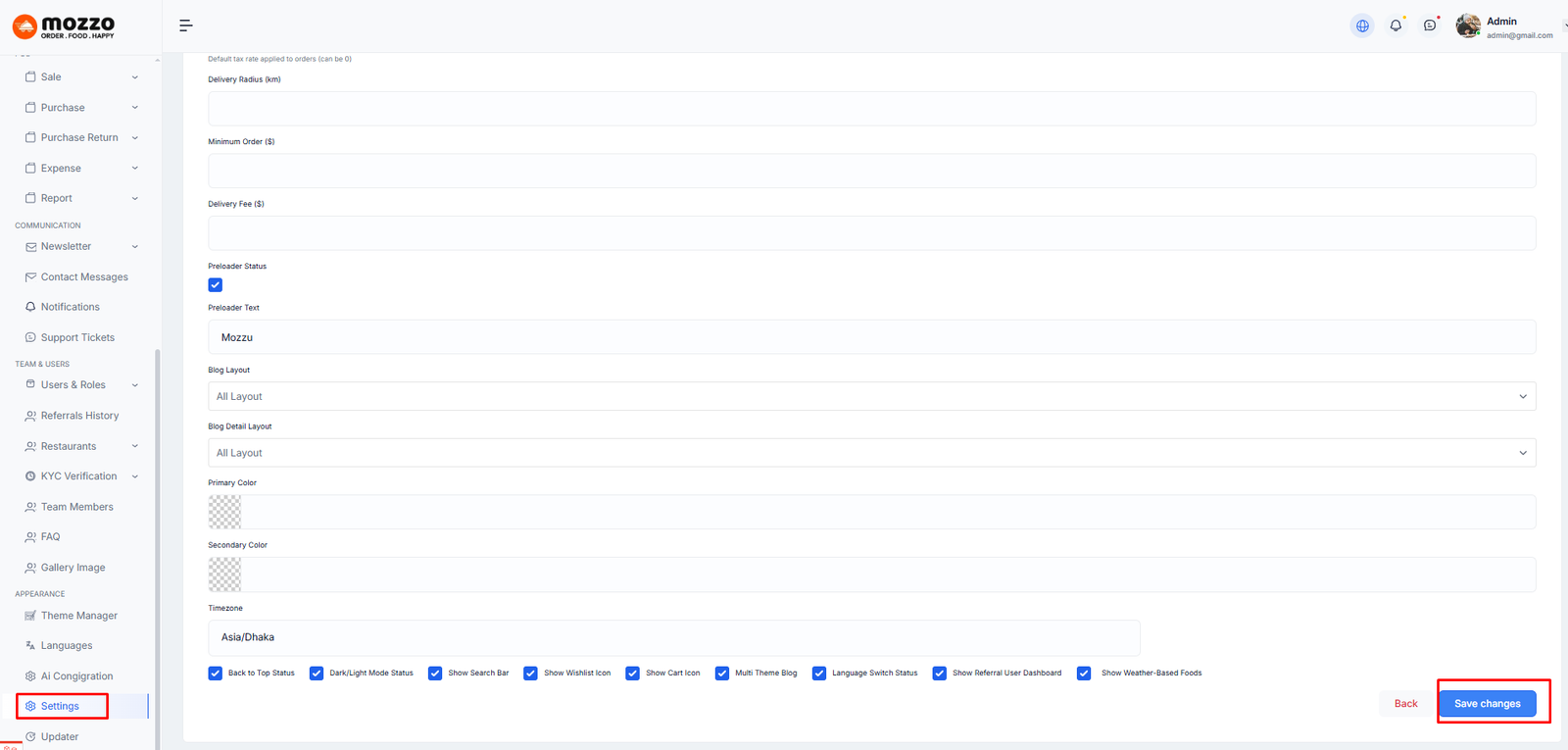
- Site Name: Enter your website or business name that will be displayed across your platform
- Site Description: Add a brief and compelling description of your website to help users understand your business
- Site URL: Set the complete URL of your website (e.g., https://mozzu.themebux.com/)
- Admin Email: Enter the primary email address for administrative communications and notifications
- Phone Number: Add your contact phone number for customer inquiries and support
- Location: Specify your business location or headquarters address
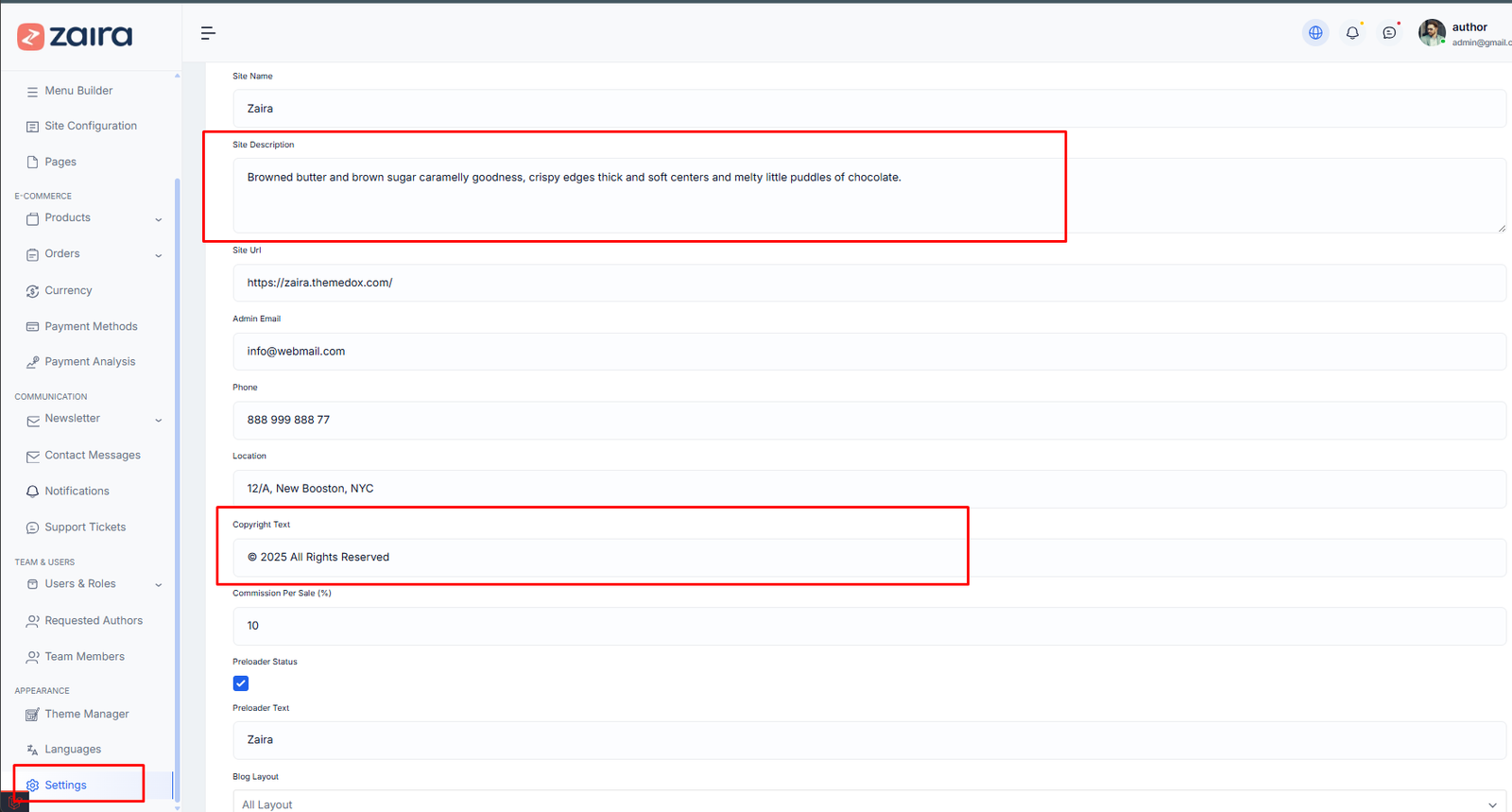
- Copyright Year: Set the copyright year that will appear in your site footer (e.g., © 2025)
- Commission/Sale Percentage: Define the commission percentage for sales transactions on your platform
- Currency Status: Select and configure your preferred currency for displaying prices and transactions
- Blog Layout: Choose from different layout options for your blog page (e.g., All Layout, Grid Layout, etc.)
- Blog Detail Layout: Select the layout style for individual blog post pages
- Primary Color: Set your main brand color that will be used throughout the site's interface
- Secondary Color: Choose a secondary color to complement your primary brand color
- Timezone: Select your timezone to ensure accurate time-based operations (e.g., Asia/Dhaka)
Step 5: Scroll down to the bottom of the page to find additional feature toggles. You can enable or disable:
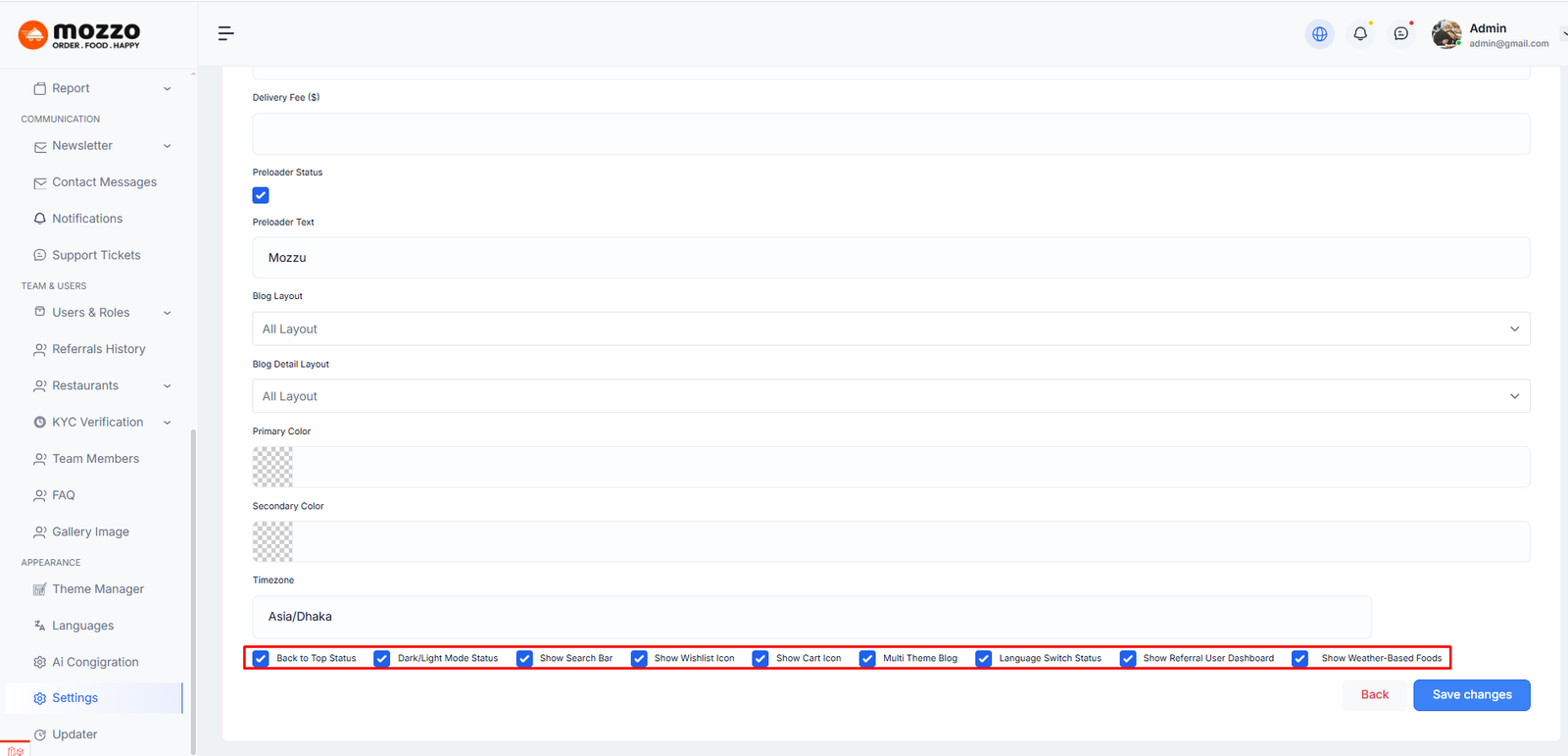
- Back to Top Status: Enable/disable the back-to-top button that helps users quickly return to the top of the page
- Dark/Light Mode Status: Toggle dark mode functionality to allow users to switch between light and dark themes
- Show Search Bar: Display or hide the search bar in your site's navigation
- Show Wishlist Icon: Enable/disable the wishlist feature so customers can save their favorite products
- Show Cart Icon: Display or hide the shopping cart icon in the navigation menu
- Multi Theme Blog: Enable this option to add and manage multiple language blogs. When activated, you can create blog content in different languages to serve a global audience
- Language Switch Status: Allow users to switch between different language versions of your website
- Show Referral User Display: Enable/disable the display of referral user information and statistics in the user interface
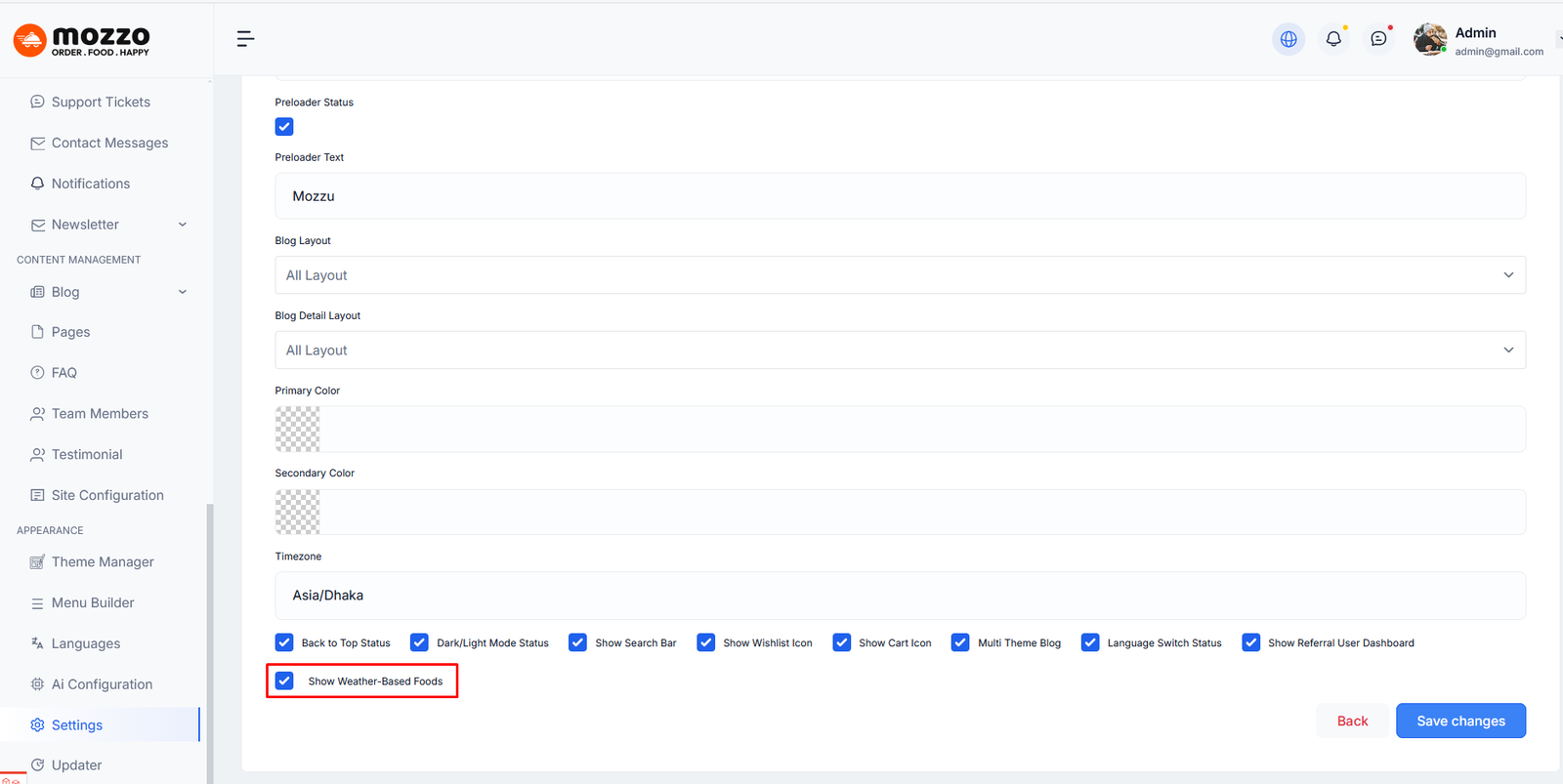
- Show Weather-Based Foods: Enable/disable weather-based food recommendations
Step 6: After making all desired changes, click the Save changes button located at the bottom right of the page.
Note: All changes will be saved and applied to your platform immediately upon clicking the Save changes button. Make sure to review all settings carefully before saving to ensure your platform is configured correctly.
Logo & Favicon Settings
To manage and update your site's logo and favicon, follow these steps:
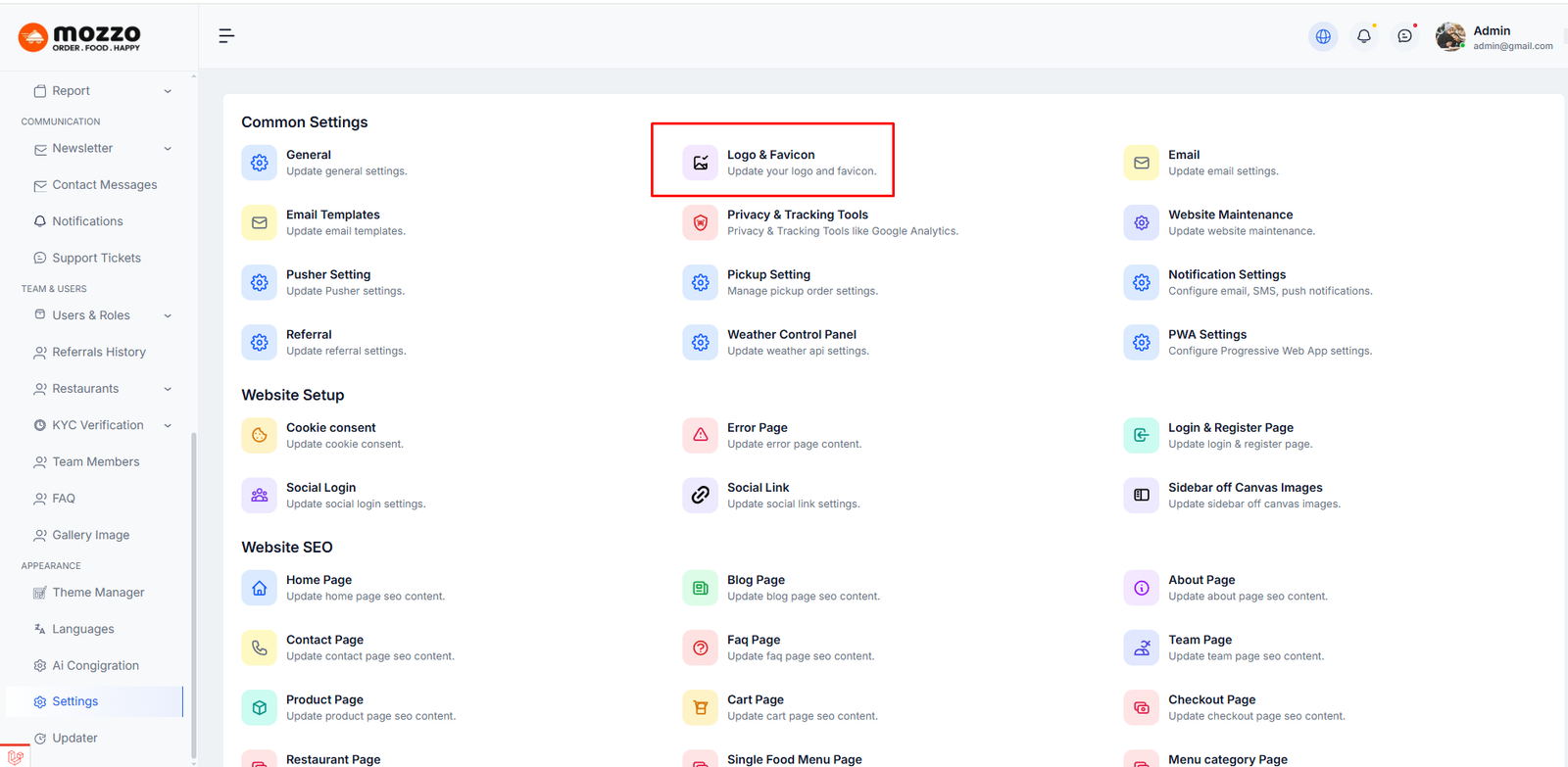
Step 1: Click on Settings in the left sidebar (located at the bottom of the menu).
Step 2: The Settings page will open. You will see the Logo & Favicon option with "Update your logo and favicon" description.
Step 3: Click on the Logo & Favicon section to access logo management options.
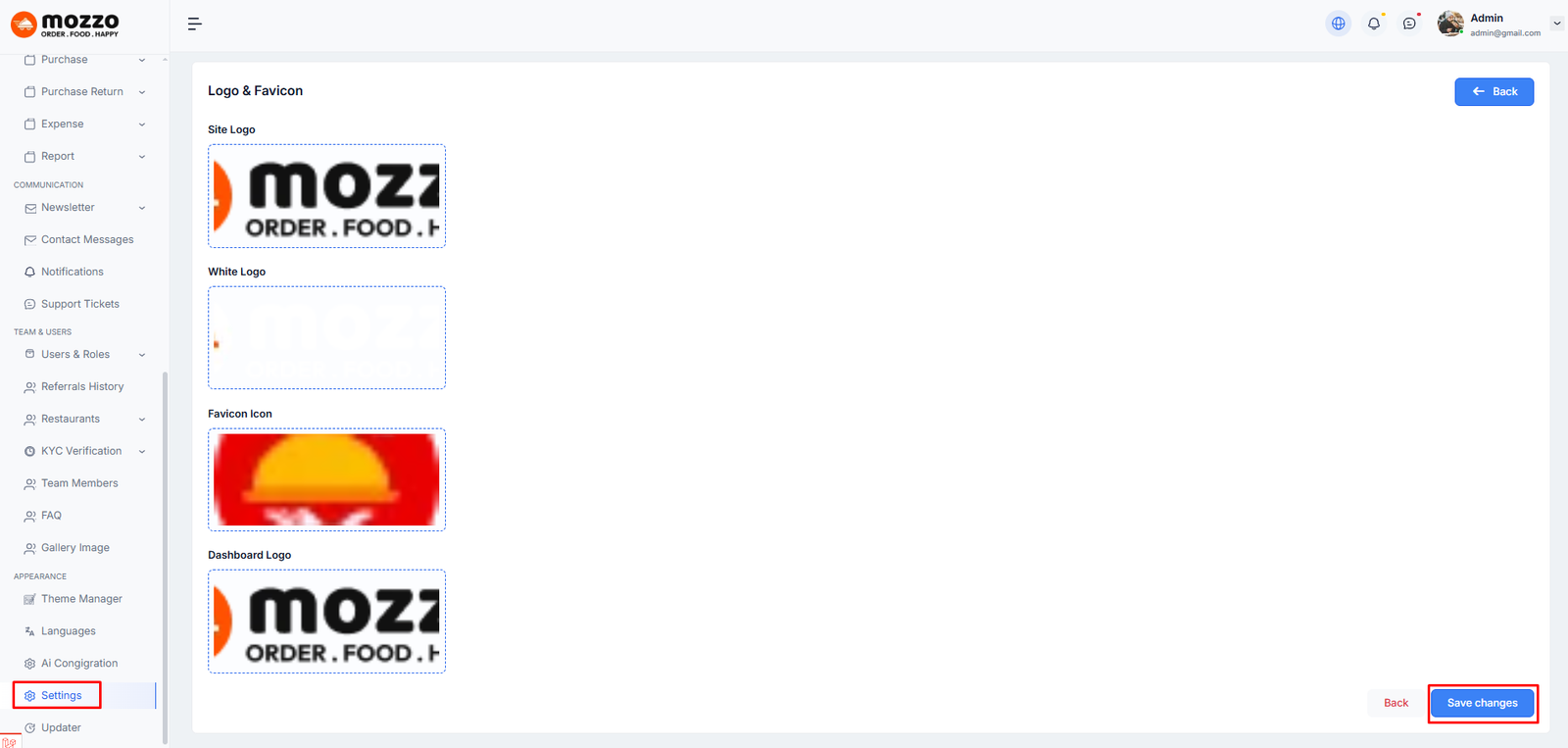
Step 4: The Logo & Favicon page will load with the following upload areas:
- Site Logo: Upload your main website logo that will be displayed in the header. This is the primary logo visible to visitors on your site. Click on the upload area and select an image file (PNG, JPG, etc.)
- White Logo: Upload a white version of your logo. This logo is typically used in dark backgrounds or specific page sections where the main logo may not be visible. This helps maintain visual consistency across different design contexts
- Favicon Icon: Upload your favicon (favorite icon). This small icon appears in the browser tab and bookmarks. It helps users quickly identify your website. The recommended size is 32x32 pixels
- Dashboard Logo: Upload a logo specifically for the admin dashboard. This logo appears in the administration panel and can be different from your public-facing site logo
Step 5: For each logo upload area, click on the dotted rectangle box to select and upload your image file from your computer.
Step 6: After uploading all desired logos and favicons, click the Save changes button located at the bottom right of the page.
Note: All logos will be saved and applied to your platform immediately. Make sure to upload high-quality images for the best appearance across all devices and browsers.
Tawk Live
Email Settings
To configure email settings for your platform, follow the steps below:
Step 1: Click on Settings in the left sidebar (at the bottom of the menu).
Step 2: On the Settings page, locate the Email section with the description "Update email settings".
Step 3: Click on the Email section to open the email configuration options.
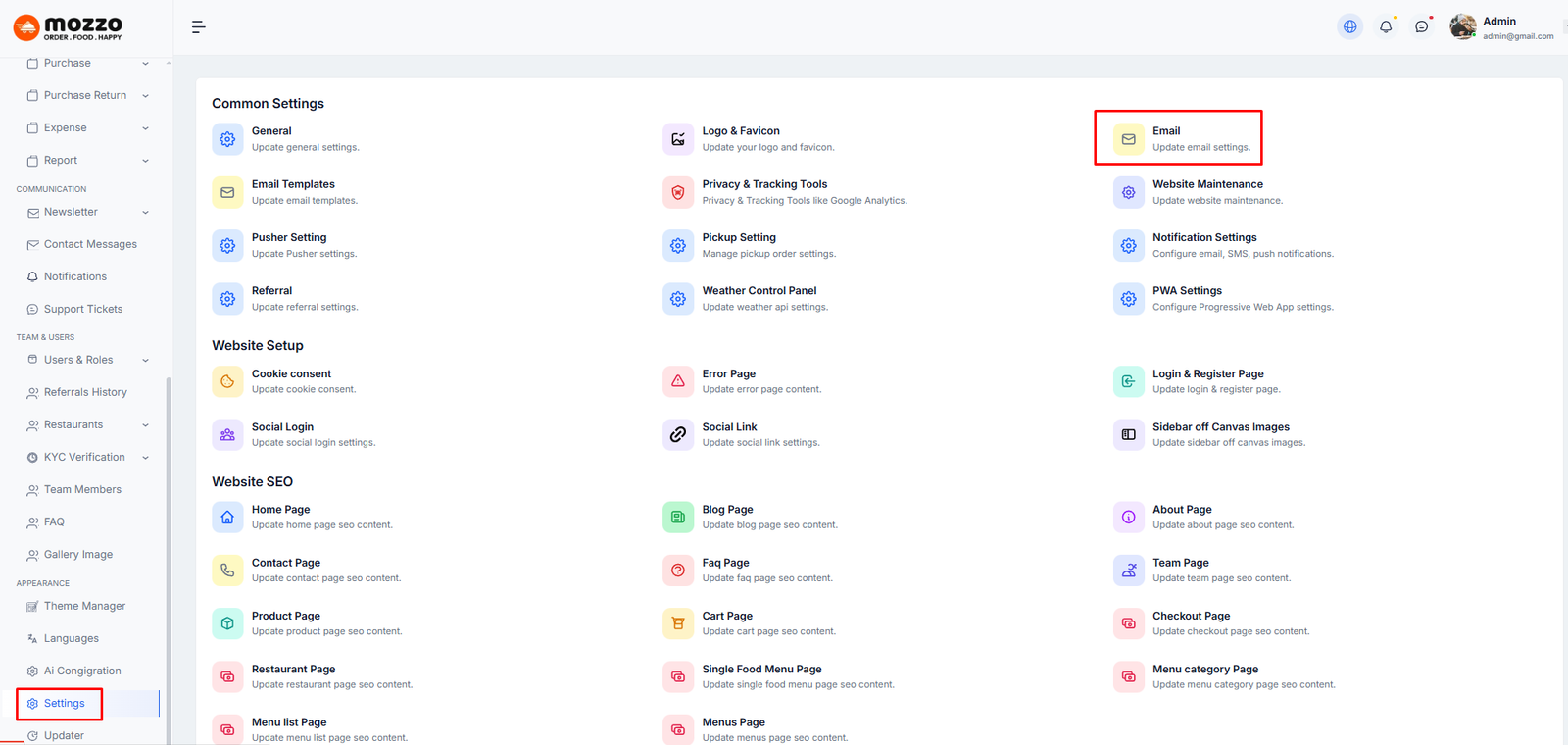
Step 4: The Email Settings page will display various SMTP configuration fields:
- Sender Name: The name that will appear as the sender in outgoing emails (e.g., Mozzu).
- Sender Email: The email address used to send emails (e.g., nayemail2019@gmail.com).
- SMTP Host: Your SMTP server address (e.g., sandbox.smtp.mailtrap.io).
- SMTP Username: Your SMTP account username.
- SMTP Password: Your SMTP account password.
- SMTP Port: The SMTP port number (e.g., 2525).
- SMTP Encryption: Select the encryption method (TLS or SSL).
- SMTP Driver: Choose the SMTP driver (usually smtp).
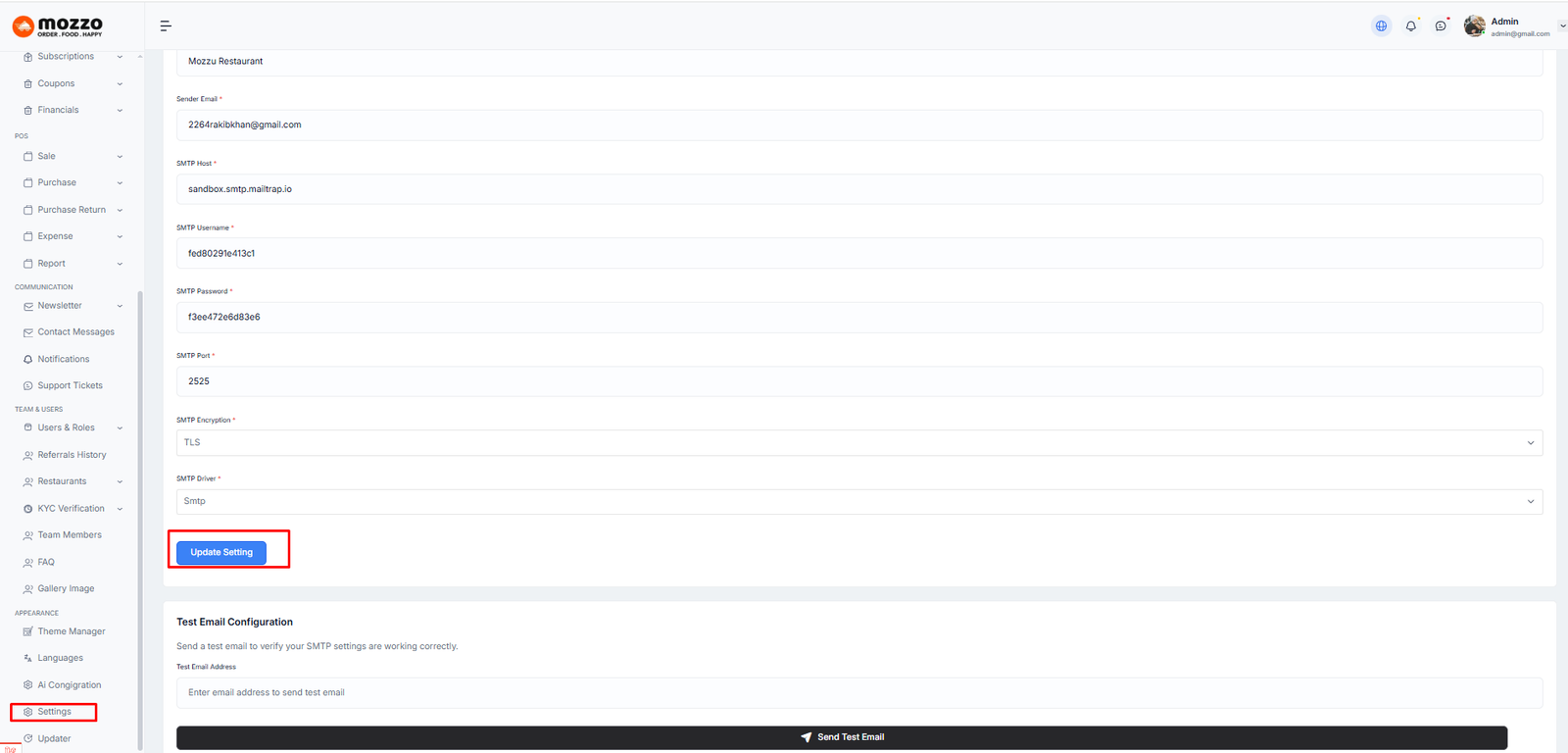
Step 5: Fill in all the required fields accurately using the details provided by your email service provider.
Step 6: After entering the configuration details, click Update Setting to save your changes.
Step 7: Test your configuration to ensure everything is working correctly:
- Enter a test email address in the Test Email Address field.
- Click Send Test Email to verify your SMTP settings.
- Check the test email inbox to confirm successful delivery.
Note: Proper email configuration is essential for sending transactional emails, notifications, and other system messages. Always use valid SMTP credentials to ensure reliable email delivery.
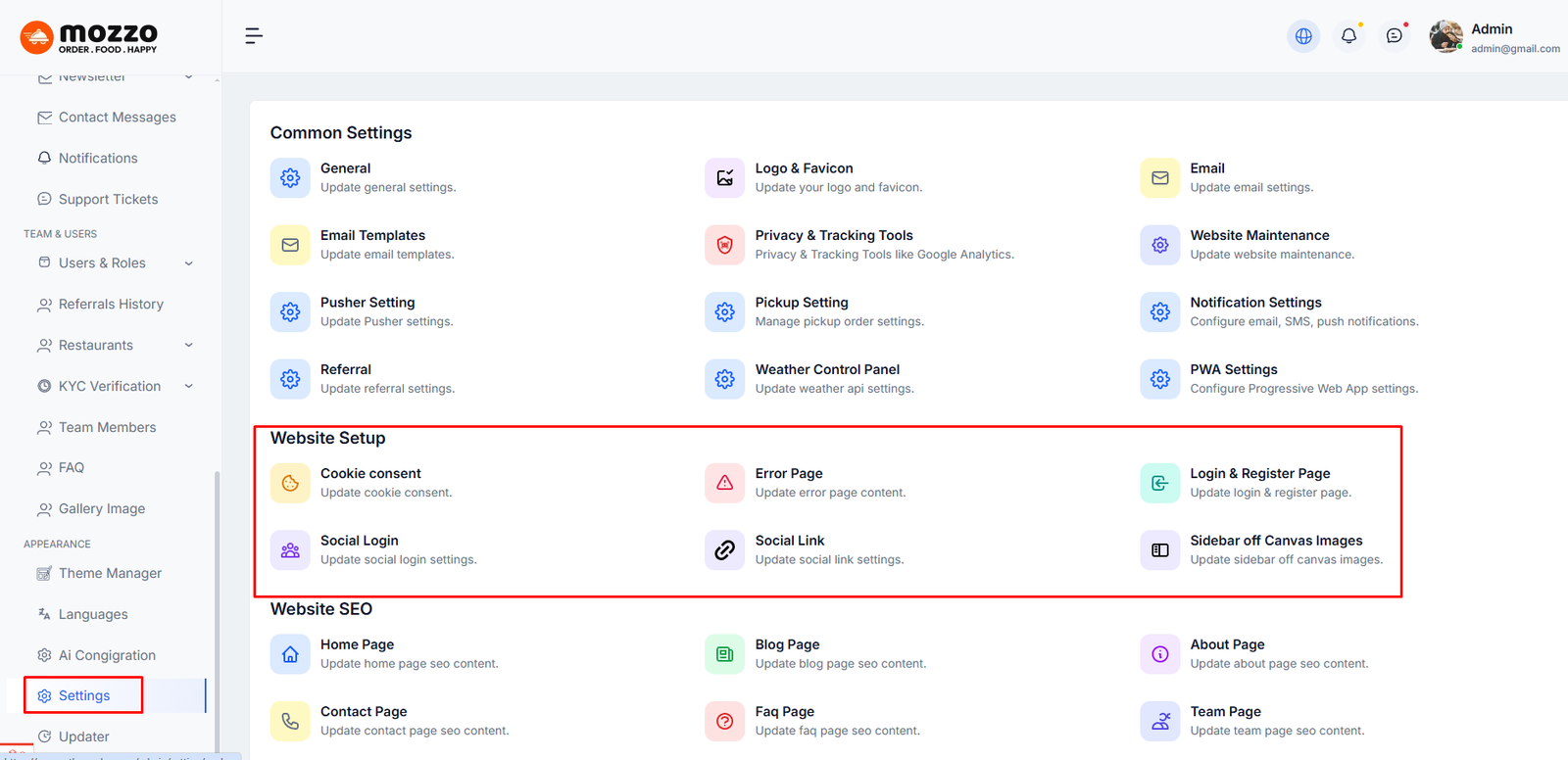
How to Configure Website Setup
Website Setup includes:
- Cookie Consent - Update cookie consent message and visibility
- Error Page - Set custom error page title and message
- Login & Register Page - Update login and registration page content
- Social Login - Configure Google and Facebook login settings with Client ID and Secret
- Social Link - Add social media profile links (Facebook, Twitter, Instagram, LinkedIn, YouTube, etc.)
- Sidebar off Canvas Images - Manage sidebar images
For each section, click and fill in the required information, then click Save changes.
Here is the screenshot:
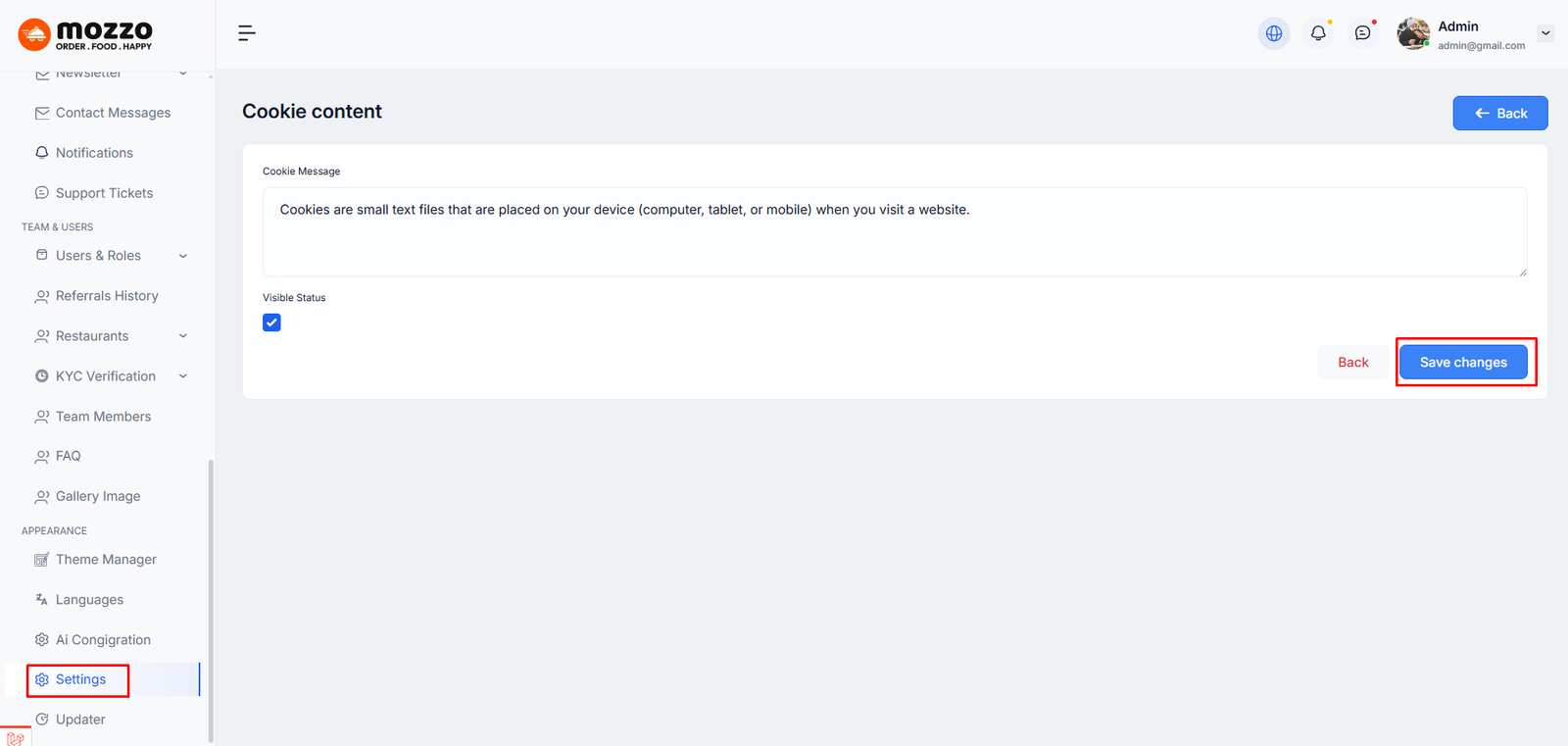
How to Configure Cookie Consent
To configure cookie consent settings for your platform, follow the steps below:
Step 1: Click on Settings in the left sidebar (located at the bottom of the menu).
Step 2: The Settings page will open. You will see the Cookie Content section and Open it.
Here is the screenshot:
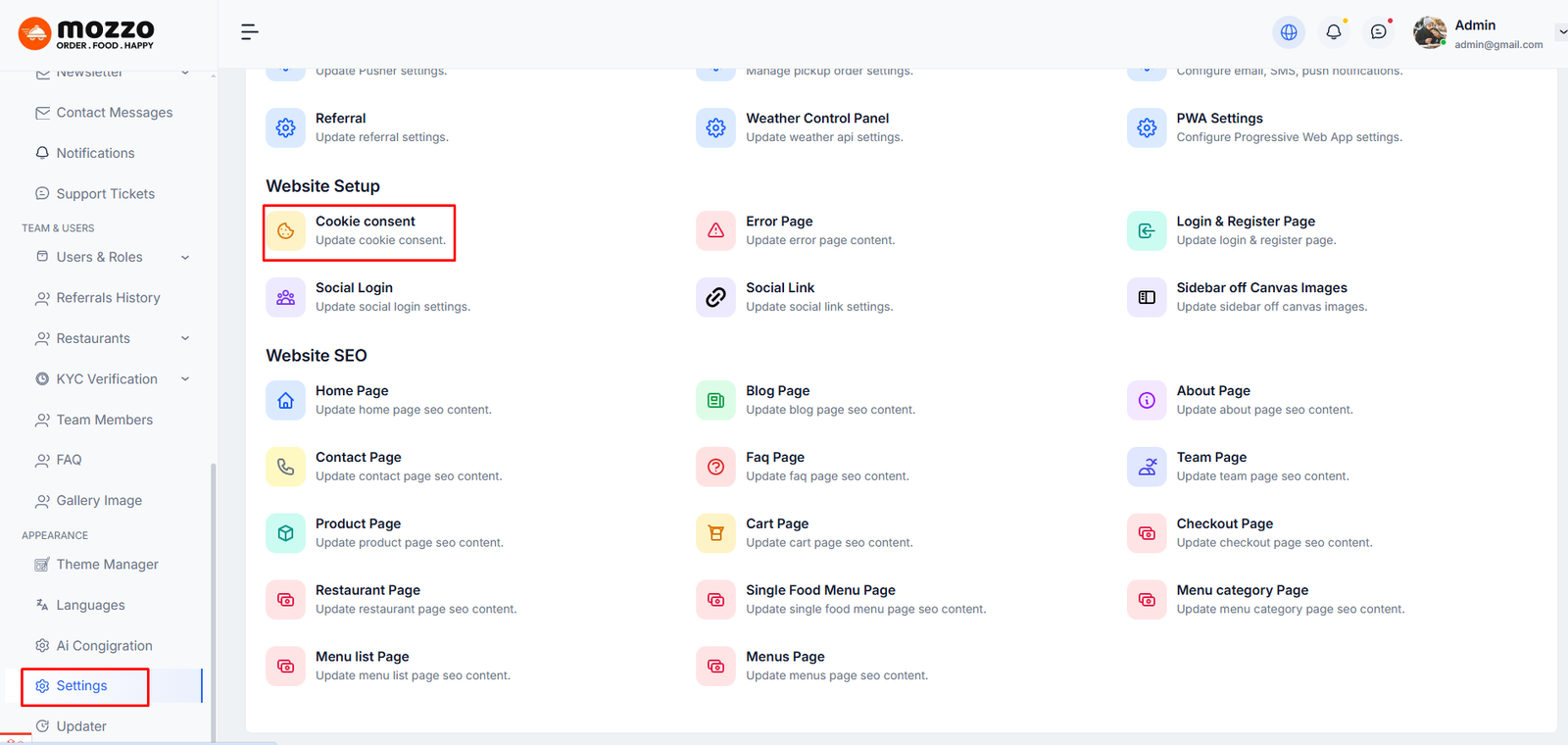
Step 1: Click on Cookie consent in Website Setup.
Step 2: Add Cookie Message for users.
Step 3: Toggle Visible Status to enable/disable the cookie banner.
Step 4: Click Save changes.
Here is the screenshot:
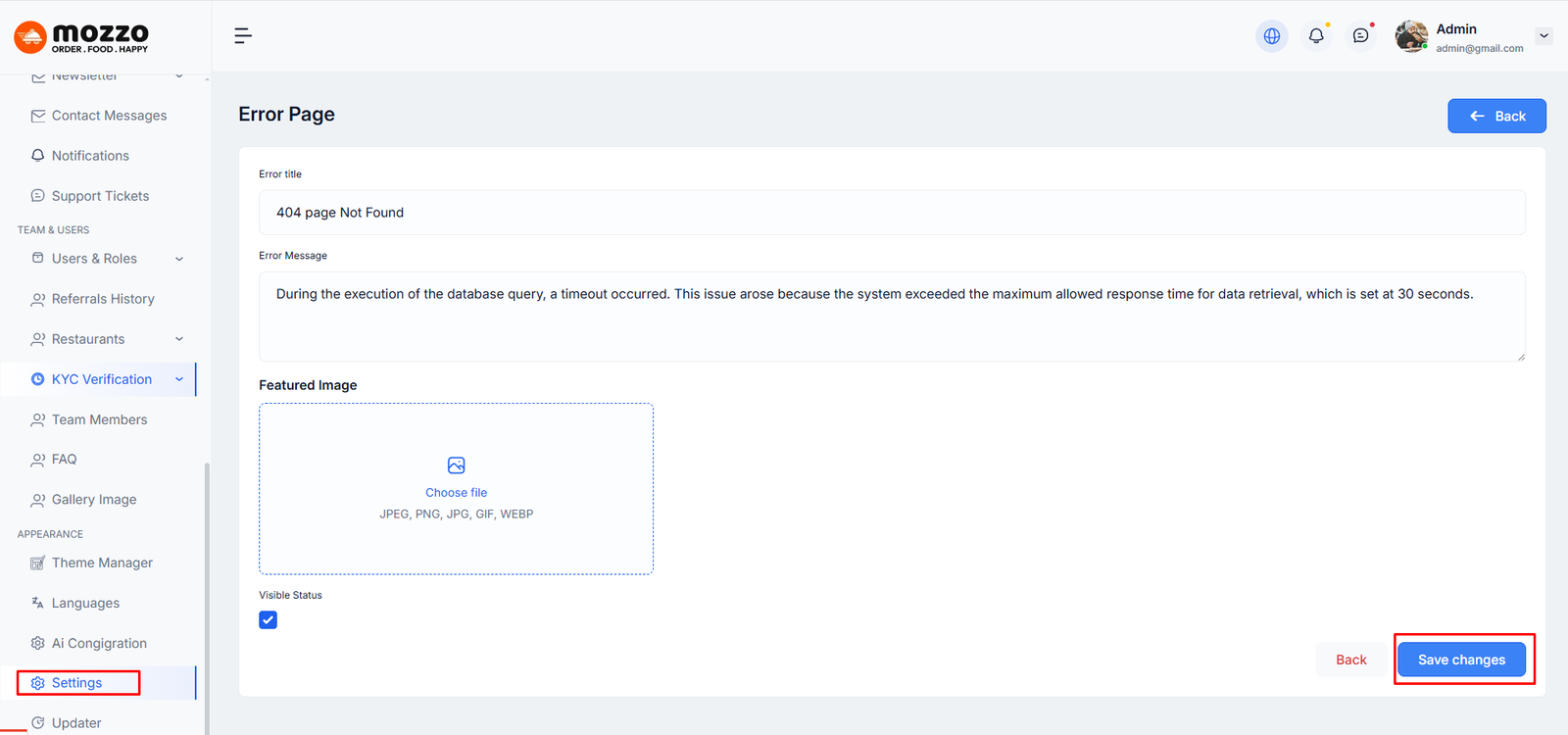
How to Configure Error Page
Step 1: Click on Error Page.
Step 2: Add Error title and Error message.
Step 3: Upload Featured Image for the error page.
Step 4: Toggle Visible Status and click Save changes.
Here is the screenshot:
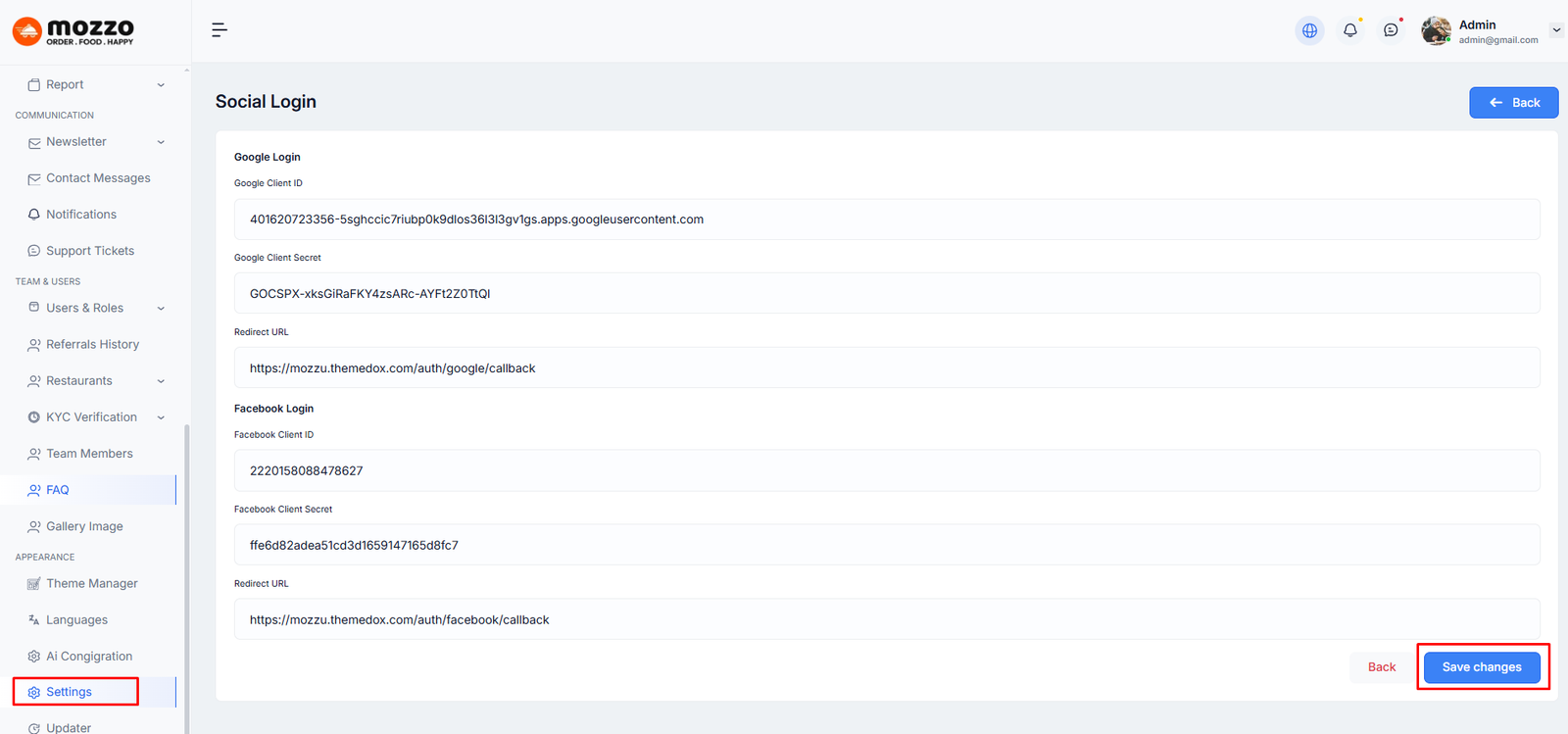
How to Configure Social Login
Step 1: Click on Social Login.
Step 2: Configure Google Login:
- Enter Google Client ID
- Enter Google Client Secret
- Set Redirect URL
Step 3: Configure Facebook Login:
- Enter Facebook Client ID
- Enter Facebook Client Secret
- Set Redirect URL
Step 4: Click Save changes.
Here is the screenshot:
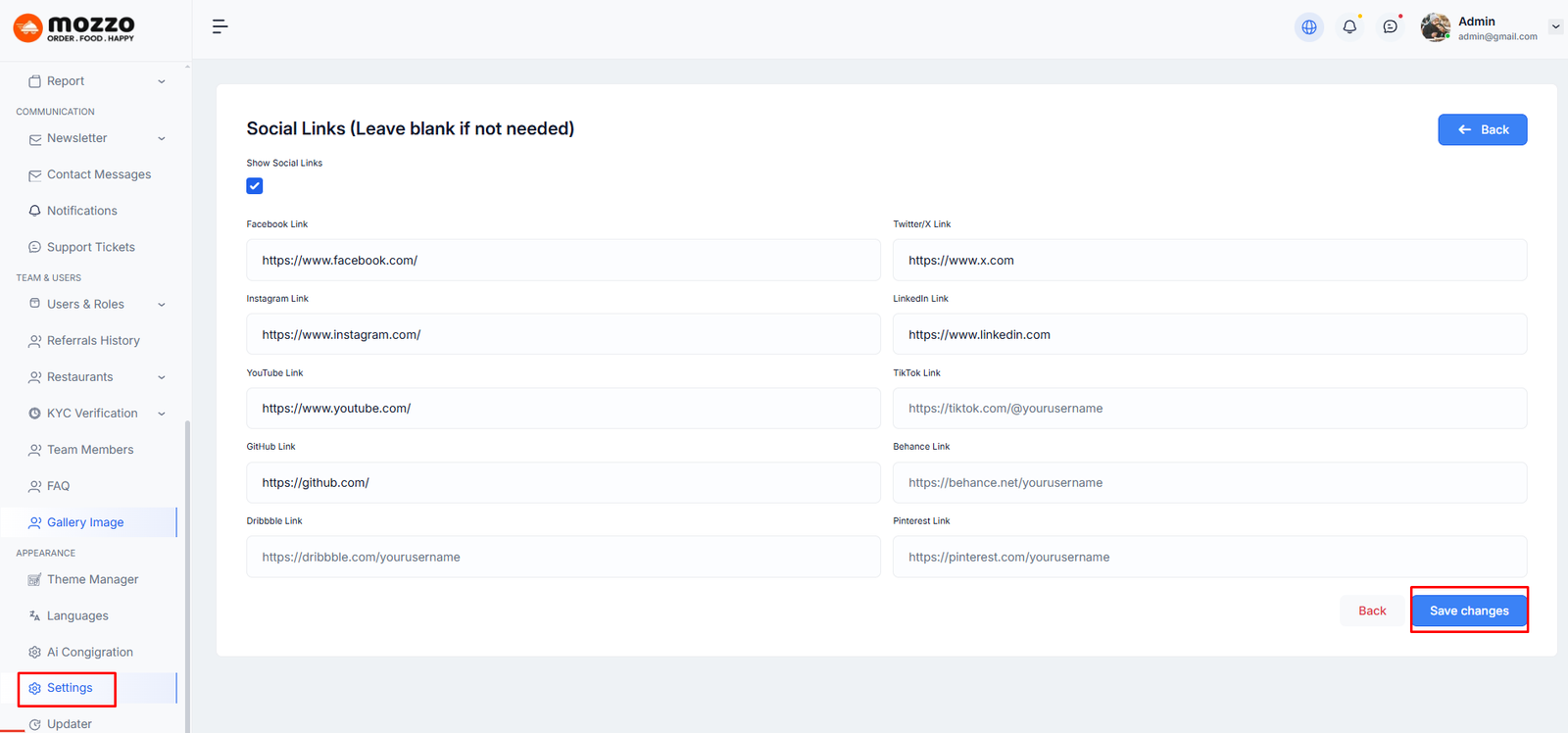
How to Configure Social Links
Step 1: Click on Social Link.
Step 2: Toggle "Show Social Links" to enable.
Step 3: Add links for:
- Facebook, Twitter/X, Instagram
- LinkedIn, YouTube, TikTok
- GitHub, Behance, Dribbble, Pinterest
Step 4: Click Save changes.
Here is the screenshot:
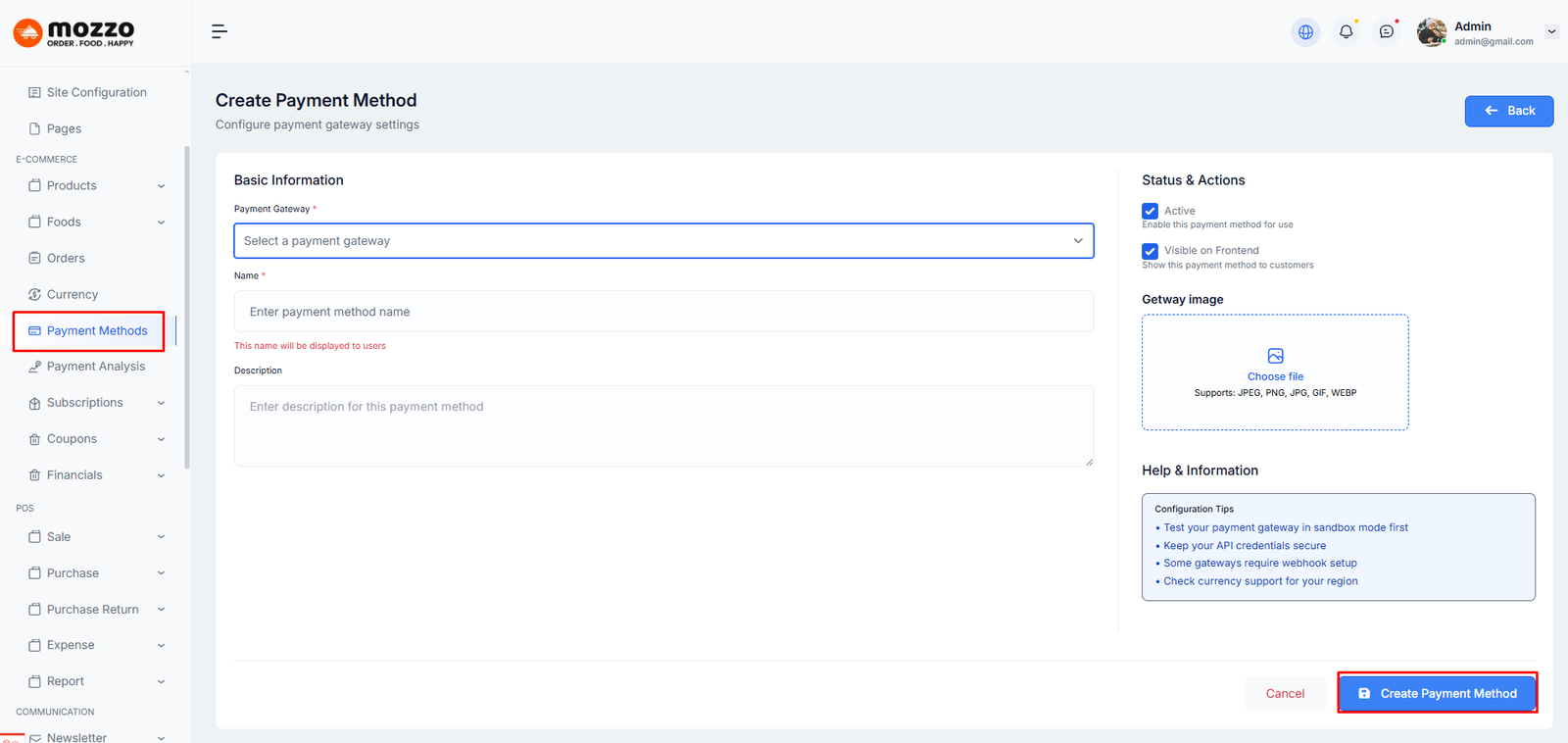
How to Create a New Payment Method
Step 1: Navigate to Dashboard > Payment Methods > Add Payment Method
Step 2: Select a payment gateway from the dropdown (Razorpay, PayMongo, 2Checkout, etc).
Step 3: Fill in the following details:
- Name (displayed to customers)
- Description
- Gateway Image
Step 4: Check the status options:
- Active (enable this payment method)
- Visible on Frontend (show to customers)
Step 5: Click Create Payment Method to save.
Here is the screenshot:
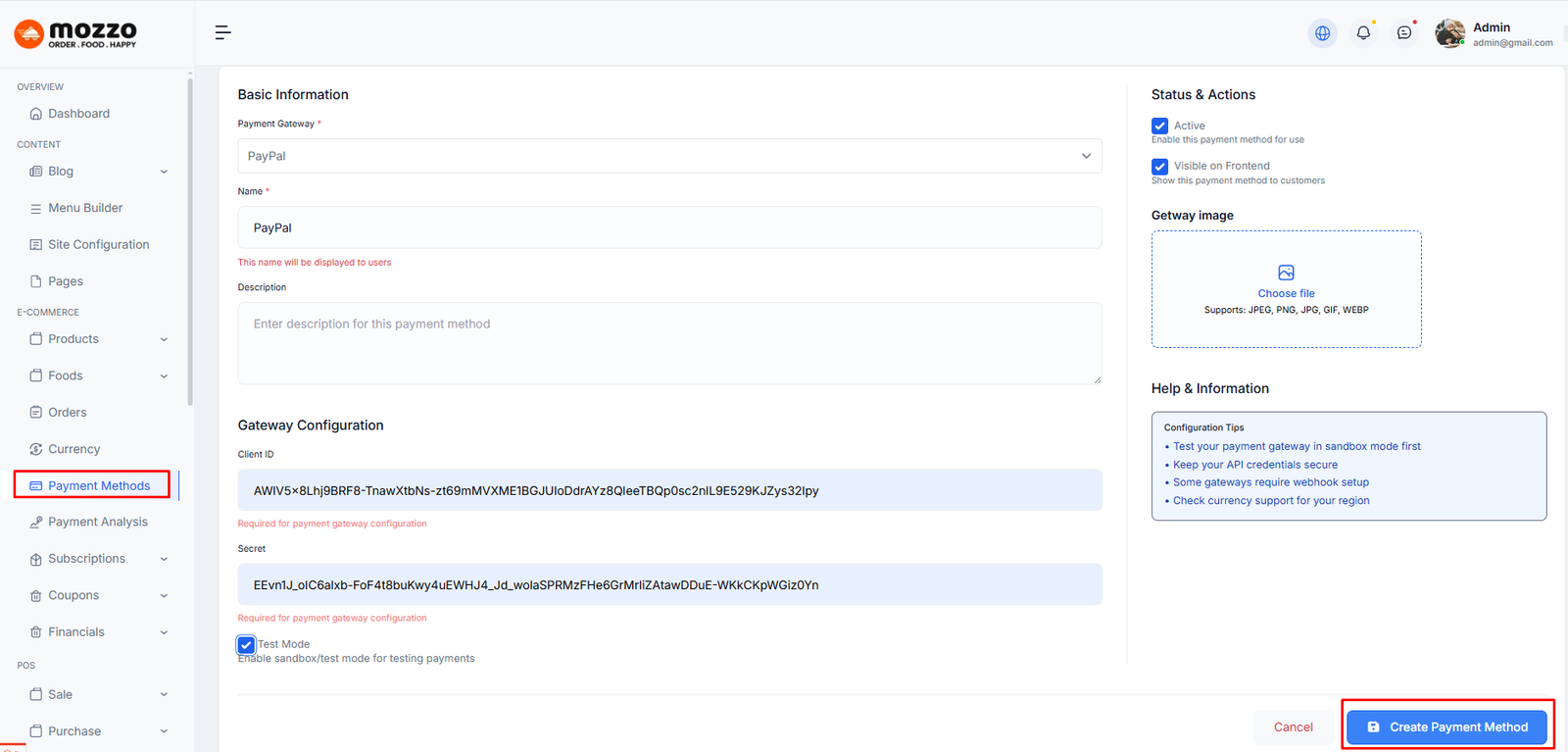
How to Edit a Payment Method
Step 1: Navigate to Dashboard > Payment Methods
Step 2: Click the edit icon next to the payment method you want to modify.
Step 3: Update the following details:
- Payment Gateway
- Name
- Description
- Gateway Image
- Active status
- Frontend visibility
Step 4: Configure gateway credentials (Client ID, Secret Key, etc) as needed.
Step 5: Click Update Payment Method to save changes.
Here is the screenshot:
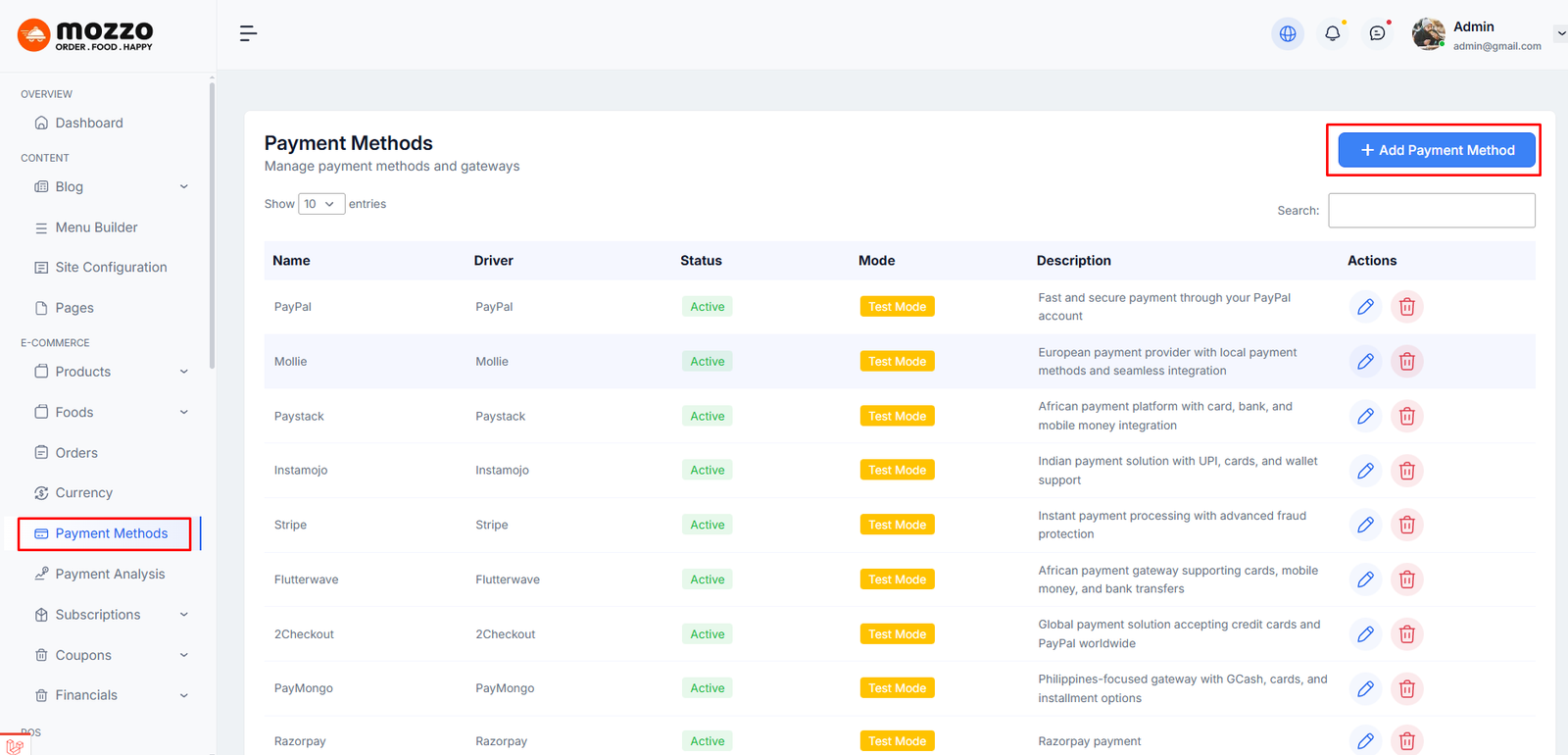
How to Manage Payment Methods
Step 1: Navigate to Dashboard > Payment Methods
Step 2: You will see a list of all available payment methods with Name, Driver, Status, Mode, and Description.
Step 3: You can add, edit or delete any payment method from the Actions column.
Here is the screenshot:
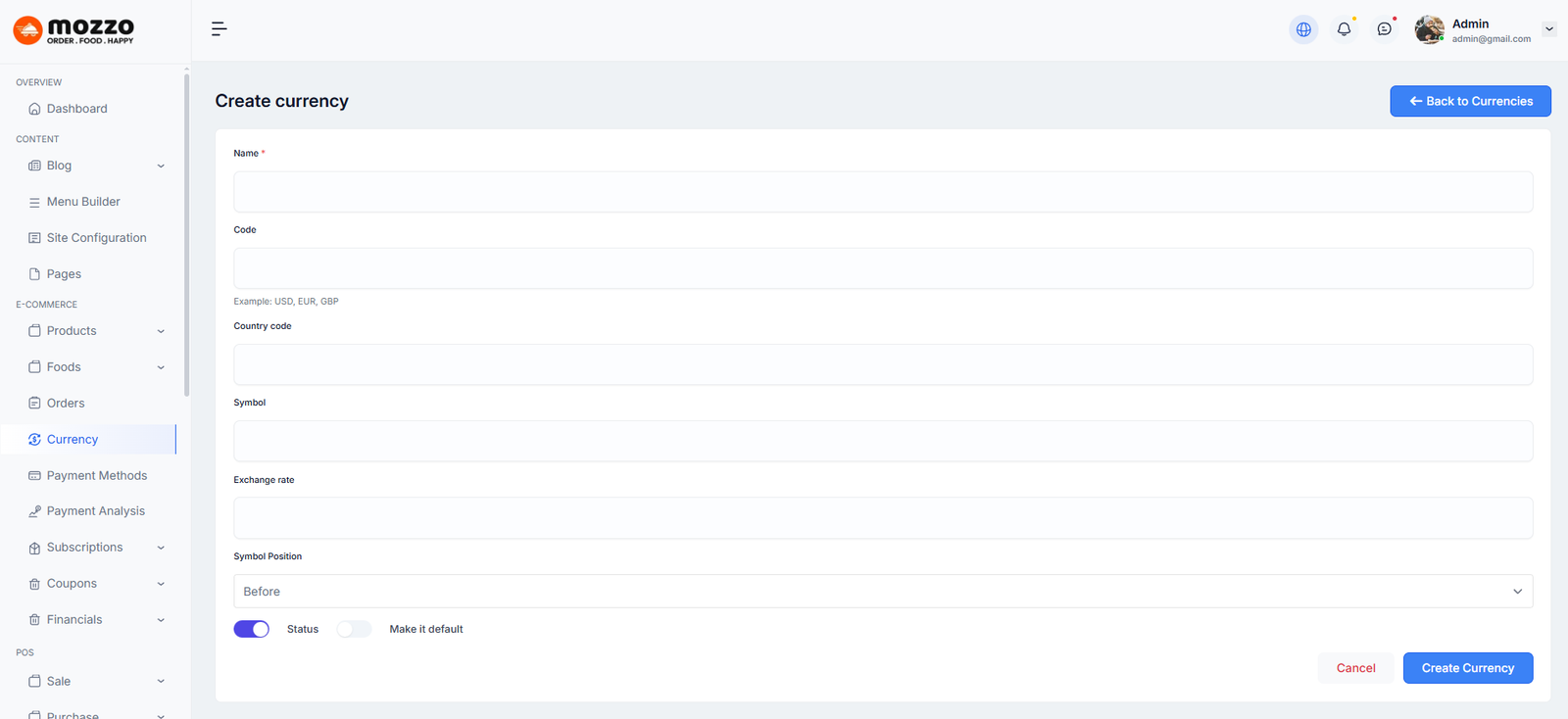
How to Create a New Currency
Step 1: Navigate to Dashboard > Currency > Add New Currency
Step 2: Fill in the following details:
- Name (e.g., US Dollar)
- Code (e.g., USD, EUR, GBP)
- Country code (e.g., USA, BD)
- Symbol (e.g., $, €, ₹)
- Exchange rate
- Symbol Position (Before or After)
Step 3: Check the status options:
- Status (enable this currency)
- Make it default (set as default currency)
Step 4: Click Create Currency to save.
Here is the screenshot:
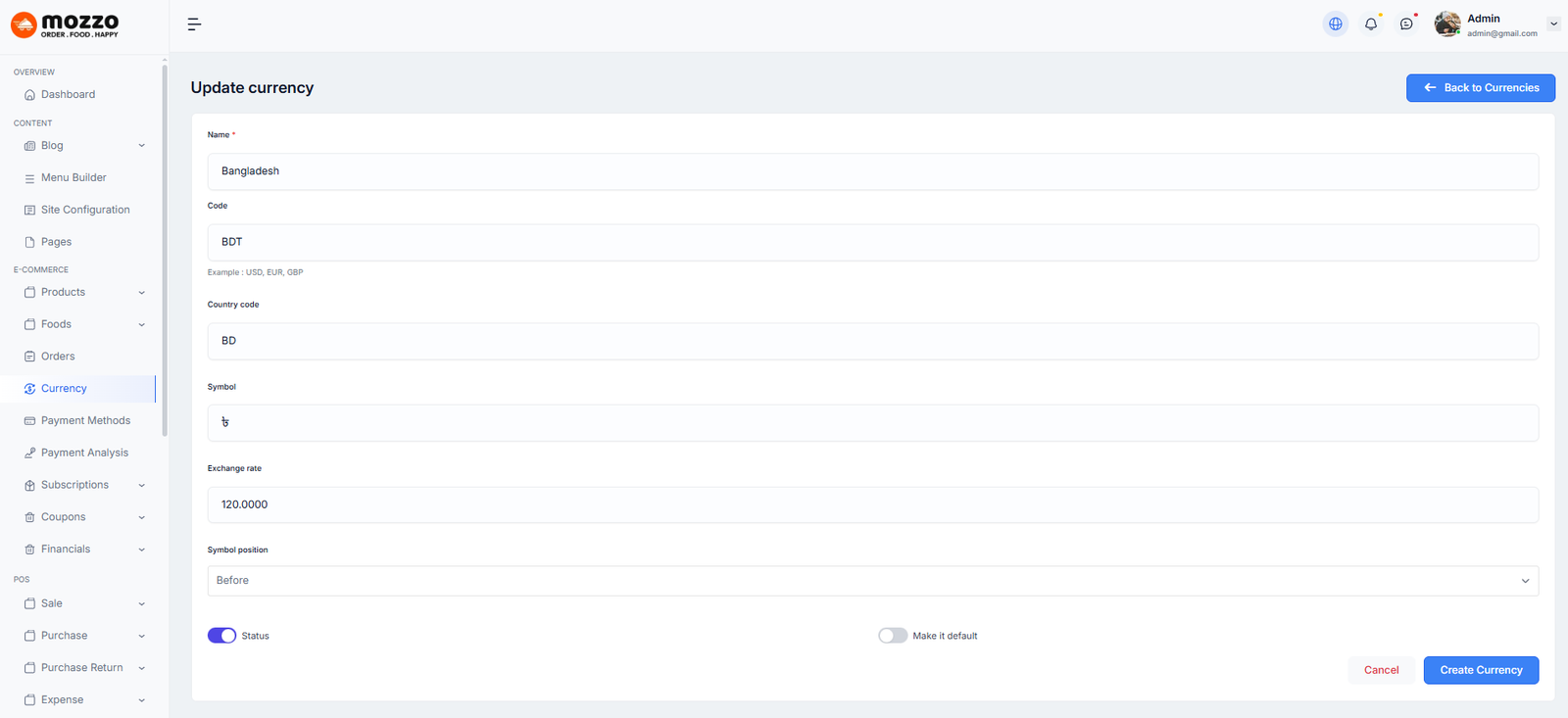
How to Edit a Currency
Step 1: Navigate to Dashboard > Currency
Step 2: Click the edit icon next to the currency you want to modify.
Step 3: Update the following details:
- Name
- Code
- Country code
- Symbol
- Exchange rate
- Symbol Position
- Status
- Default currency setting
Step 4: Click Create Currency to save changes.
Here is the screenshot:
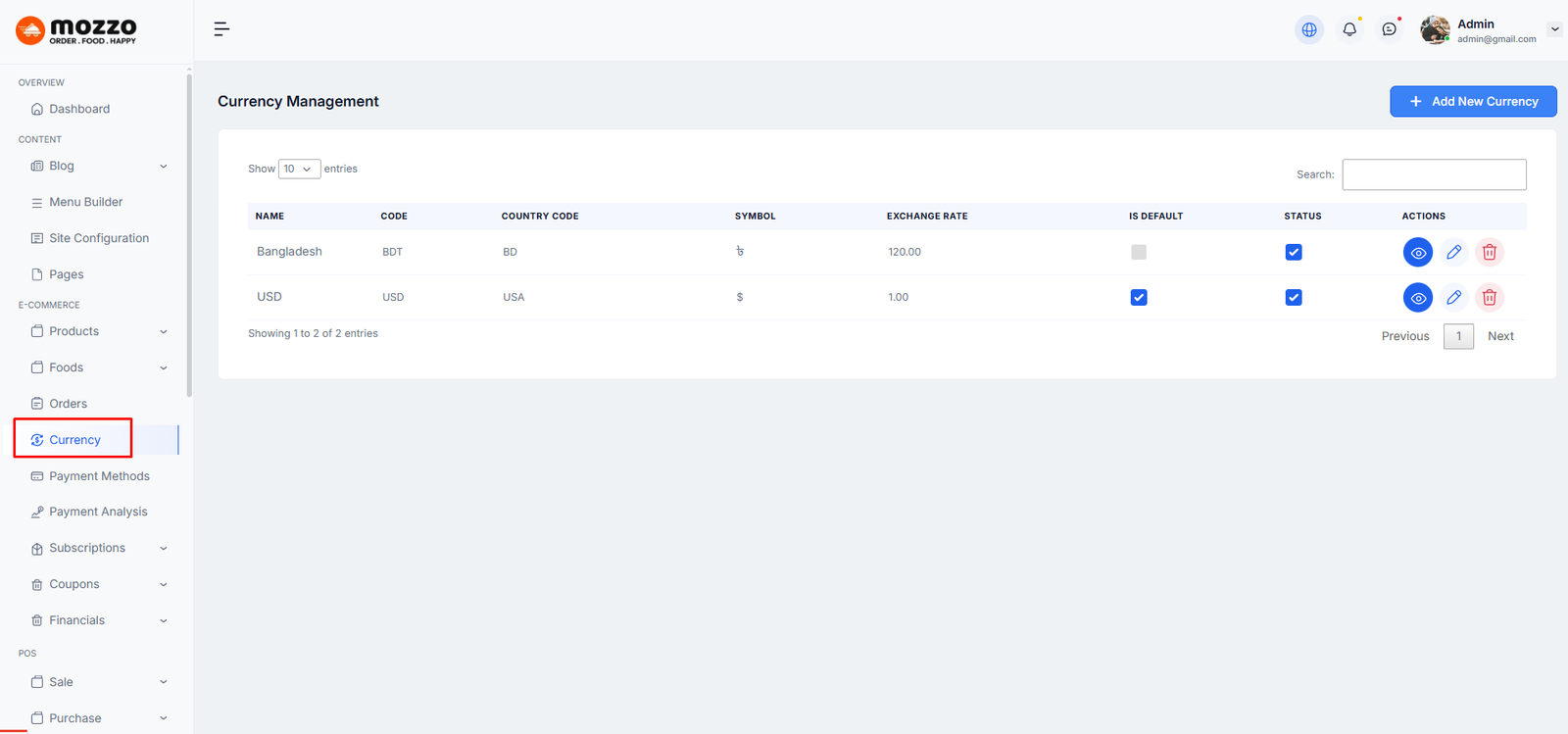
How to Manage Currencies
Step 1: Navigate to Dashboard > Currency
Step 2: You will see a list of all available currencies with Name, Code, Country Code, Symbol, Exchange Rate, Is Default, and Status.
Step 3: You can add, edit or delete any currency from the Actions column.
Here is the screenshot:
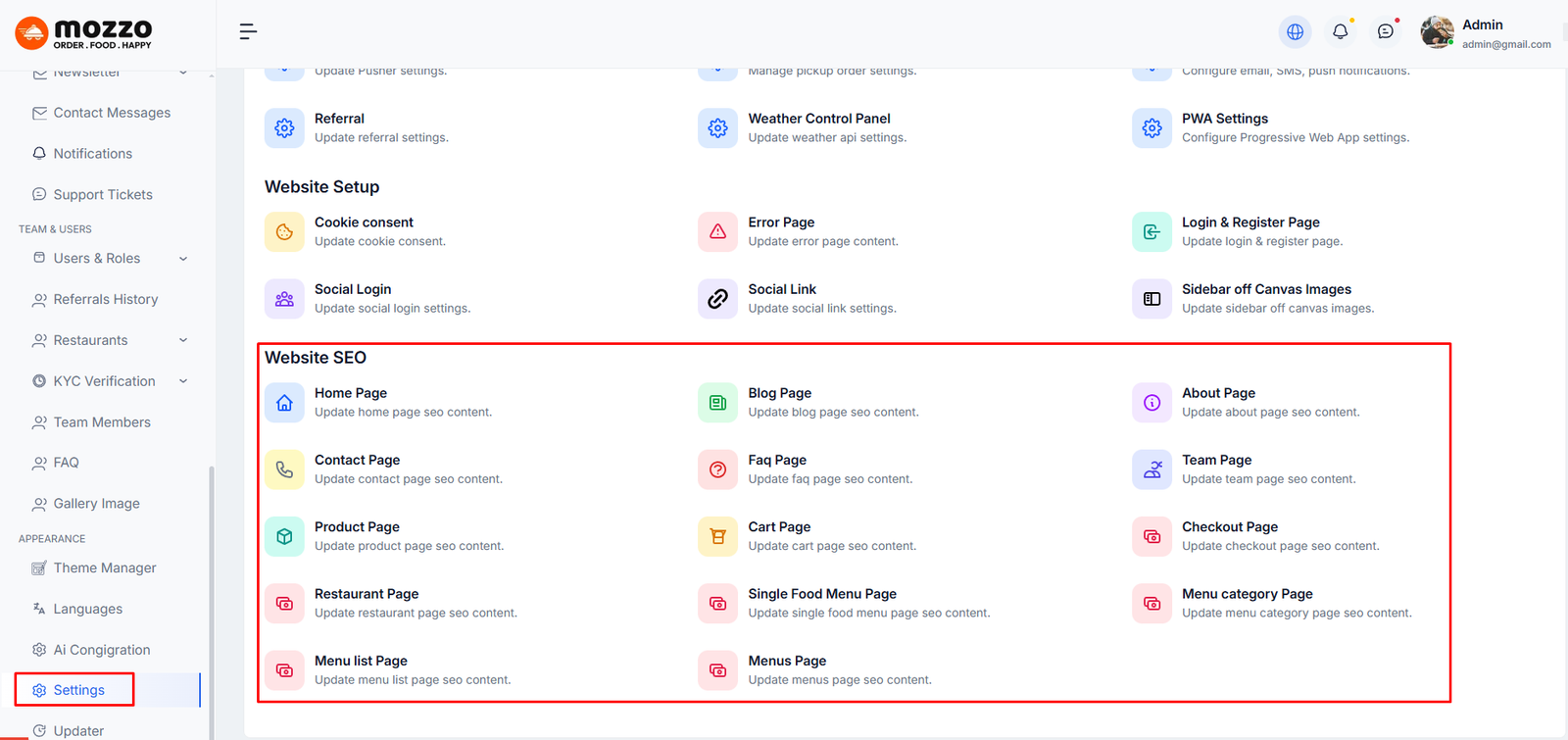
How to Configure Website SEO
Step 1: Navigate to Dashboard > Settings > Website SEO
Step 2: You will see different pages listed: Home Page, Blog Page, About Page, Contact Page, Product Page, Team Page, Faq Page, Cart Page, Checkout Page.
Step 3: Click on any page to update its SEO content.
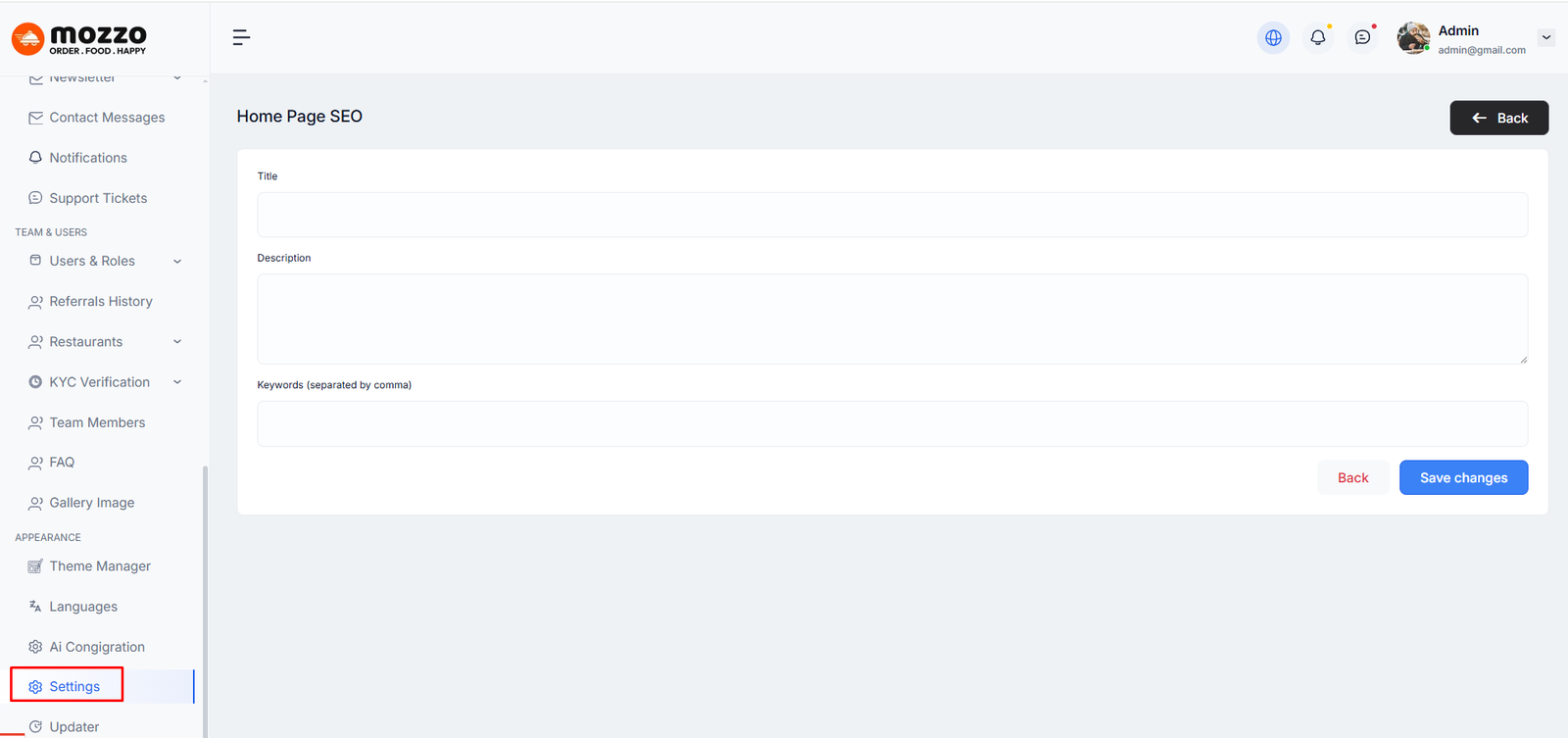
How to Update Home Page SEO
Step 1: Navigate to Dashboard > Settings > Website SEO > Home Page
Step 2: Fill in the following details:
- Title (Page title for search engines)
- Description (Meta description)
- Keywords (Separated by commas)
Step 3: Click Save changes to save.
Here is the screenshot:
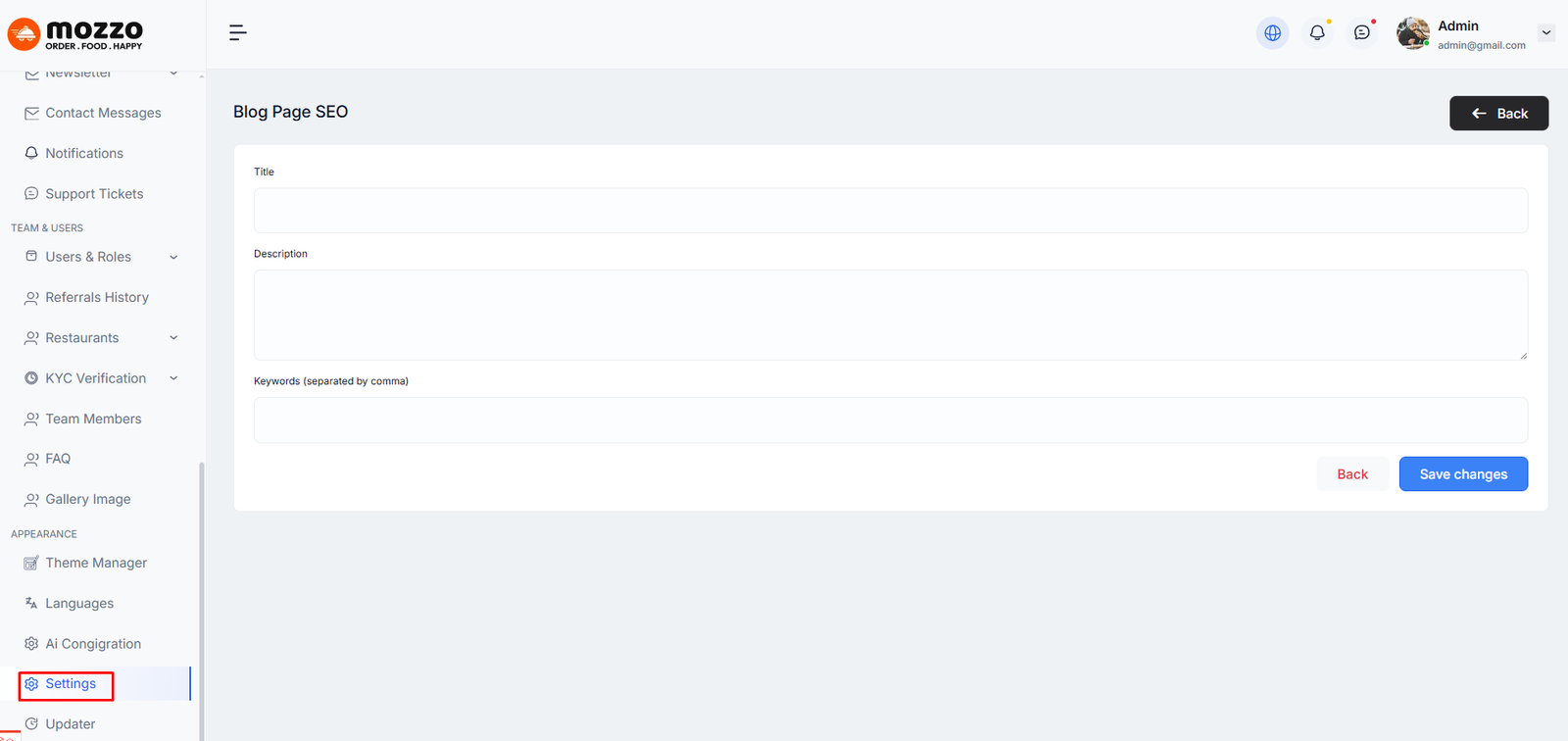
How to Update Blog Page SEO
Step 1: Navigate to Dashboard > Settings > Website SEO > Blog Page
Step 2: Fill in the following details:
- Title (Page title for search engines)
- Description (Meta description)
- Keywords (Separated by commas)
Step 3: Click Save changes to save.
Here is the screenshot:
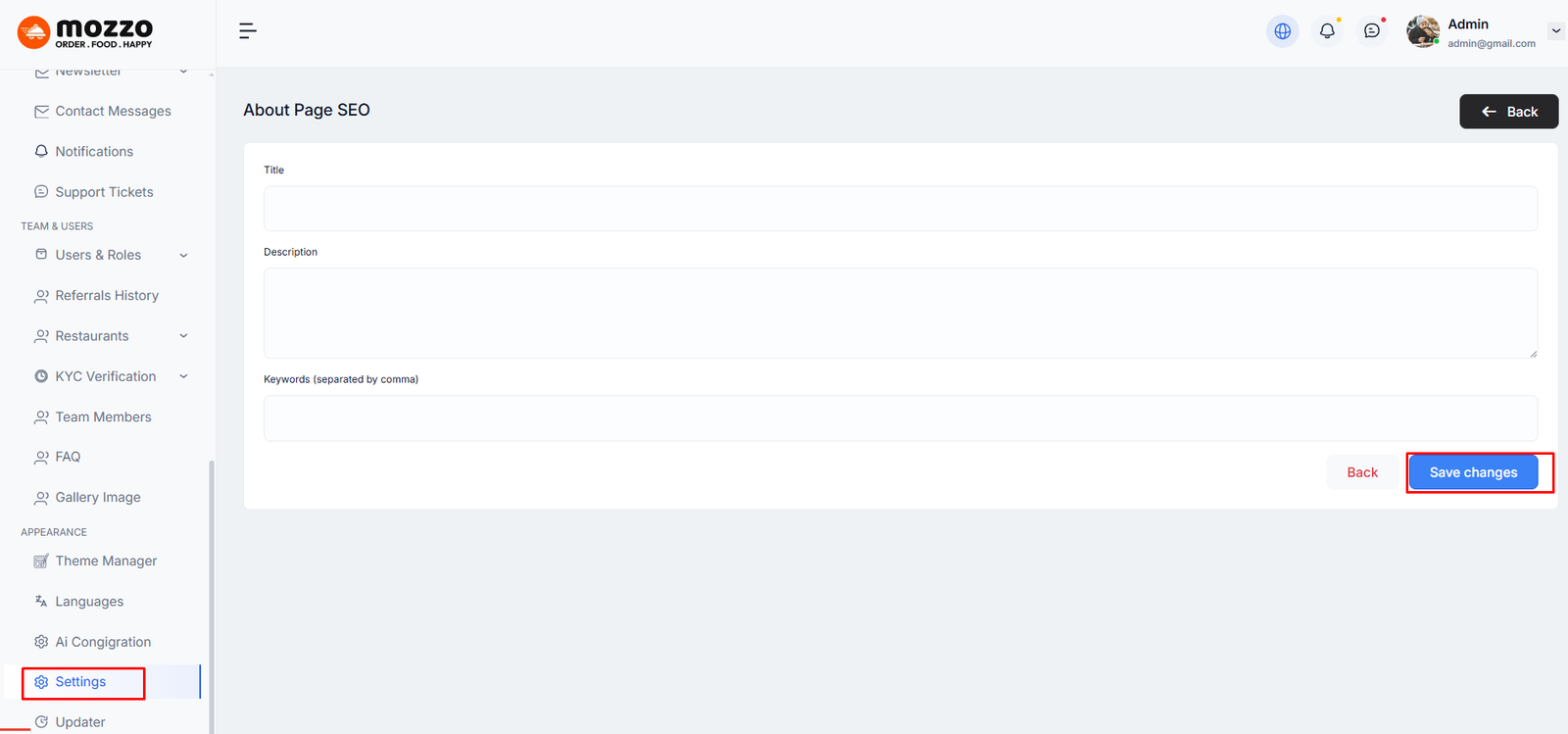
How to Update About Page SEO
Step 1: Navigate to Dashboard > Settings > Website SEO > About Page
Step 2: Fill in the following details:
- Title (Page title for search engines)
- Description (Meta description)
- Keywords (Separated by commas)
Step 3: Click Save changes to save.
Here is the screenshot:
How to Update Other Page SEO
Similar to Home Page, Blog Page, and About Page, you can update SEO for the following pages in the same way:
- Contact Page
- Product Page
- Team Page
- Faq Page
- Cart Page
- Checkout Page
- Restaurant Page
- Single Food Menu Page
- Menu category Page
- Menu list Page
- Menus Page
For each page:
Step 1: Navigate to Dashboard > Settings > Website SEO > Select Page
Step 2: Add Title, Description, and Keywords for SEO optimization.
Step 3: Click Save changes to save.
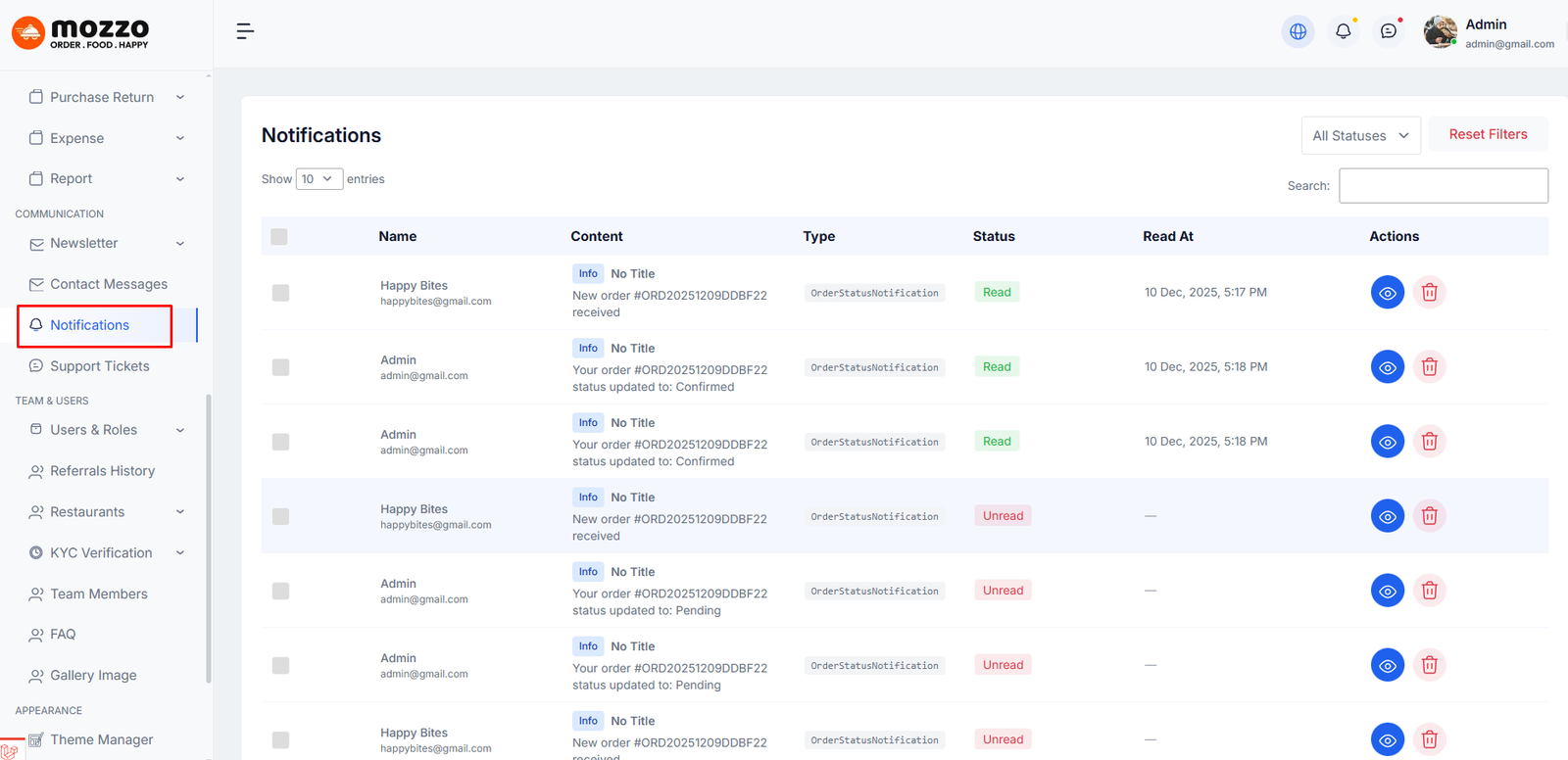
How to Manage Notifications
Step 1: Navigate to Dashboard > Notifications
Step 2: You will see a list of all notifications with Name, Content, Type, Status, and Read At information.
Step 3: Filter notifications by status: All Statuses, Read, Unread.
Step 4: You can view, delete, or manage notifications as needed.
Here is the screenshot:
How to View Notification Details
Step 1: Click the eye icon to view the full notification content.
Step 2: You can see:
- Notification sender/Name
- Notification content/message
- Notification type (Info, Alert, Update, etc)
- Current status (Read/Unread)
- When it was received
Step 3: Click the delete icon to remove notifications.
Types of Notifications
You may receive notifications for:
- Blog posts updated or published
- Action notifications (BlogActionNotification)
- System updates
- New orders or customer messages
- Other system events
Each notification will show the type, content, and relevant information to keep you informed about your website activities.
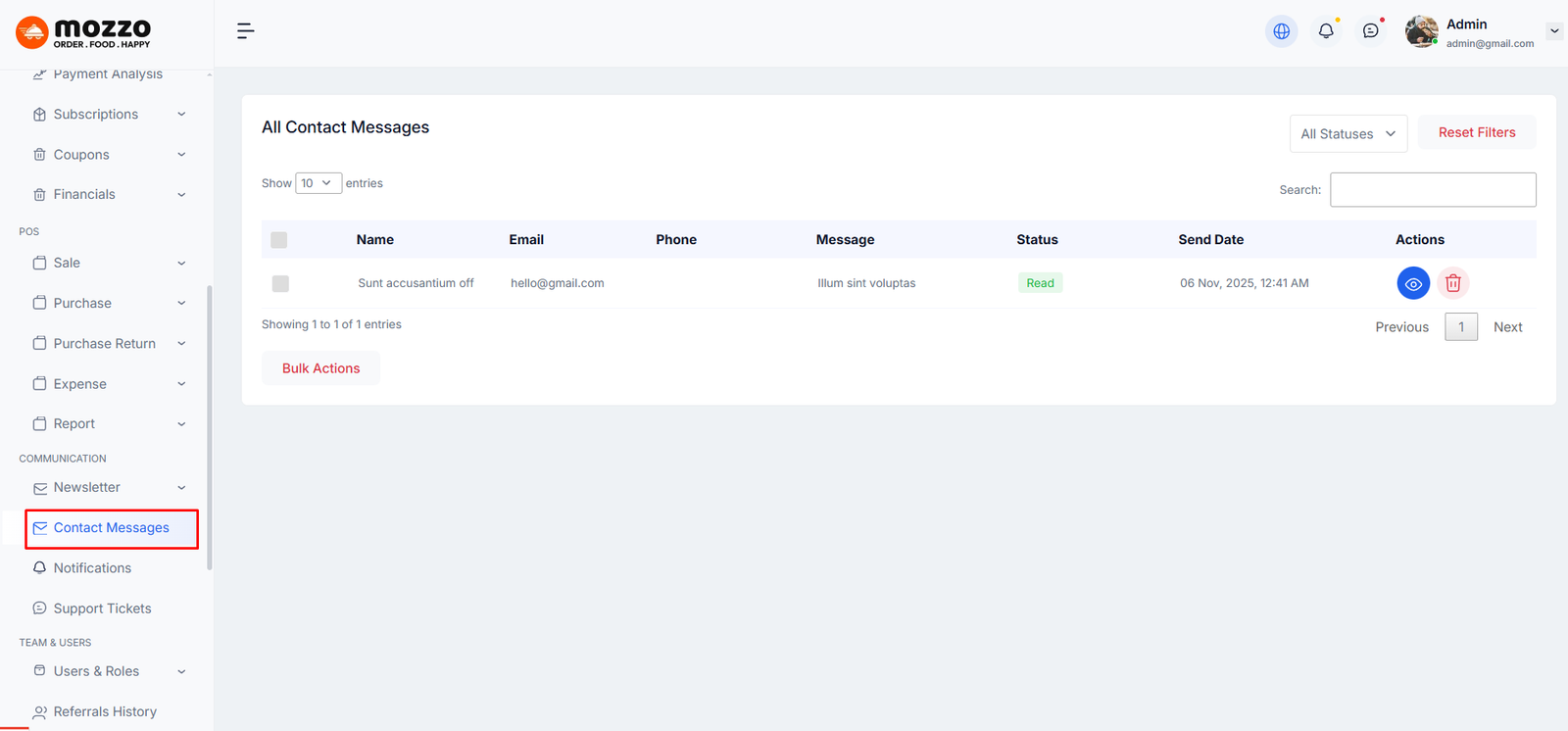
How to Manage Contact Messages
Step 1: Navigate to Dashboard > Contact Messages
Step 2: You will see a list of all contact messages with Name, Email, Phone, Message, Status, and Send Date.
Step 3: Click the eye icon to view message details or delete icon to remove messages.
Step 4: Use filters to manage messages by status (Read, Unread, Replied).
Here is the screenshot:
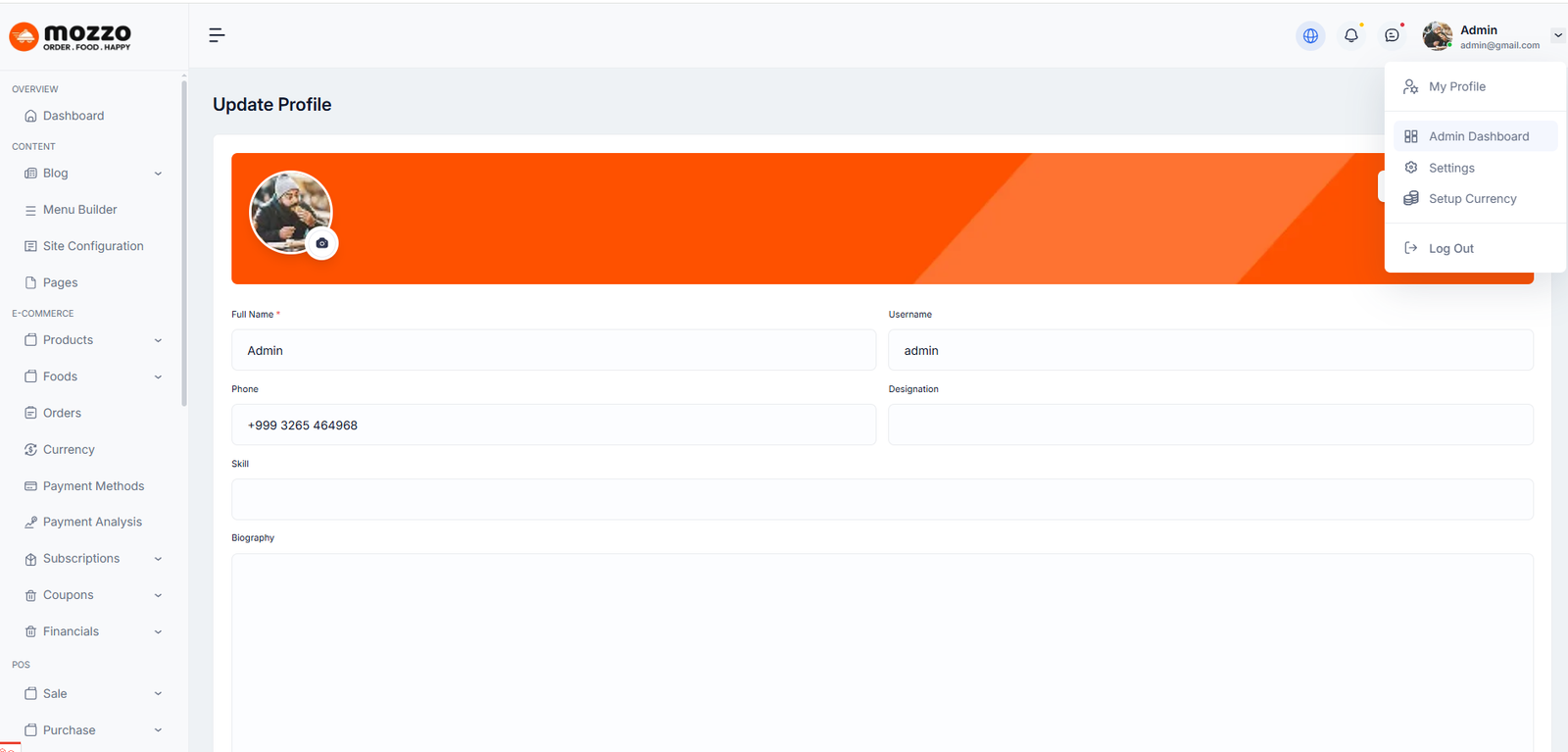
How to Update Admin Profile
Step 1: Navigate to Dashboard > Click on your profile icon at the top right > My Profile
Step 2: You can update the following information:
- Profile Picture/Avatar
- Full Name
- Username
- Phone
- Designation
- Skills
- Biography
Step 3: Add your social media links:
- Facebook Link
- X (Twitter) Link
- LinkedIn Link
Step 4: Click Save to save all changes.
Here is the screenshot:
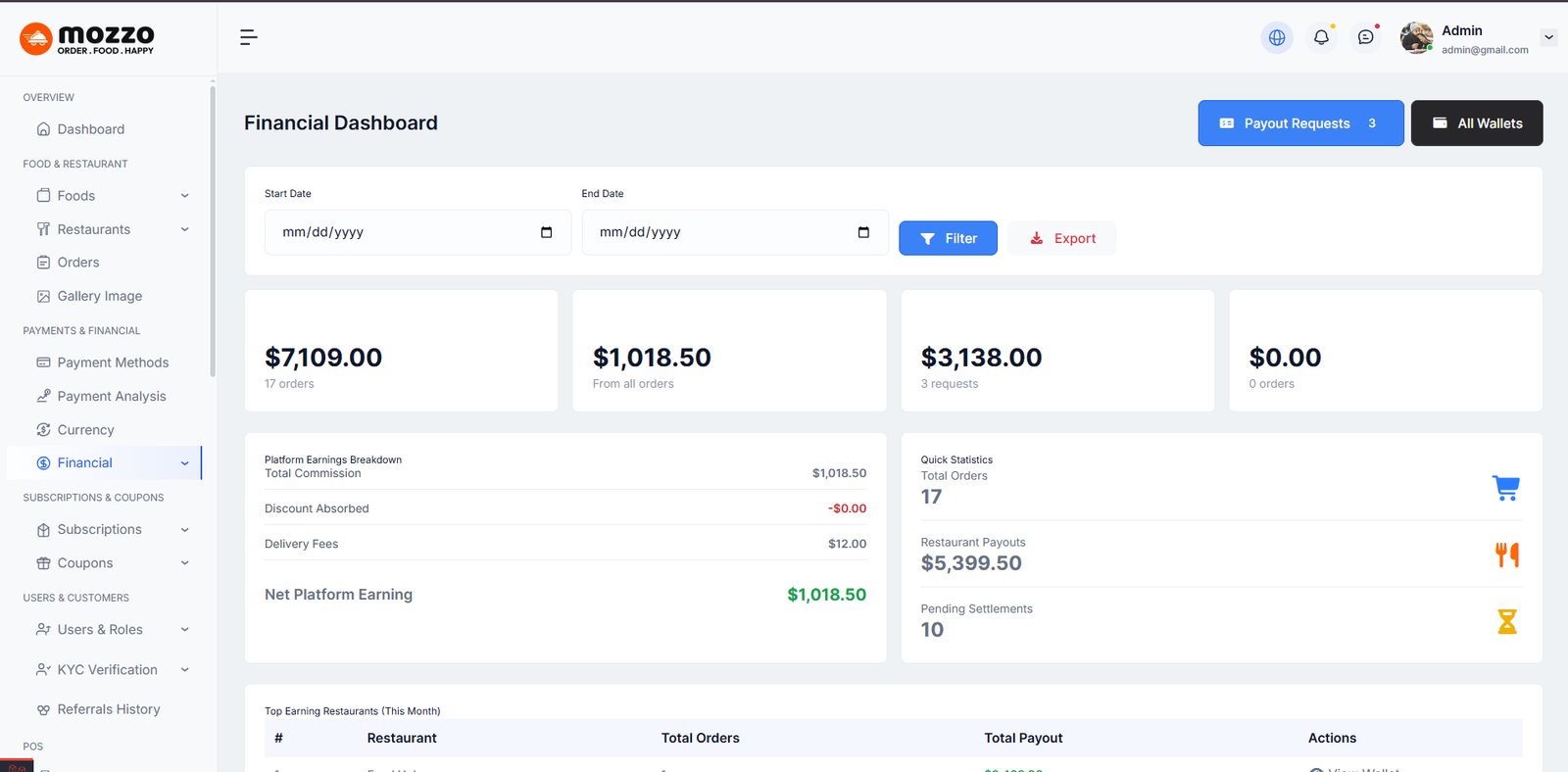
How to Manage Admin Wallet
Step 1: Navigate to Dashboard > Financials > Financial Dashboard
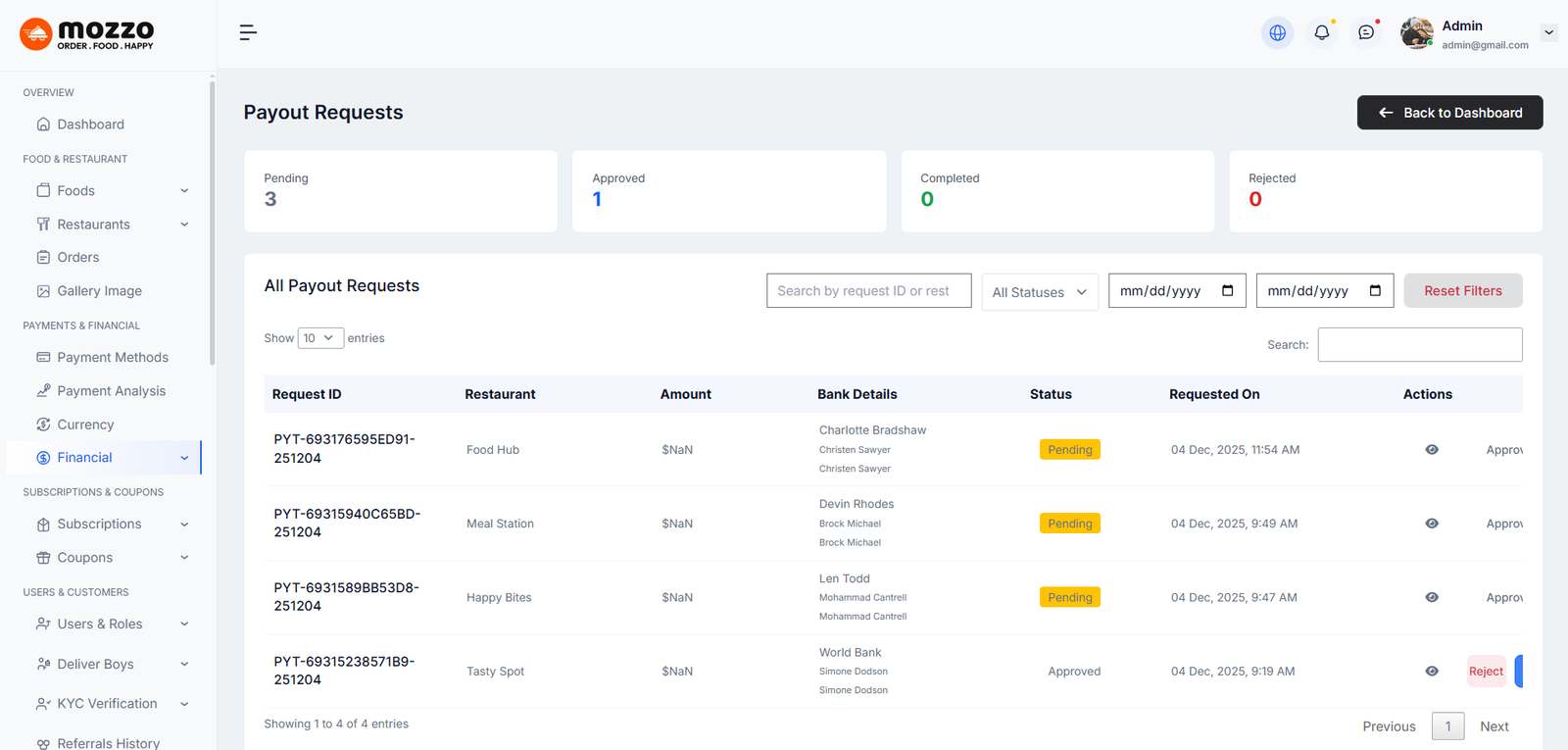
Step 2: You will see a list of all payout requests with Restaurant Name, Amount, Status, Bank Information, and Date.
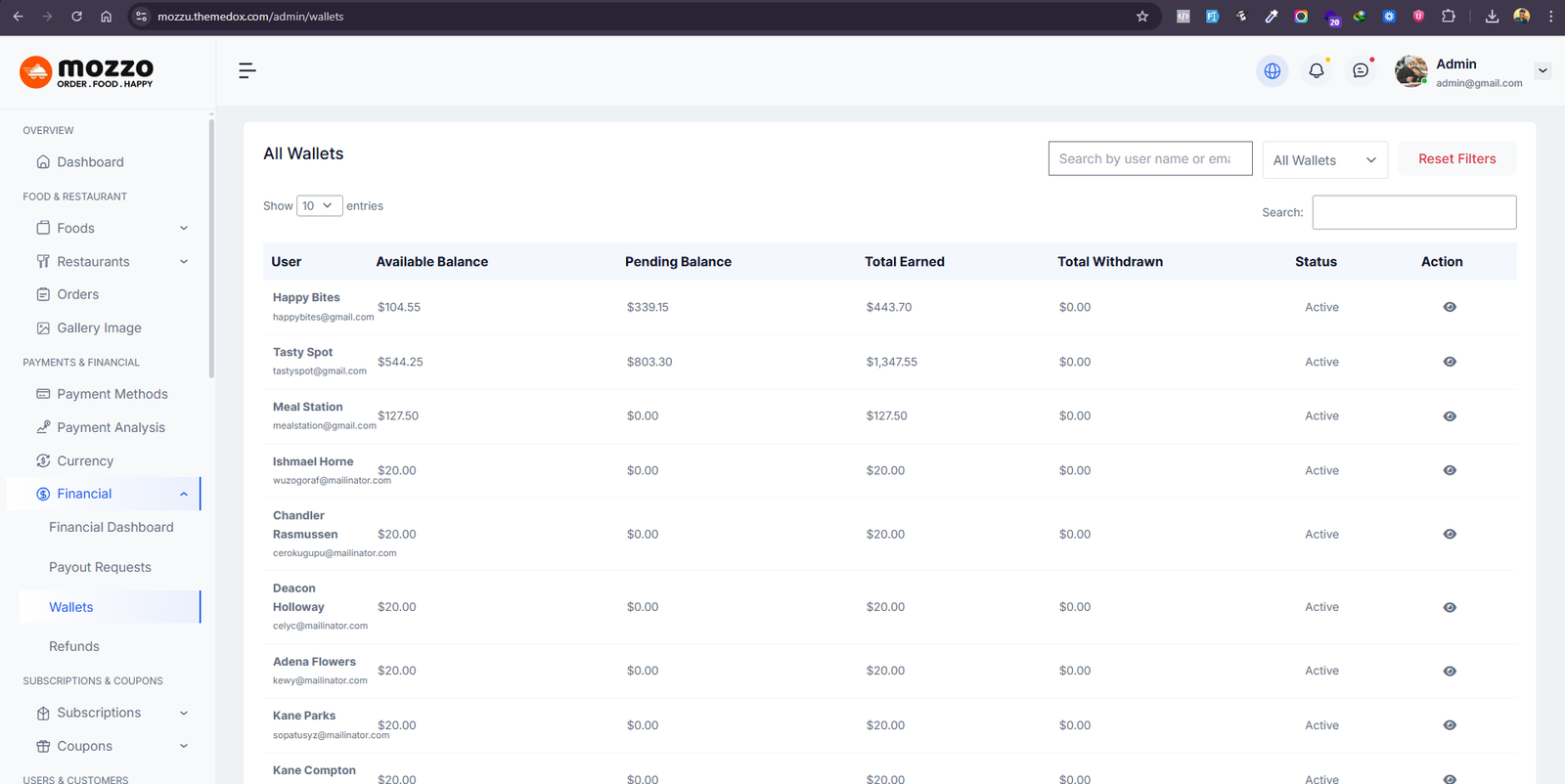
Step 3: You will see a list of all wallets with Restaurant Name, Amount, Status, Bank Information, and Date.
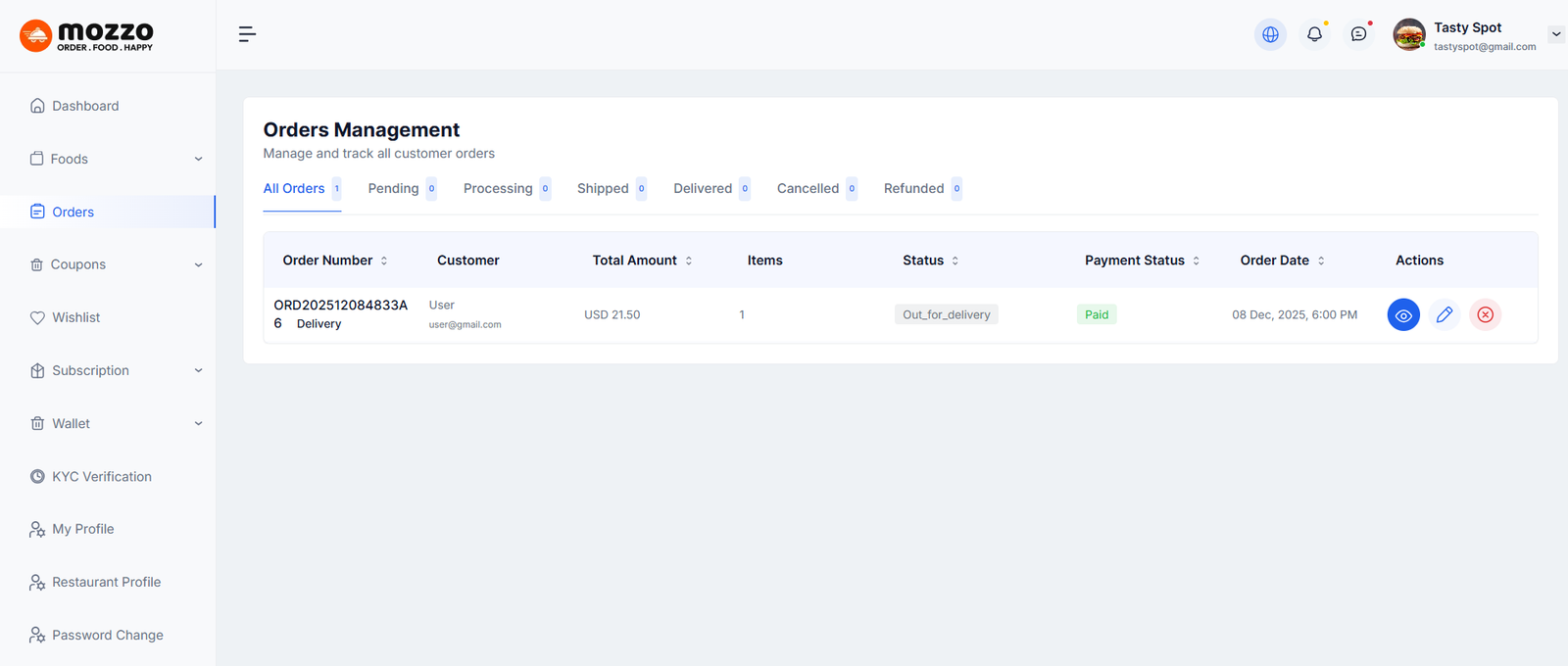
How to Manage Restaurant Wallet
Step 1: Navigate to Dashboard > Orders > All Orders
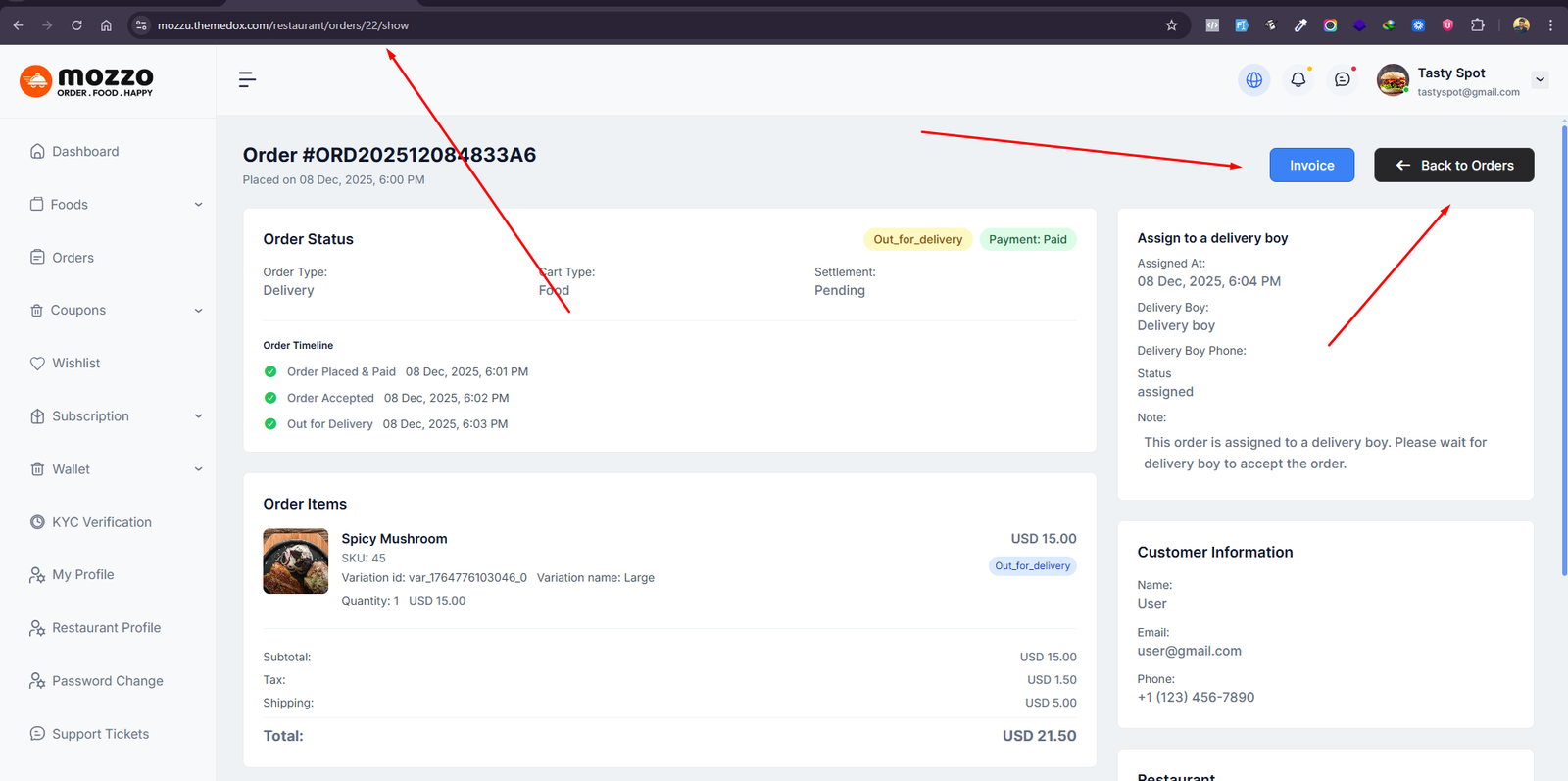
How to Show Restaurant Order Details
Step 2: Navigate to Dashboard > Orders > All Orders > Show
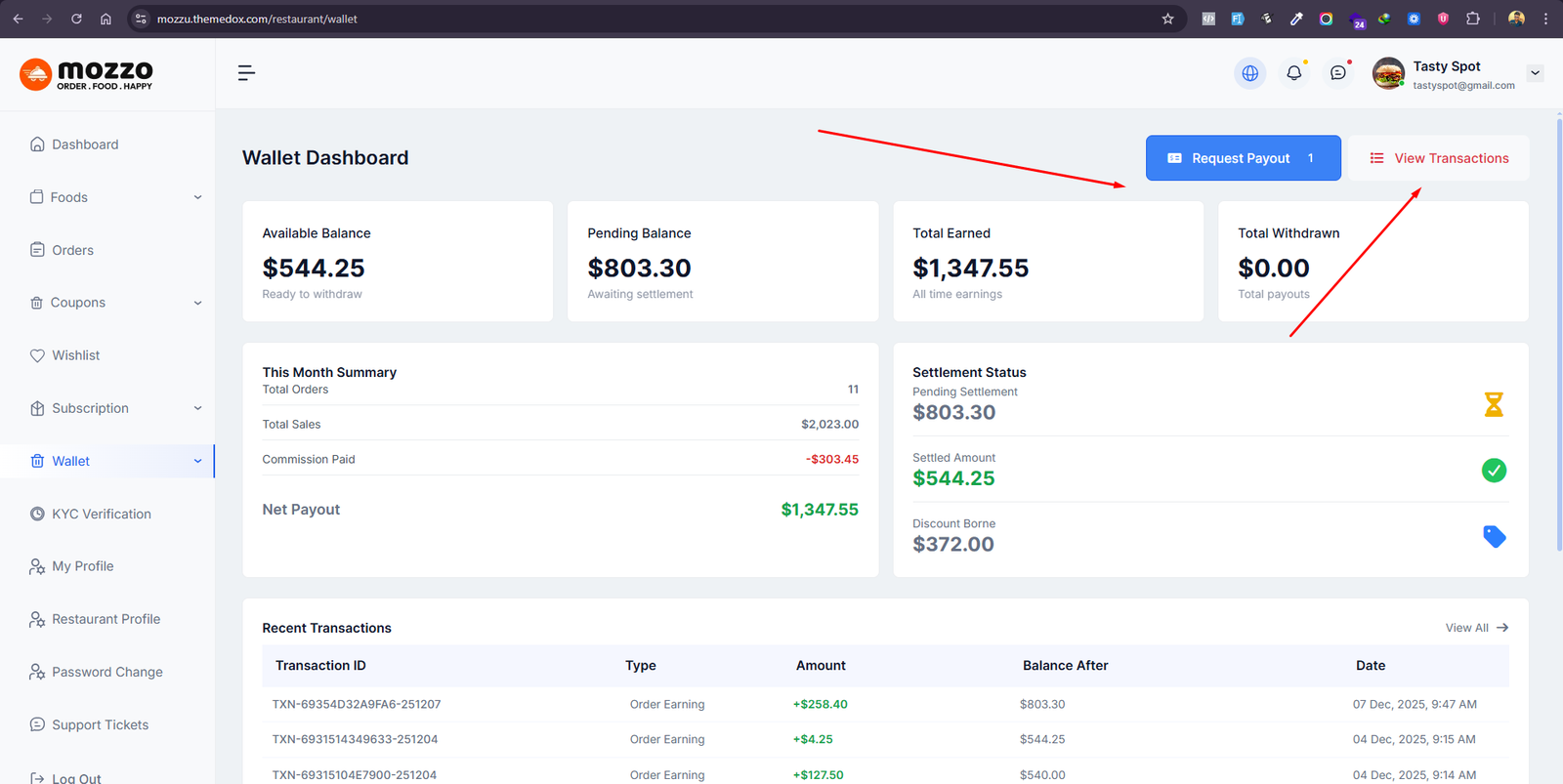
How to Manage Restaurant Wallet Dashboard
Step 3: Navigate to Dashboard > Wallet > Wallet Dashboard
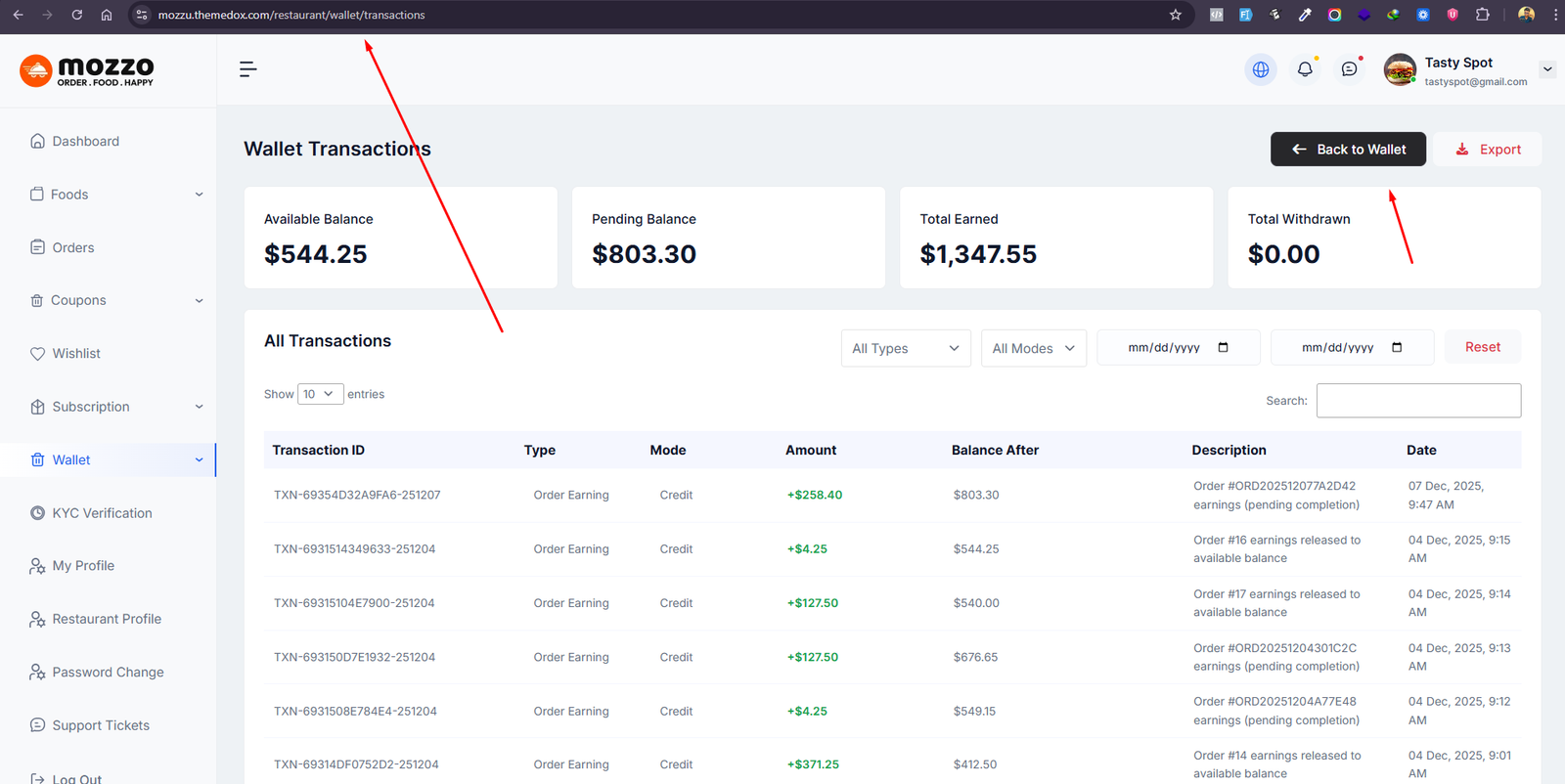
How to Manage Restaurant Wallet Transactions
Step 4: Navigate to Dashboard > Wallet > Wallet Transactions
How to Manage Restaurant Wallet Send Payout Request
Step 5: Navigate to Dashboard > Wallet > Send Payout Request
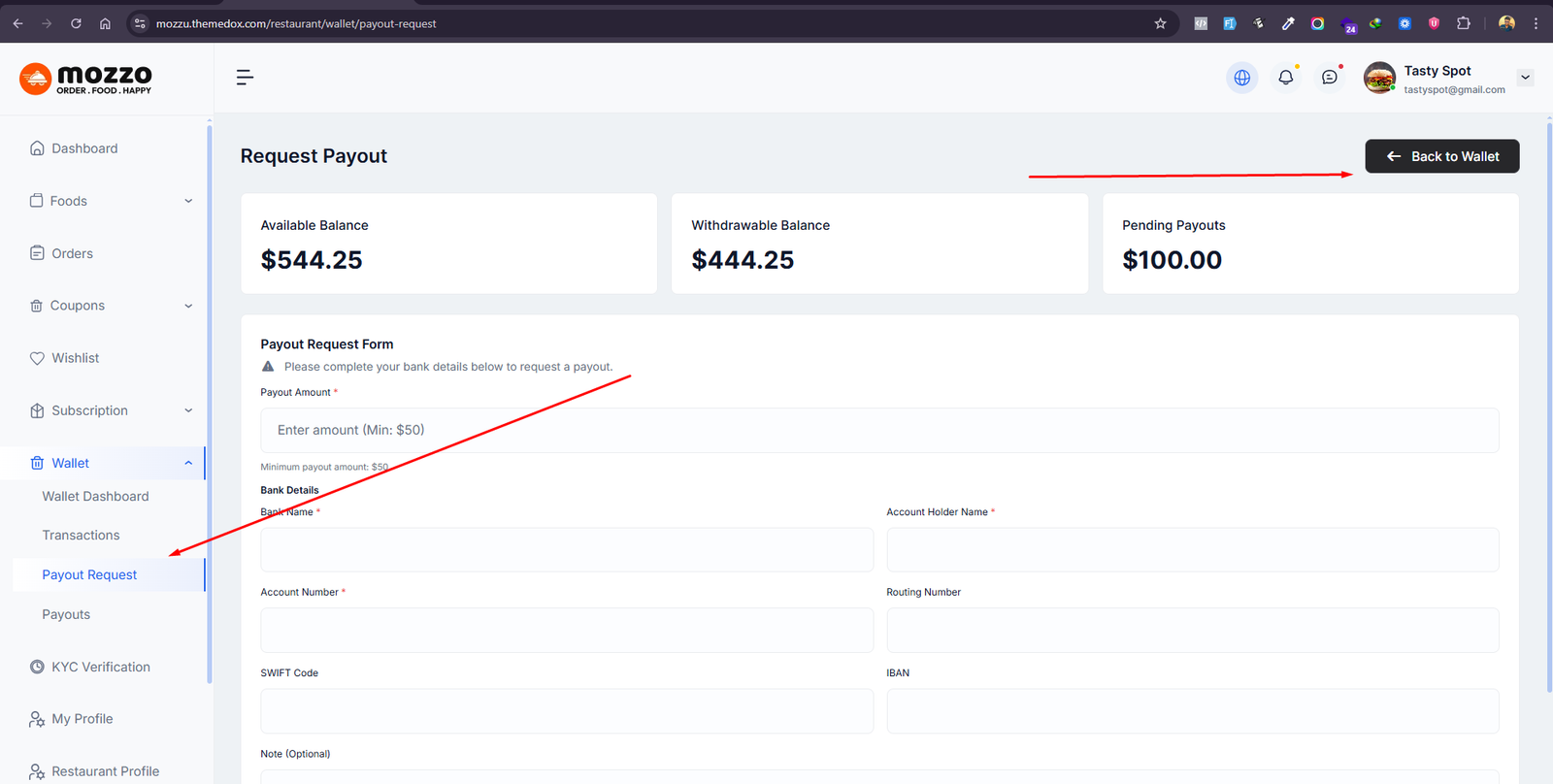
How to Manage Restaurant Wallet Payout Requests
Step 5: Navigate to Dashboard > Wallet > Payout Request
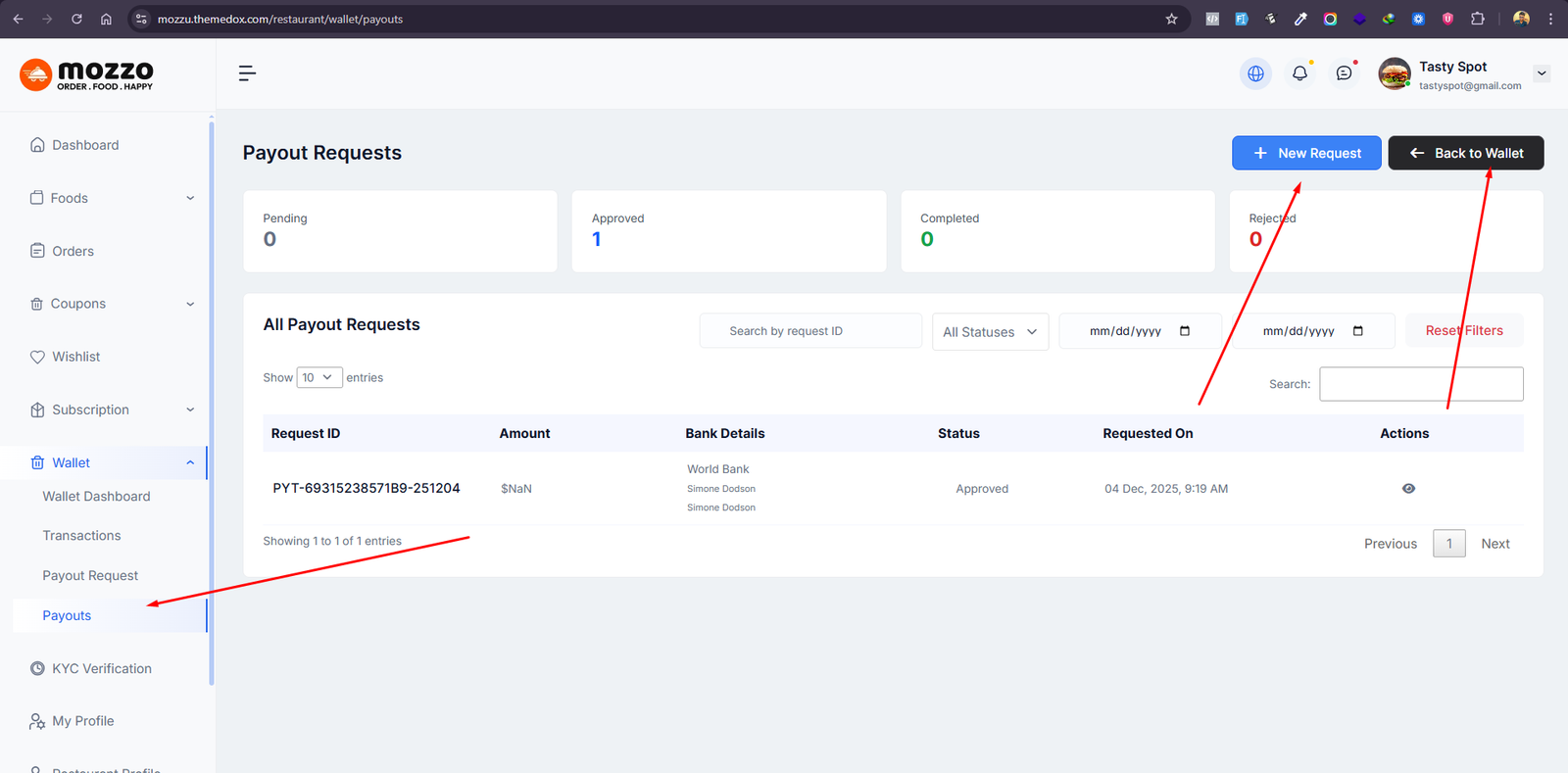
How to Manage Delivery Boy Wallet
Step 1: Navigate to Dashboard > Delivery Boys > All Delivery Boys
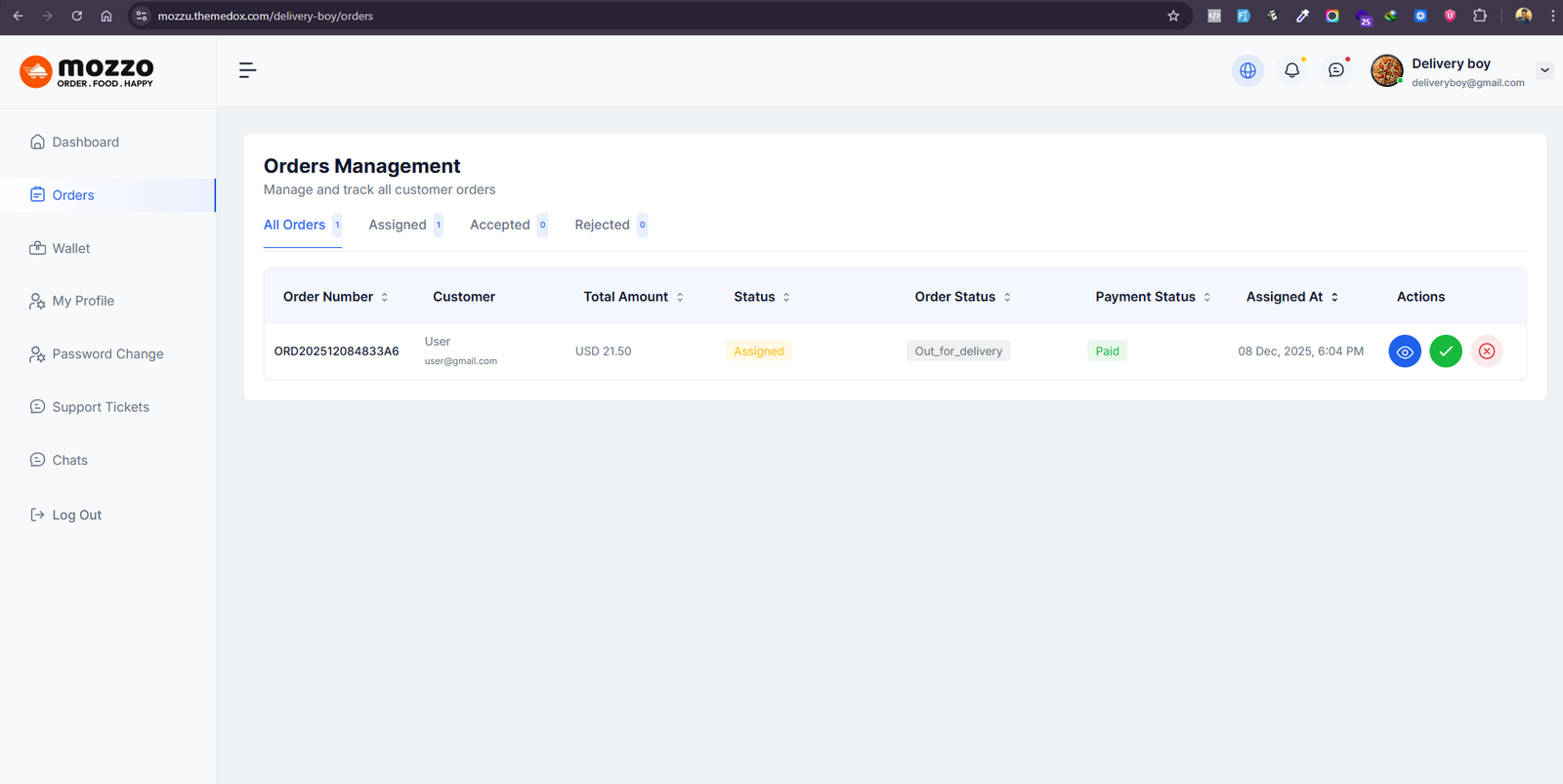
How to Show Delivery Boy Order Details
Step 1: Navigate to Dashboard > Delivery Boys > All Orders
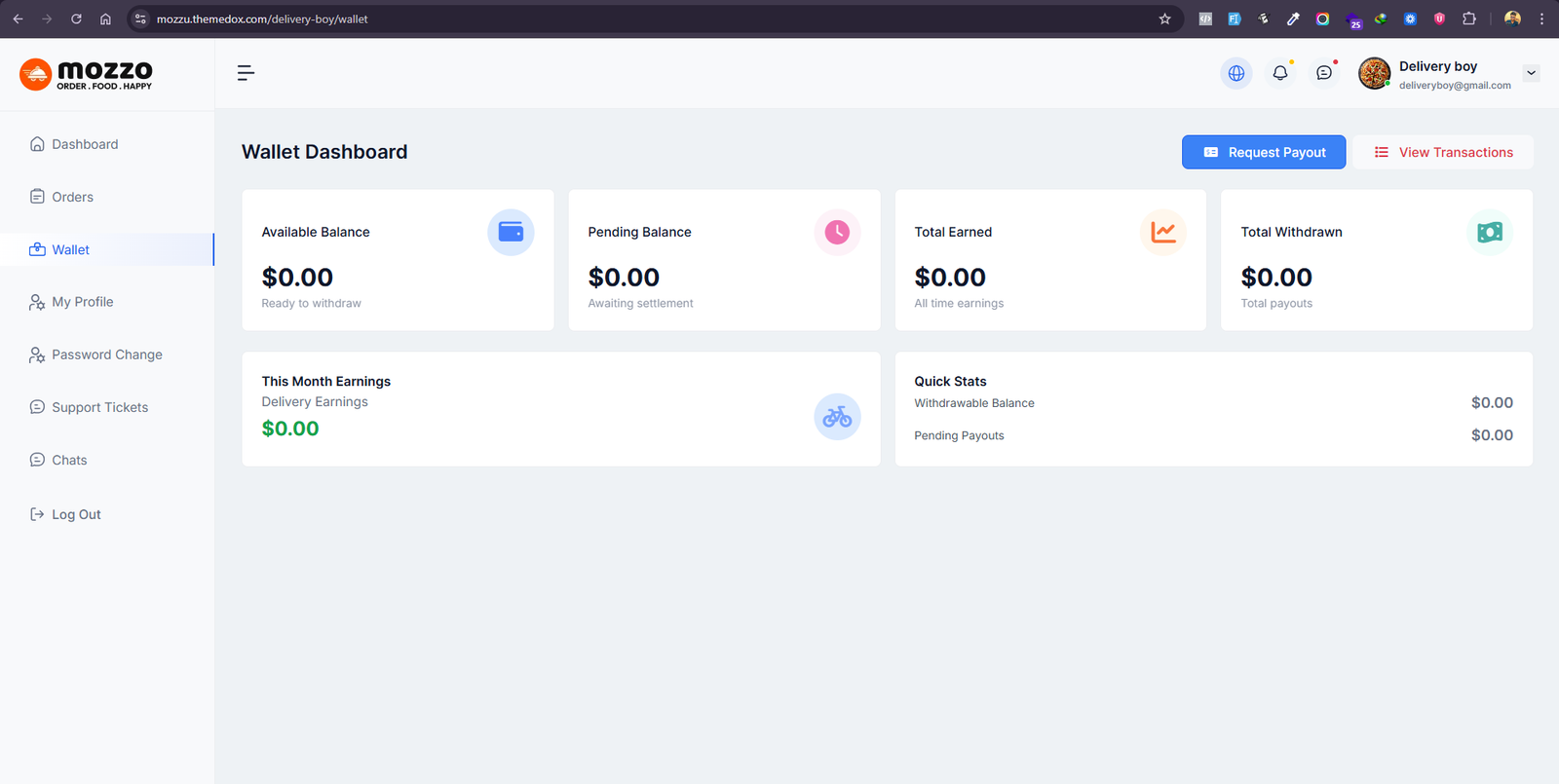
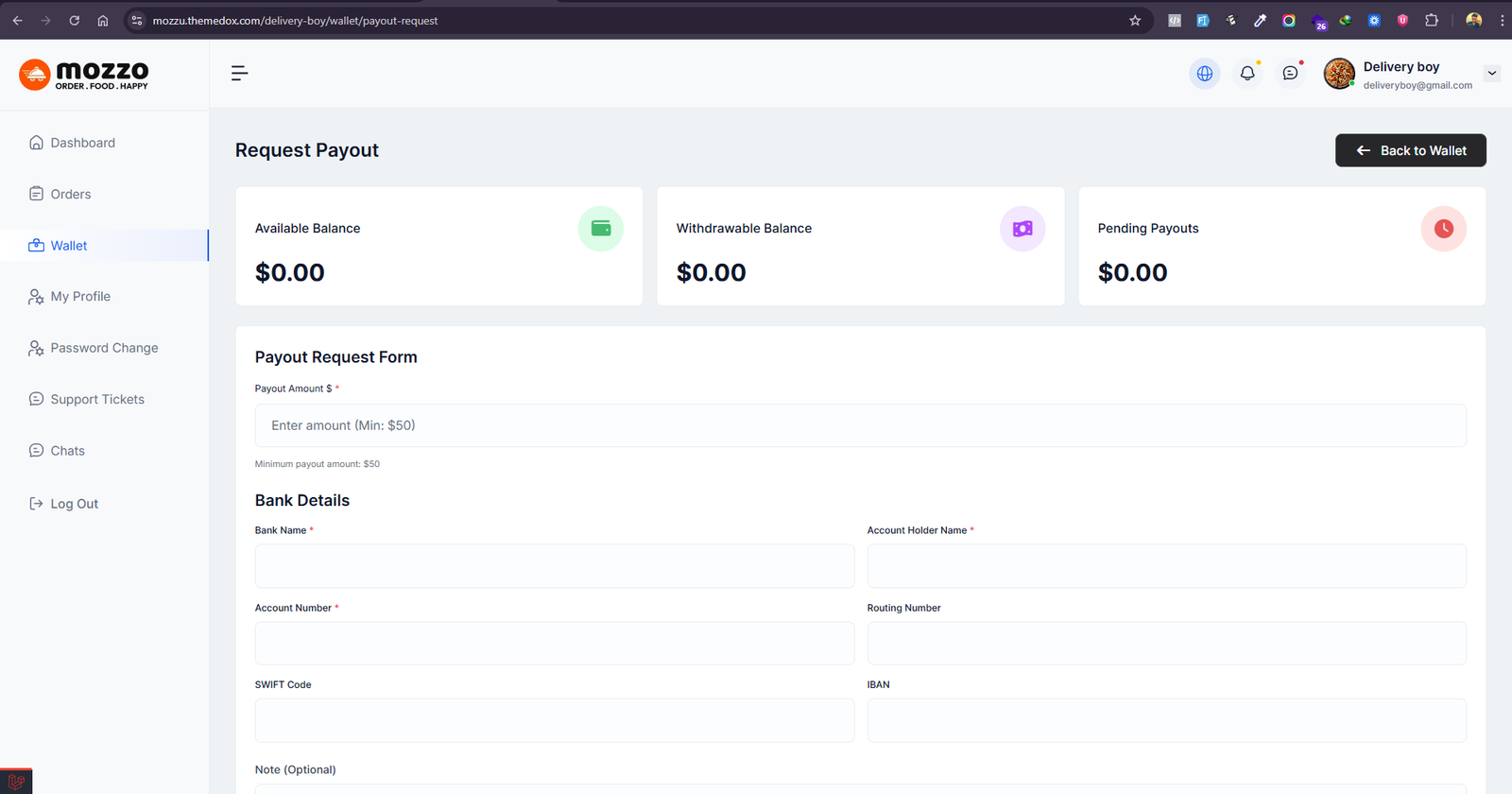
How to Delivery Payout Request
Step 1: Navigate to Dashboard > Delivery Boys > All Orders > Payout Request
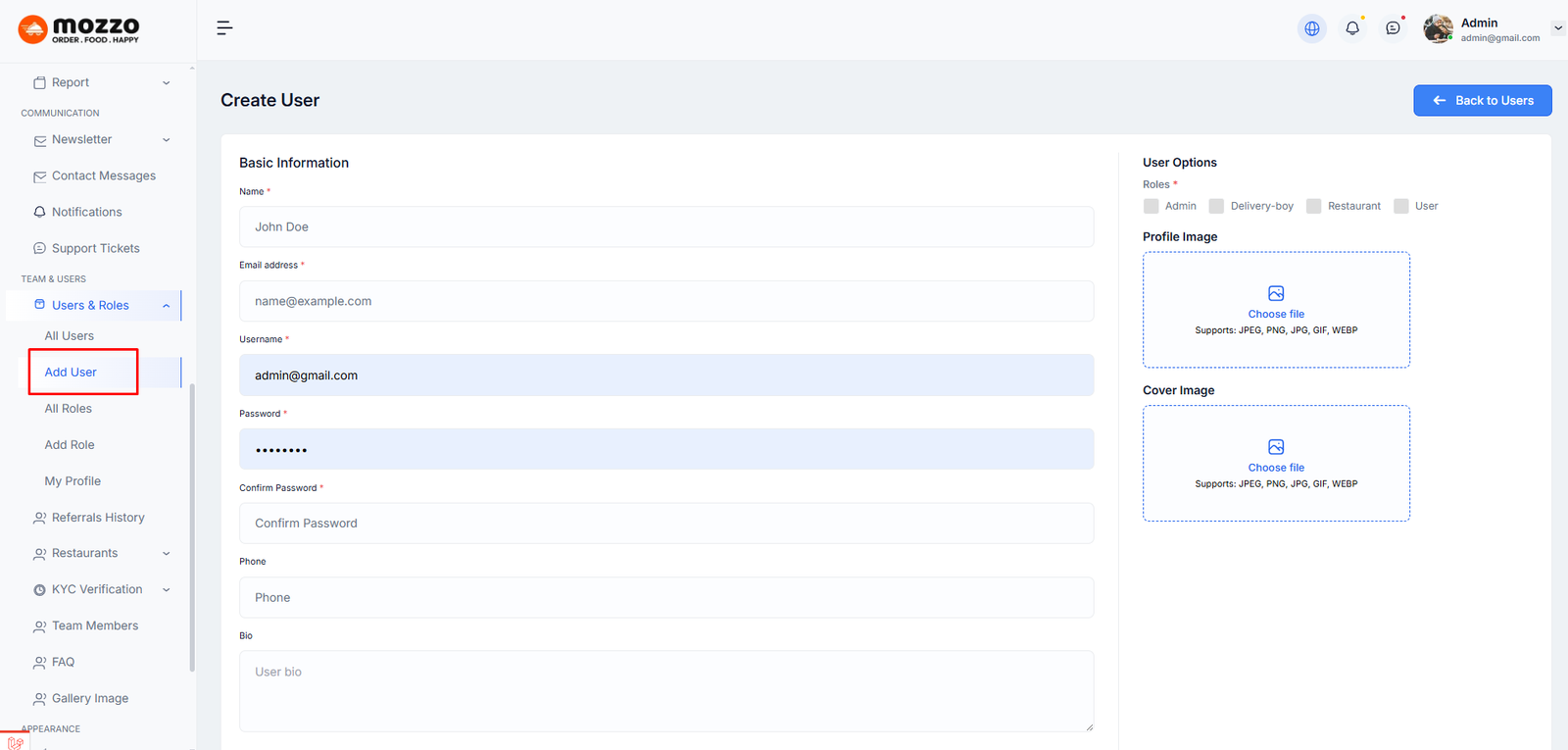
How to Create a New User
Step 1: Navigate to Dashboard > Users & Roles > Add User
Step 2: Fill in the following information:
- Name
- Email address
- Username
- Password
- Confirm Password
- Phone
- Bio
Step 3: Assign Roles (Admin, Author, User) to the user.
Step 4: Upload Profile Image and Cover Image.
Step 5: Click Create User to save.
Here is the screenshot:
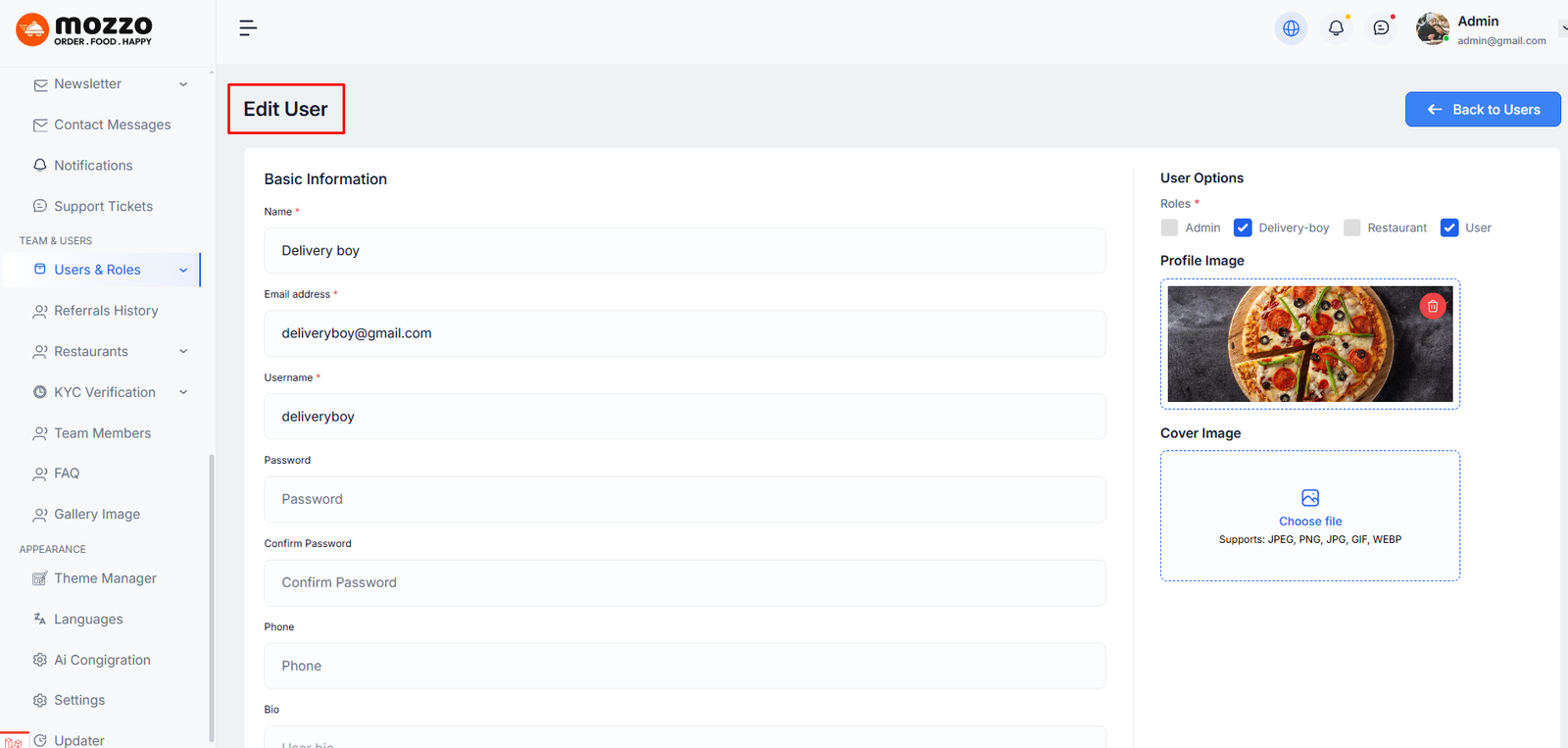
How to Edit a User
Step 1: Navigate to Dashboard > Users & Roles > All Users
Step 2: Click the edit icon next to the user you want to modify.
Step 3: Update Basic Information:
- Name
- Email address
- Username
- Password (optional - leave empty to keep current password)
- Confirm Password
- Phone
- Bio
Step 4: Update User Options:
- Assign Roles: Select Admin, Author, or User
- Upload Profile Image
- Upload Cover Image
Step 5: Click Update User to save all changes.
Here is the screenshot:
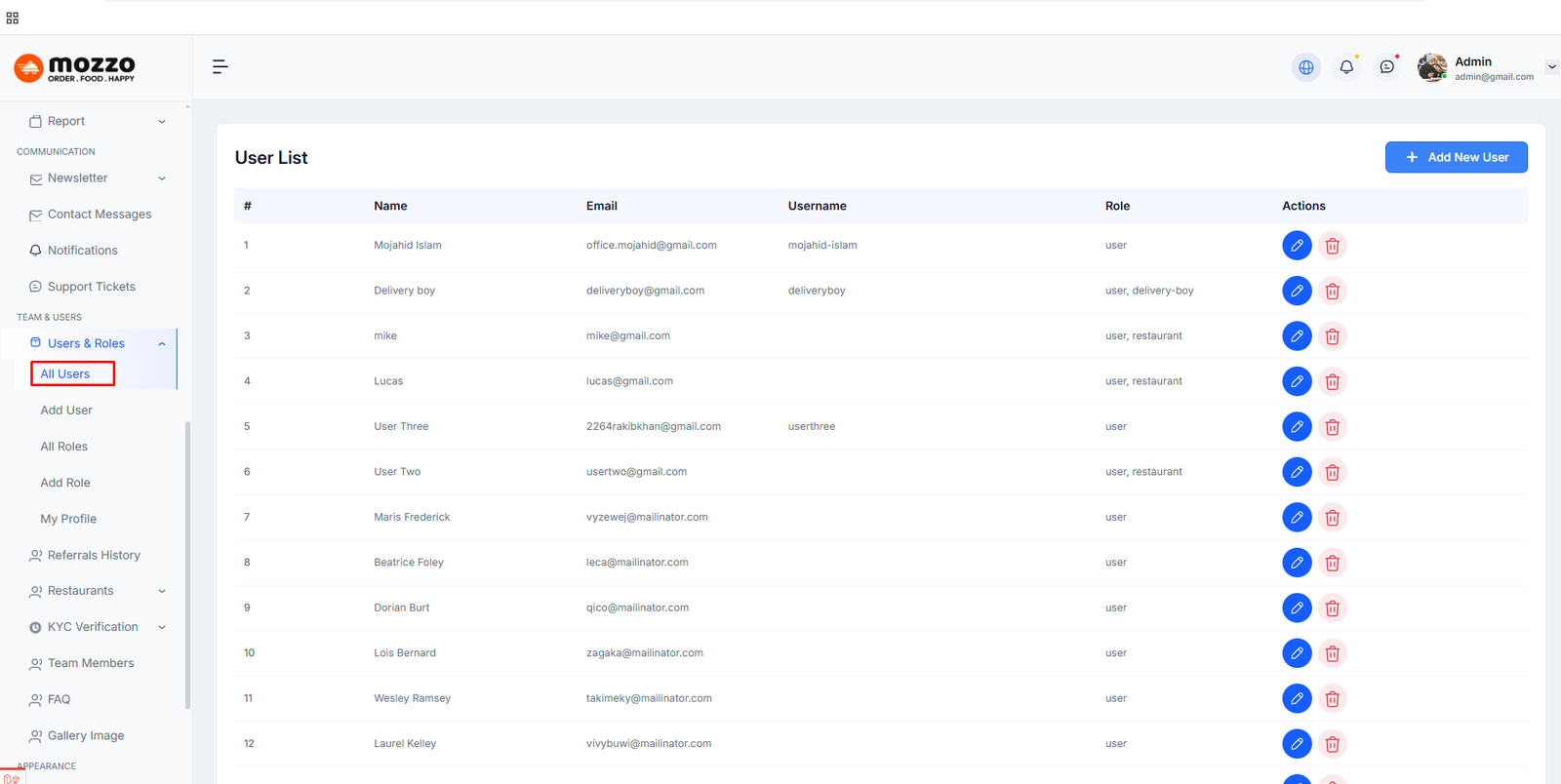
How to Manage Users
Step 1: Navigate to Dashboard > Users & Roles > All Users
Step 2: You will see a list of all users with Name, Email, Username, Role, and Actions.
Step 3: Click the edit icon to modify user details or delete icon to remove users.
Here is the screenshot:
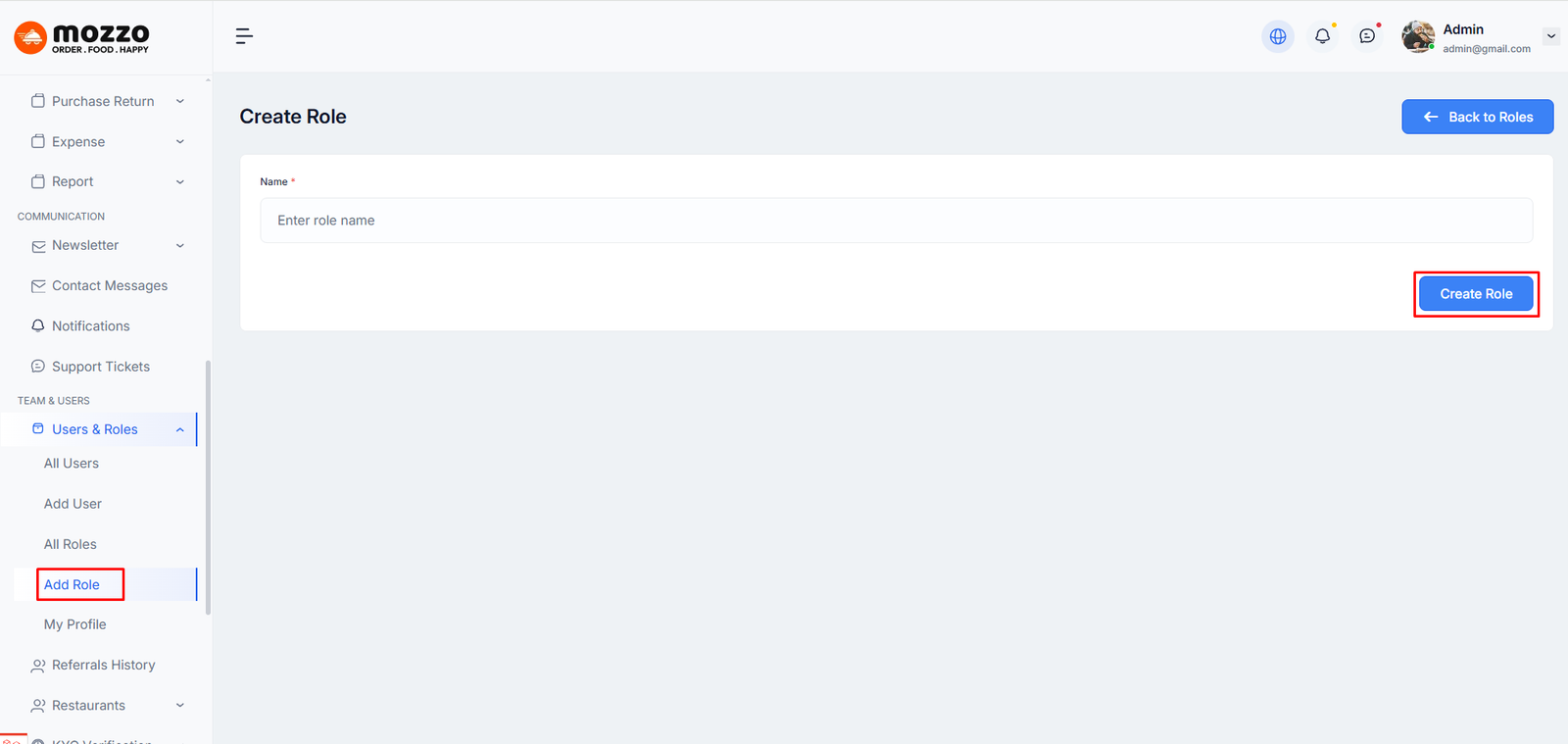
How to Create a New Role
Step 1: Navigate to Dashboard > Users & Roles > Add Role
Step 2: Add a role name and description.
Step 3: Assign permissions to this role for different features and content types.
Step 4: Click Create Role to save.
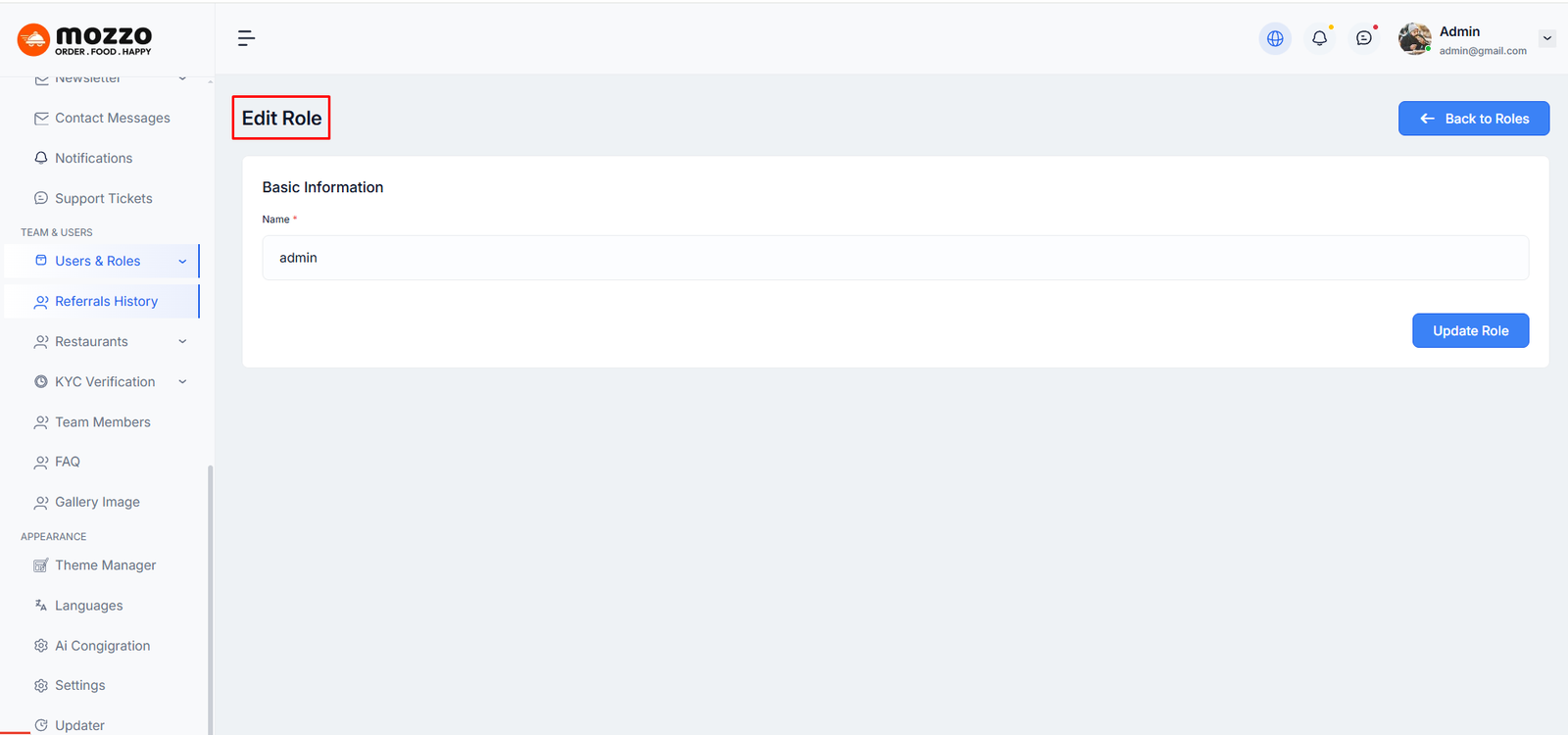
How to Edit Role
Here is the screenshot:
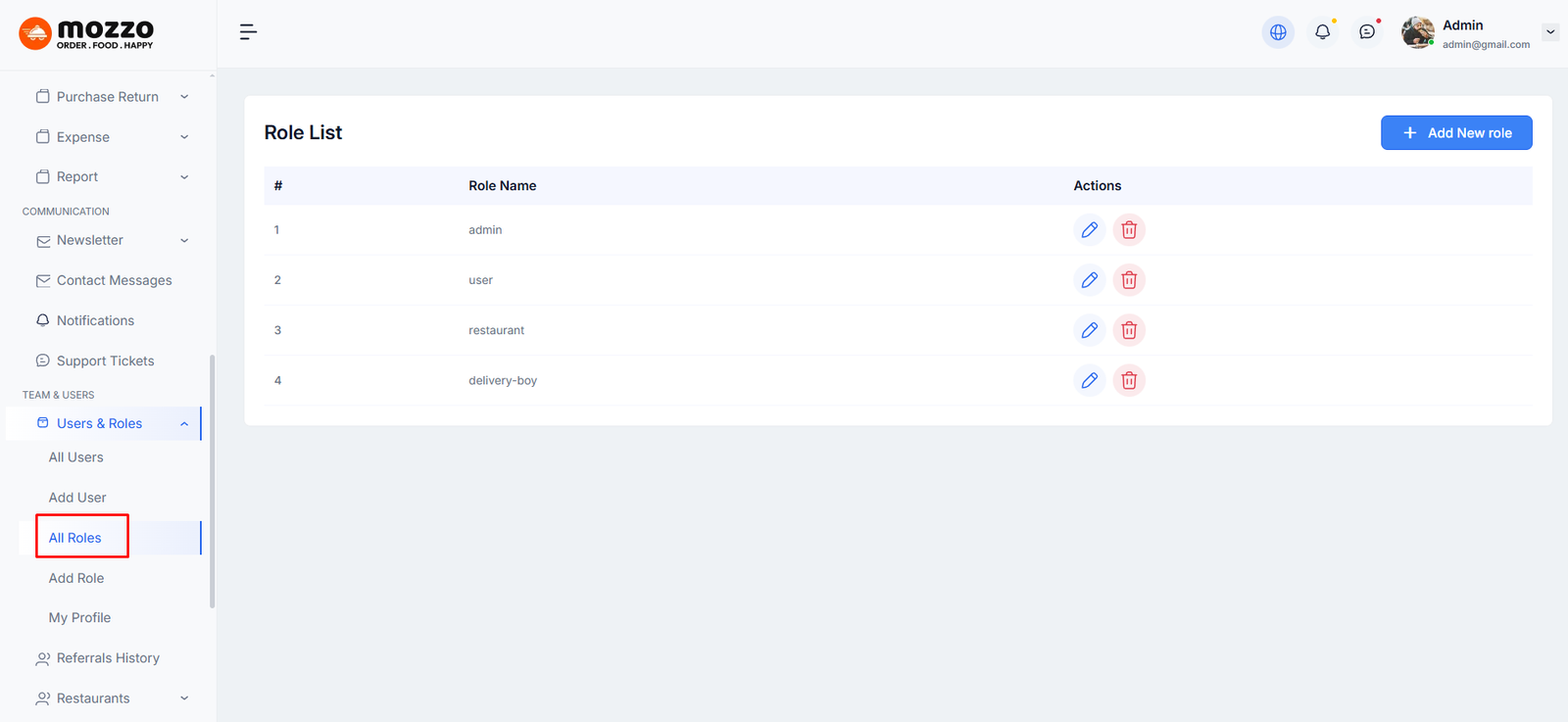
How to Manage Roles
Step 1: Navigate to Dashboard > Users & Roles > All Roles
Step 2: You will see all available roles like Admin, Author, User.
Step 3: Each role has different permissions for managing content.
Step 4: Click on a role to view or edit its permissions.
Support System
If you face any issues or need assistance regarding Mozzu - Laravel
CMS,
you can reach out to our support team via the following email:
support@themedox.com
Our dedicated support team will respond to your queries within 24–48 hours (except weekends and public holidays). Please make sure to include detailed information about your issue, including screenshots or error messages if applicable, to help us assist you faster.
Support Includes
- Guidance on how to install and use Mozzu - AI Based Online Food Ordering System & Multi-Restaurant with SaaS
- Answering technical questions related to the CMS
- Fixing any bugs or issues within the core CMS
- Free updates to maintain compatibility and security
Support Does Not Include
- Custom feature development or advanced code modifications
- Server configuration or hosting-related issues
- Installation on live servers (unless included in a special package)
- Integration with third-party services or plugins
- Issues caused by modifying core files
Before contacting support, please review the System Requirements and the installation documentation to ensure everything is set up correctly.
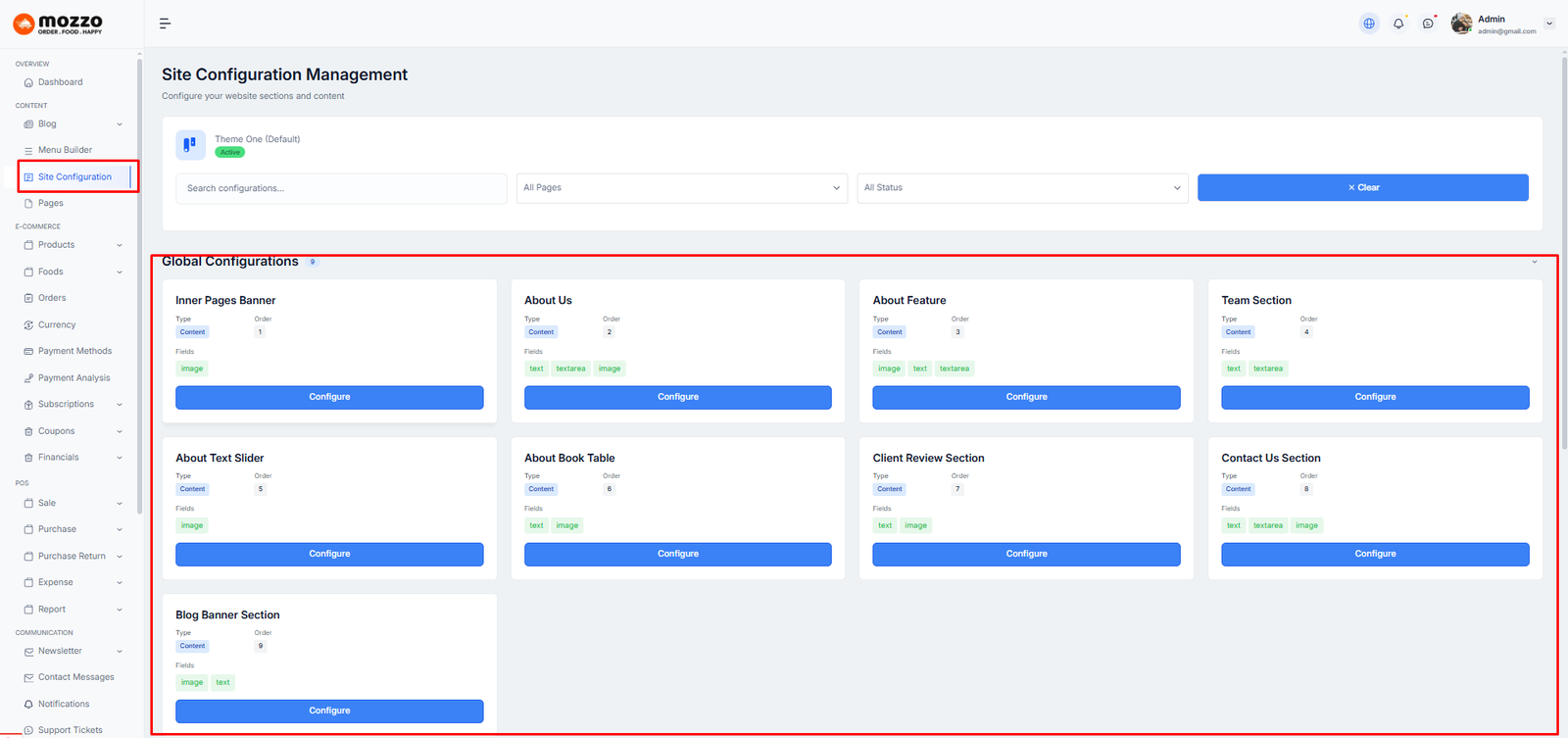
How to Manage Global Configurations
Step 1: Navigate to Dashboard > Site Configuration
Step 2: You will see Global Configurations section with different sections like About Us, Team Section, Contact Us Section
Step 3: Click Configure button on any section to customize it.
Here is the screenshot:
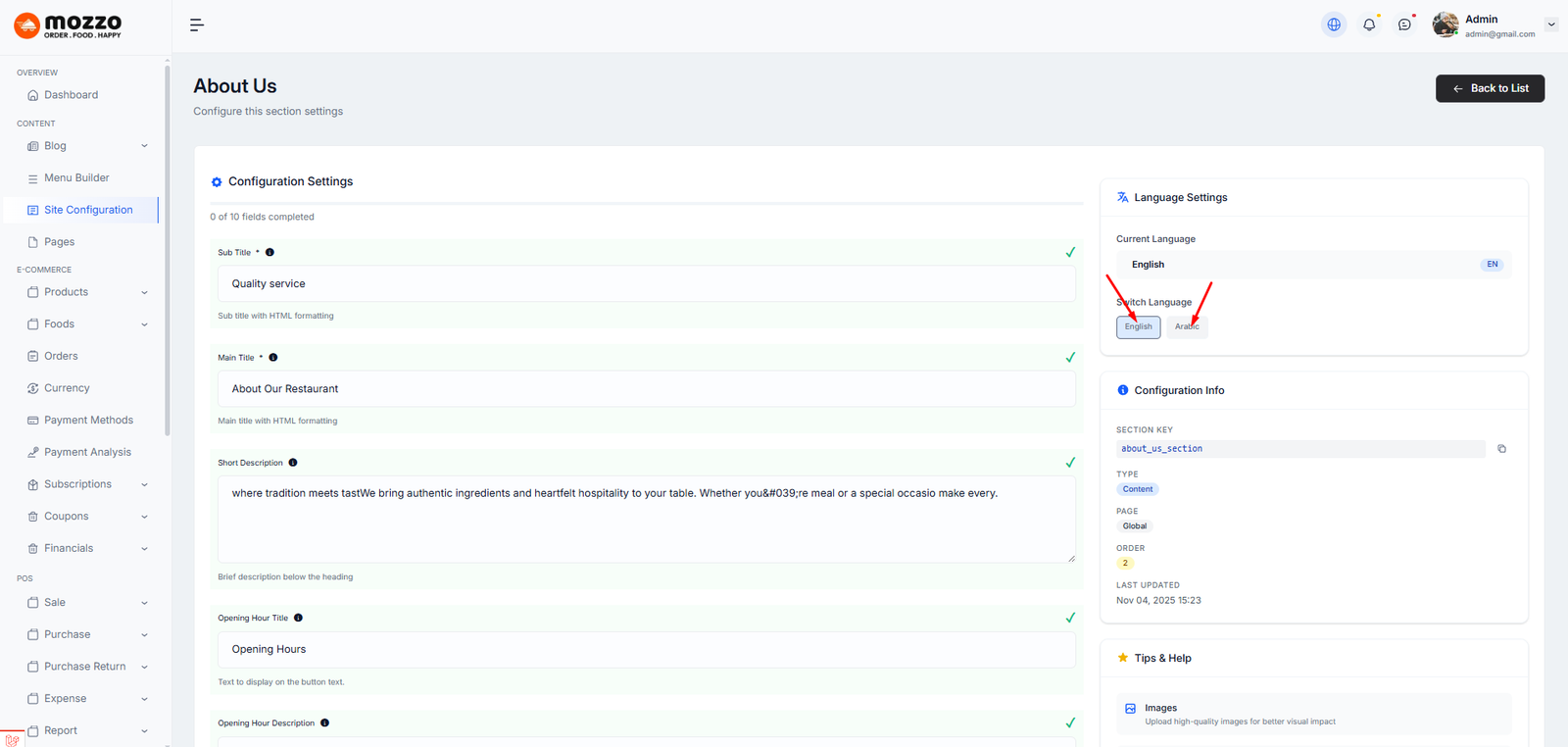
How to Configure About Us
Step 1: Click Configure on the About Us section.
Step 2: Fill in the following fields:
- Sub Title (e.g., "WHO WE ARE")
- Main Title (e.g., "We Build Bridge Between Companies And Customers")
- Short Description
- Description
Step 3: Add Images for the section.
Step 4: Switch Language to add content in other languages (English, Arabic, etc).
Step 5: Click Save Configuration.
Here is the screenshot:
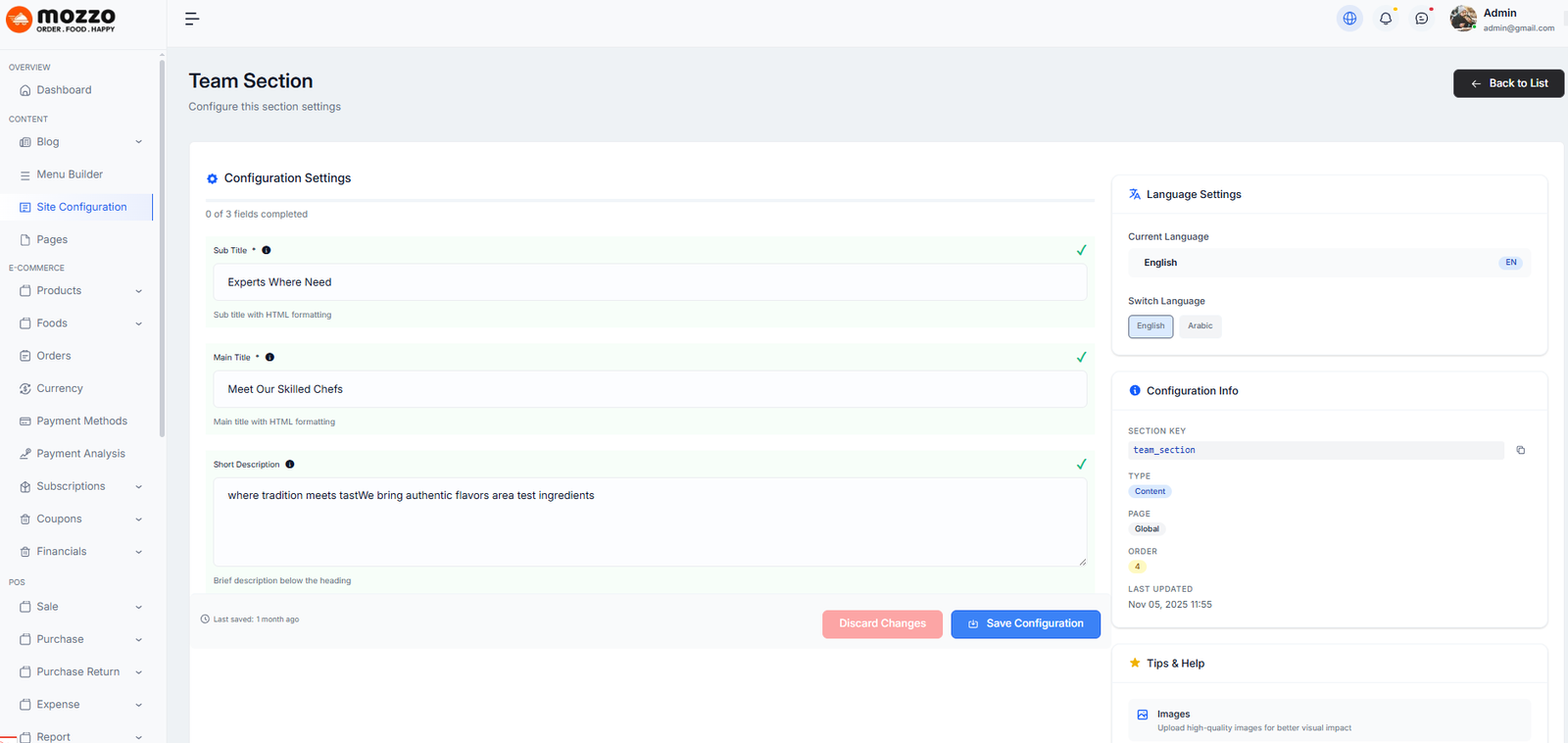
How to Configure Team Section
Step 1: Click Configure on the Team Section.
Step 2: Fill in Sub Title, Main Title, Short Description, and Description.
Step 3: Add Images and switch Language for translations.
Step 4: Click Save Configuration.
Here is the screenshot:
Similar to the About/Team page, you can create the Contact Us section for the following pages in the same way:
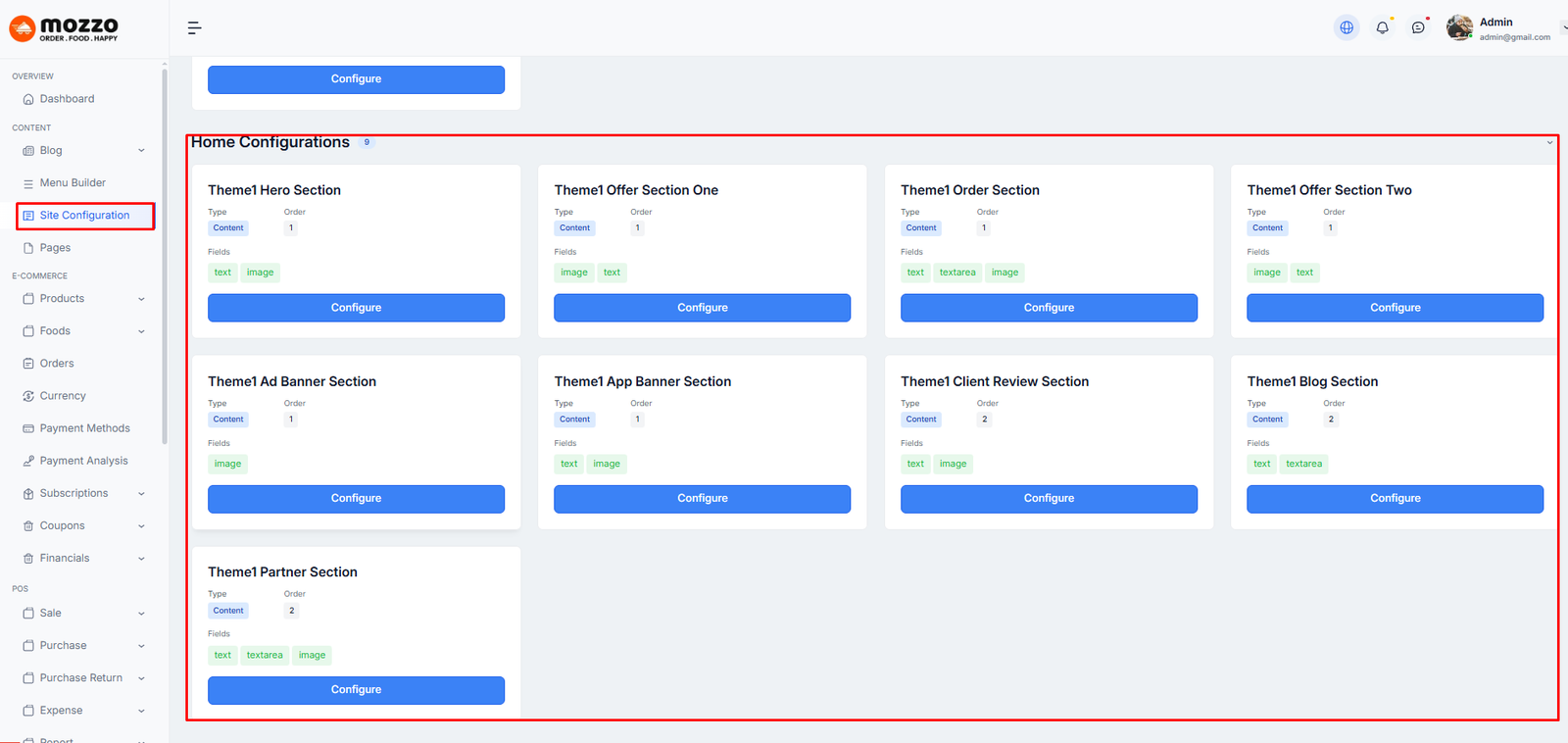
How to Manage Home Configurations
Step 1: Navigate to Dashboard > Site Configuration
Step 2: Scroll down to Home Configurations section.
Step 3: You will see multiple sections like Ad Banner, Blog Sidebar, Newsletter Section, Categories Section, etc.
Step 4: Click Configure button on any section to customize it.
Here is the screenshot:
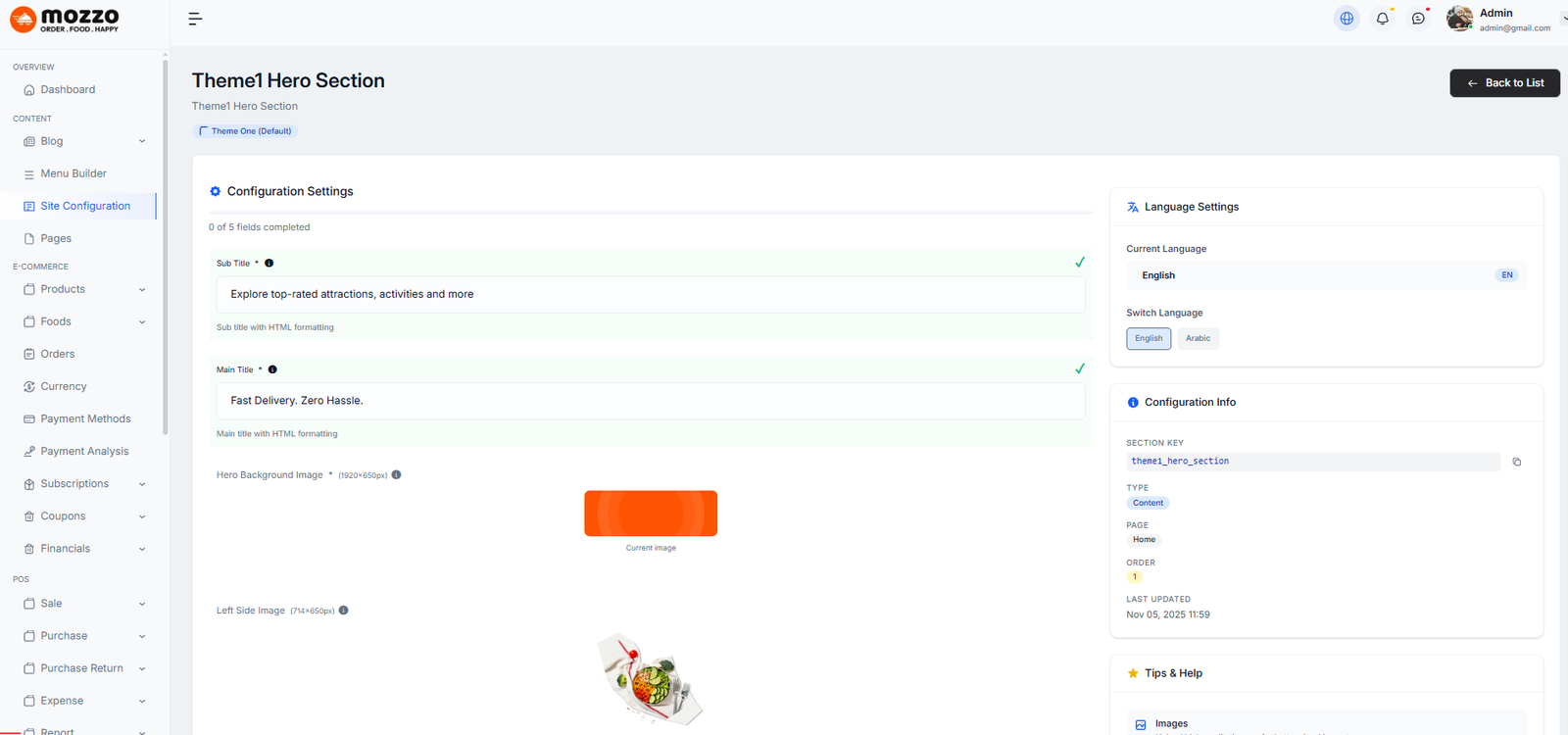
How to Configure Home Hero Section
Step 1: Click Configure on the Hero Section.
Step 2: Fill in the following fields:
- Sub Title (Section heading)
- Main Title
- Background Image
Step 3: Switch Language to add content in other languages (English, Arabic, etc).
Step 4: Click Save Configuration.
Here is the screenshot:
How to Configure Other Home Sections
Similar to Newsletter and Banner sections, you can configure the following Home sections in the same way:
- Offer Section One
- Order Section
- Offer Section Two
- Ad Banner Section
- App Banner Section
- Client Review Section
- Blog Section
- Partner Section
For each section:
Step 1: Click Configure button.
Step 2: Fill in Title, Description, Images, and other required fields.
Step 3: Switch Language for translations.
Step 4: Click Save Configuration.
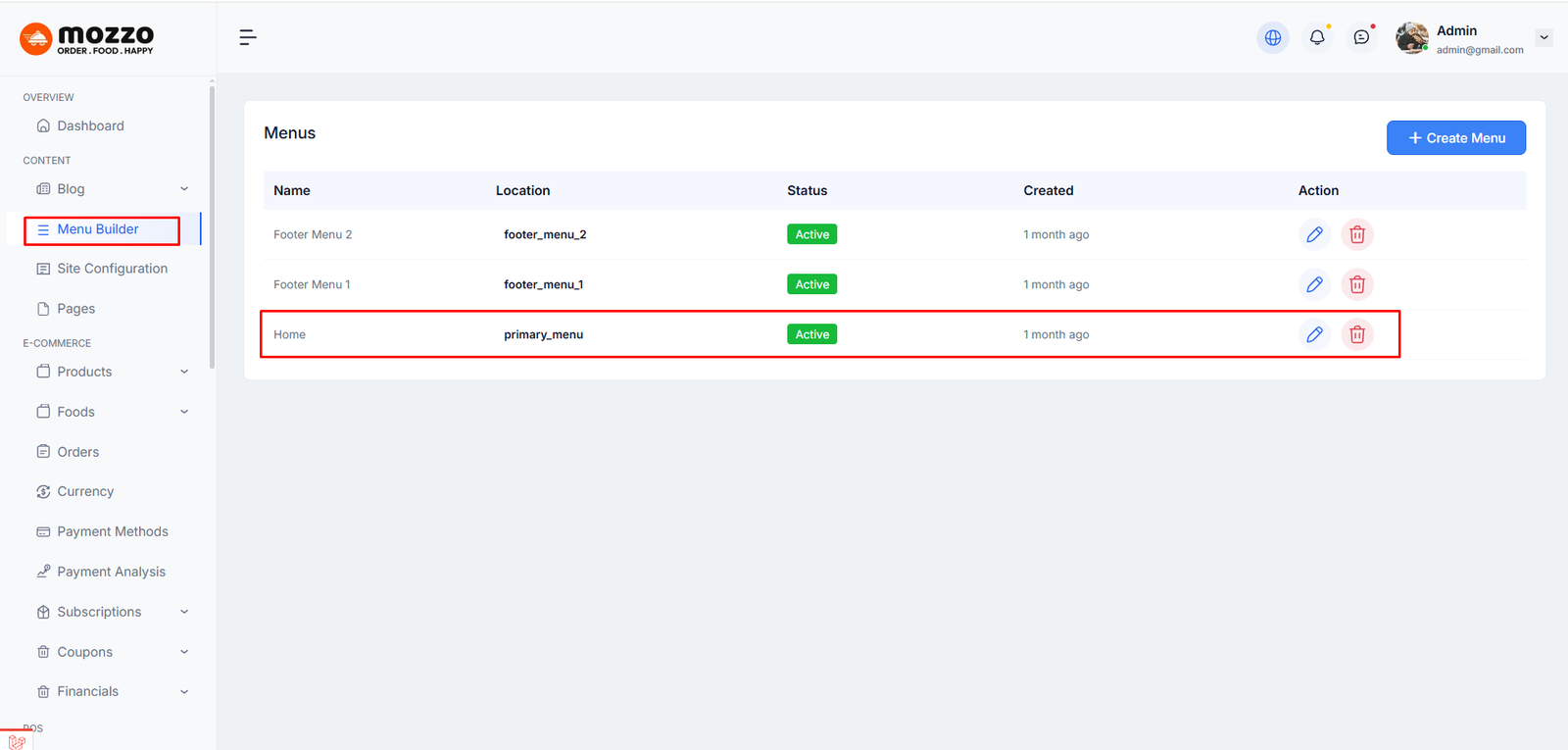
Header
Header Main Menu
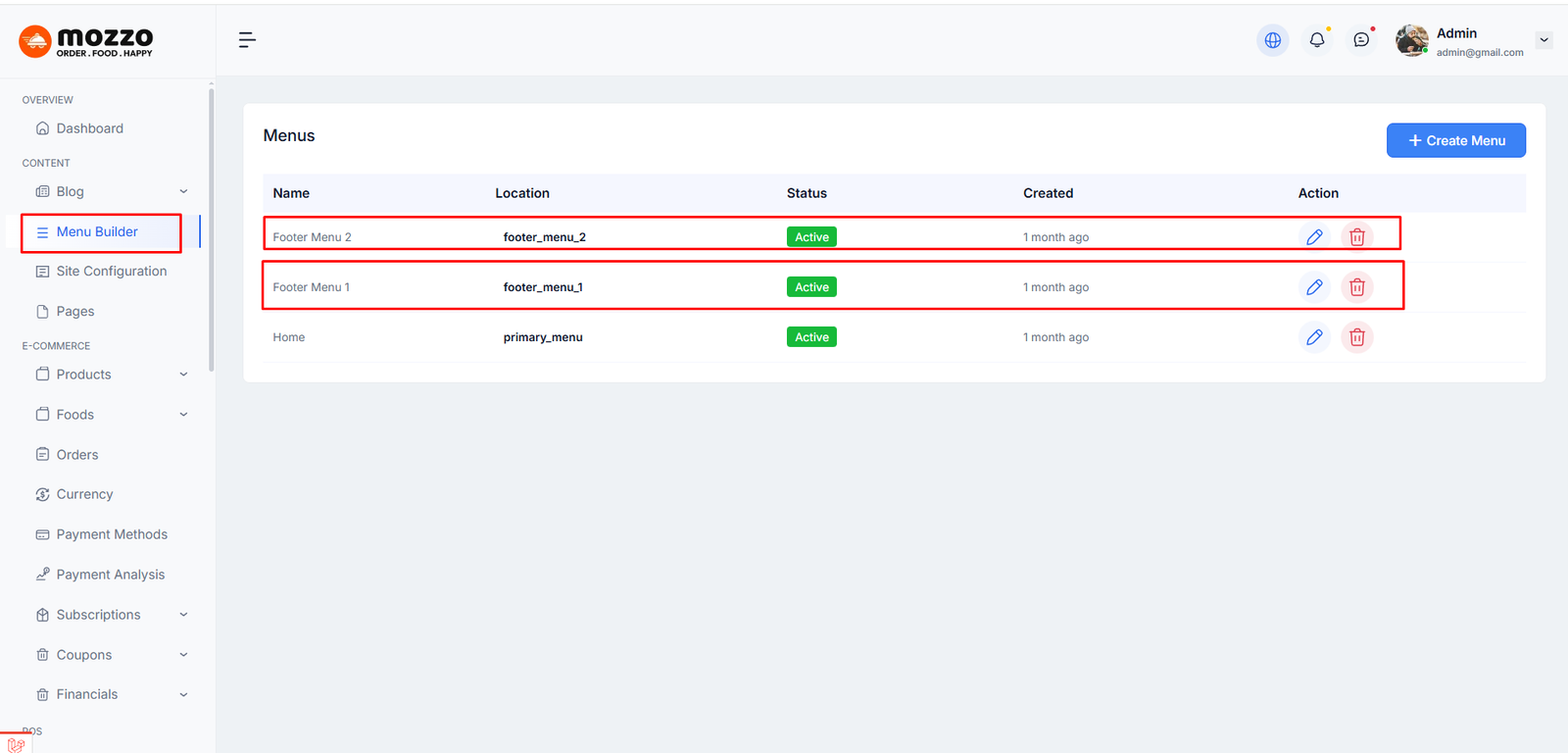
Footer
Footer Menu
Footer Description & Copy Right Text
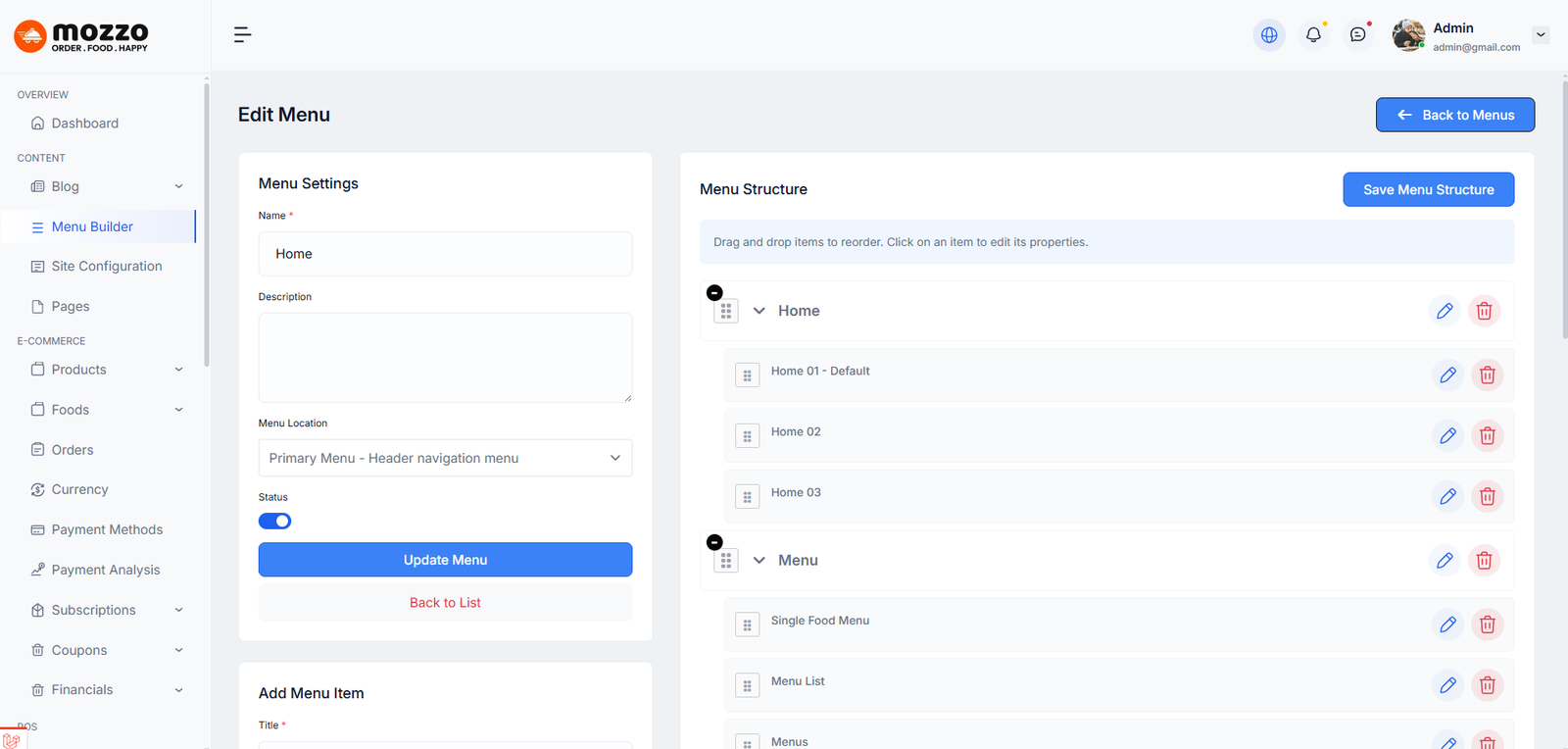
Menu Management Setup And Management
Menu Management Setup And Management
Go to Dashboard → Menu Builder → Menus
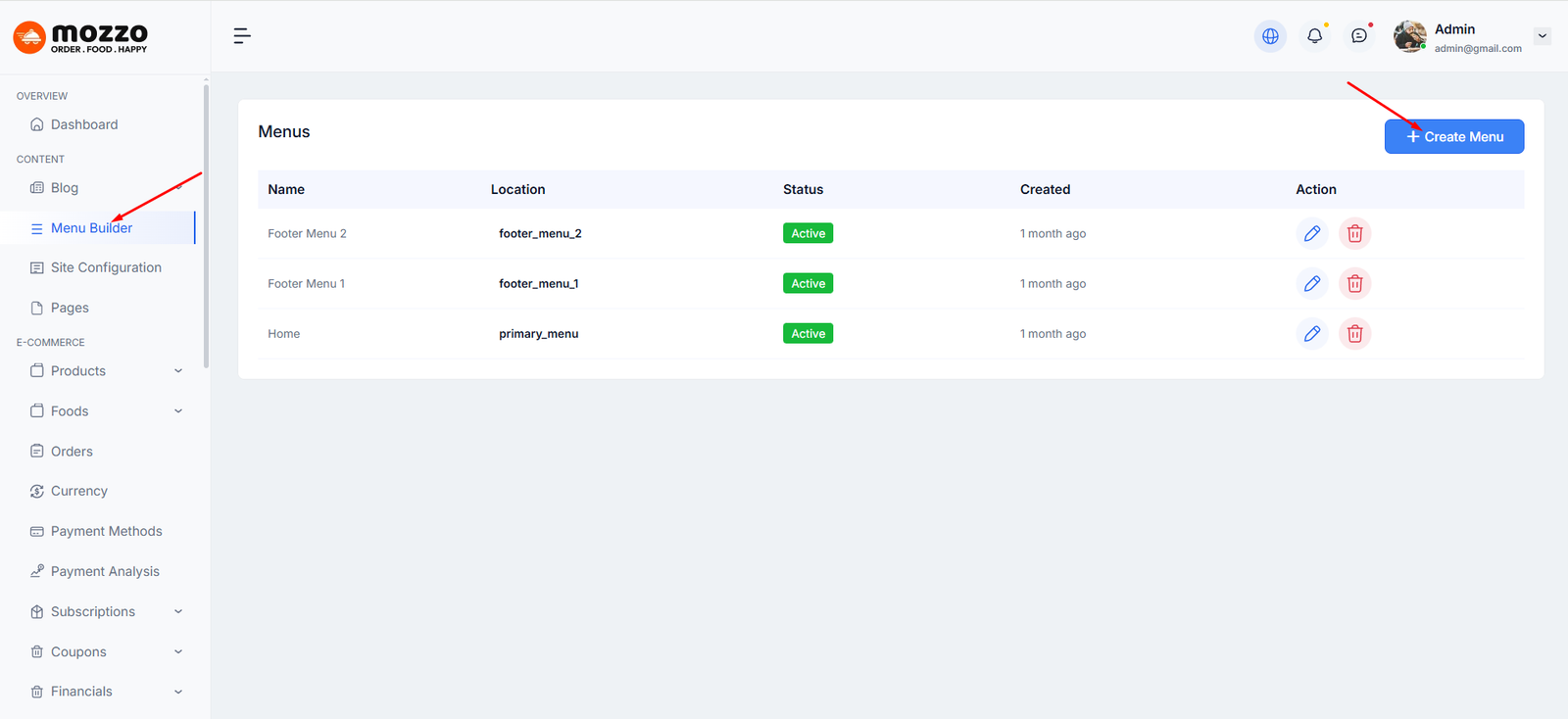
Menu Management Setup And Management Create New Menu
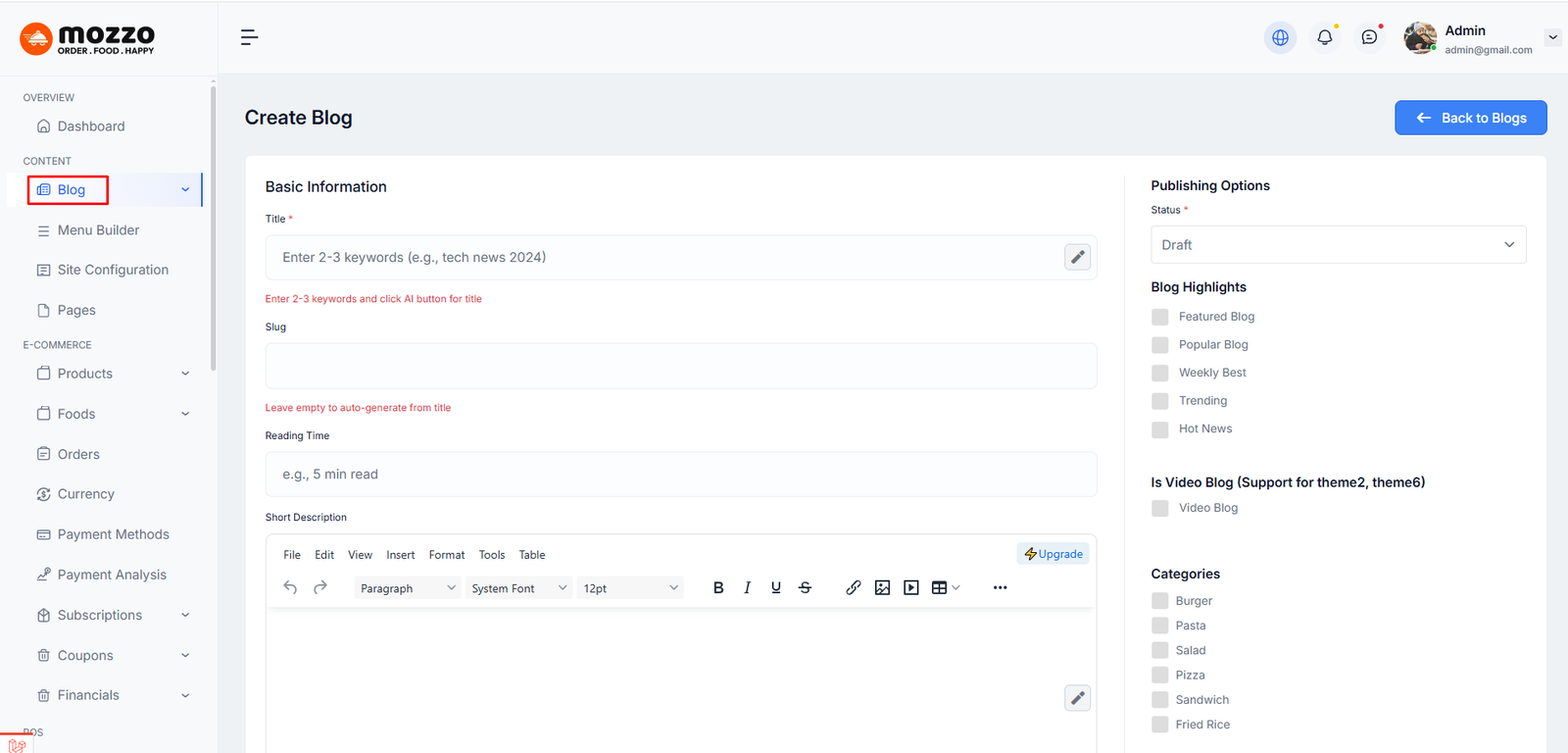
How to Create a New Blogs
Step 1: Navigate to Dashboard > Blog > All Posts > Add New Post in your admin sidebar.
Step 2: Add a title, and add your Blog content in the editing field.
Step 3: Add Categories Before Make any Blog Post, You have to create a Category first. click here to create a Category.
Step 4: Once you are finished, click Publish to save the post.
Here is the screenshot that shows the various areas of the blog post page:
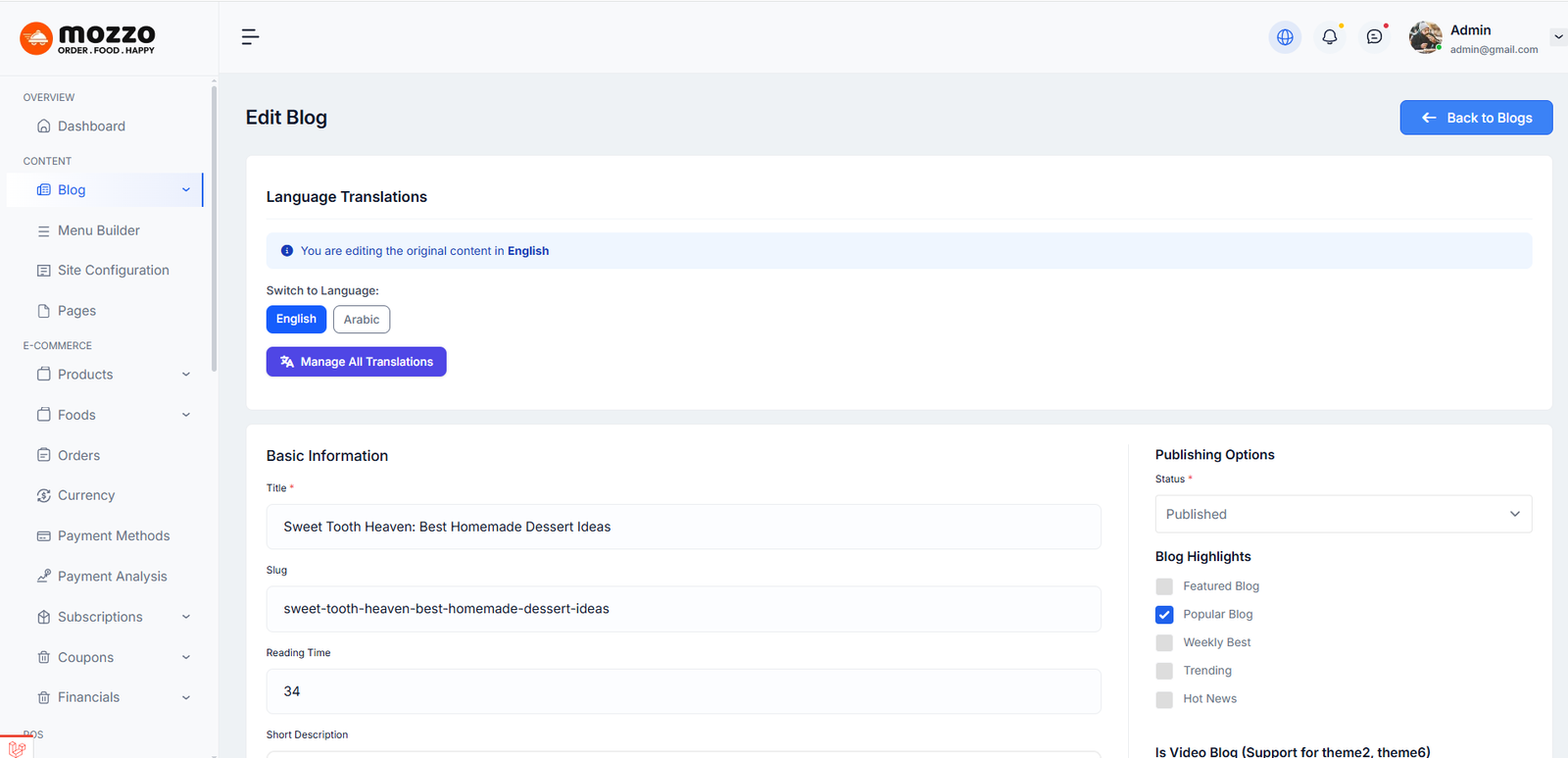
For Edit Page
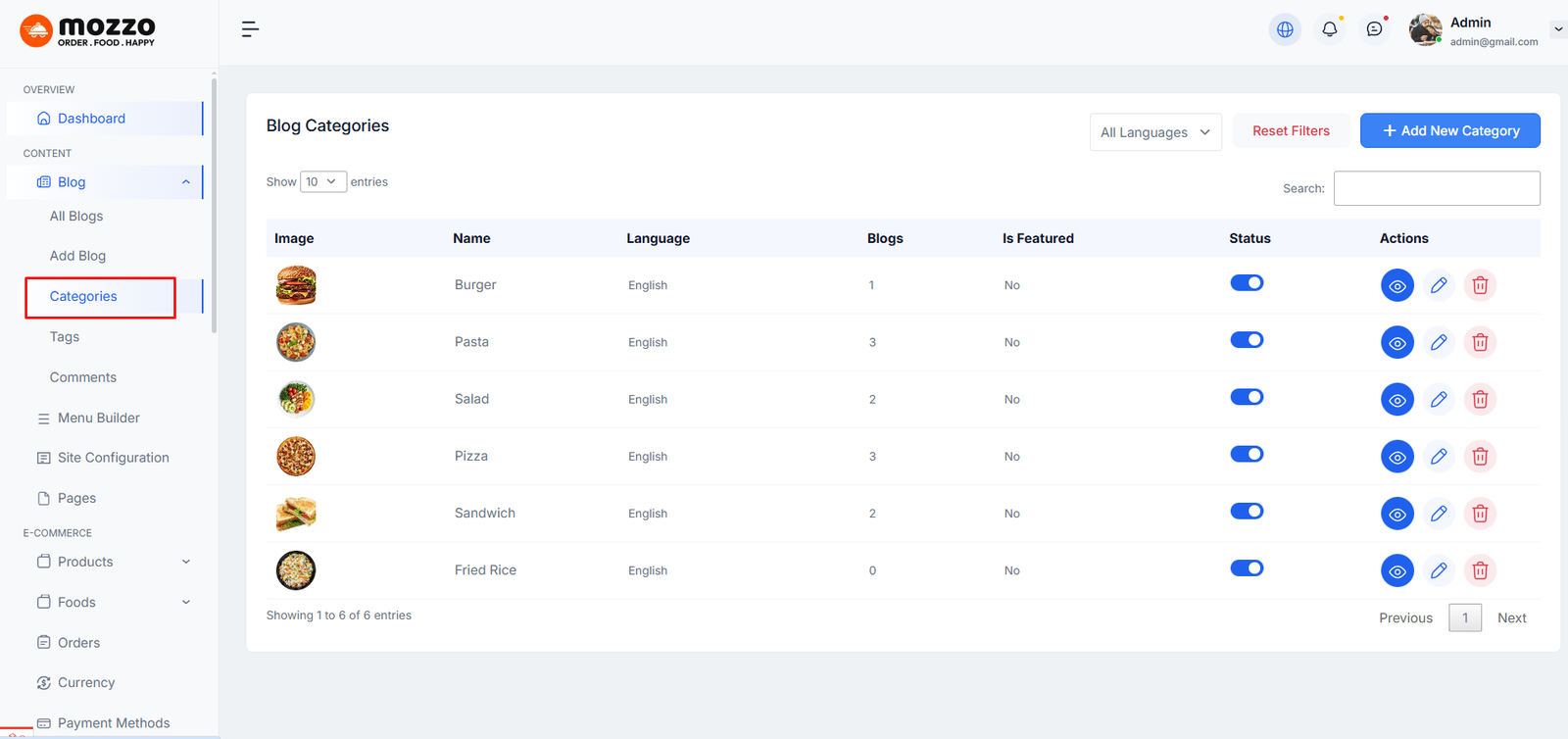
How to Create a Category
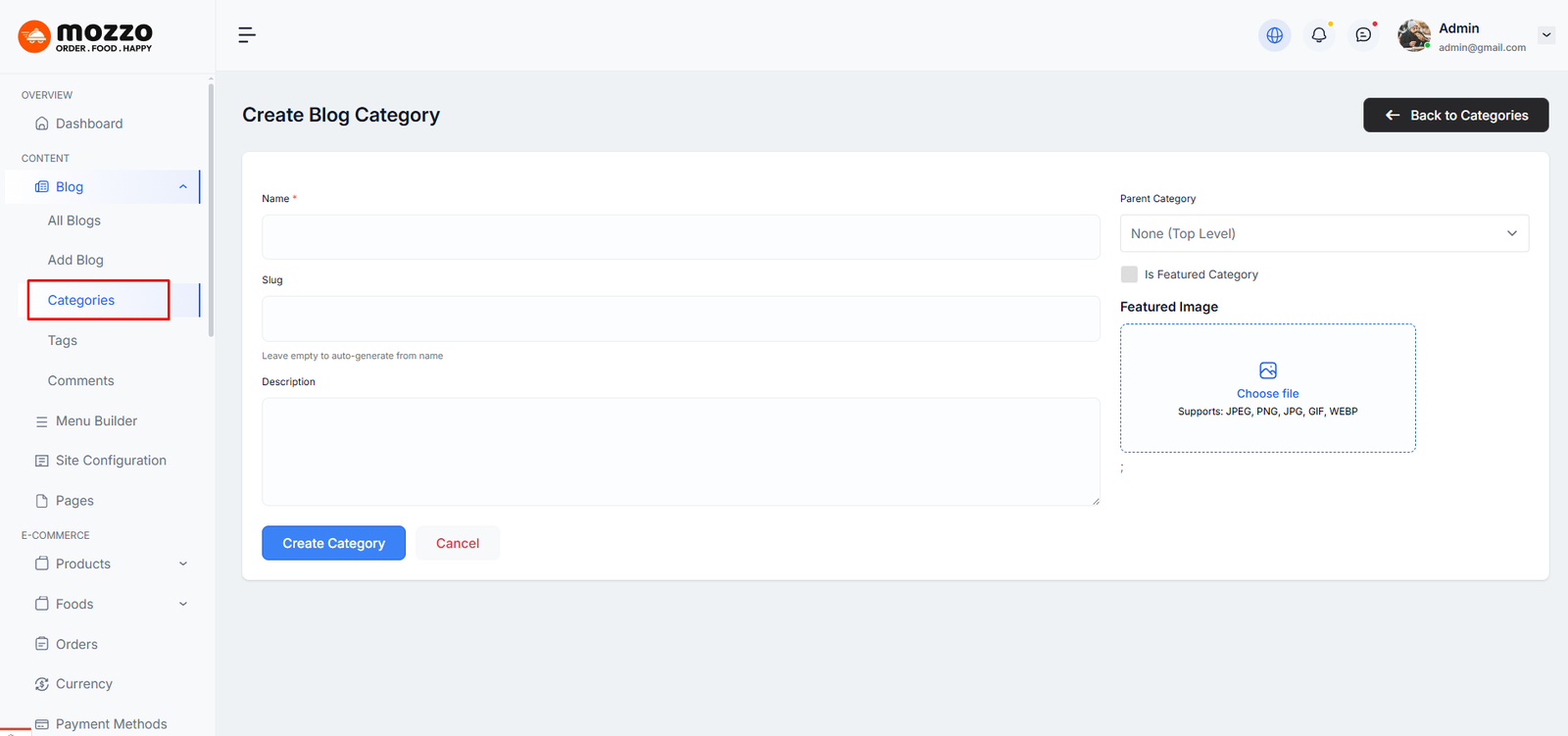
Step 1: Dashboard >> Blog >> Categories >> Categories
Step 2: Name the category and fill to other section below.
Step 3: Hit Add New Category. Your new Category will aprear in the table of all category immediately.
Category List:
Create New Category:
Edit Category:
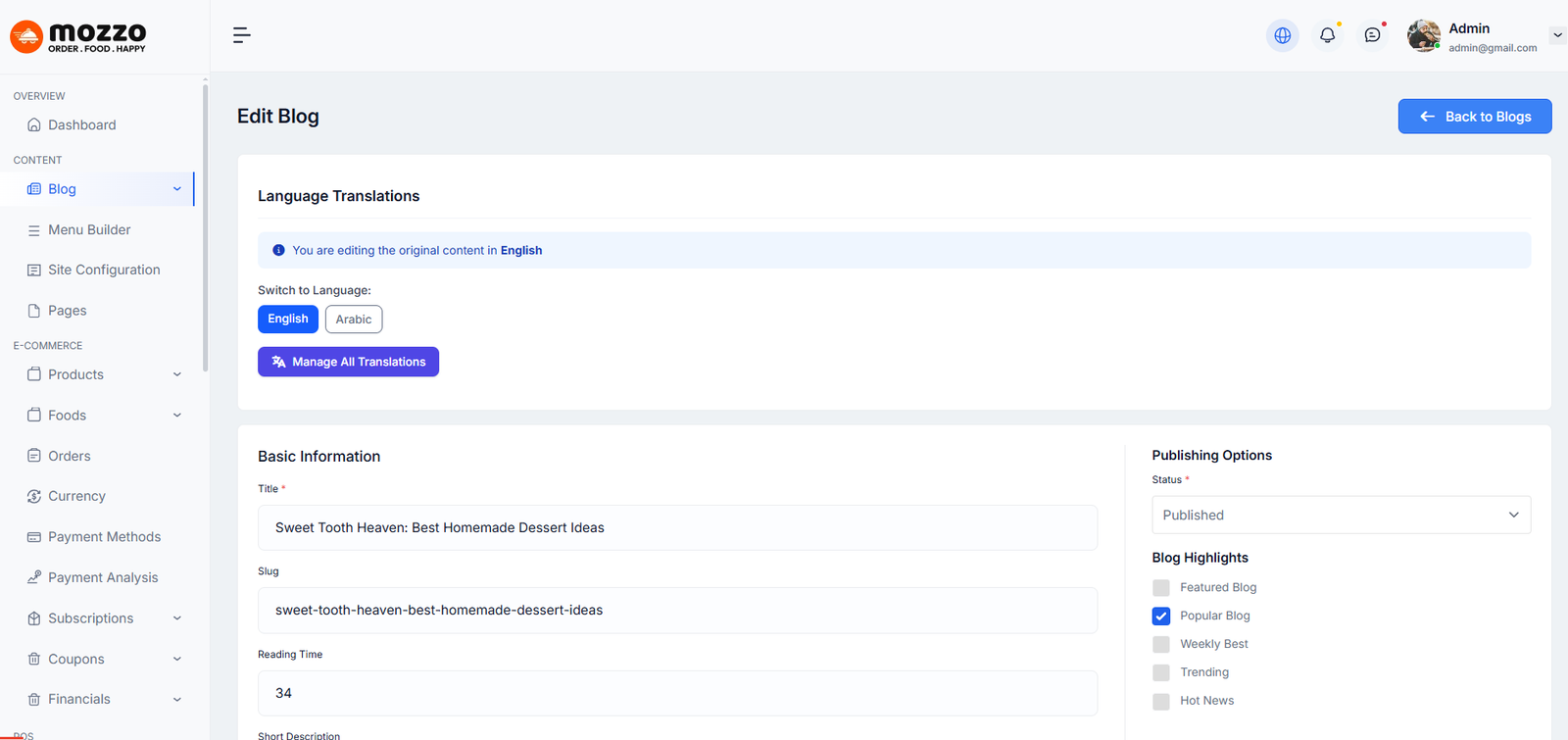
Similar to Category, you can create a new Tag in the same way.
How to Create a New Product
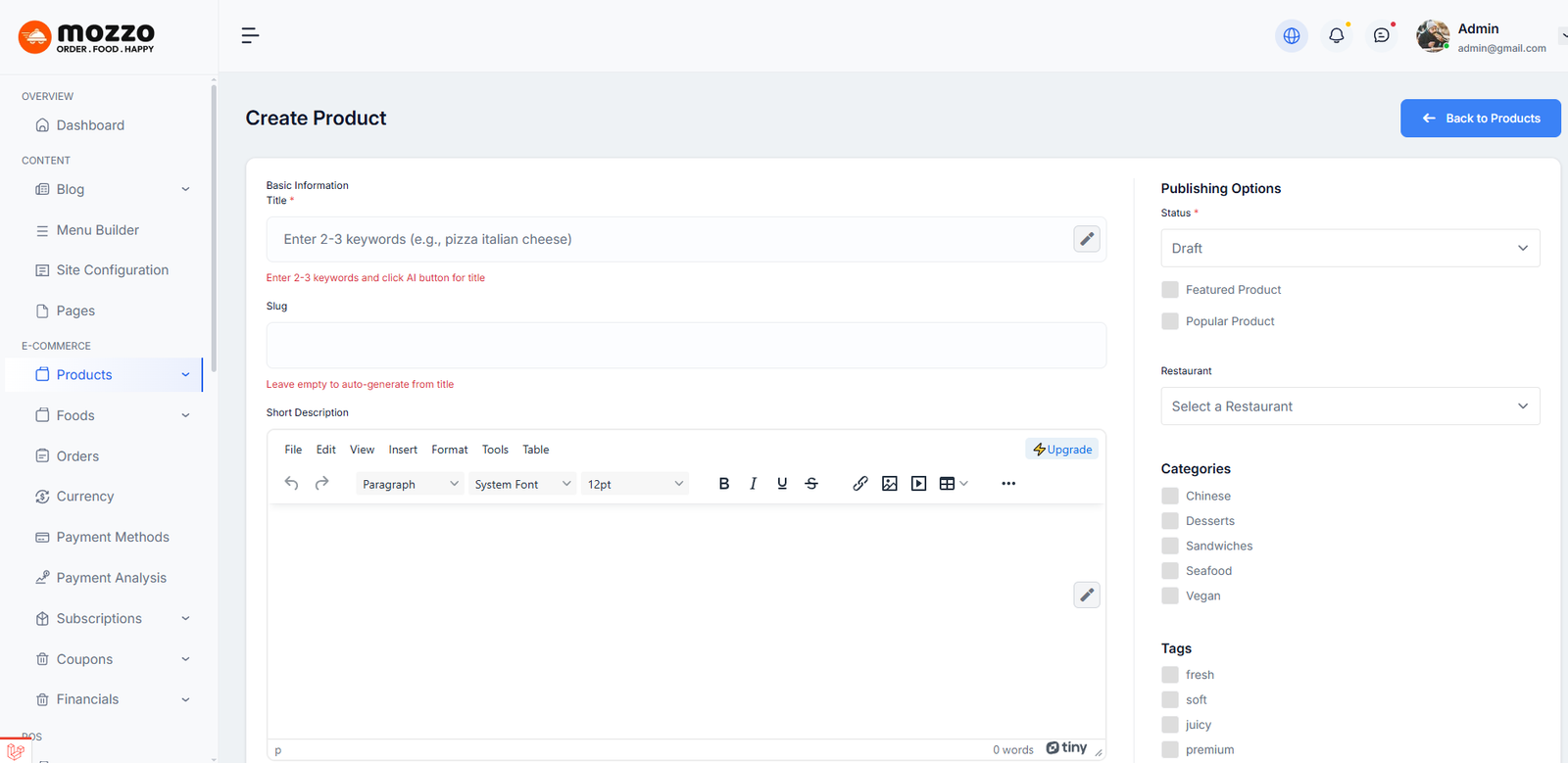
Step 1: Navigate to Dashboard > Products > All Products > Add New Product in your admin sidebar.
Step 2: Add a title, slug, and add your Product content in the editing field.
Step 3: Set Publishing Status Choose between Draft or Published status for your product.
Step 4: Once you are finished, click Publish to save the product.
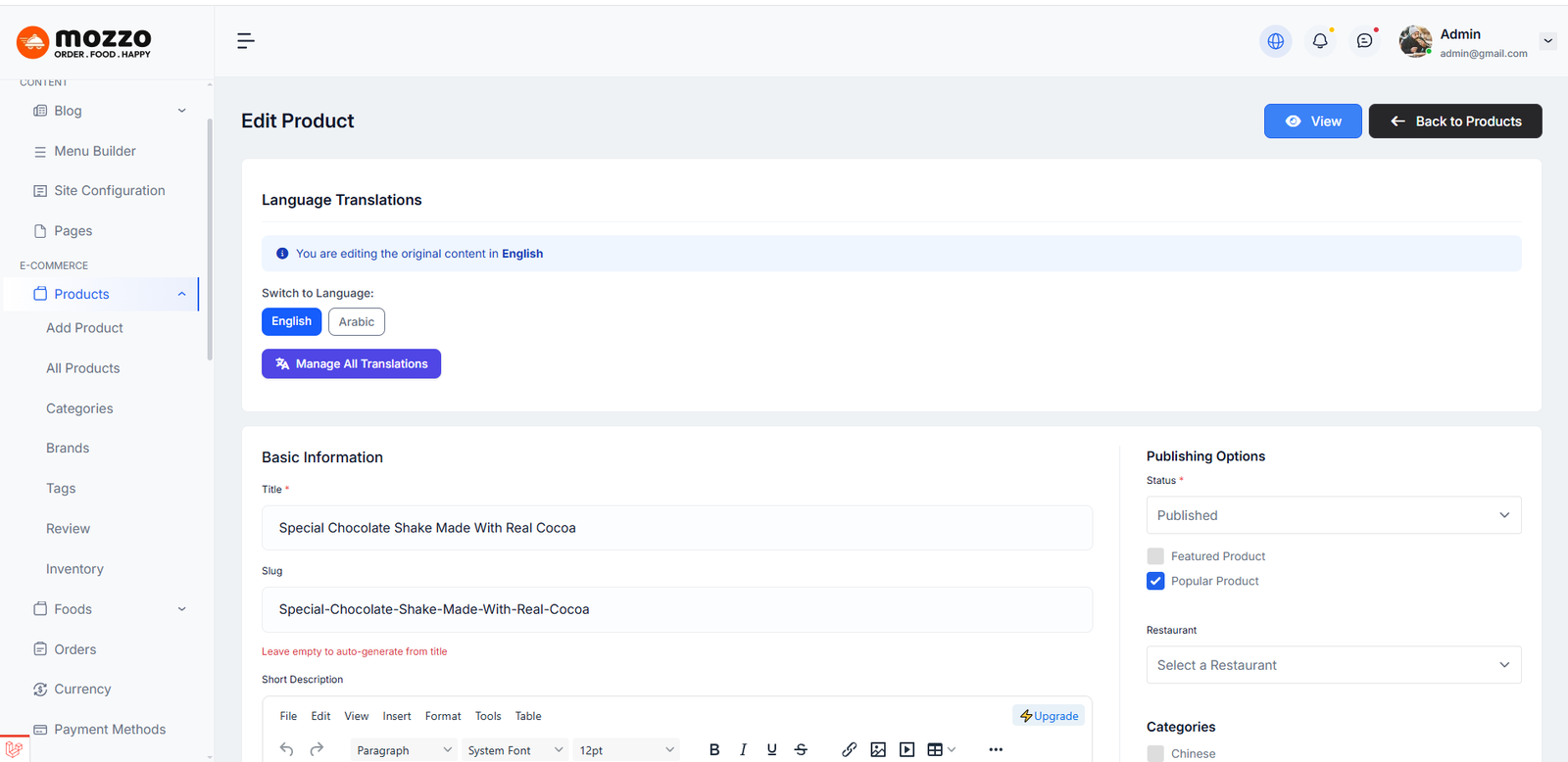
Here is the screenshot that shows the various areas of the product page:
For Edit Page
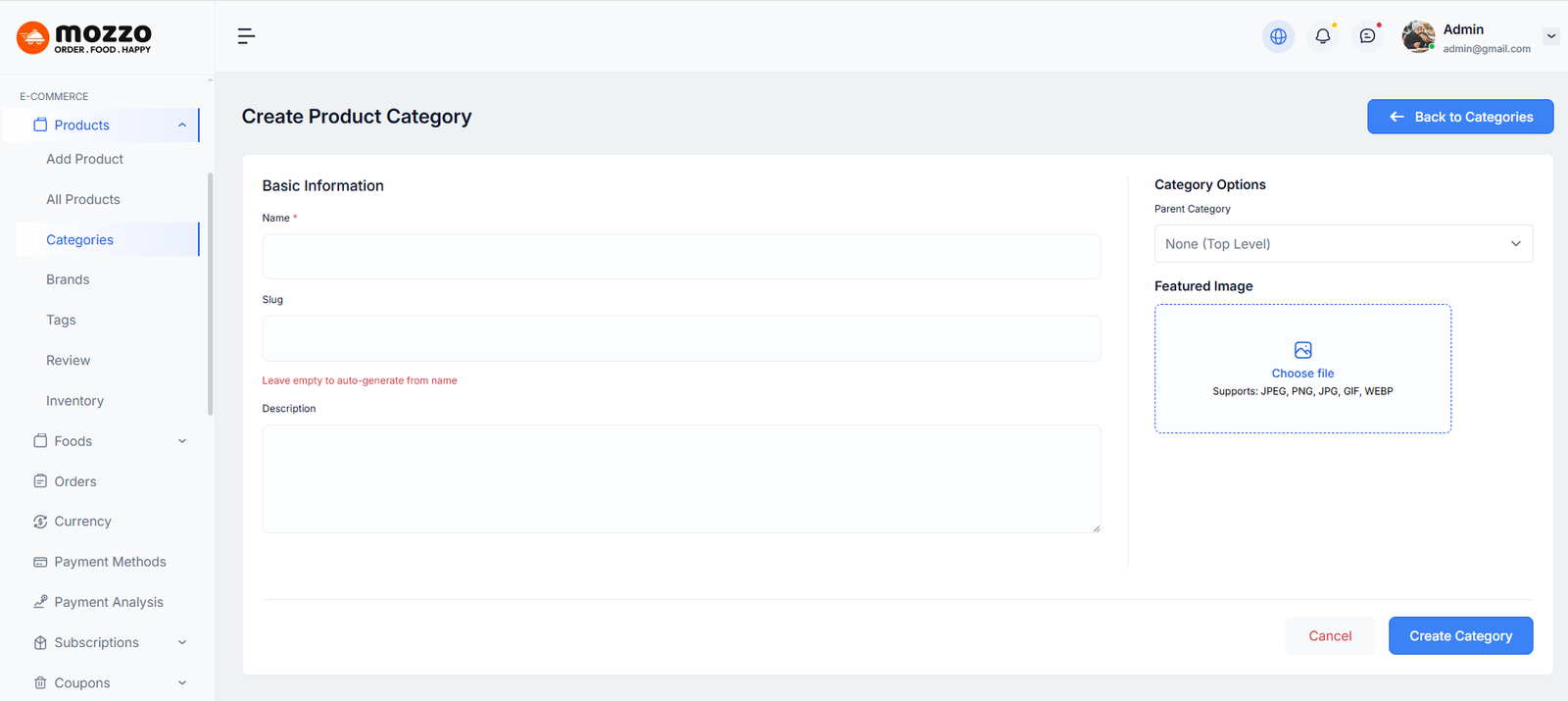
How to Create a Category
Step 1: Dashboard >> Products >> Categories
Step 2: Name the category and fill in the other sections below.
Step 3: Hit Add New Category. Your new Category will appear in the table of all categories immediately.
Create New Category:
Edit Category:
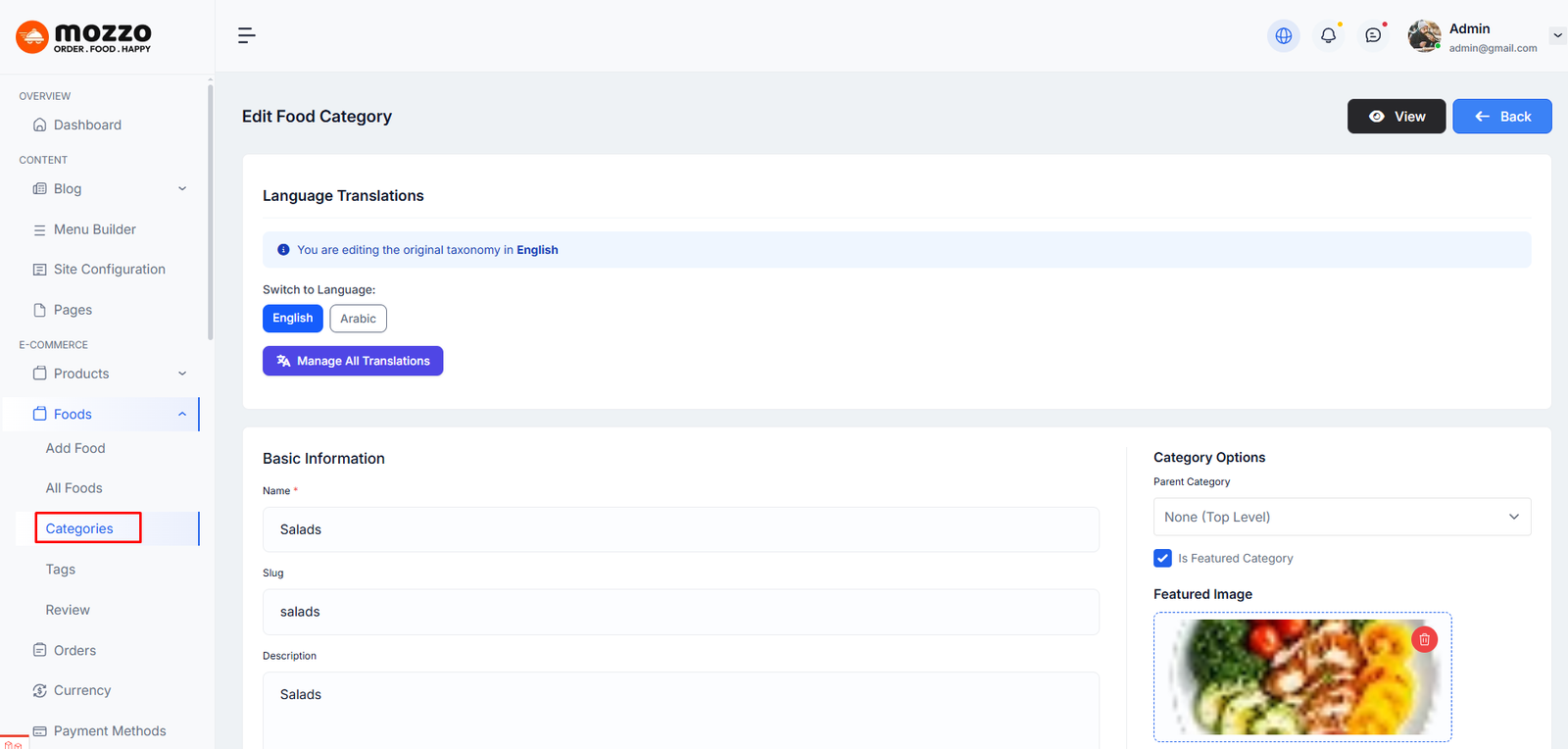
Just like creating a Category, you can easily create a new Brand and Tag in the same way.
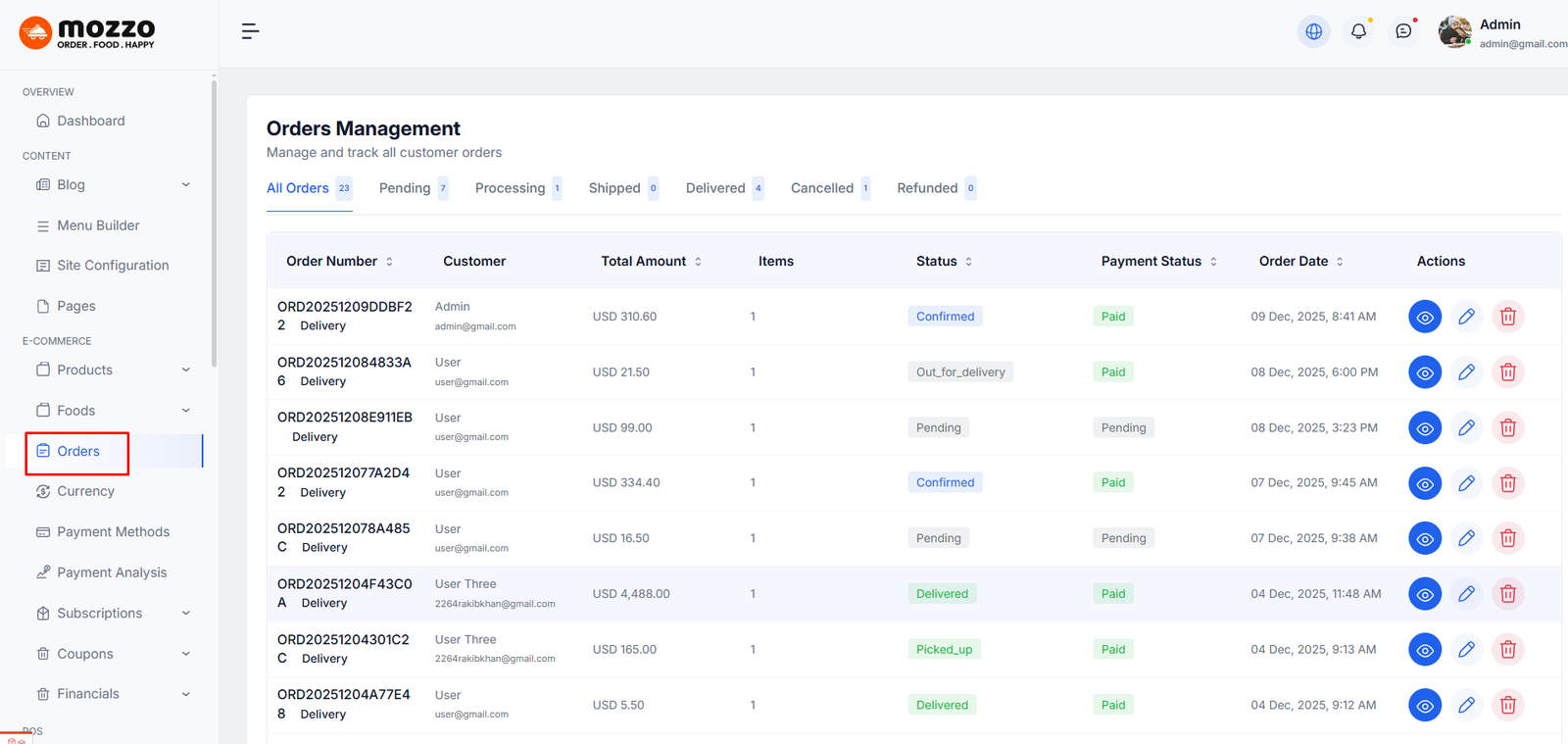
How to Manage Orders
Step 1: Navigate to Dashboard > Orders
Step 2: You will see a list of all customer orders with Order Number, Customer, Total Amount, Items, Status, Payment Status, and Order Date.
Step 3: Filter orders by status: All Orders, Pending, Processing, Shipped, Delivered, Cancelled, Refunded.
Step 4: Click the eye icon to view order details or edit/delete icons for actions.
Here is the screenshot:
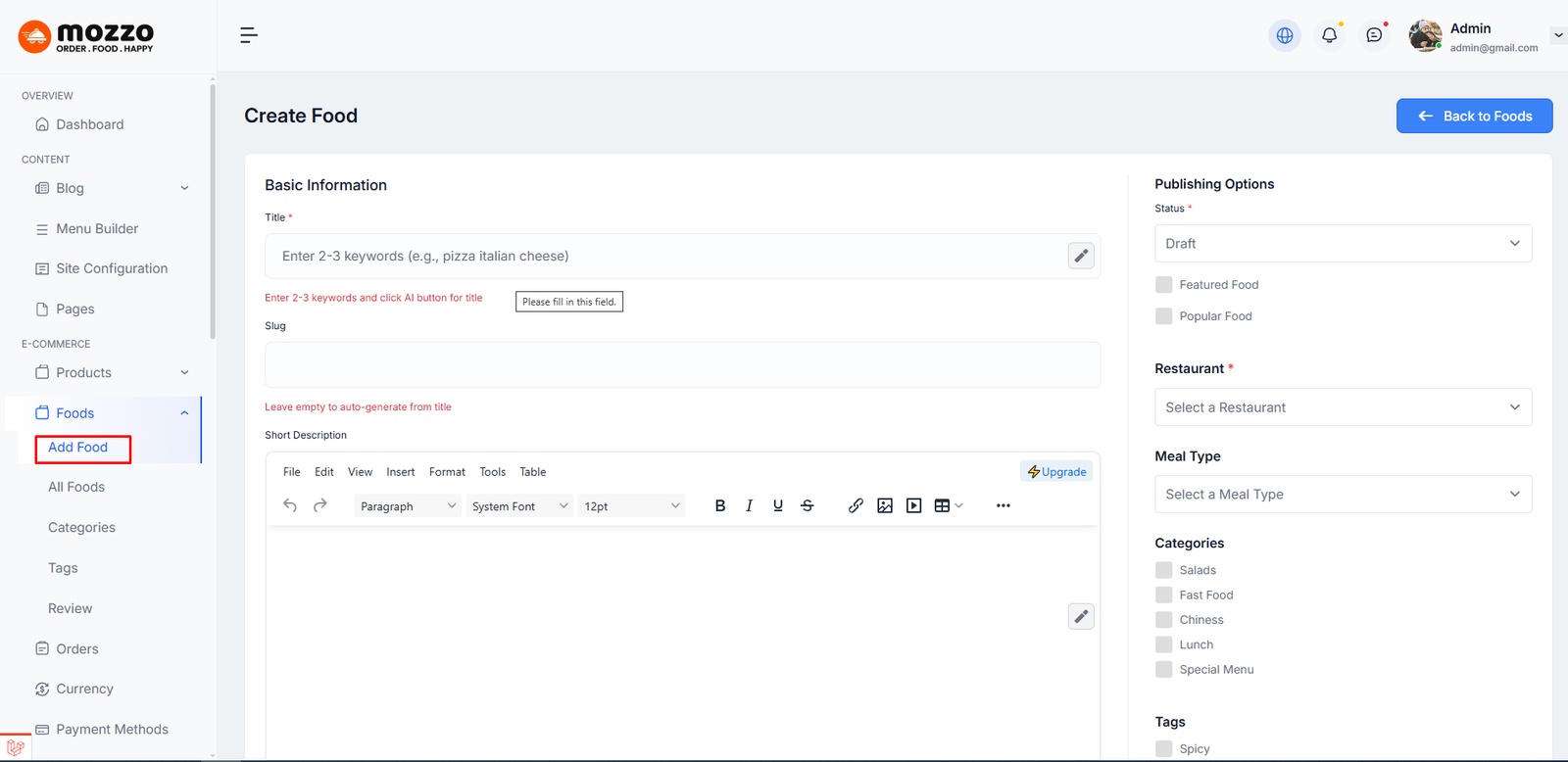
How to Create a New Food
Step 1: Navigate to Dashboard > Food > All Foods > Add New Food in your admin sidebar.
Step 2: Add a title, slug, and add your Product content in the editing field.
Step 3: Set Publishing Status Choose between Draft or Published status for your product.
Step 4: Once you are finished, click Publish to save the product.
Here is the screenshot that shows the various areas of the product page:
Food Variations allow you to add multiple size or option-based pricing for a food item. You can create variations such as Small, Medium, Large — each with its own price.
To add a variation:
- Click on the Add Variation button.
- Enter the Variation Name (e.g., Small, Medium, Large).
- Add the Additional Price for that variation.
- You can create multiple variations for the same food item.
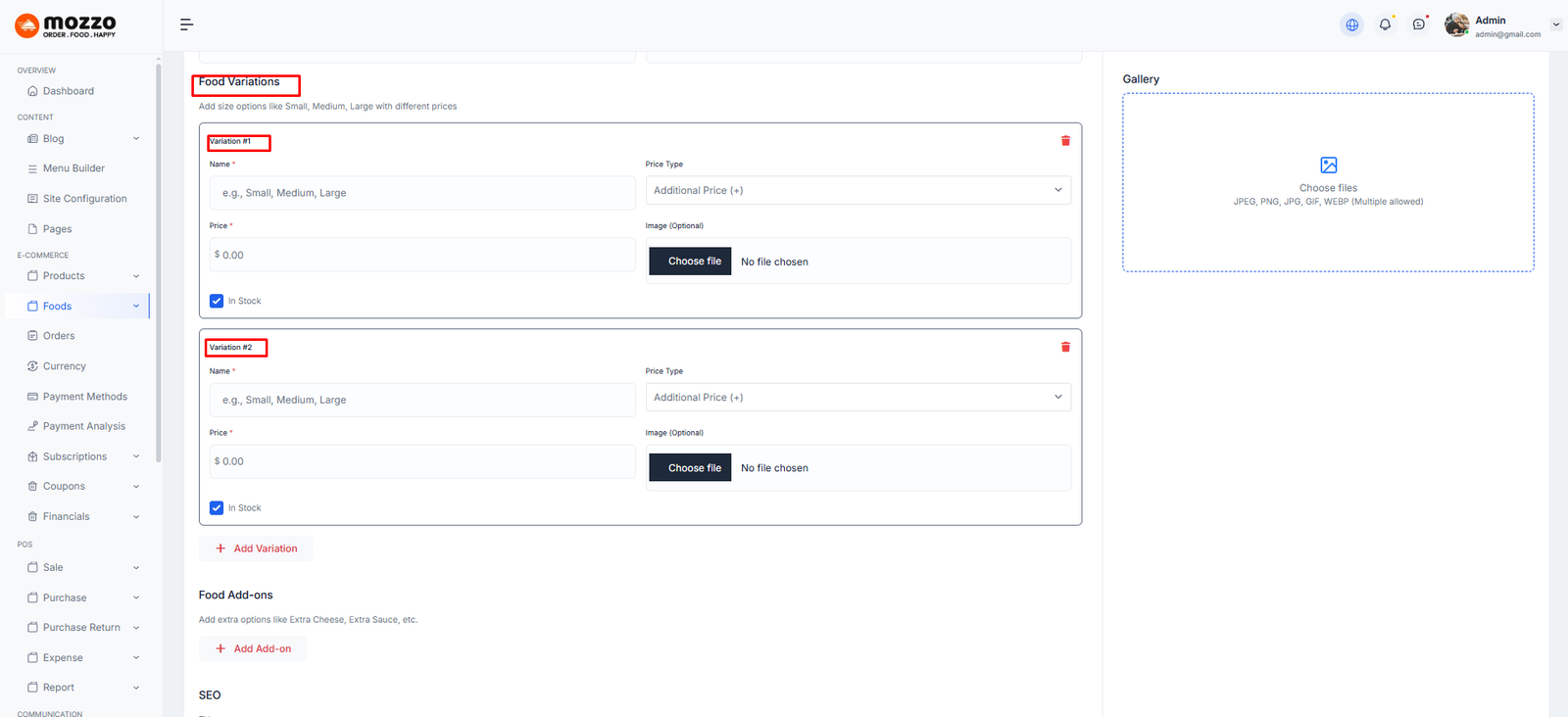
Variations help customers choose the correct size and allow different prices for each option.
Food Add-ons can also be created from this page. Add-ons are extra items like Extra Cheese, Extra Sauce, etc. These add-ons can also have separate prices.
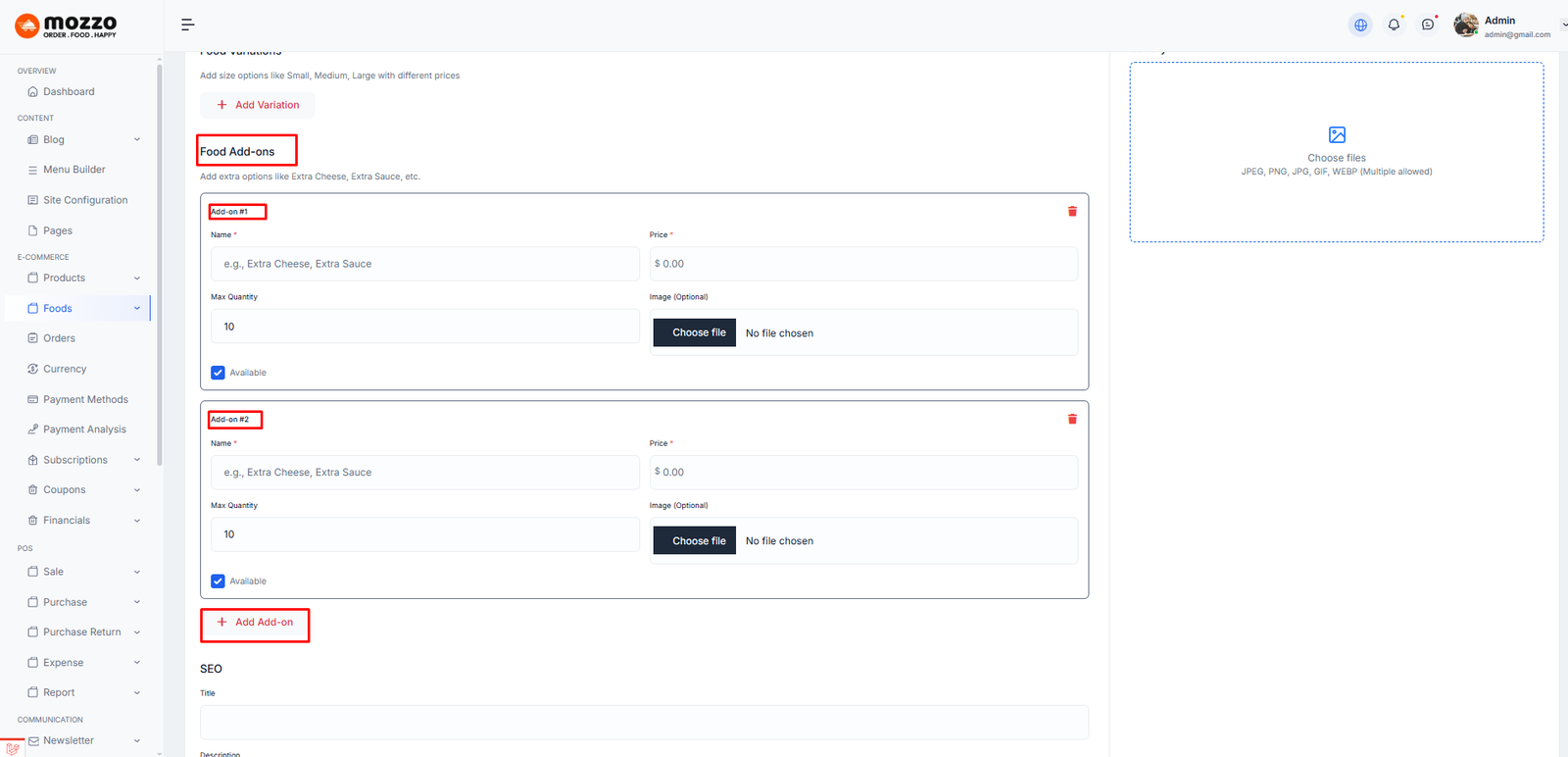
For Edit Page
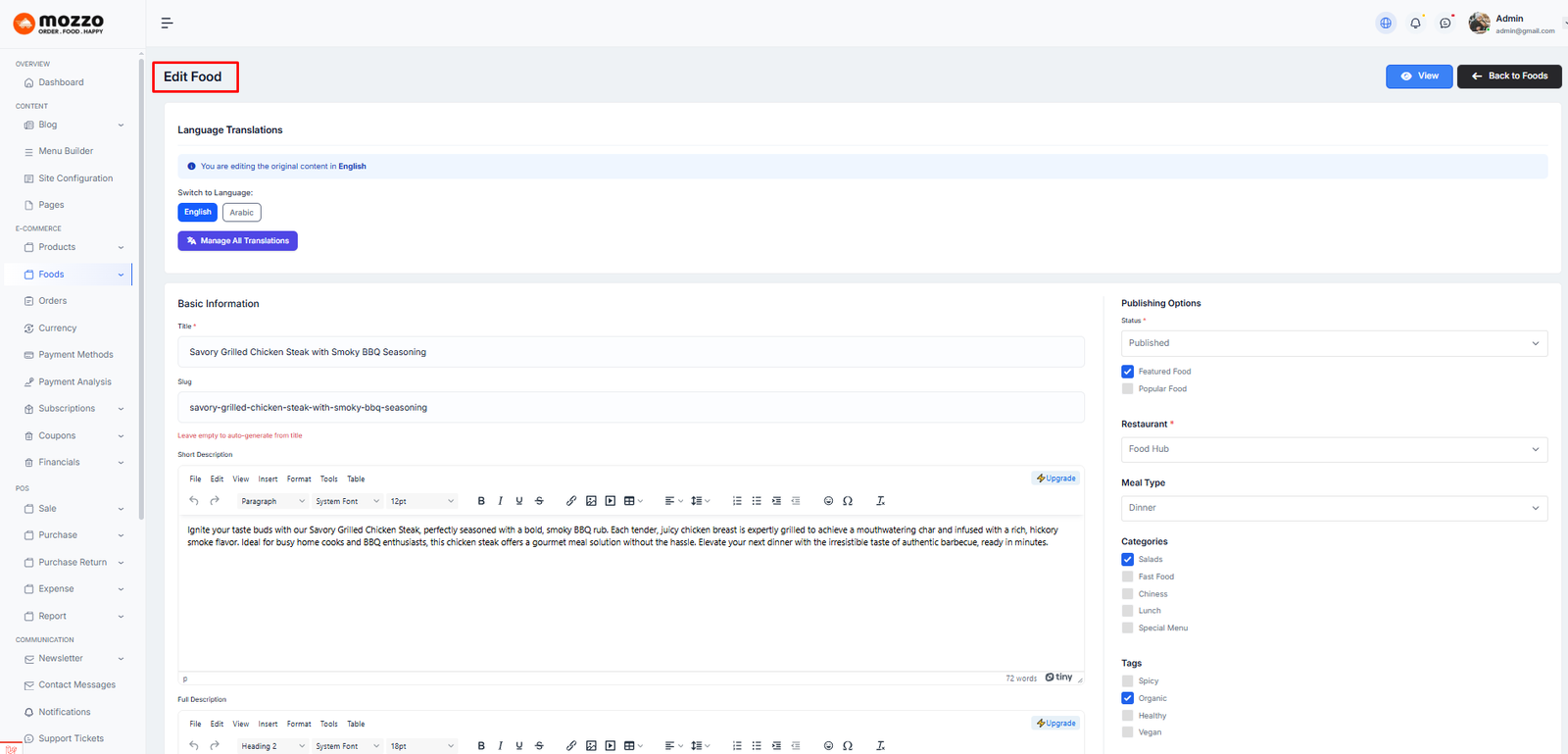
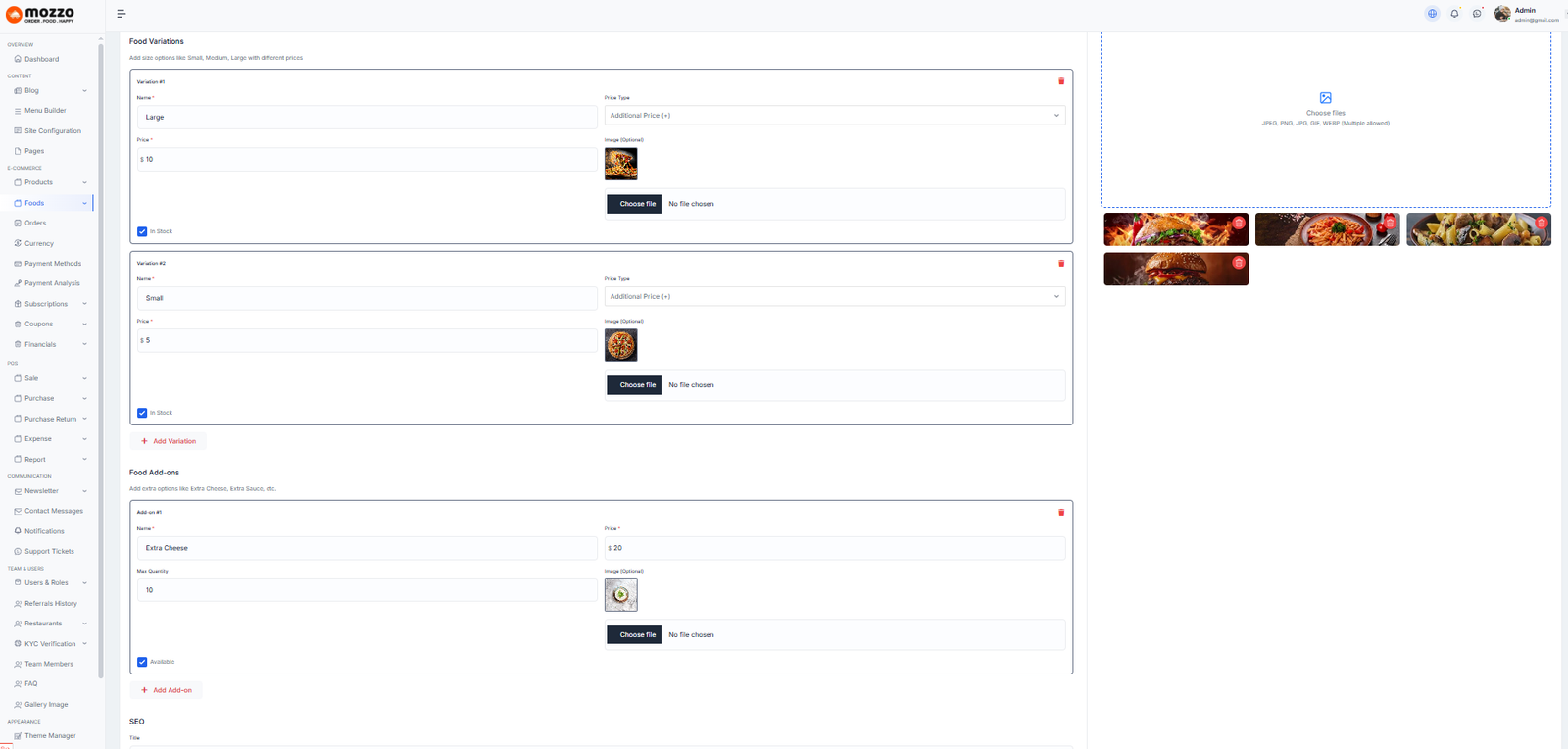
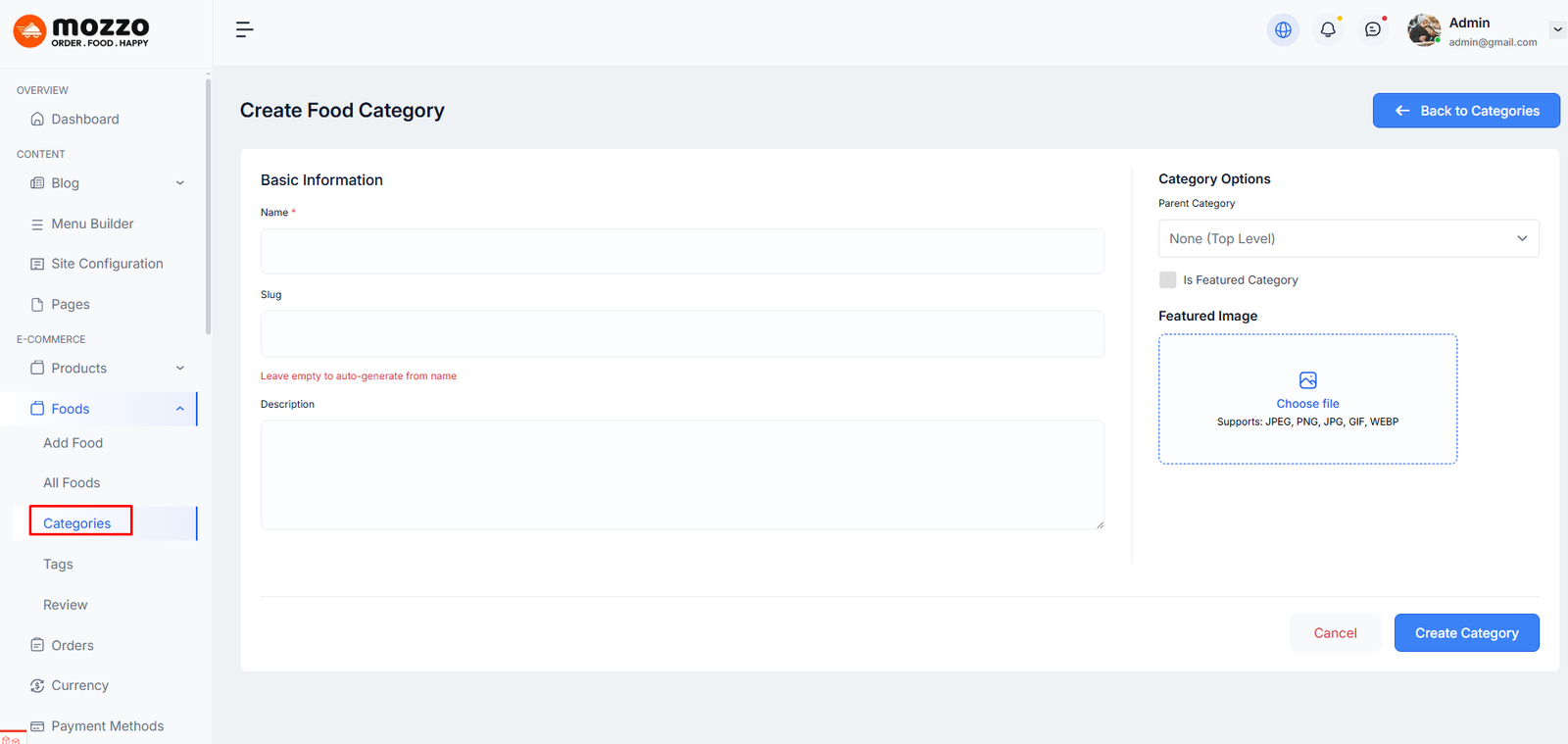
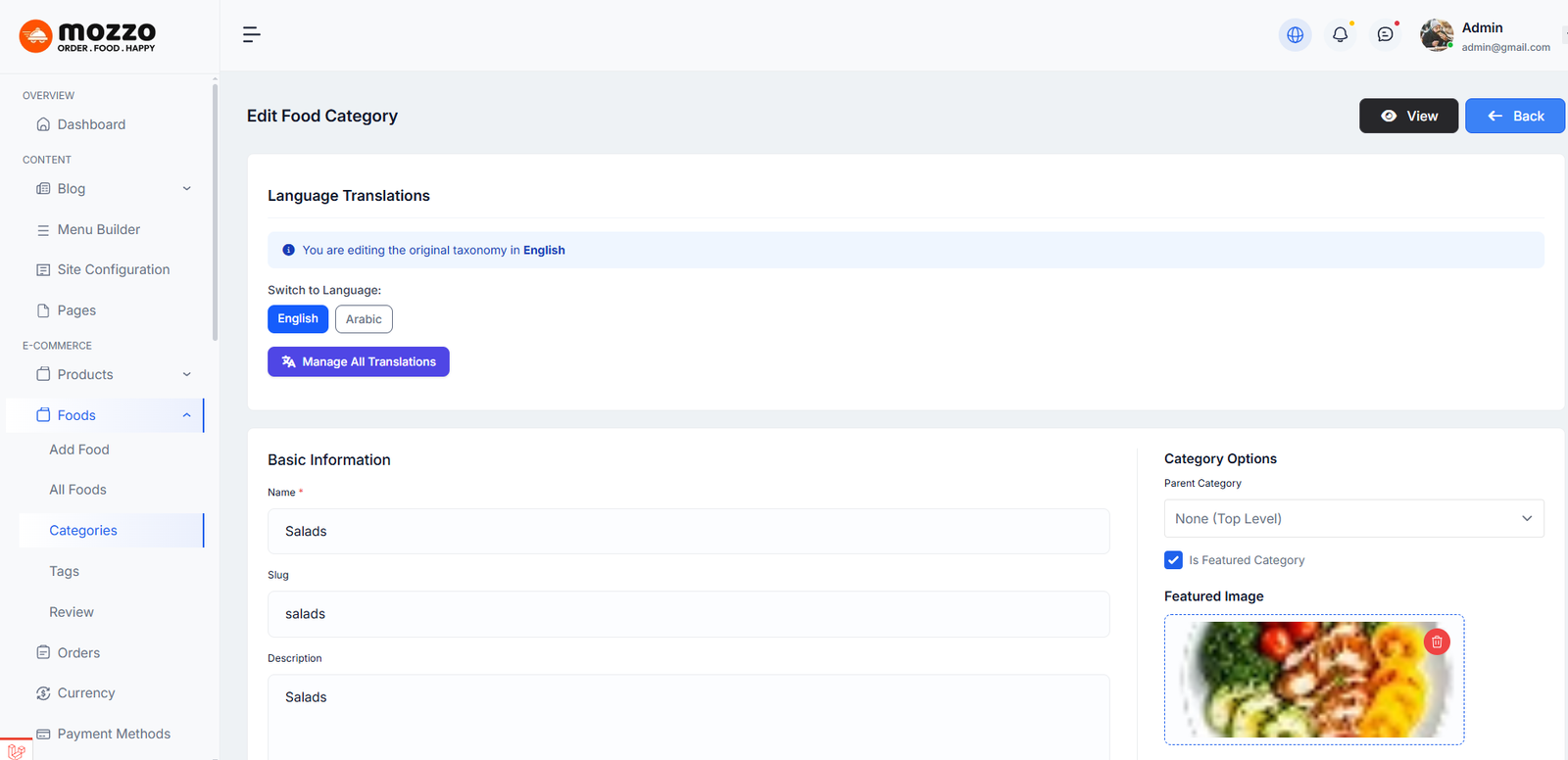
How to Create a Category
Step 1: Dashboard >> Foods >> Categories
Step 2: Name the category and fill in the other sections below.
Step 3: Hit Add New Category. Your new Category will appear in the table of all categories immediately.
Create New Category:
Edit Category:
Just like creating a Category, you can easily create a new Brand and Tag in the same way.
How to Manage Orders
Step 1: Navigate to Dashboard > Orders
Step 2: You will see a list of all customer orders with Order Number, Customer, Total Amount, Items, Status, Payment Status, and Order Date.
Step 3: Filter orders by status: All Orders, Pending, Processing, Shipped, Delivered, Cancelled, Refunded.
Step 4: Click the eye icon to view order details or edit/delete icons for actions.
Here is the screenshot:
How to View Order Details
Step 1: Click the eye icon next to any order to view full details.
Step 2: You can see:
- Order Number and Customer information
- Order Date and Status
- Shipping Address and Billing Address
- Order Items with quantity and price
- Payment information
- Total Amount
Step 3: You can update order status from this page.
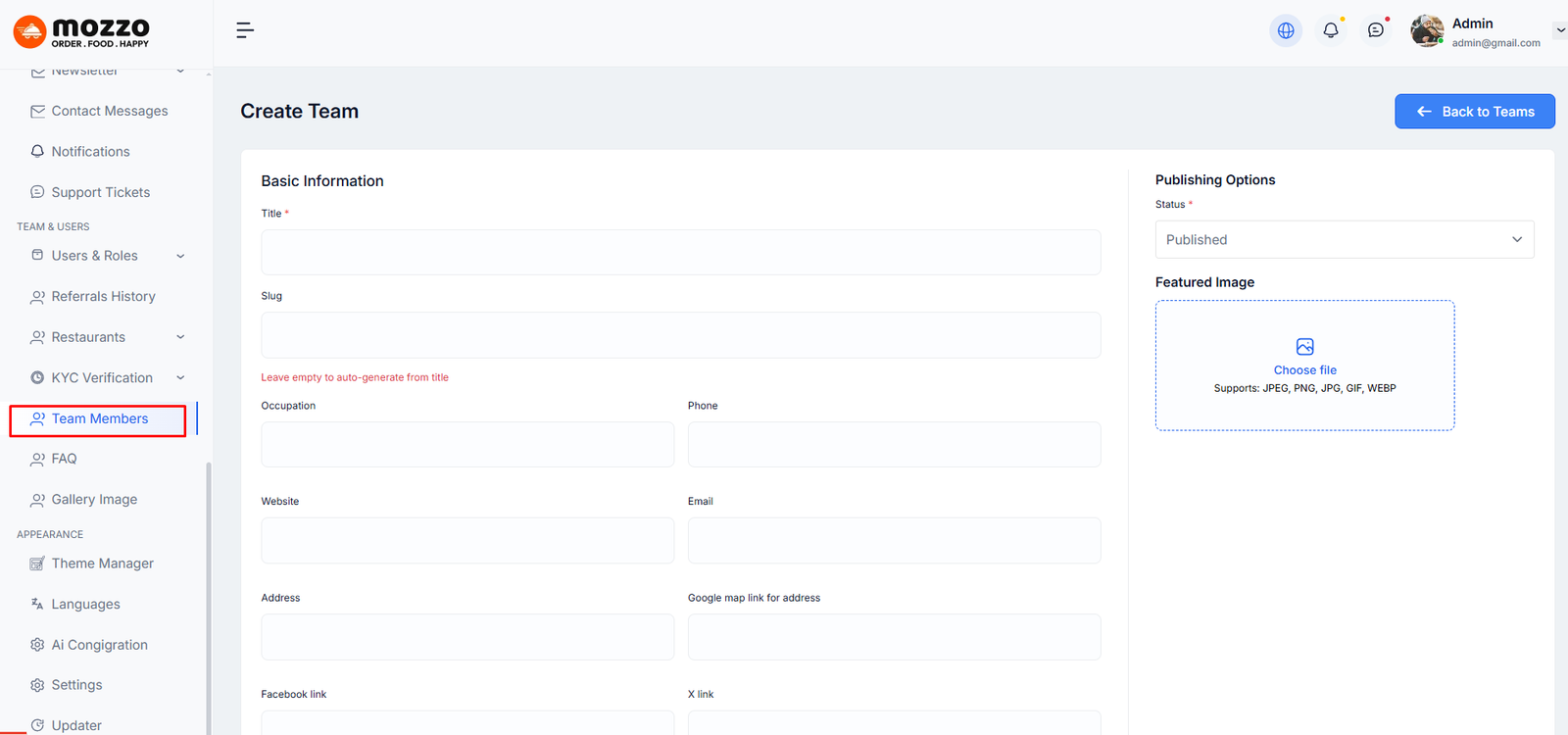
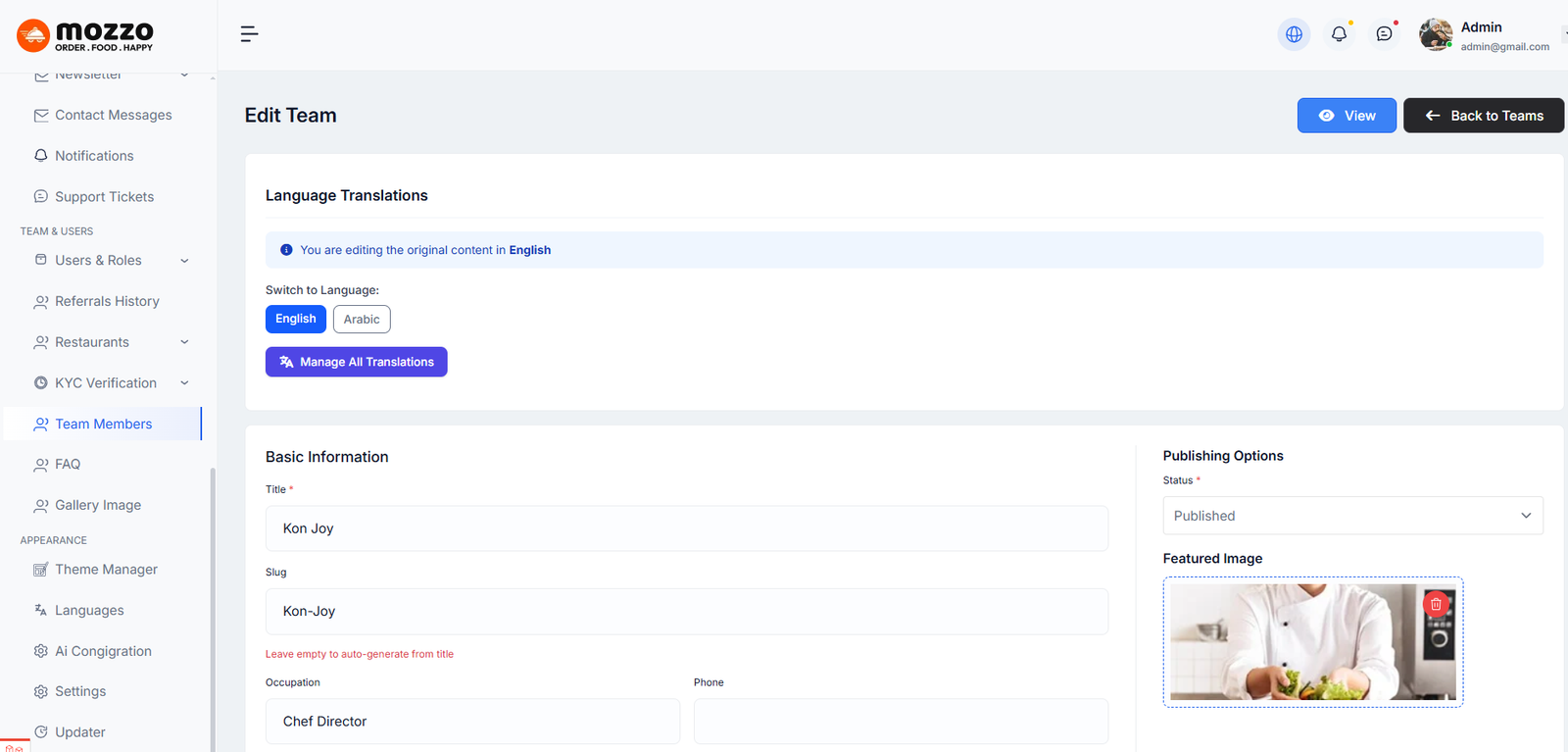
How to Create a New Team
Step 1: Navigate to Dashboard > Team Members > Add New Team
Step 2: Add a title, slug, and fill in the basic information (Occupation, Phone, Email, Address, Website, Social links).
Step 3: Upload a featured image for the team member profile.
Step 4: Set the publishing status (Draft or Published).
Step 5: Click Publish to save.
Here is the screenshot:
For Edit Page
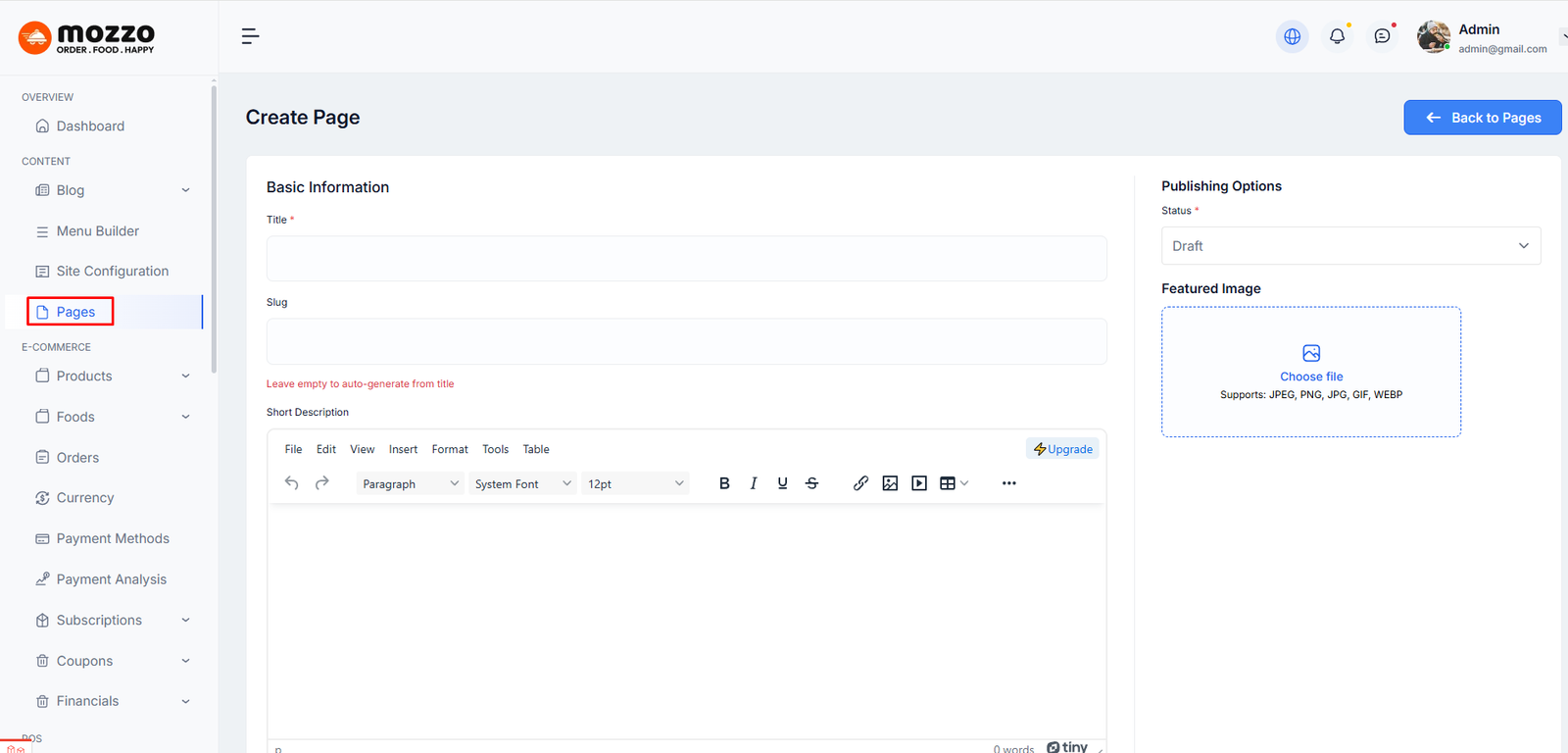
How to Create a New Page
Step 1: Navigate to Dashboard > Pages > Add New Page
Step 2: Add a title, slug, and fill in the page content in the editing field.
Step 3: Upload a featured image for the page.
Step 4: Set the publishing status (Draft or Published).
Step 5: Click Publish to save.
Here is the screenshot:
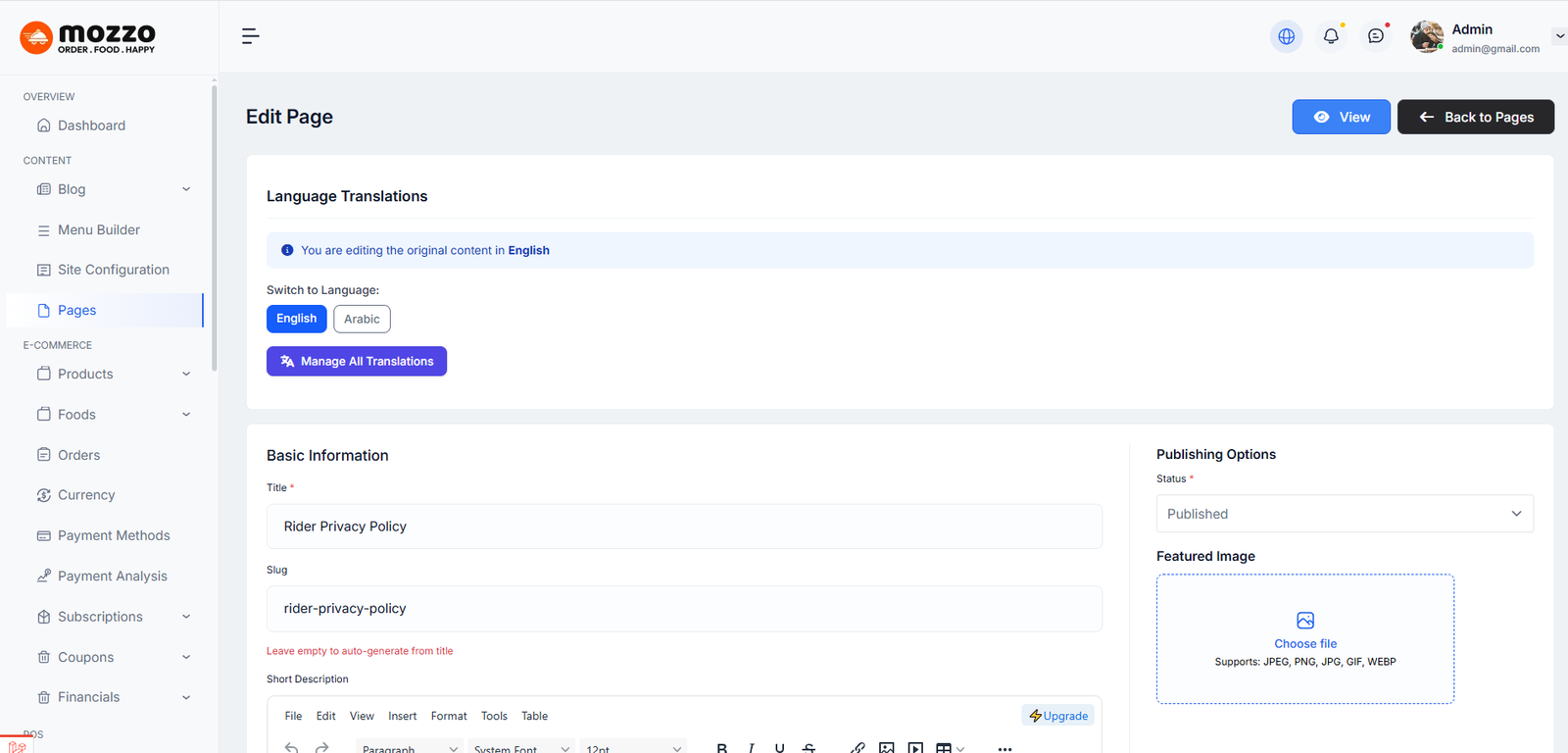
For Edit Page
How to Create a Gemini API Key (Step by Step)
This guide explains how to generate a Gemini API Key from Google AI Studio in just a few simple steps.
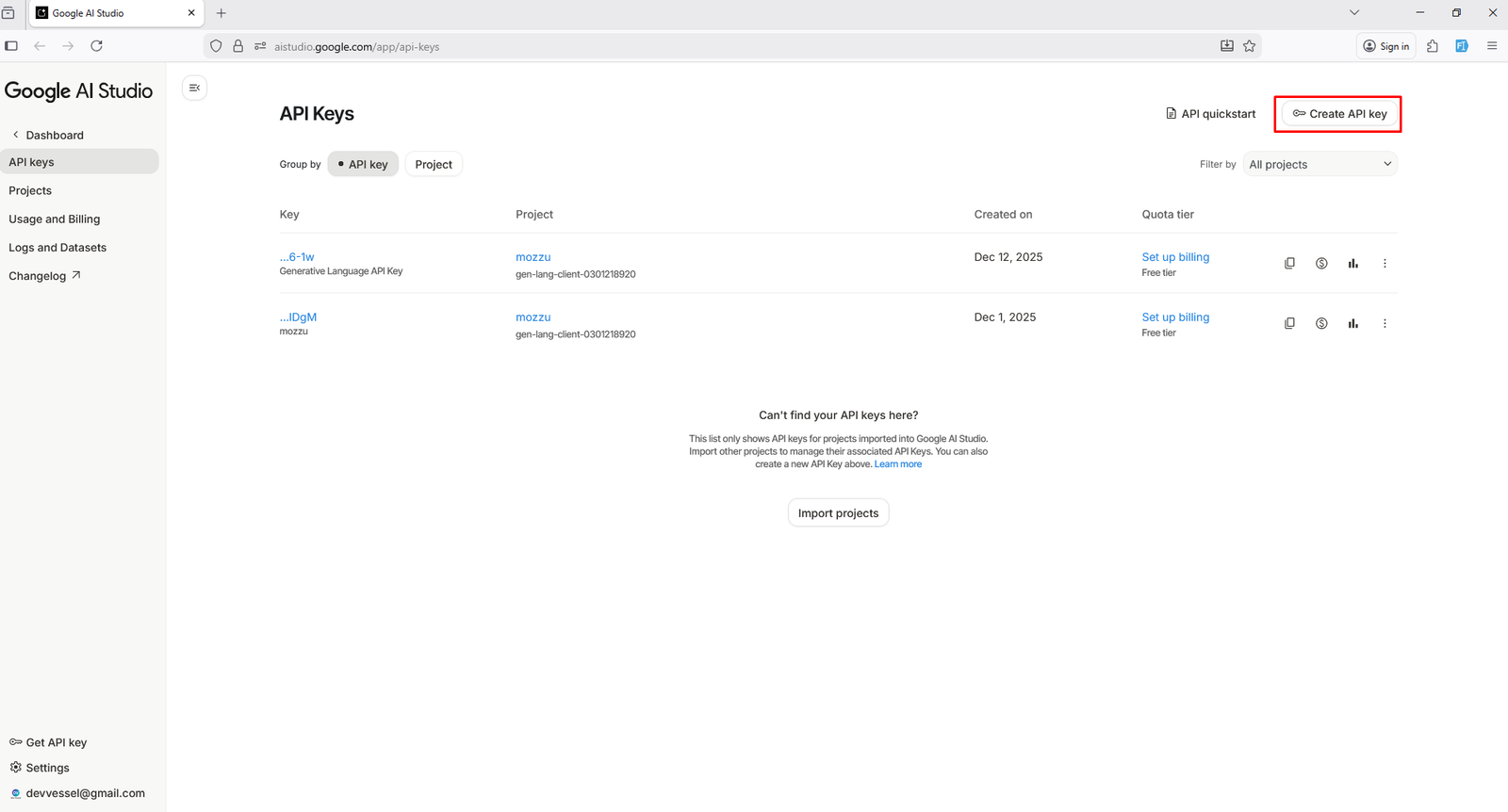
Open your browser and go to https://aistudio.google.com/app/apikey
Step 1: Open the API Keys page
First, sign in to Google AI Studio. From the left sidebar, click on API keys.
On the top-right corner of the page, click Create API key.
Step 2: Name your API key and select a project
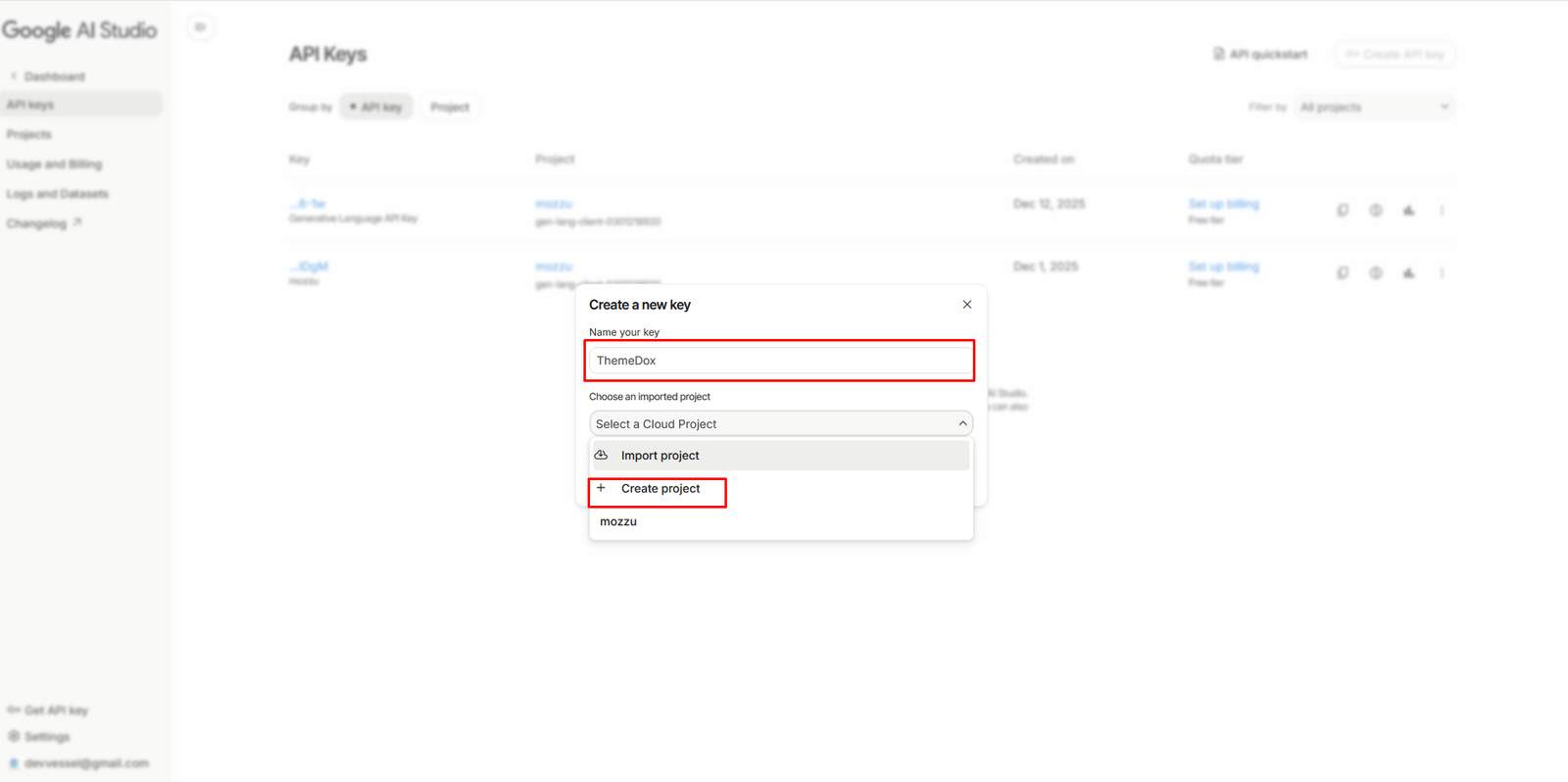
After clicking Create API key, a popup window will appear.
-
Enter a name for your API key in the
Name your key field
(for example:
ThemeDoxorMyApp). - Under Select a Cloud Project, choose an existing project or click Create project to make a new one.
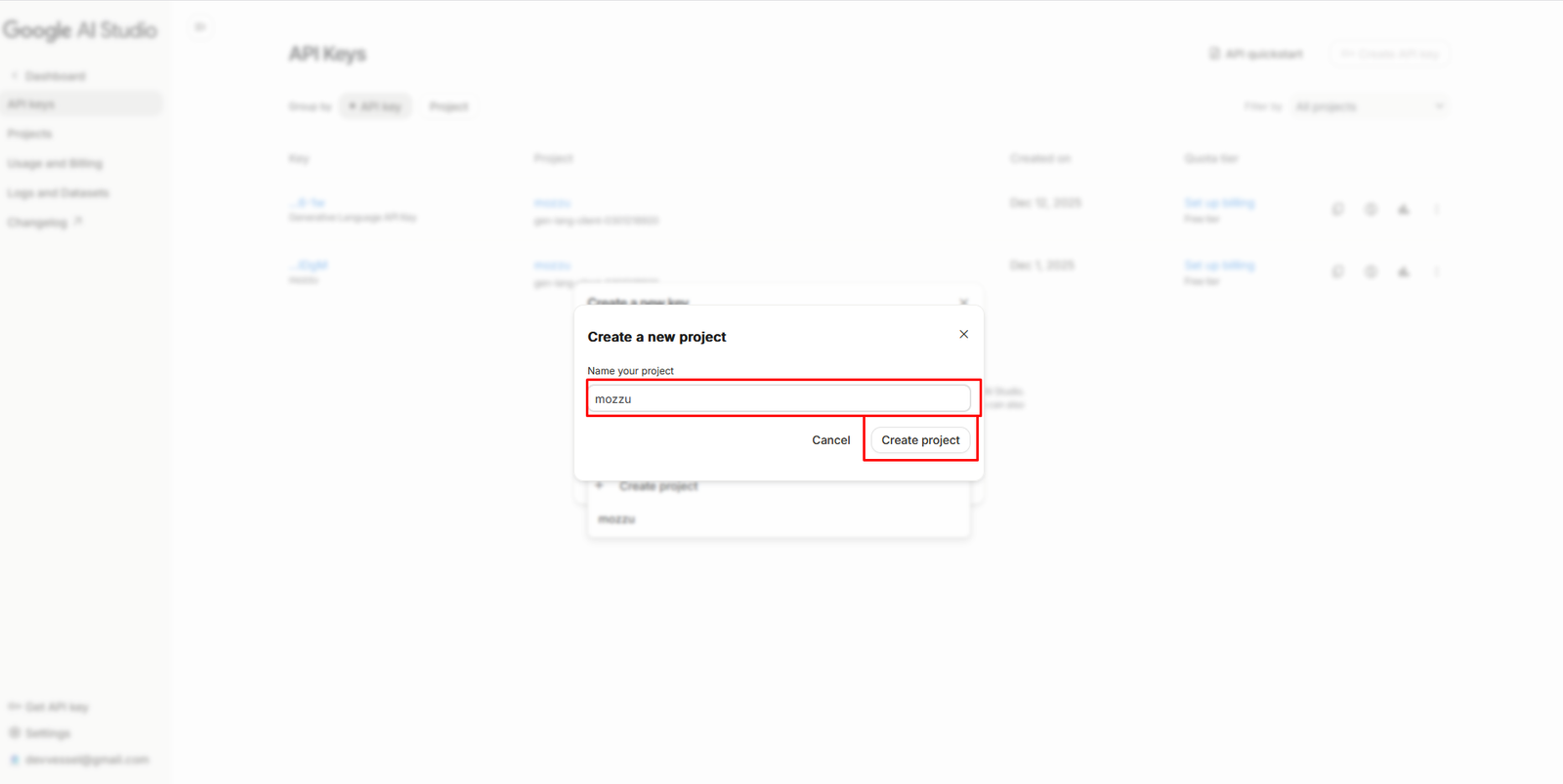
Step 3: Create a new project
If you choose Create project, another popup will open.
-
Enter your project name in the
Name your project field
(for example:
mozzu). - Click the Create project button.
Once the project is created, your Gemini API Key will be generated automatically. Copy the key and store it securely.
Step 4: Copy your Gemini API Key
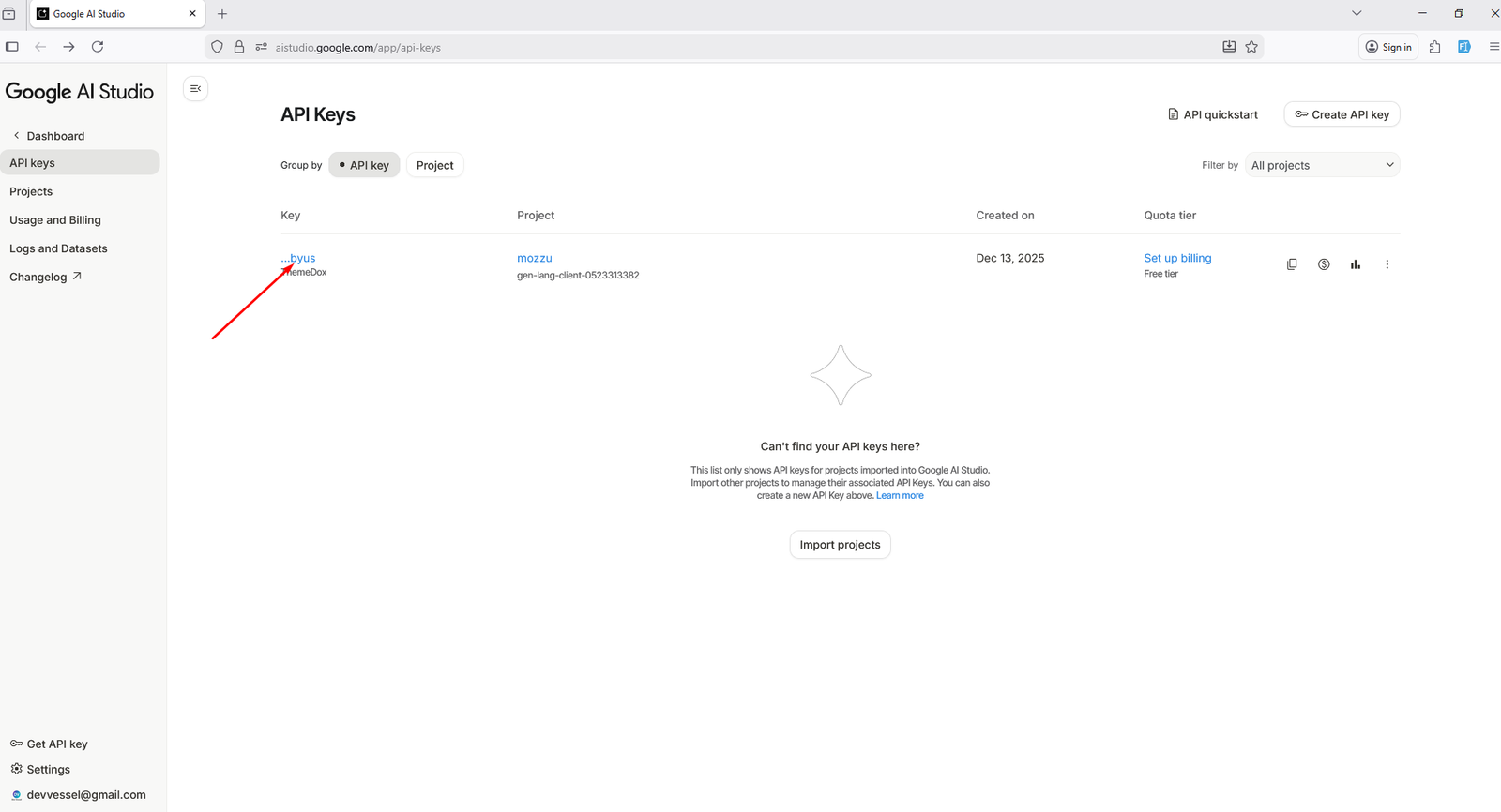
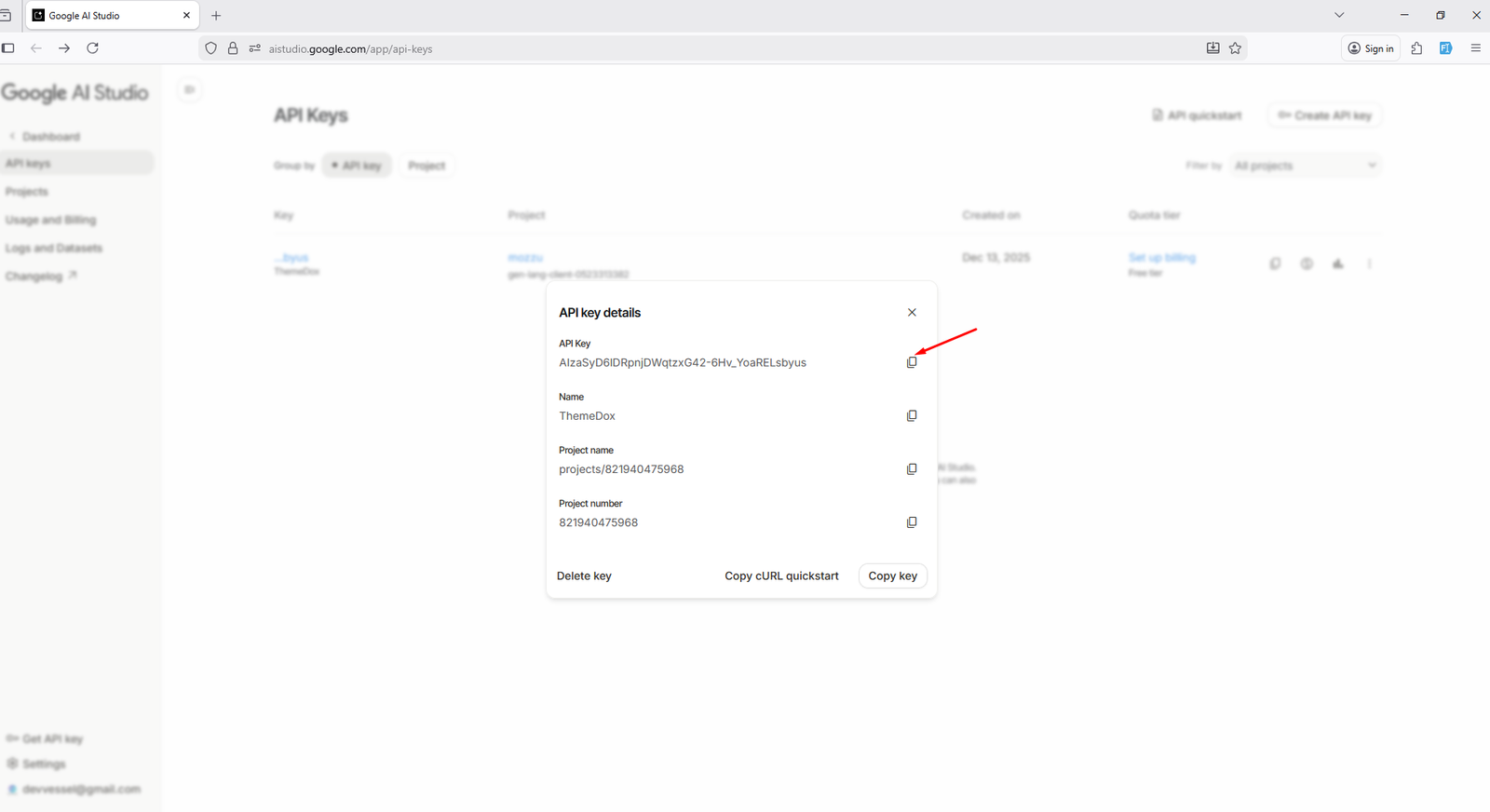
After the API key is created, you will see it listed on the API Keys page.
- Click the copy (📋) icon next to your API key.
Step 5: Paste the API key into your application
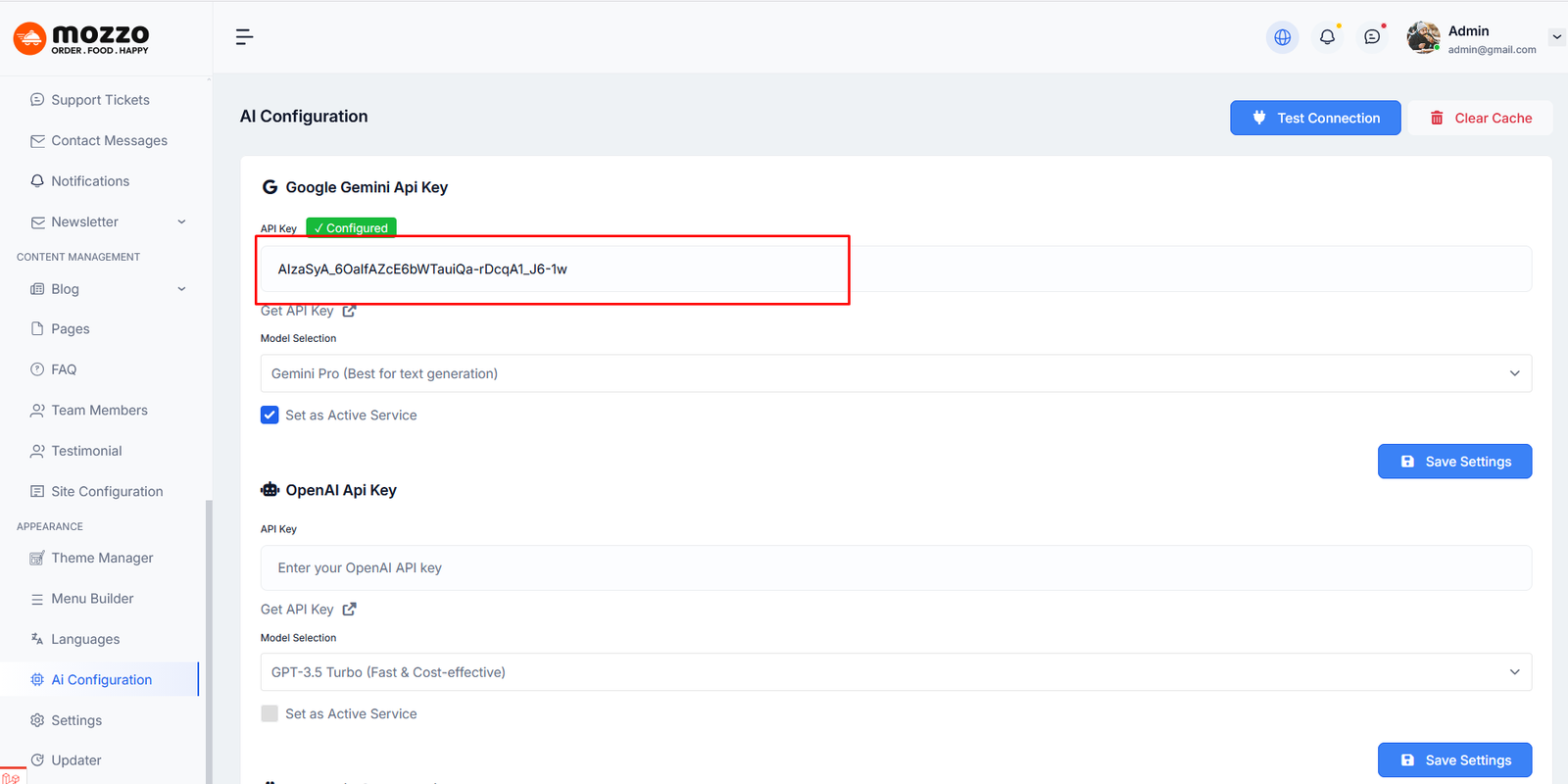
Now open your application or admin panel and go to the AI Configuration or Settings page.
- Paste the copied key into the Google Gemini API Key input field.
-
Select your preferred model
(for example:
Gemini Pro). - Enable the option to set Gemini as the active AI service if available.
Step 6: Test the connection and save settings
After entering the API key, verify that the connection works correctly.
- Click the Test Connection button.
- If the key is valid, you will see a success confirmation message.
- Finally, click Save Settings to apply the changes.
Your application is now successfully connected to Google Gemini AI
Step 7: Configure OpenAI API Key (Optional)
You can use OpenAI as an alternative AI provider if you have an active API key with available usage limits.
- Open https://platform.openai.com/api-keys and generate an API key.
- Go to your admin panel → AI Configuration.
- Paste the key into the OpenAI API Key input field.
-
Select a model (for example:
GPT-3.5 Turbo). - Enable Set as Active Service if the key is valid.
- Click Save Settings.
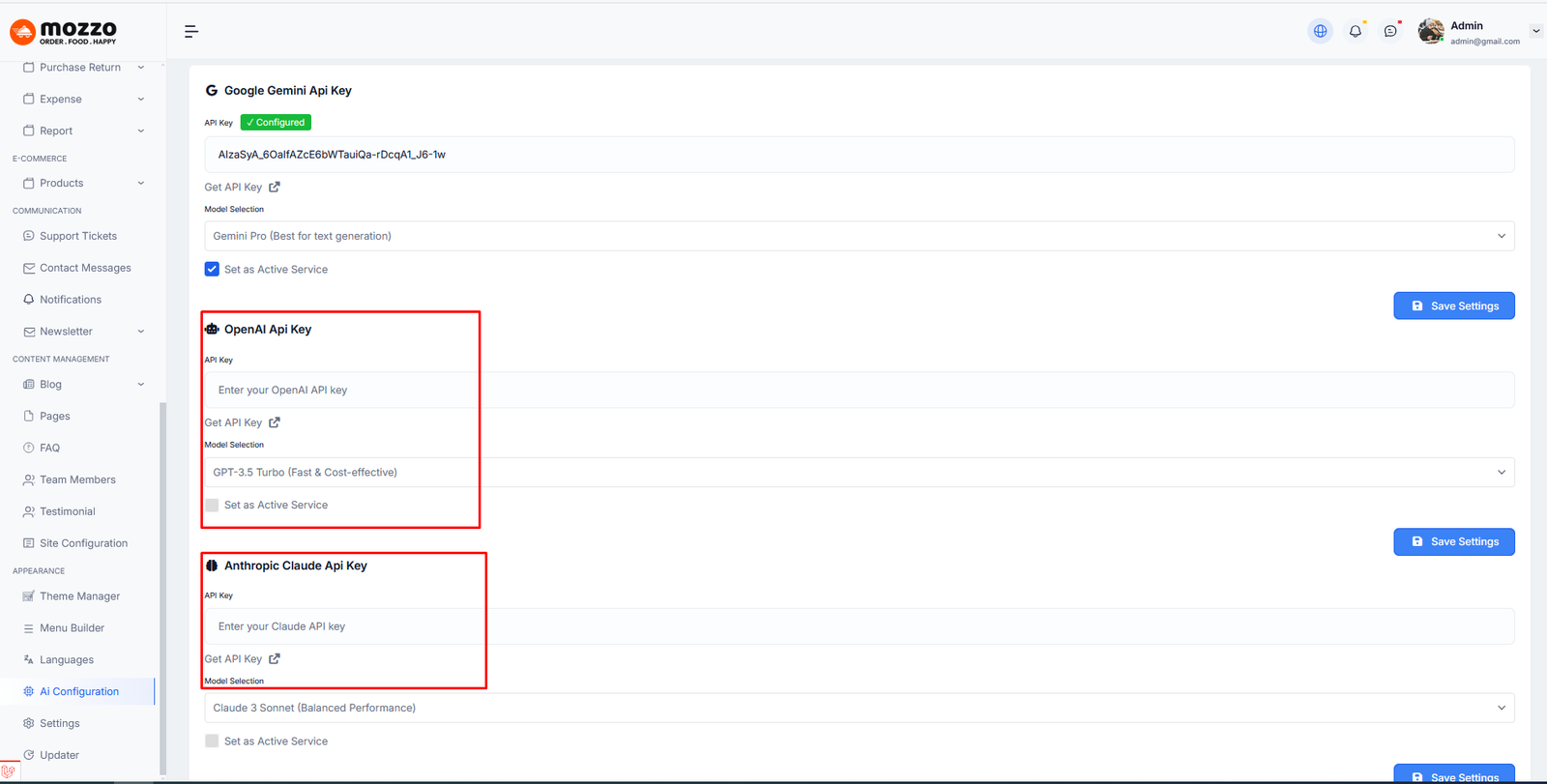
Step 8: Configure Anthropic Claude API Key (Optional)
You may also configure Anthropic Claude as an AI service.
- Visit https://console.anthropic.com/settings/keys and create an API key.
- Open your admin panel → AI Configuration.
- Paste the key into the Claude API Key input field.
-
Choose a model (for example:
Claude 3 Sonnet). - Enable Set as Active Service if the key is valid.
- Click Save Settings.
⚠️ Important Note:
OpenWeatherMap, WeatherAPI, and Weatherstack all offer
free plans with limited usage.
Your application can work using the free plan
as long as any one of these providers
is successfully connected.
If your application requires higher request limits,
advanced features, or uninterrupted service,
you may need to upgrade to a paid plan
from the provider’s official website.
AI Title & Description Generator
Step 1: Navigate to Dashboard > Foods > Add Food.
Step 2: Enter 2–3 keywords in the Title field (for example: pizza italian cheese).
Step 3: Click the AI icon next to the input field to automatically generate a food title.
Step 4: Use the AI icon in the Short Description or Full Description editor to generate content automatically.
Step 5: Select restaurant, category, tags, and weather suitability as needed, then Create Food the food item.
Here is an example screenshot:
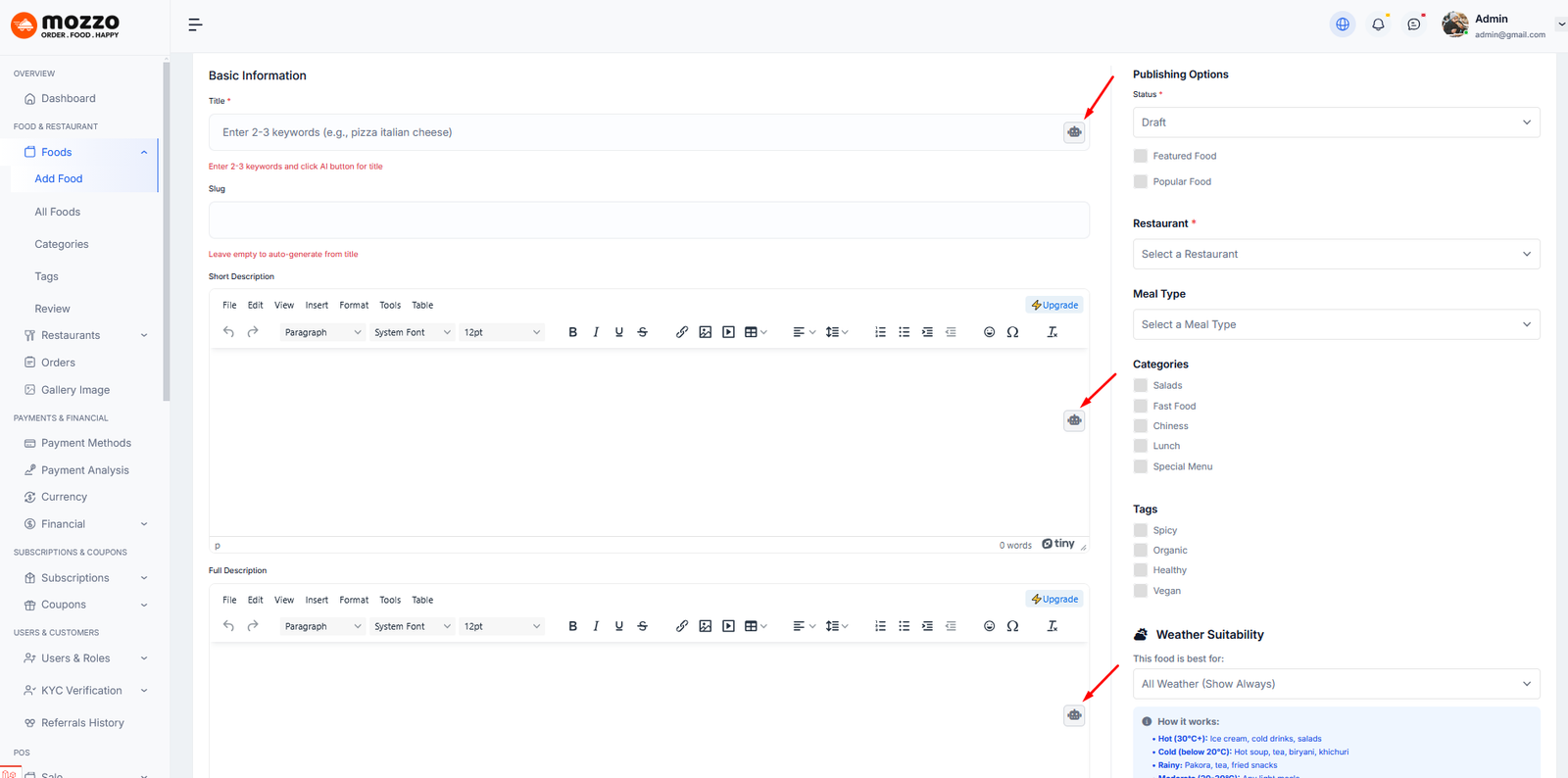
Note: The same AI generation process can also be used for Products and Blogs.
How to Create an OpenWeather API Key (Step by Step)
This guide explains how to generate an OpenWeather API Key from openweathermap.org in a few simple steps.
Open your browser and go to https://openweathermap.org/
Step 1: Open the OpenWeather website
Visit the OpenWeather homepage. On the top-right corner, click the Sign in button.
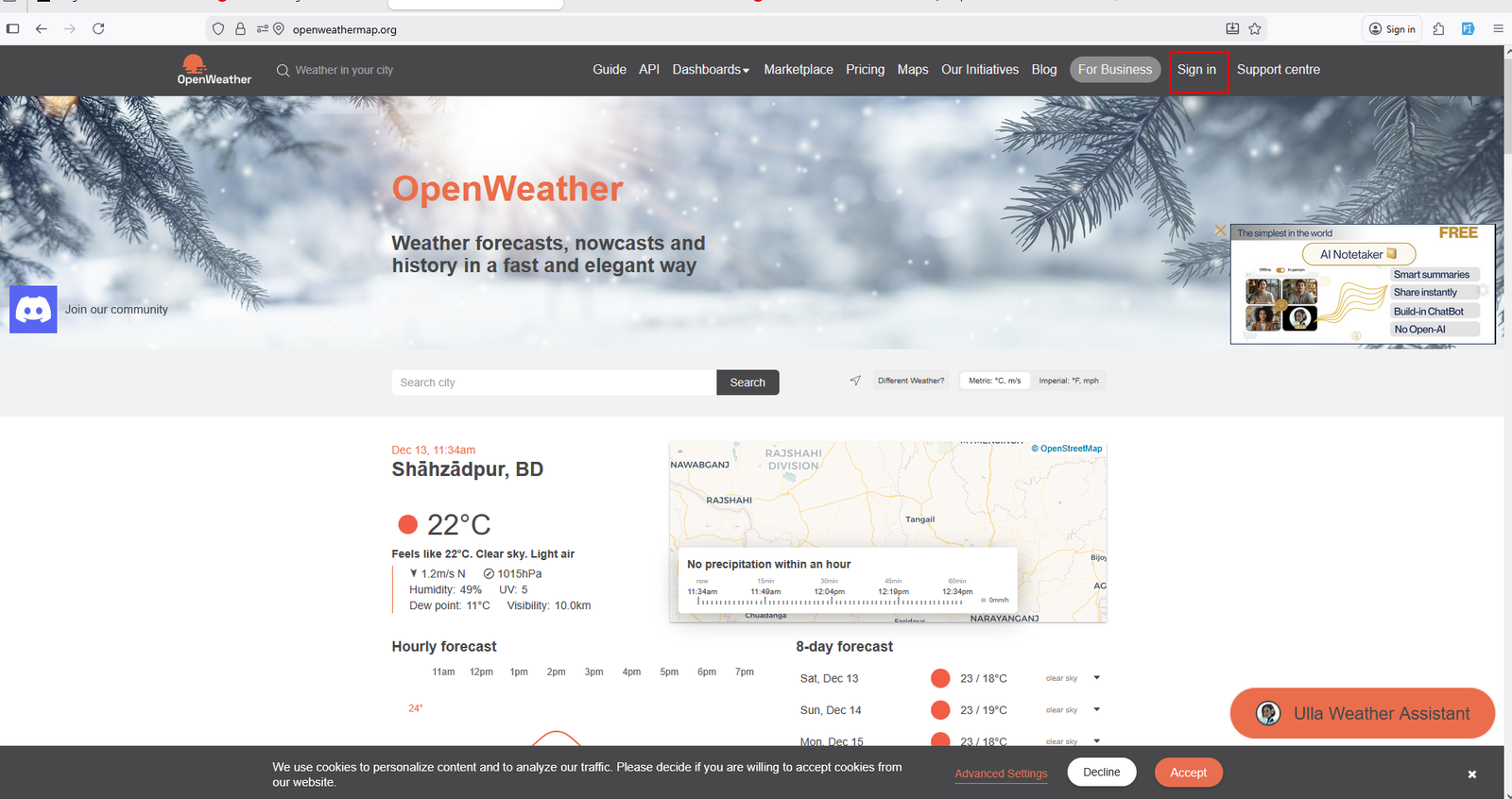
Step 2: Go to the Sign In page
On the Sign In page:
- If you already have an account, enter your email and password.
- Click Submit to log in.
- If you are new, click Create an Account.
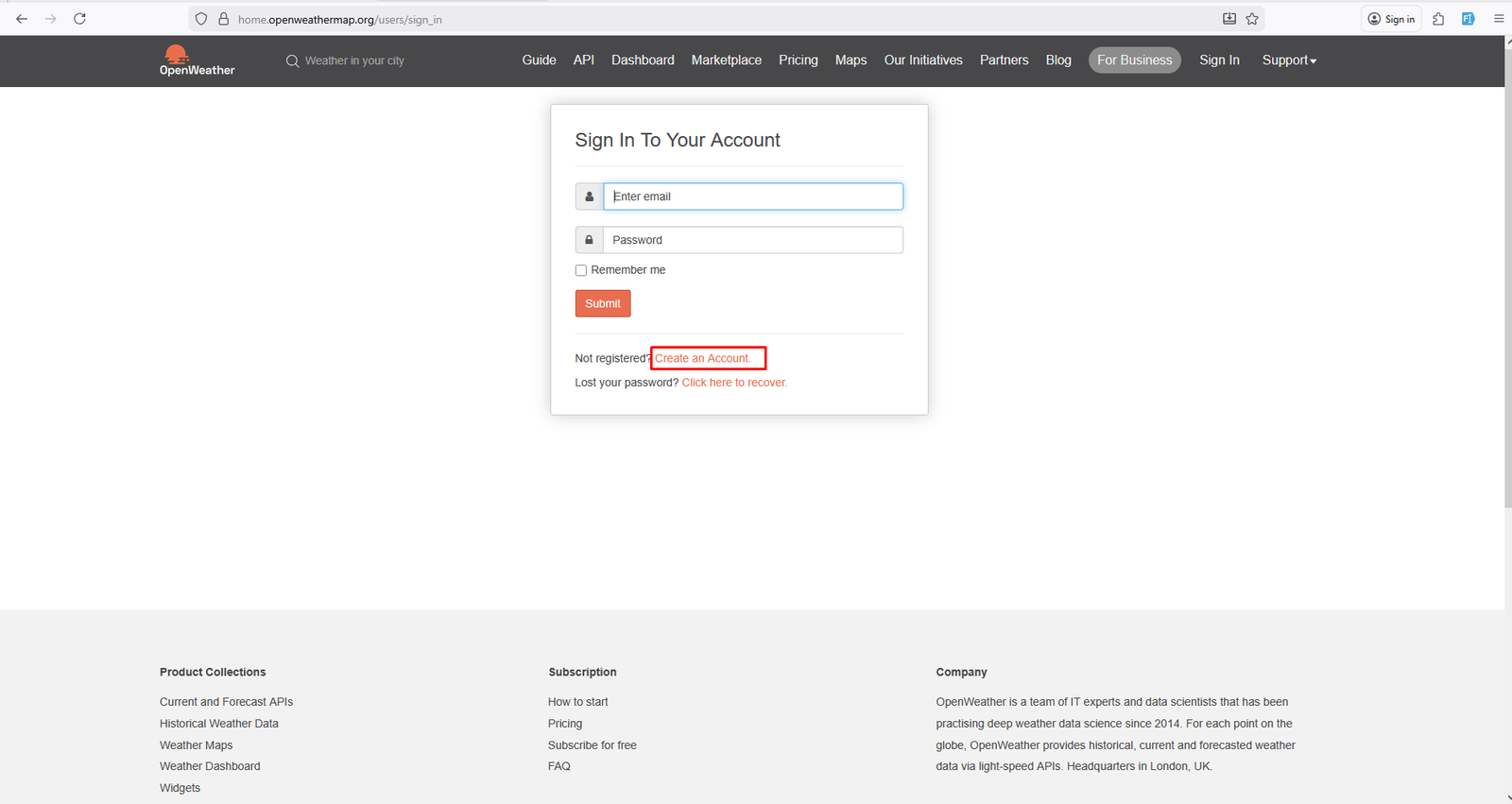
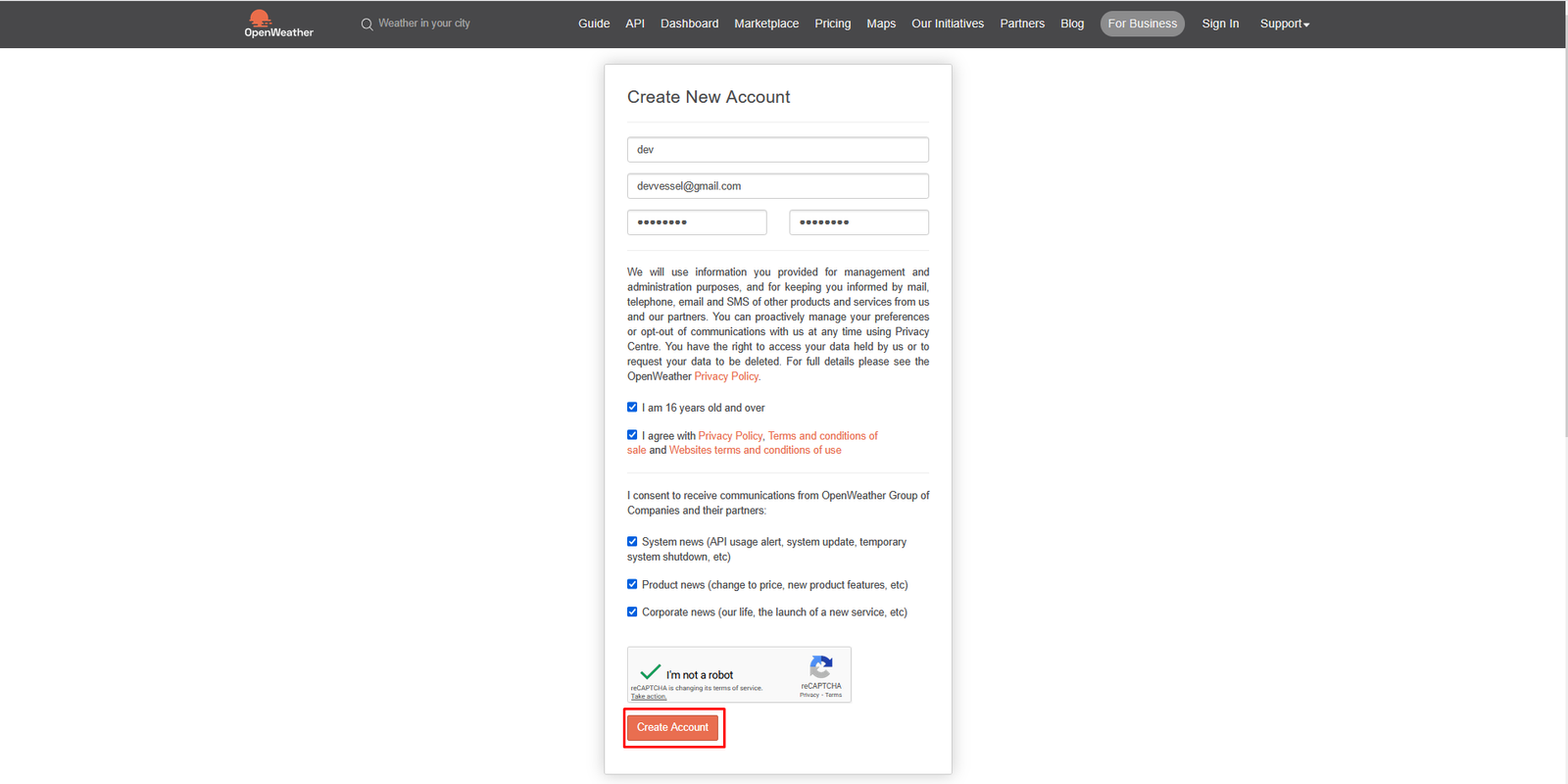
Step 3: Create a new OpenWeather account
On the Create New Account page:
- Enter your Username.
- Enter your Email address.
- Enter and confirm your Password.
- Accept the Privacy Policy and Terms & Conditions.
- Complete the reCAPTCHA verification.
Click the Create Account button to continue.
Step 4: Open your Dashboard
After successful login, open your Dashboard from the top navigation menu.
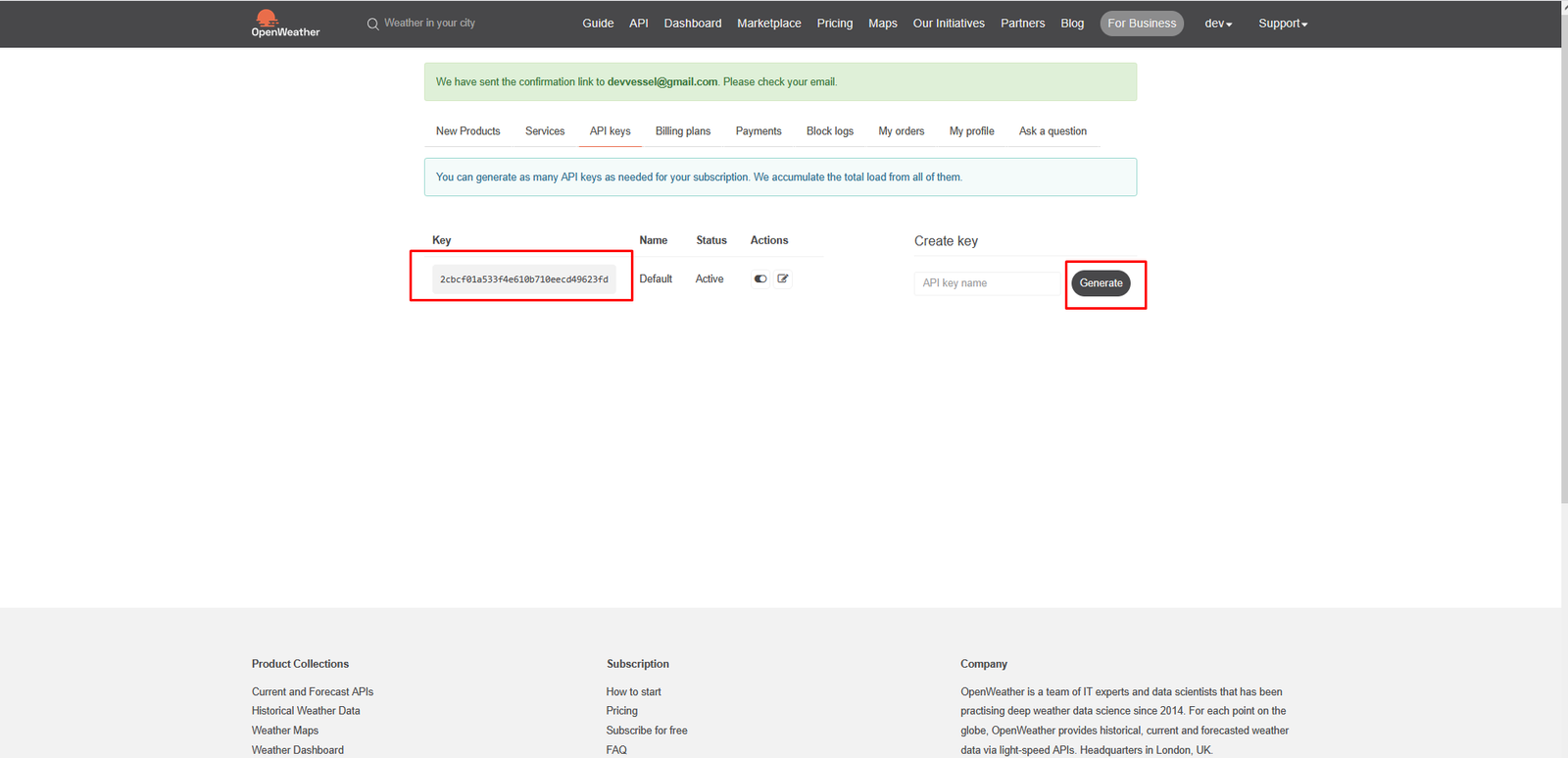
Step 5: Find your API key
Inside the Dashboard, navigate to the API keys section.
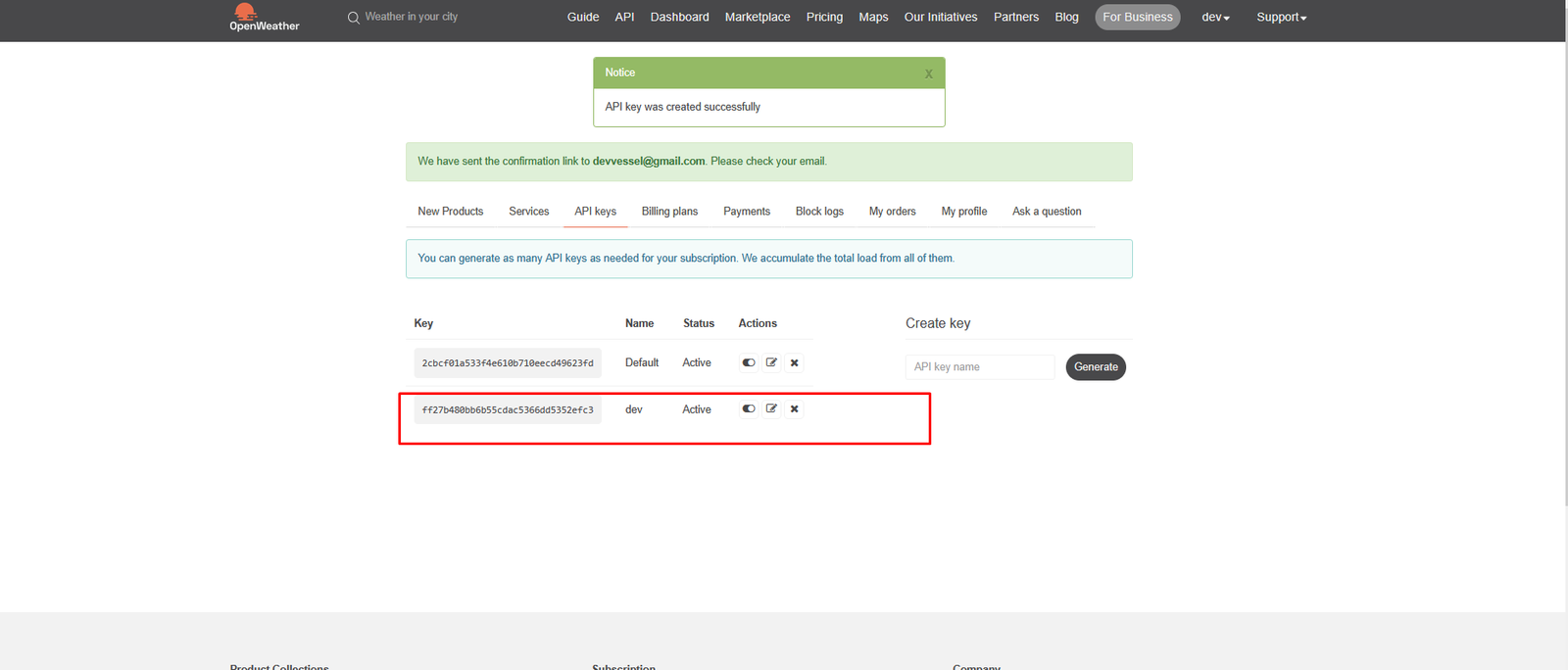
- A default free API key is generated automatically.
- You can create a new key by clicking Generate.
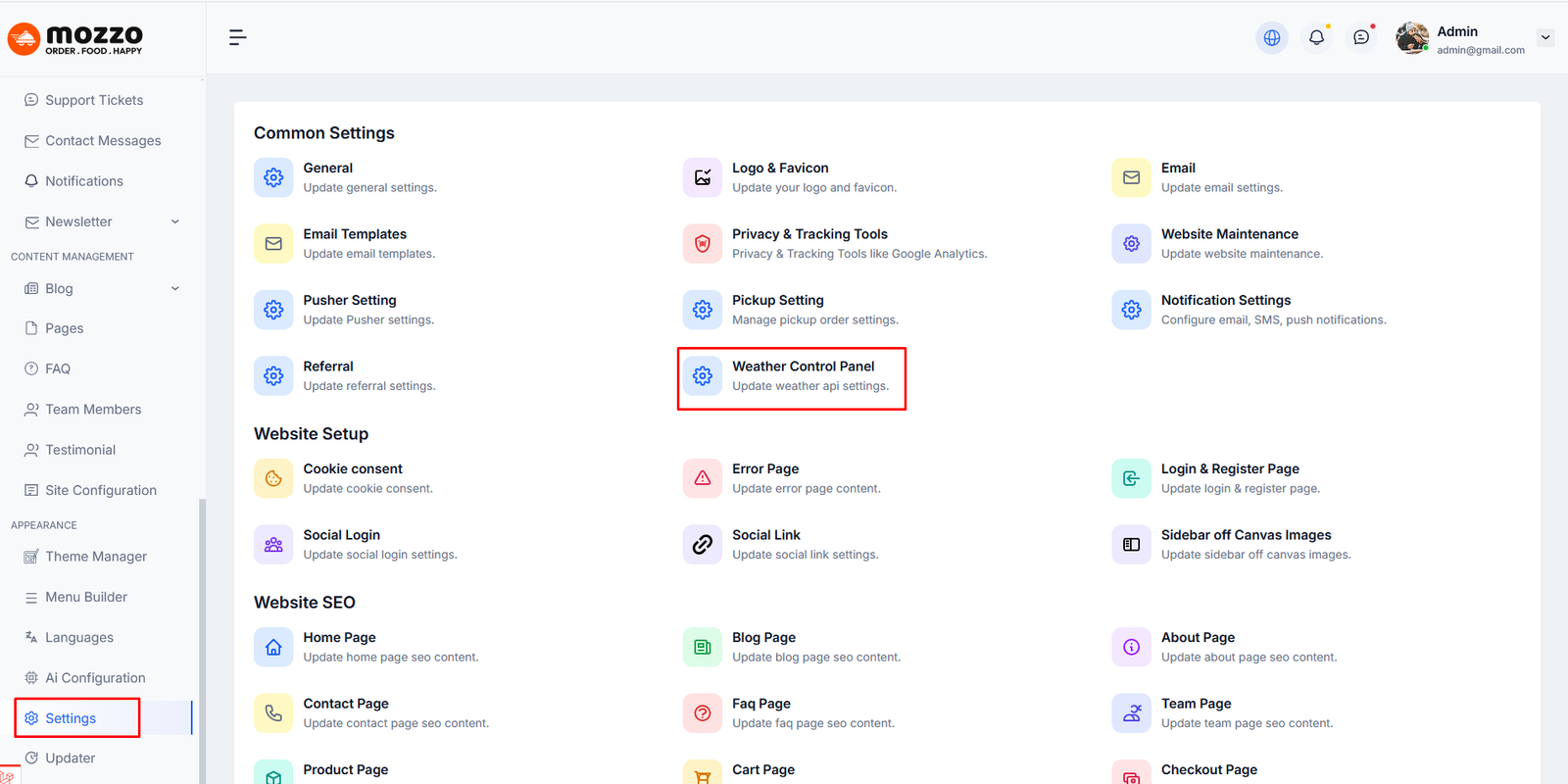
Step 7: Configure Weather Control Panel in Admin
Now open your application Admin Panel and go to the Settings section.
- Click on Settings from the left sidebar.
- Under Common Settings, select Weather Control Panel.
Inside the Weather Control Panel page:
- Enable the Weather Feature.
- Paste your OpenWeather API Key into the API Key field.
- Click Test Connection to verify the API.
- Enable OpenWeatherMap Provider.
- Finally, click Save Settings.
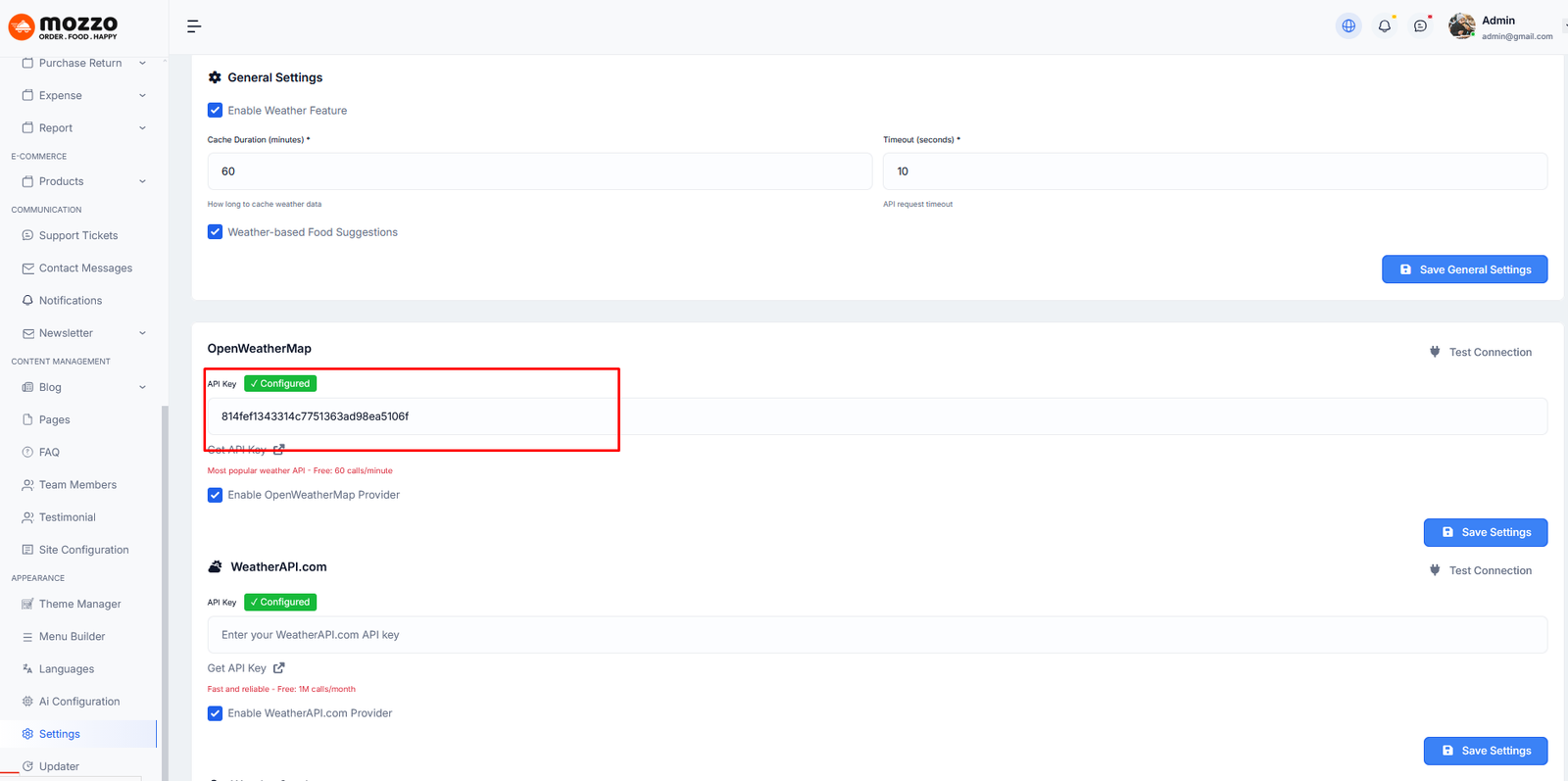
Your weather system is now fully configured and ready to use.
Step 8: Configure WeatherAPI.com (Optional)
If you want to use WeatherAPI.com as an alternative provider:
- Visit https://www.weatherapi.com/ and create an account.
- Copy your WeatherAPI.com API Key from the dashboard.
- Go to Settings → Weather Control Panel in your admin panel.
- Paste the key into the WeatherAPI.com API Key field.
- Enable WeatherAPI.com Provider.
- Click Test Connection and then Save Settings.
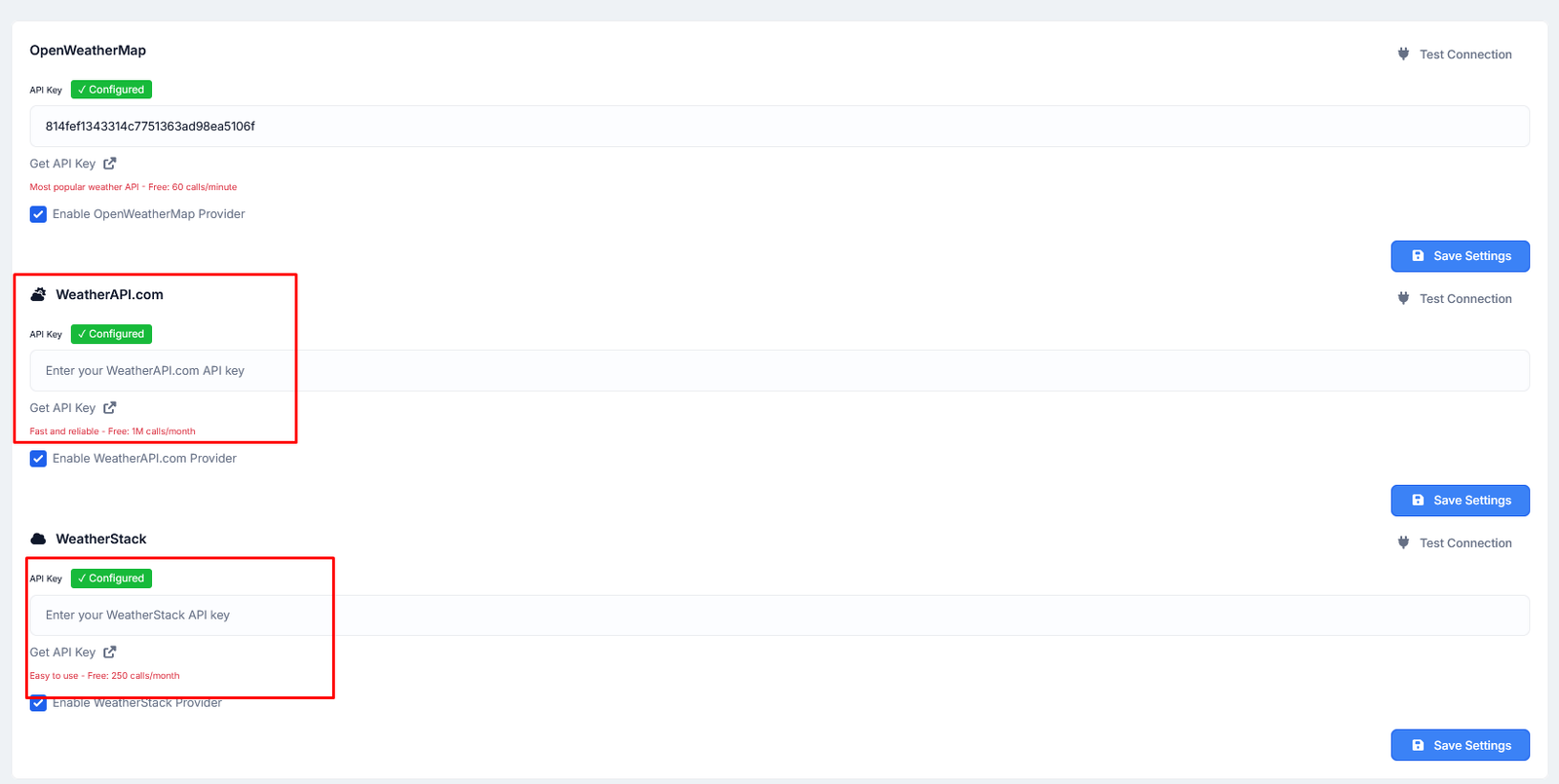
Step 9: Configure WeatherStack (Optional)
You can also use WeatherStack as your weather data provider:
- Visit https://weatherstack.com/ and sign up.
- Copy your WeatherStack API Key from the dashboard.
- Open Settings → Weather Control Panel.
- Paste the key into the WeatherStack API Key field.
- Enable WeatherStack Provider.
- Click Test Connection and then Save Settings.
⚠️ Important Note:
Some weather providers offer free plans with limited usage.
If your application requires higher request limits, advanced features,
or uninterrupted service, you may need to purchase a paid package
directly from the provider’s official website.
Please ensure your selected plan is active and sufficient
for your application’s needs.
Weather-Based Food Suggestion
The Weather-Based Food Suggestion feature allows you to display food items dynamically on the frontend based on the current weather conditions.
Step 1: Assign weather suitability to a food item
Go to Dashboard > Foods > Add Food or edit an existing food item.
On the right sidebar, locate the Weather Suitability option and select the appropriate weather condition for the food.
You can choose options such as: Cold Weather, Moderate Weather, Warm Weather, Hot Weather, Extreme Hot Weather, or Rainy Weather.
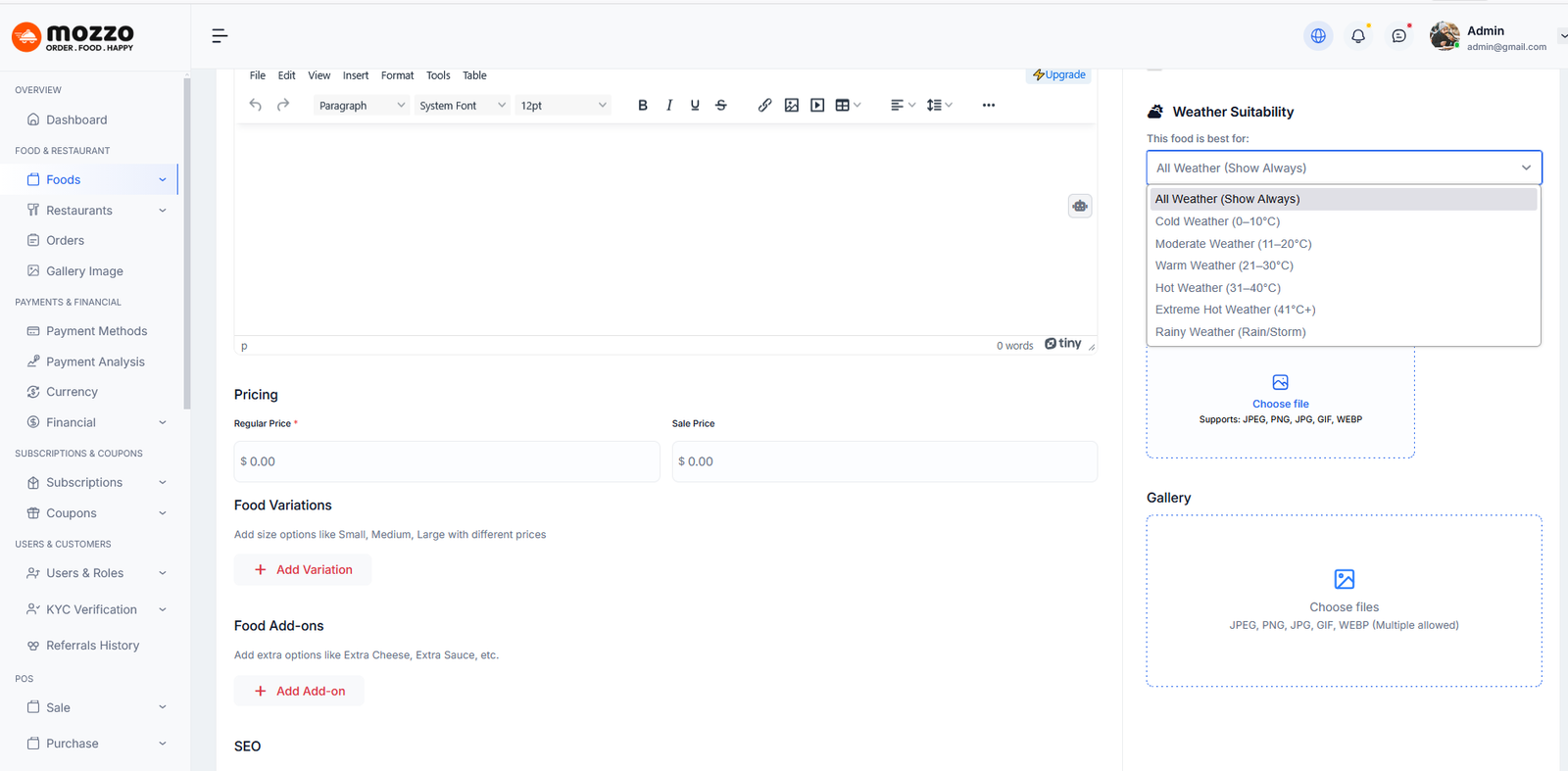
Step 2: Enable weather-based food display
Navigate to Dashboard > Settings > General.
Enable the option Show Weather-Based Foods and click Save Changes.
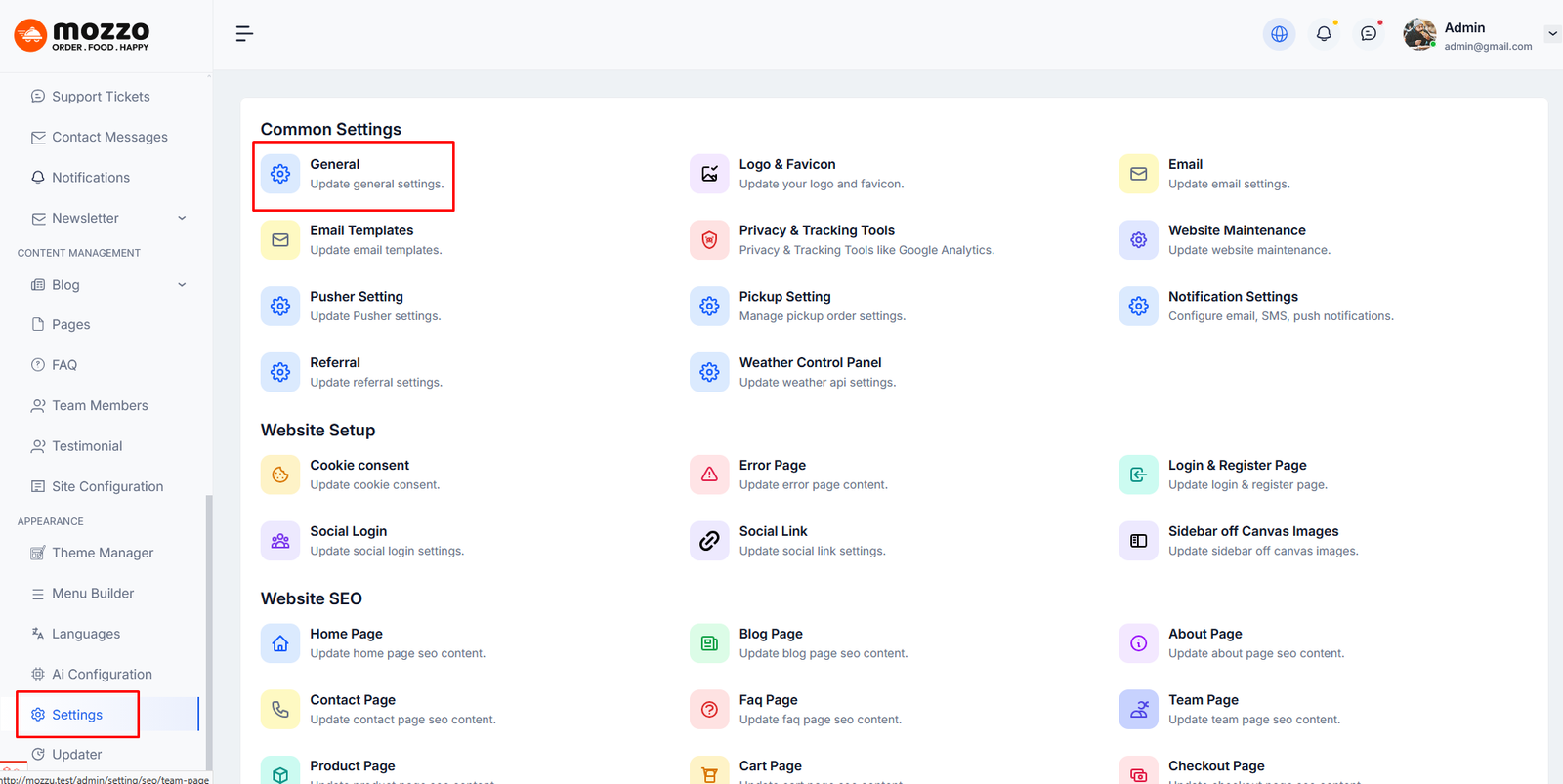
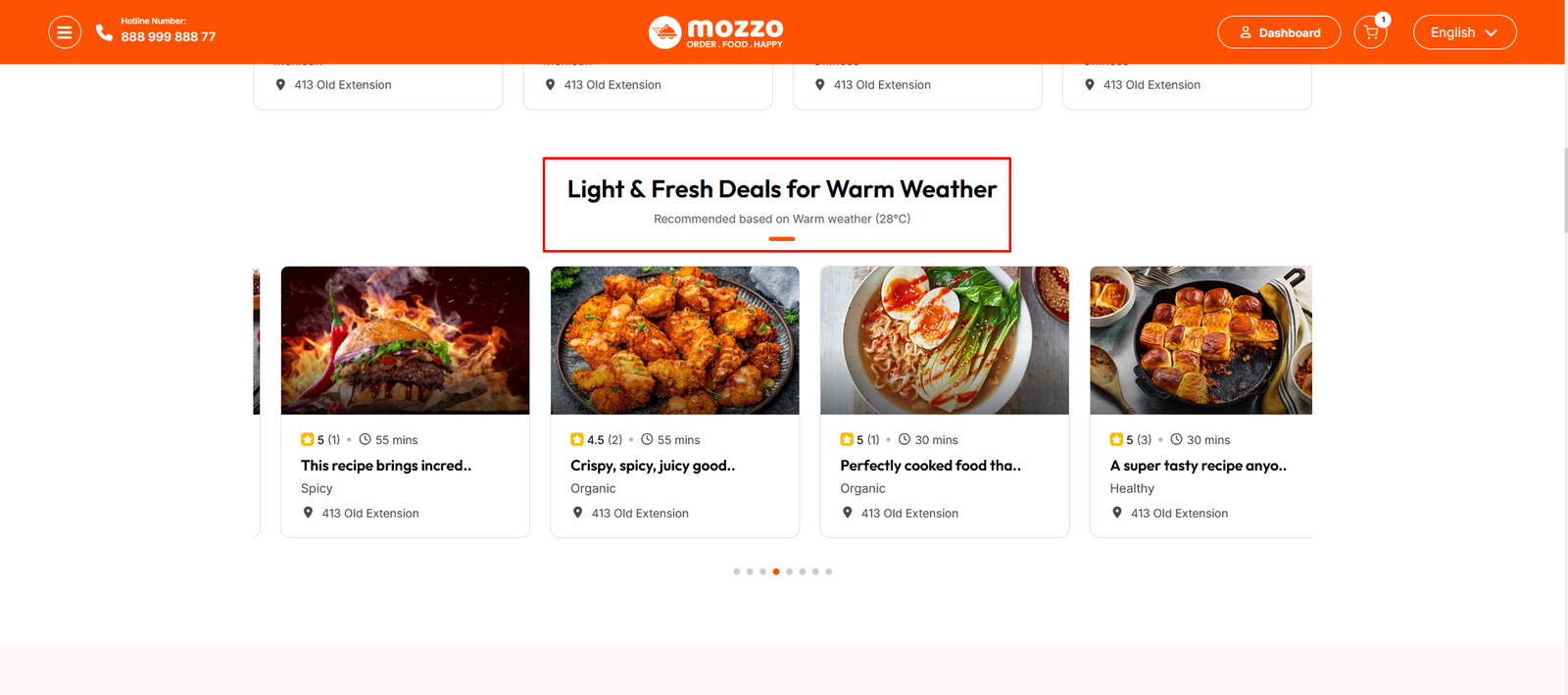
Step 3: View weather-based foods on the frontend
Visit the website frontend. Based on the current weather and temperature, the system will automatically display relevant food items.
A section title such as “Light & Fresh Deals for Warm Weather” will appear along with recommended foods.
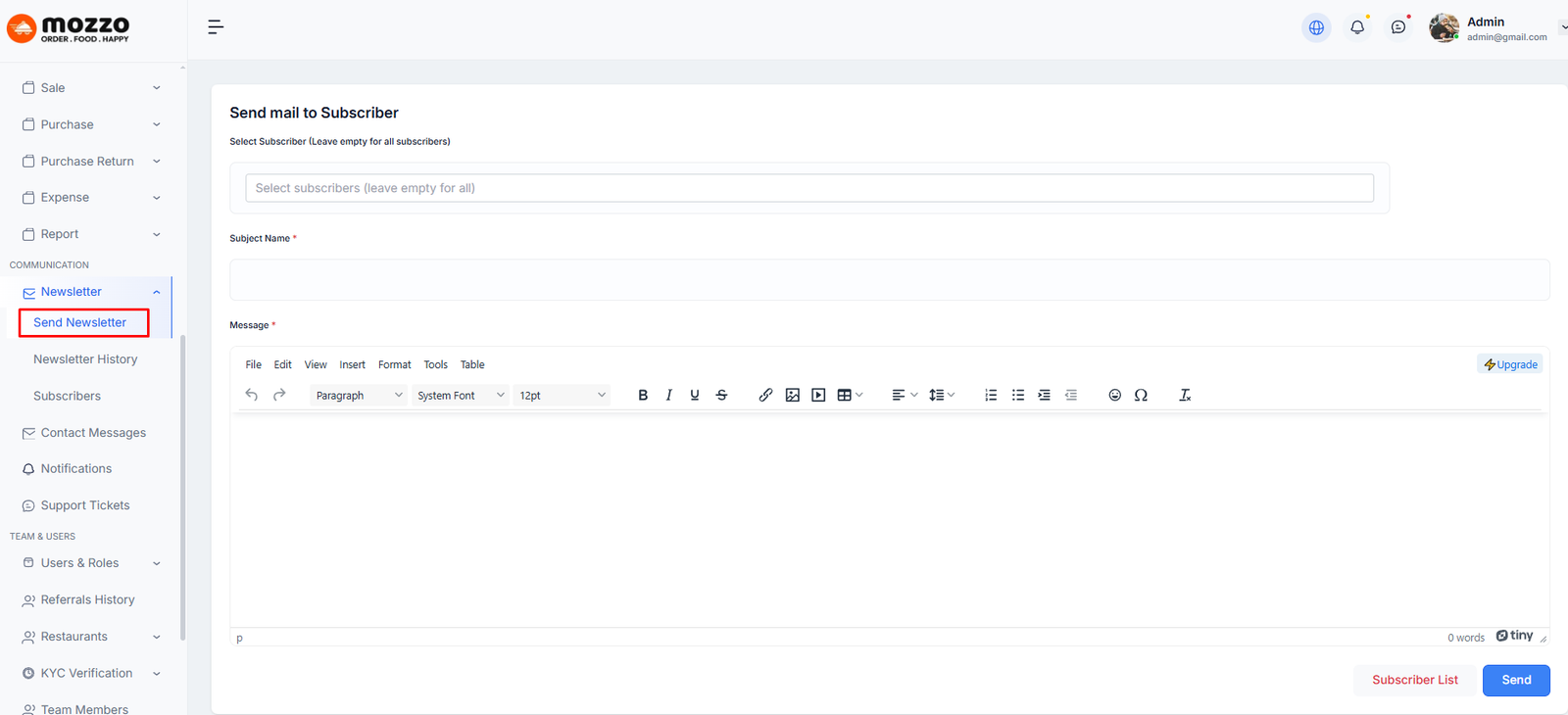
How to Send Newsletter
Step 1: Navigate to Dashboard > Newsletter > Send Newsletter
Step 2: Select Subscriber (leave empty to send to all subscribers).
Step 3: Add a subject name for the newsletter.
Step 4: Write your message in the message editor field with formatting options.
Step 5: Click Send to send the newsletter to subscribers.
Here is the screenshot:
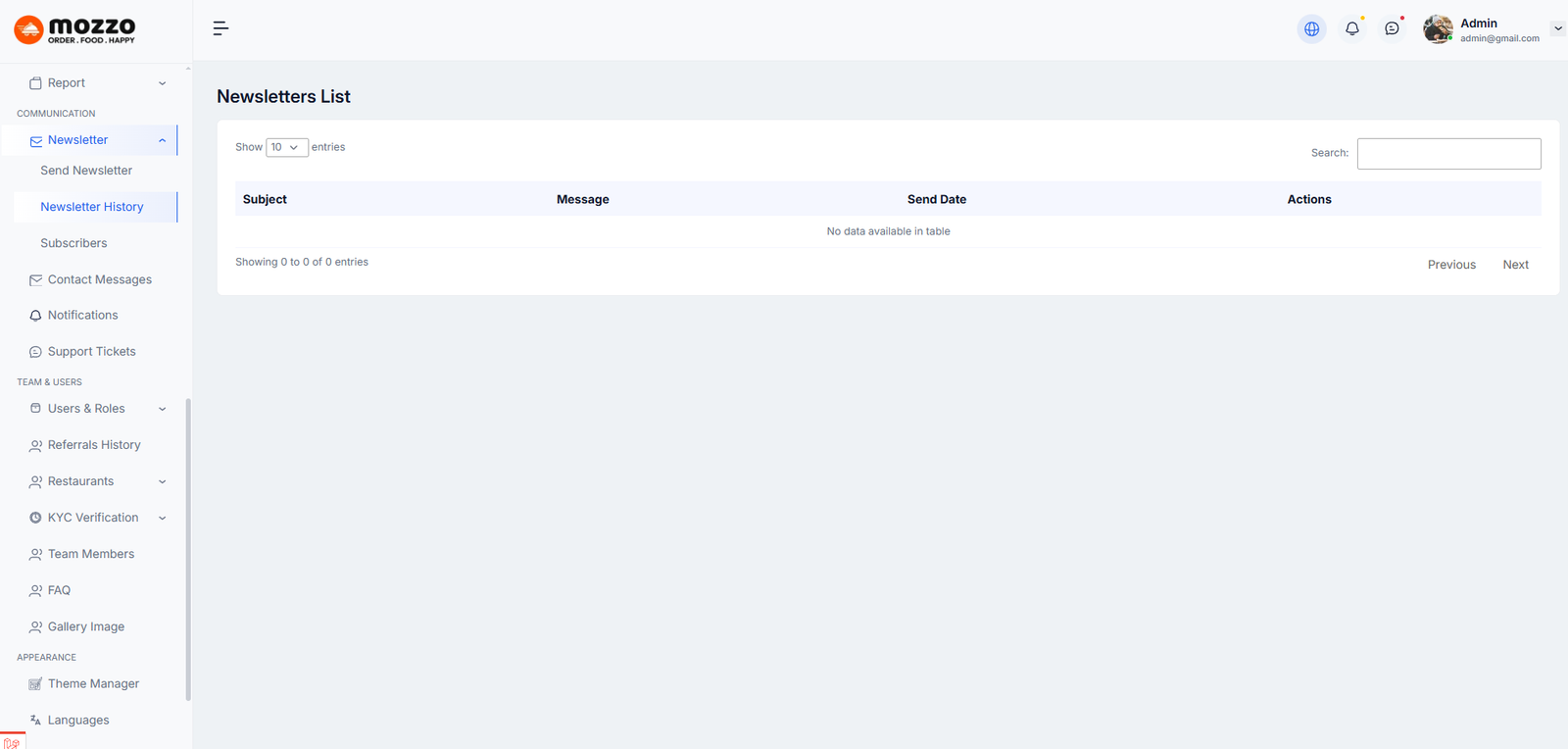
How to View Newsletter History
Step 1: Navigate to Dashboard > Newsletter > Newsletter History
Step 2: You will see a list of all sent newsletters with Subject, Message, and Send Date.
Step 3: You can search or filter the newsletters as needed.
Here is the screenshot:
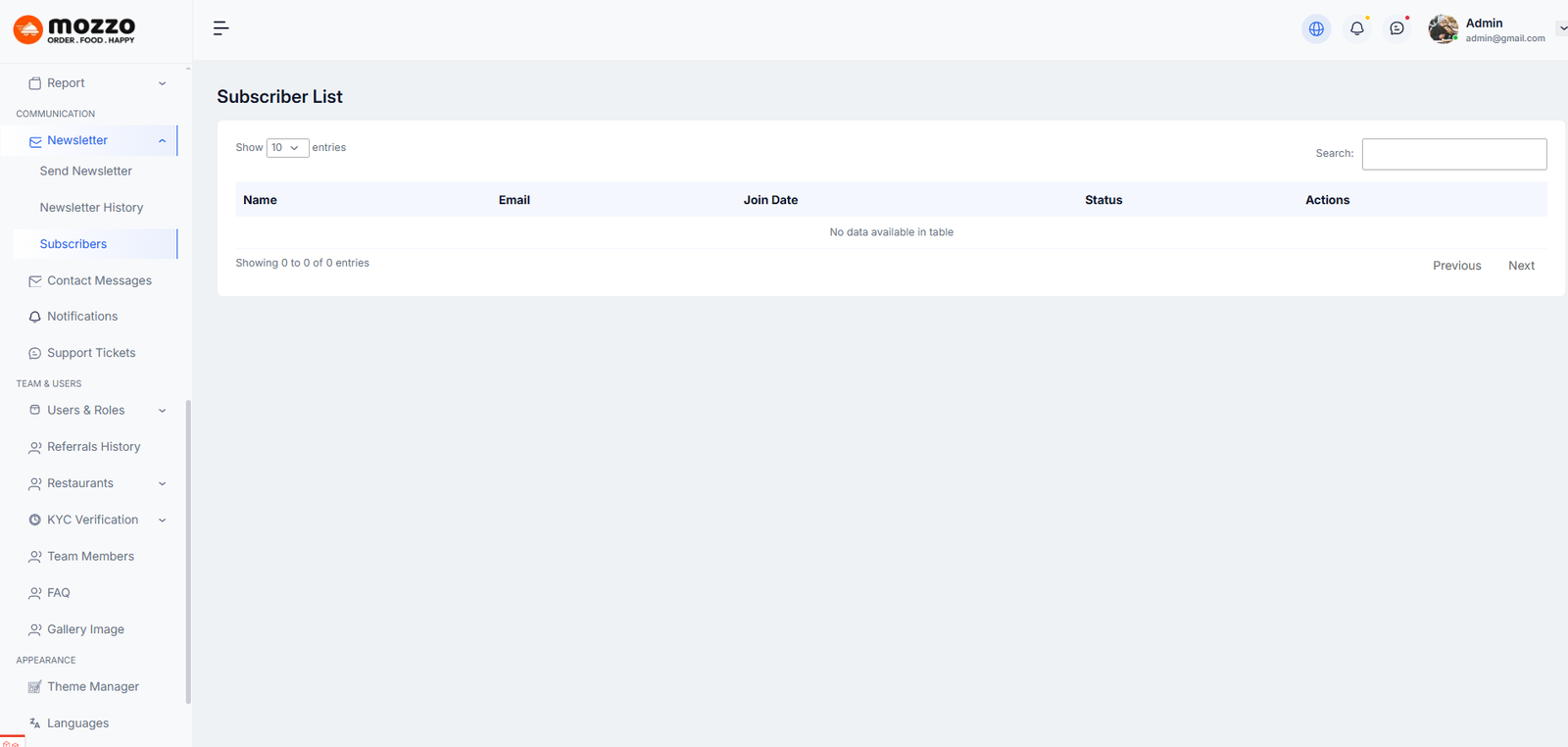
How to Manage Subscribers
Step 1: Navigate to Dashboard > Newsletter > Subscribers
Step 2: You will see a list of all subscribers with Name, Email, Join Date, and Status.
Step 3: You can search or manage subscribers as needed.
Here is the screenshot:
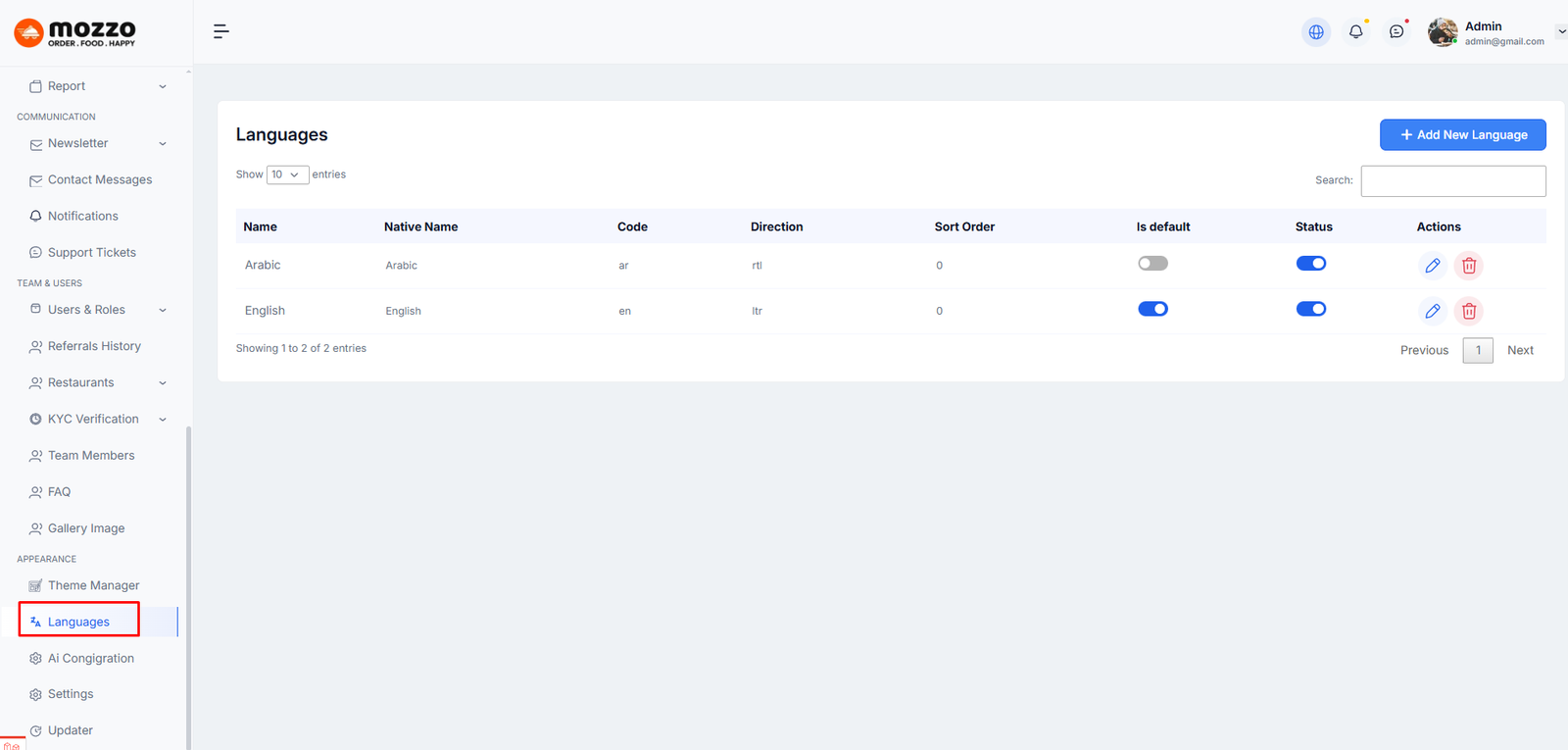
How to Manage Languages
Step 1: Navigate to Dashboard > Appearance > Languages
Step 2: You will see a list of all available languages with Name, Native Name, Code, Direction, Sort Order, Is default, and Status.
Step 3: You can edit or delete any language from the Actions column.
Here is the screenshot:
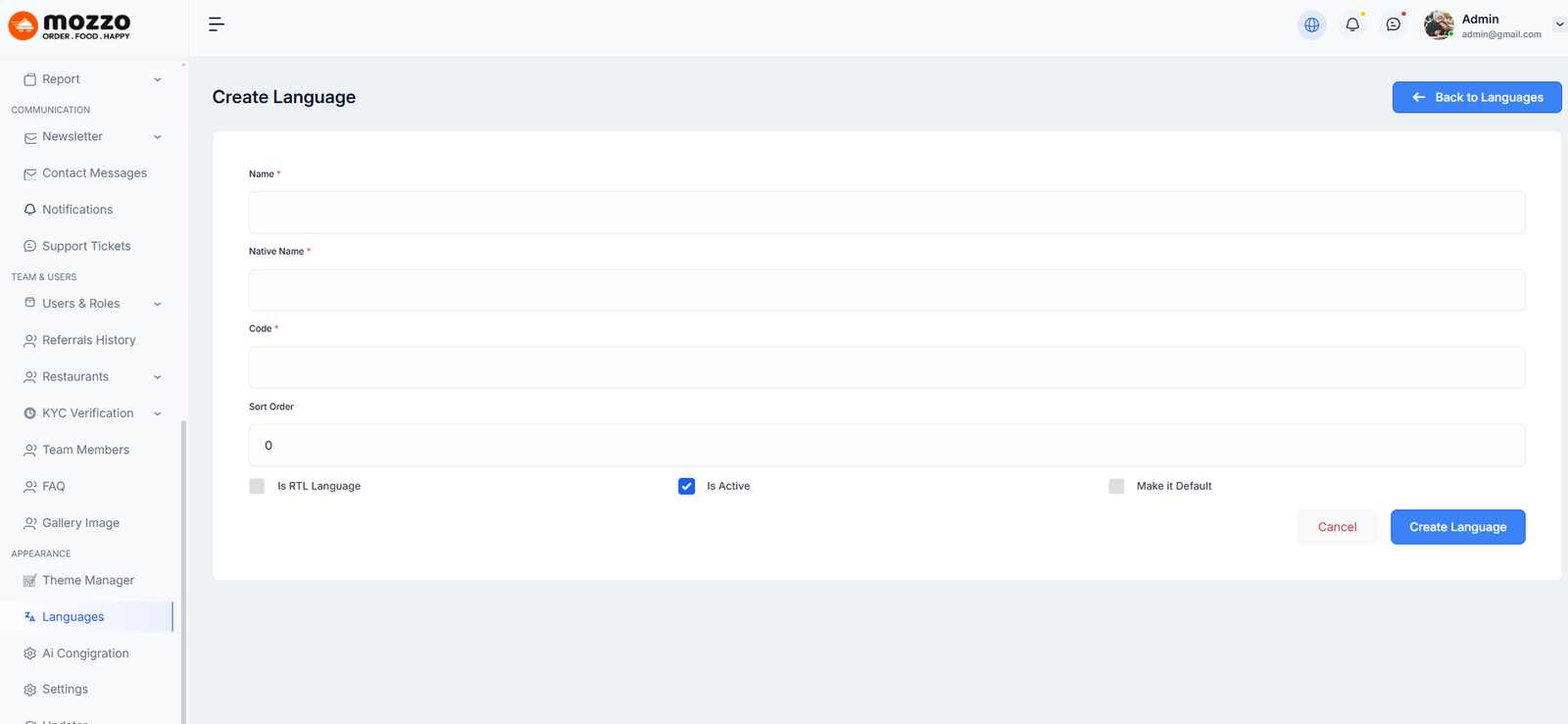
How to Create a New Language
Step 1: Navigate to Dashboard > Appearance > Languages > Add New Language
Step 2: Fill in the following details:
- Name (e.g., English)
- Native Name (e.g., English)
- Code (e.g., en)
- Sort Order
Step 3: Check the following options as needed:
- Is RTL Language (for right-to-left languages like Arabic)
- Is Active (to activate the language)
- Make it Default (to set as default language)
Step 4: Click Create Language to save.
Here is the screenshot:
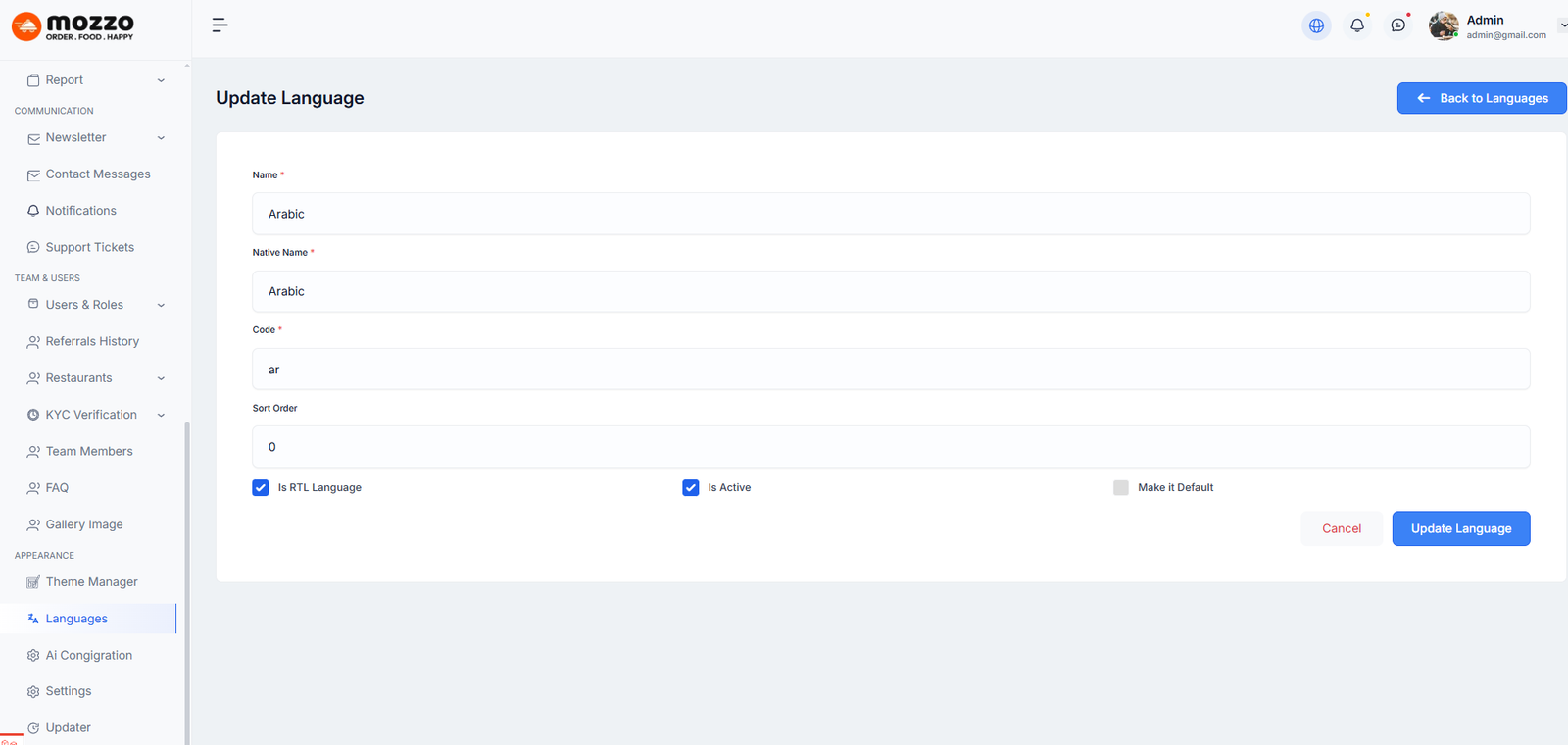
How to Edit a Language
Step 1: Navigate to Dashboard > Appearance > Languages
Step 2: Click the edit icon next to the language you want to modify.
Step 3: Update any of the language details:
- Name
- Native Name
- Code
- Sort Order
- RTL Language status
- Active status
- Default language setting
Step 4: Click Update Language to save changes.
Here is the screenshot:
How to Setup Referral Bonus Rules
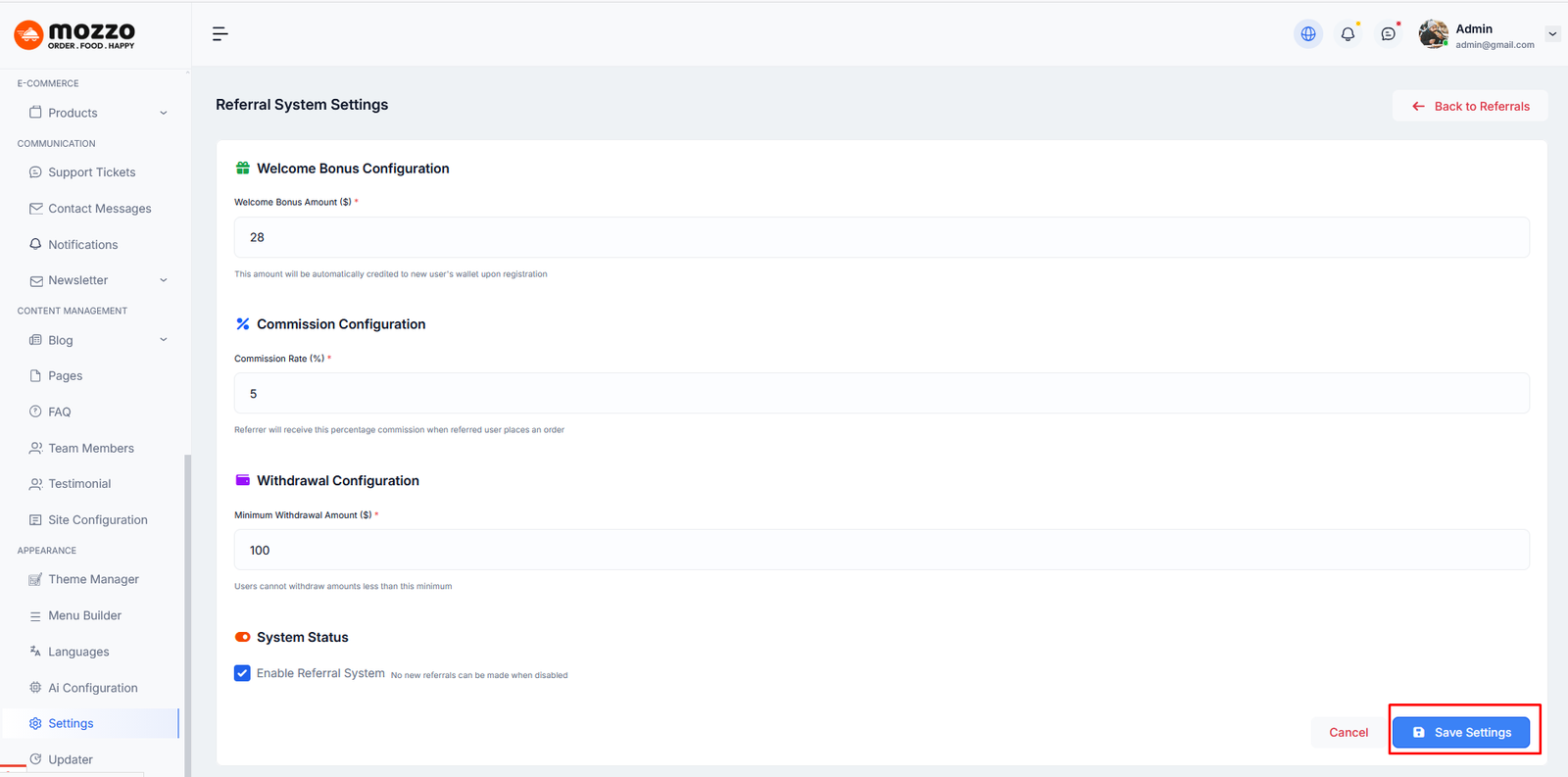
The referral bonus rules allow the admin to control welcome bonuses, commission rates, withdrawal limits, and enable or disable the referral system.
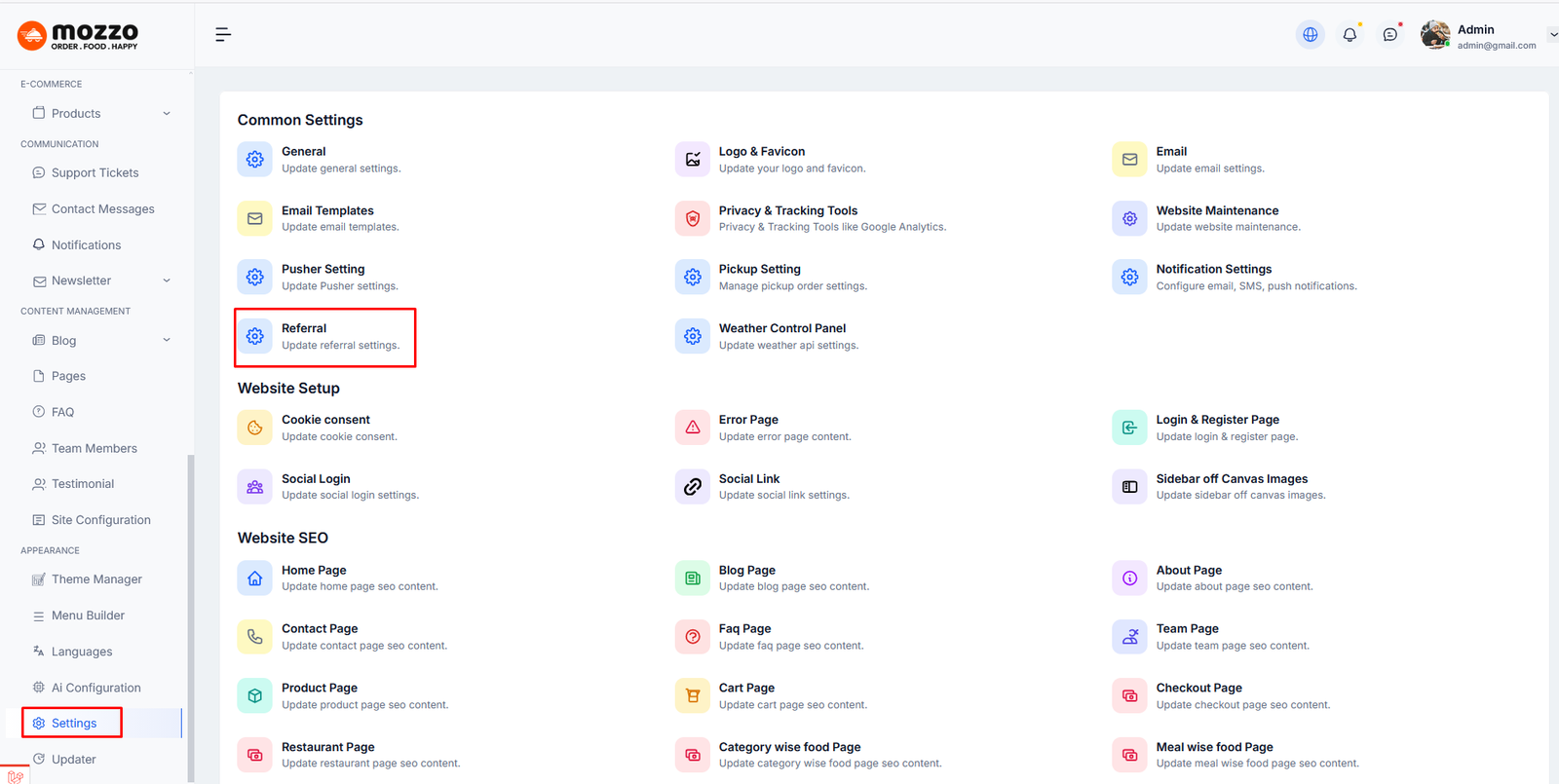
Step 1: Open Referral Settings
From the Admin Dashboard, go to Settings.
Under Common Settings, click on Referral.
Step 2: Configure Referral Rules
- Set the Welcome Bonus for new users who register using a referral link.
- Define the Commission Rate (%) earned by the referrer on each order.
- Set the Minimum Withdrawal Amount for referral earnings.
The welcome bonus is automatically added to the user’s wallet.
How Open Referral
Enable Referral Feature
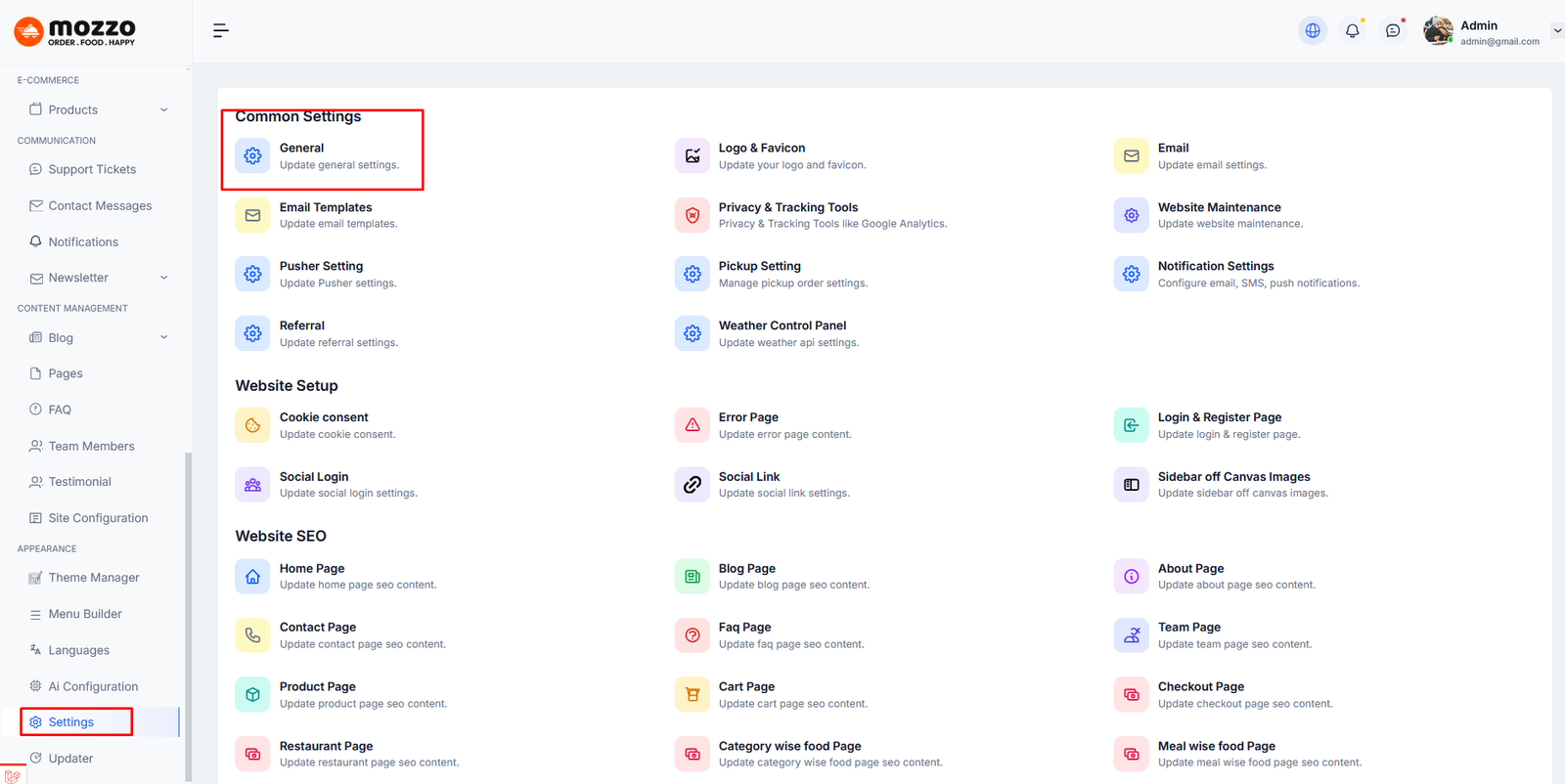
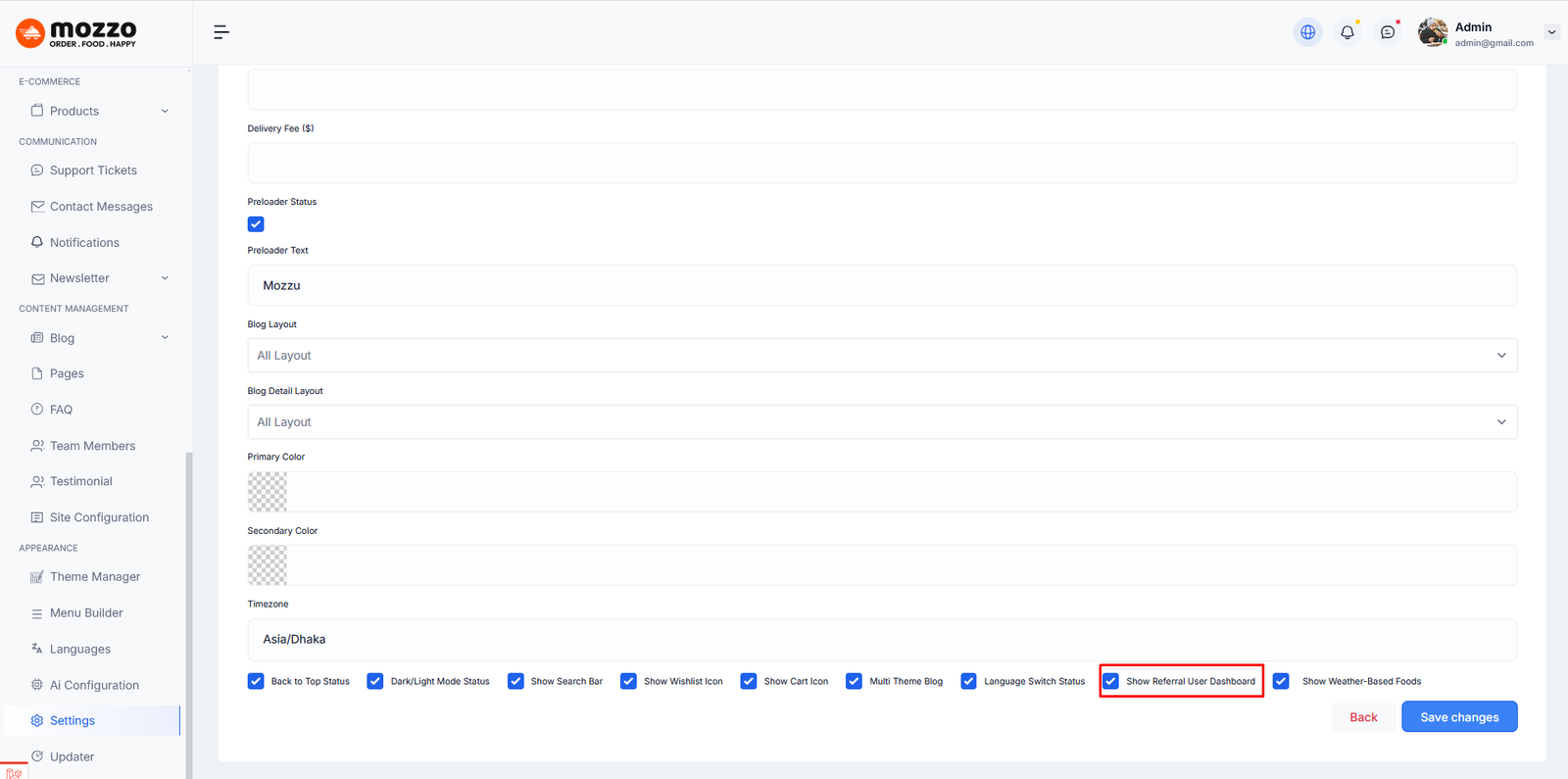
To enable the referral system in your site:
- Go to Settings > General
- Find Show Referral User Dashboard checkbox
- Enable it and click Save changes
Step 1: Go to user Dashboard > Referrals
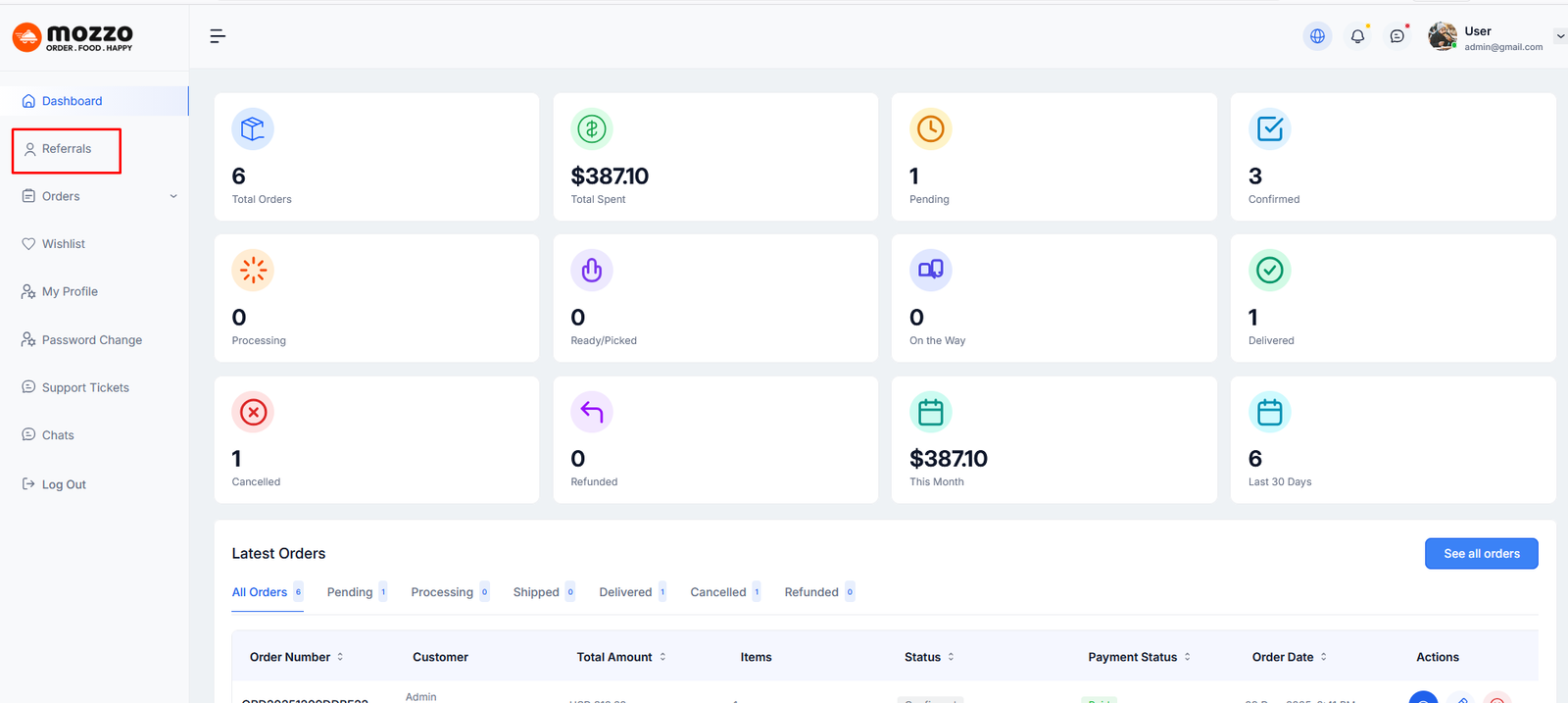
Step 2: Click on the Referrals menu item from the sidebar.
Step 3: A popup will appear asking "Do you want to access the referral dashboard?"
Step 4: Click Yes to proceed to your referral dashboard.
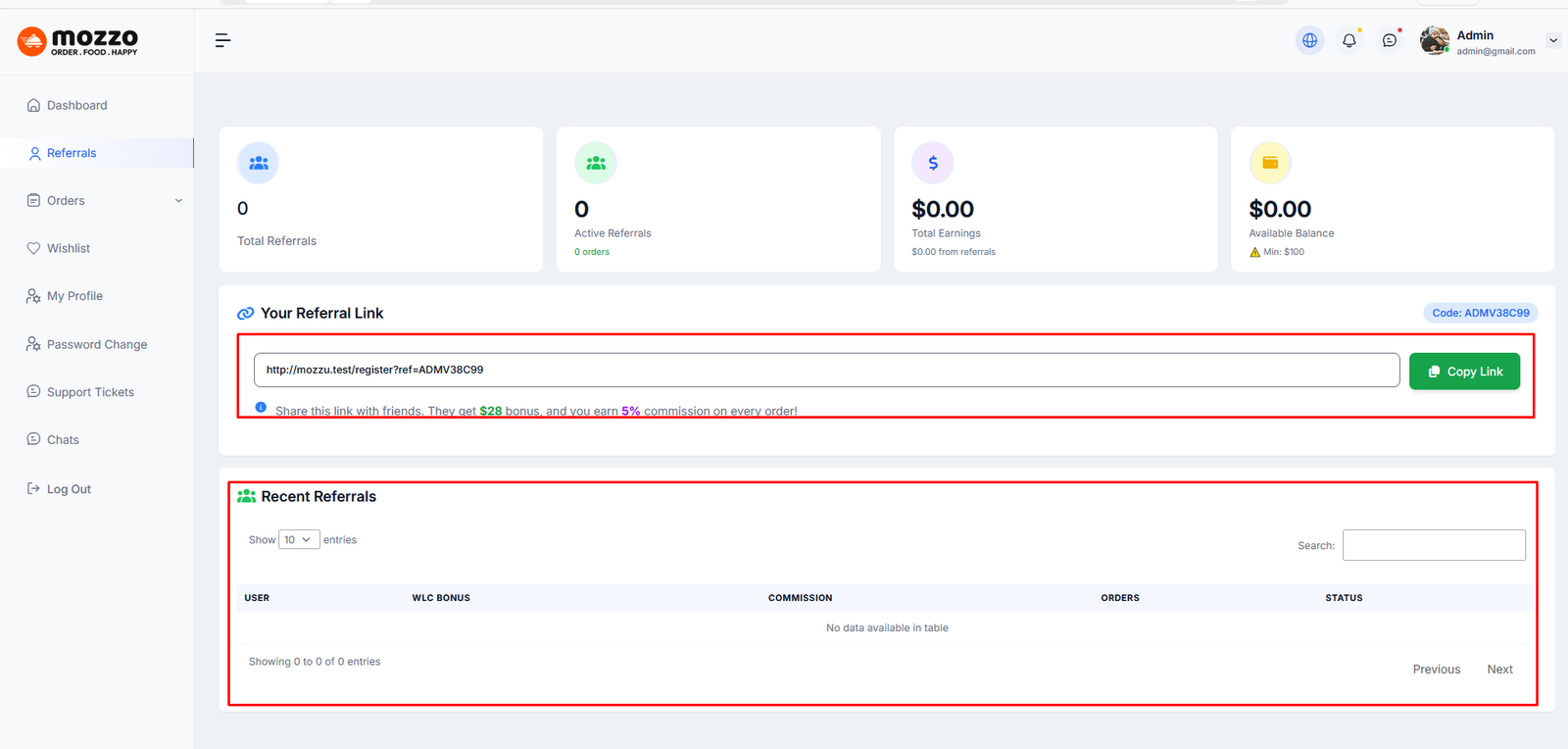
Step 5: Copy your referral link using the Copy Link button.
Step 6: Share the link with friends. They get $28 bonus, and you earn 5% commission on every order!
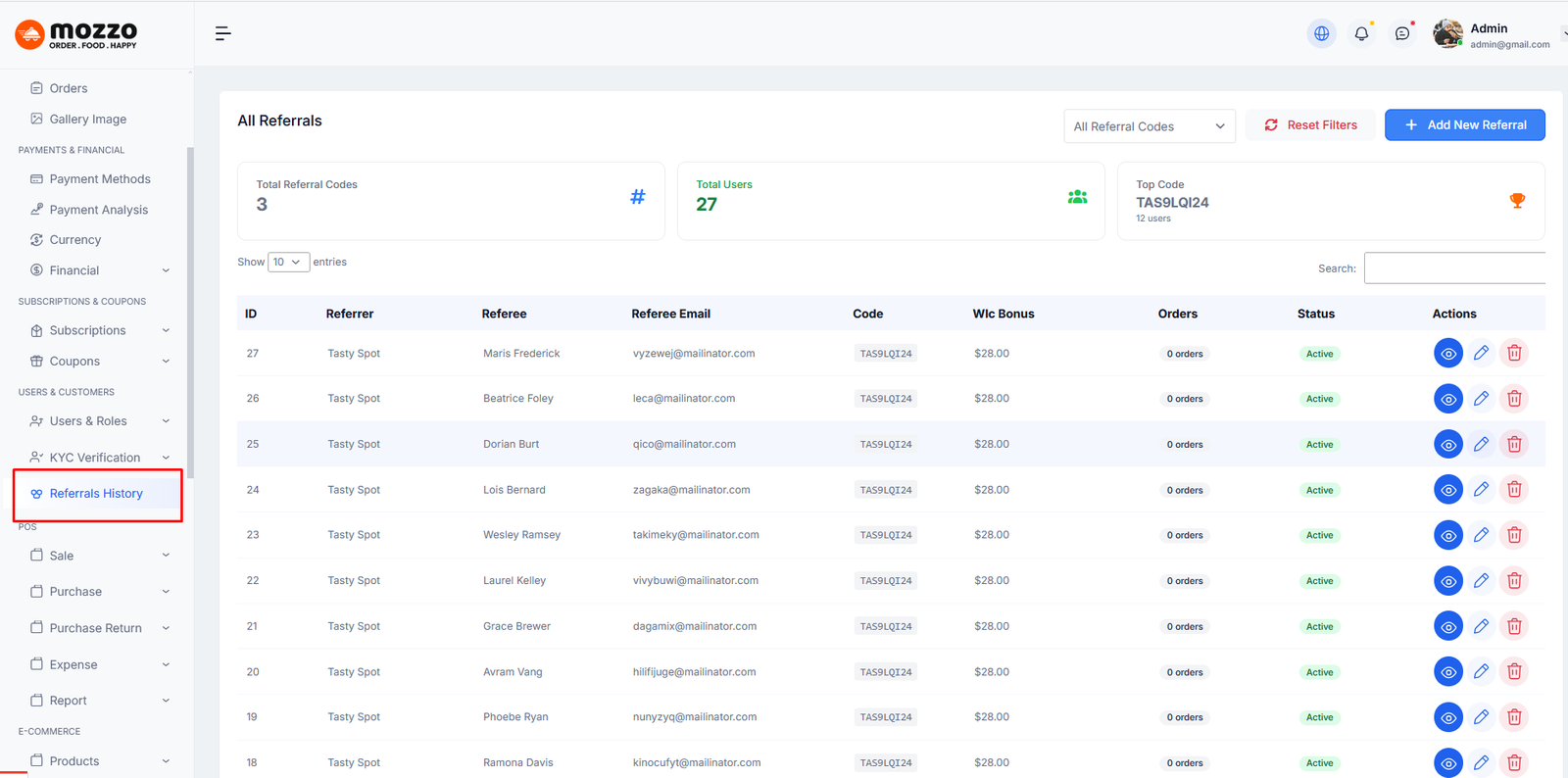
Step 7: To view all referral activities from the admin panel, navigate to Admin Dashboard > Users & Customers > Referrals History.
Here, the admin can see a complete list of referral records, including the Referrer, Referee, Referral Code, Welcome Bonus, Total Orders, and Status.
This section allows the admin to monitor referral performance, track bonuses, and manage referral activity efficiently.
How Referral Works
The referral system allows users to earn commission by sharing their unique referral link with friends.
Step 1: Log in to your account and go to User Dashboard.
Step 2: From the sidebar menu, click on Referrals.
Step 3: In the referral dashboard, you will see your unique referral link.
Step 4: Click the Copy Link button to copy your referral URL.
Step 5: Share the referral link with friends via social media, email, or messaging apps.
Step 6: When a friend signs up using your referral link and places an order:
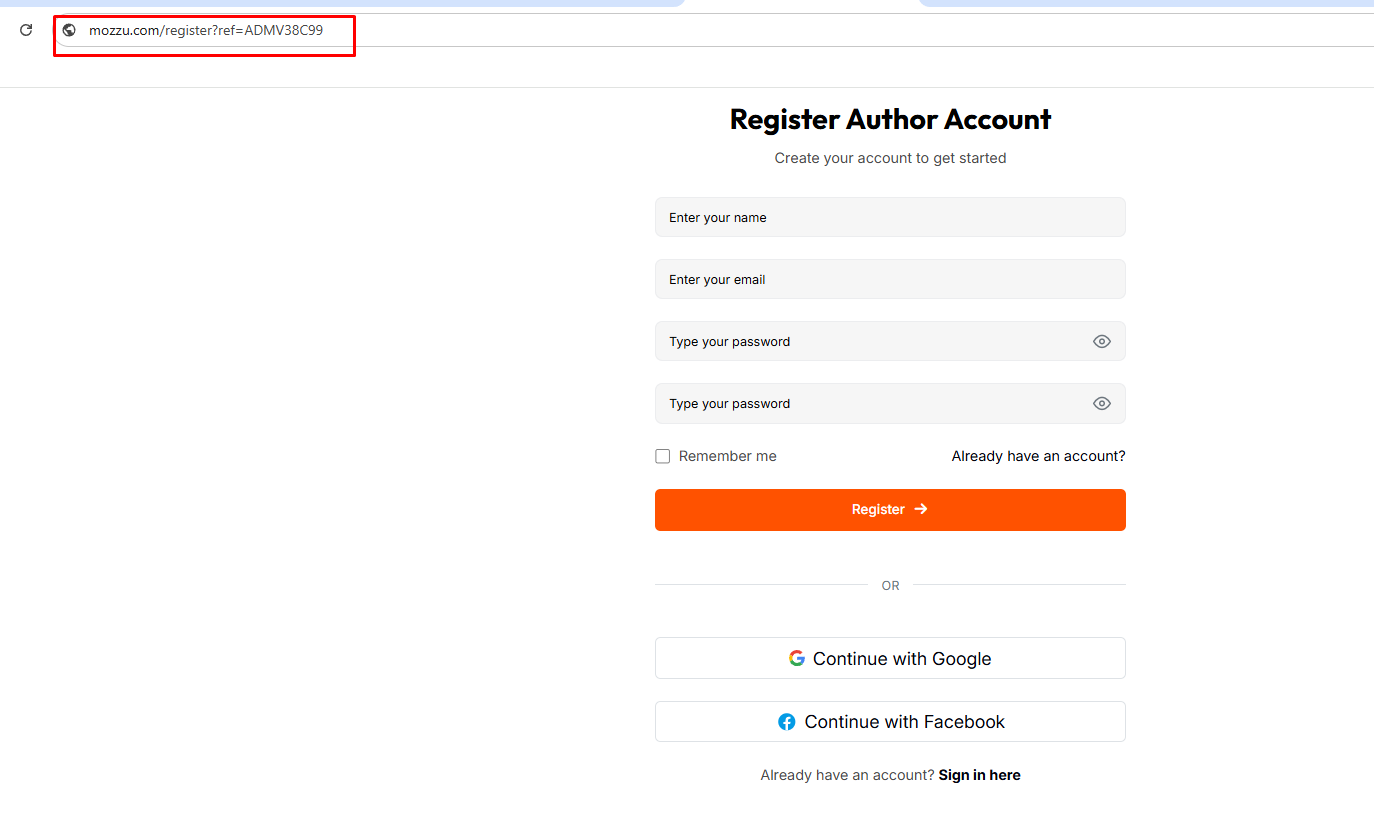
All referral earnings and statistics can be tracked directly from your Referral Dashboard.
Our Support
If you need any help from us, you can contact via our support email:
support@themedox.com
Our support will reply within 24-48 hours.
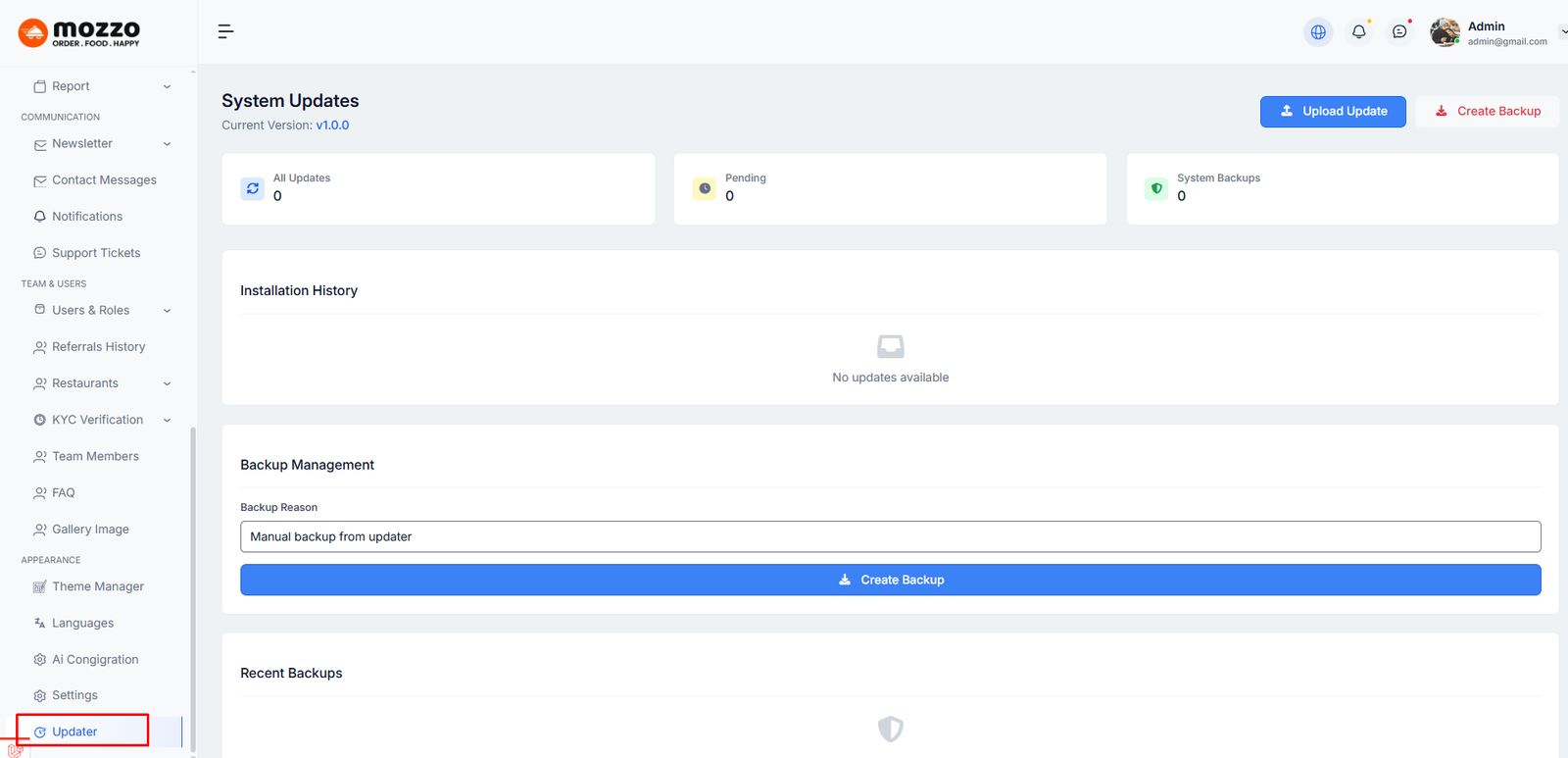
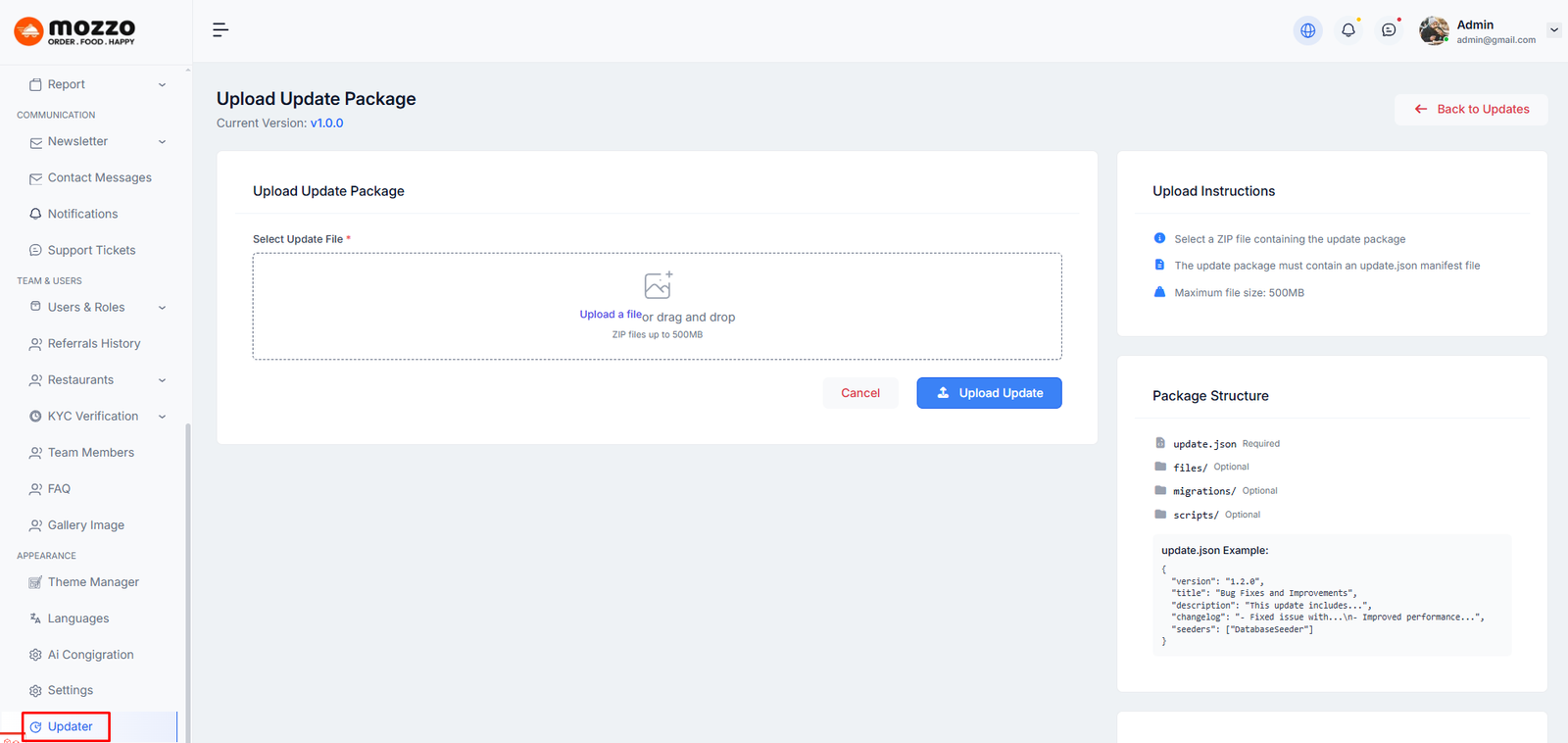
How to update the script version ?
After download the script from codecanyon you can get a zip file. After unzip the file you can total 3 folders. In the 'main_files' folder you can see 2 folder. In the 'main_files' folder there are main laravel script exist. Inside the 'all version' folder you can see version list. See:
To update the script version, you can follow the steps below:
Go to Dashboard → Updates → Update Now
Click on Update Now to update the script version.
Note Before Update Kindly make a backup your self both sql or database and also complete files
Thank you for use this theme.
Once again, thank you so much for purchasing this theme. As I said at the beginning, I'd be glad to help you if you have any questions relating to this theme. No guarantees, but I'll do my best to assist. If you have a more general question relating to the themes on Codecanyon, you might consider visiting the forums and asking your question in the "Item Discussion" section.